
Unlocking the Doors: A Guide to Accessing Another iPhone
Explore legitimate methods for remote assistance, location tracking, and managing locked devices, while respecting privacy and consent.
Highlights: Key Ways to Interact with Another iPhone
- Remote Assistance Perfected: iOS 18 introduced FaceTime Remote Control, allowing users to securely view and control another person's iPhone screen with their explicit permission, ideal for tech support.
- Finding and Managing Devices: Apple's Find My app is crucial for locating, locking, or erasing iPhones linked to your Apple ID or shared through Family Sharing, but doesn't grant access to personal data.
- Locked Out? Reset is Key: Accessing a passcode-locked iPhone typically requires resetting the device, which erases all data. This can be done via the phone itself or a computer, but doesn't bypass Activation Lock.
- Permission is Paramount: Nearly all methods for accessing another person's iPhone require their explicit consent or involve managing devices under your own Apple account. Unauthorized access raises significant ethical and legal concerns.
Methods Requiring Explicit Permission: Remote Assistance
Modern technology allows for helping others with their iPhone remotely, but these methods are built around user consent and security.
FaceTime Remote Control (iOS 18 and Later)
One of the most significant advancements in remote iPhone interaction arrived with iOS 18. This feature allows one iPhone user to securely access and control another's device during a FaceTime call, specifically designed for providing technical support or guidance.
Privacy and consent are central to features like FaceTime Remote Control.
How it Works
During a one-on-one FaceTime video call, the person needing assistance can choose to share their screen. The helper can then view the screen. Furthermore, the person sharing can grant permission for the helper to take remote control. This allows the helper to navigate the operating system, open apps, adjust settings, and perform actions directly on the other person's iPhone, as if they were holding it.
- Initiate a FaceTime video call.
- The user needing help taps the screen sharing icon.
- They can optionally grant remote control access when prompted.
- The helper sees the shared screen and can interact if control is granted.
- Either user can end the screen sharing or remote control session at any time.
Requirements & Limitations
- Both iPhones must be running iOS 18 or a later version.
- A stable internet connection is required for the FaceTime call.
- Explicit permission must be granted by the owner of the iPhone being controlled. Access cannot be initiated secretly.
- Control is limited to the duration of the FaceTime session and the granted permissions.
Visual Guide: FaceTime Remote Control
The following video demonstrates how the FaceTime Remote Control feature works in iOS 18, showing the process of initiating screen sharing and granting control for remote assistance:
Third-Party Remote Access Tools
Beyond Apple's native features, several third-party applications facilitate remote access to iPhones, often from computers or other devices. These tools also operate on the principle of consent.
Examples of Tools
- Splashtop: Allows remote access to an iPhone from a computer (Windows/Mac) or another mobile device. Requires the Splashtop app installed on both devices and setup by the iPhone owner.
- TeamViewer QuickSupport: A popular choice for remote support, the iPhone user installs the QuickSupport app and shares a unique ID with the helper using the main TeamViewer application. Screen sharing is common, remote control capabilities might be limited by iOS.
- AnyViewer: Another option requiring app installation on both devices and often login with the same account, primarily enabling screen viewing.
General Process & Consent
Typically, these applications require the iPhone owner to install an app, launch it, and provide an access code or explicitly approve the connection request from the remote helper. They are designed for legitimate support scenarios and cannot be used for surreptitious access.
Accessing via Apple Ecosystem Features
Apple provides several ways to interact with or locate another iPhone, primarily centered around devices linked to the same Apple ID or part of a Family Sharing group.
Find My App
The Find My app is Apple's primary tool for locating lost or stolen devices associated with an Apple ID.
Locating Devices
If an iPhone is linked to your Apple ID, or if its owner is sharing their location with you (e.g., through Family Sharing), you can use the Find My app on another Apple device or via iCloud.com to see its current or last known location on a map.
Lost Mode & Remote Erase
Find My allows you to place a missing iPhone into Lost Mode, which locks the screen and displays a custom message with a contact number. You can also remotely erase the device to protect your data, although this makes it untrackable afterwards.
Requirements
- The Find My feature must be enabled on the target iPhone *before* it goes missing.
- The iPhone must be powered on and have an internet connection (cellular or Wi-Fi) to report its live location. iPhones with newer hardware can sometimes be located for a limited time even when off or in power reserve mode.
- You need access to your Apple ID or be part of a Family Sharing group with location sharing enabled.
Note: Find My provides location and management features; it does not grant access to the user's data (photos, messages, etc.) on the device.
iCloud Access
If you have the login credentials (Apple ID and password) for the iCloud account associated with the iPhone, you can potentially access certain data that is synced to iCloud.
Accessing Synced Data
Logging into iCloud.com or setting up the account on another Apple device *may* provide access to synced data like Contacts, Calendars, Photos (if iCloud Photos is enabled), Notes, Reminders, and potentially iMessages (if Messages in iCloud is enabled). This method requires having the account owner's explicit permission and credentials.
Security Implications
Accessing someone's iCloud account is a significant privacy matter. It requires their trust and credentials. Two-factor authentication, commonly enabled on Apple IDs, will likely require access to one of the owner's trusted devices or phone numbers to approve the login, adding another layer of security.
Accessibility Features (Same User/Account)
iOS includes accessibility features that allow controlling one Apple device from another, but these are designed for users controlling their *own* devices linked to the *same* Apple ID and network.
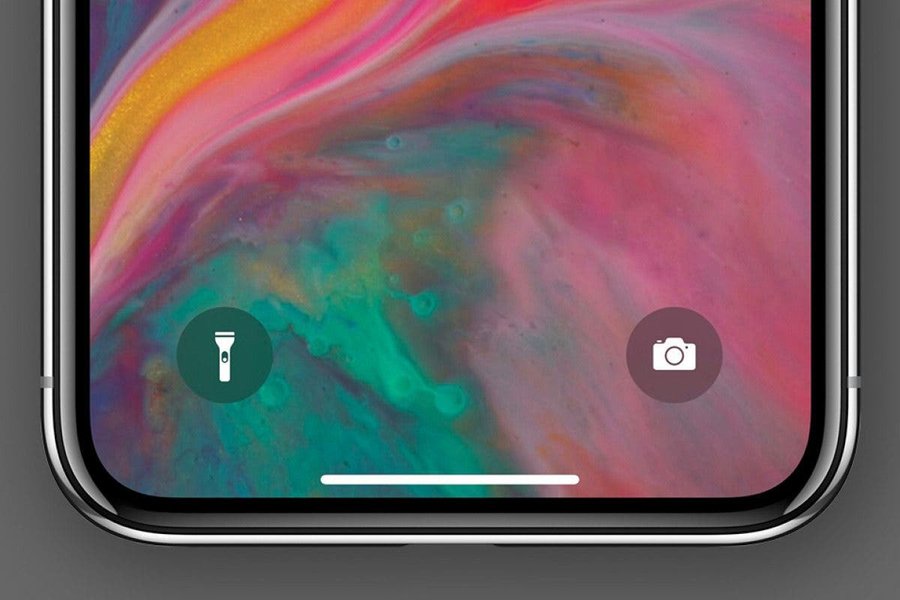
Accessibility features can offer alternative ways to interact with devices under the same account.
Switch Control
Allows controlling an iPhone using another device (like another iPhone, iPad, or Mac) connected to the same Wi-Fi network and signed into the same iCloud account. This is intended for users with motor impairments.
Control Nearby Devices
Similar to Switch Control, this feature lets you control other devices signed into your iCloud account that are nearby, using Wi-Fi and Bluetooth.
Use Cases & Requirements
These features are not for accessing *someone else's* independent iPhone. They are for controlling multiple devices owned and operated by the same user under a single Apple ID. They require setup in Accessibility settings, the same Wi-Fi network, and the same iCloud account logged in on all involved devices.
Dealing with Locked iPhones (Forgotten Passcode)
If you or someone else is locked out of an iPhone due to a forgotten passcode or too many incorrect attempts ("iPhone Unavailable" or "Security Lockout"), regaining access typically involves resetting the device.
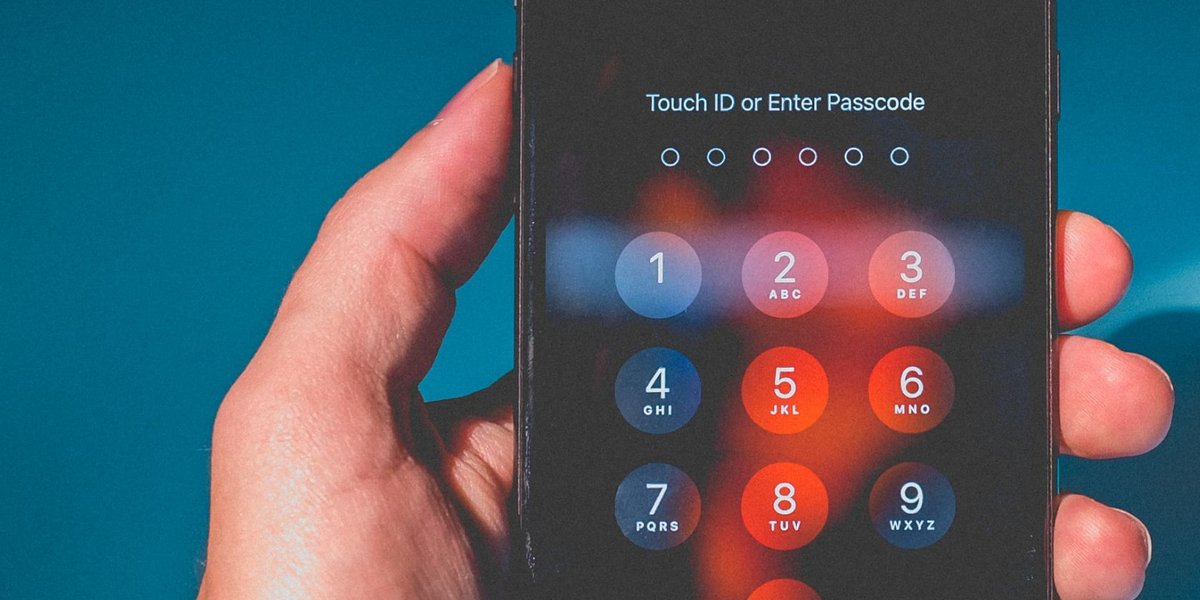
Forgetting your passcode usually necessitates a device reset.
The Reset Requirement
Why Resetting is Necessary
Apple prioritizes security. There is no official method to bypass the passcode on a locked iPhone without erasing its contents. This protects the user's data from unauthorized access if the phone is lost or stolen.
Data Loss Implications
Resetting the iPhone erases all data, settings, and the passcode itself. Unless there is a recent backup (iCloud or computer), the data will be permanently lost. After the reset, the iPhone can be set up again, and data can be restored from a backup if available.
Methods for Resetting
Using the "Forgot Passcode?" Option (iOS 15.2 and later)
If the iPhone is running iOS 15.2 or later, is connected to a cellular or Wi-Fi network, and you know the Apple ID password used to set it up, you might see a "Forgot Passcode?" or "Erase iPhone" option on the Security Lockout screen after several failed attempts. Tapping this allows you to erase and reset the device directly, using your Apple ID password to proceed.
Using a Computer (Recovery Mode)
This is the traditional method and works for all iOS versions:
- Turn off the iPhone.
- Put the iPhone into Recovery Mode. The button combination varies by model (e.g., holding the Side button for iPhone 8 and later while connecting to the computer).
- Connect the iPhone to a Mac (using Finder) or a Windows PC (using the Apple Devices app or iTunes).
- The computer will detect an iPhone in Recovery Mode and prompt you to Restore (or sometimes Update). Choose Restore.
- This downloads the latest iOS software and installs it, erasing all data and the passcode.
Activation Lock Consideration
Resetting the iPhone removes the passcode, but it does *not* remove Activation Lock if Find My was enabled. After the reset, the original owner's Apple ID and password will be required to activate and use the iPhone again. This prevents stolen devices from being easily reused.
Comparative Overview: Access Methods
Different methods offer varying levels of access and control, with distinct requirements. This comparison helps visualize the trade-offs.
Radar Chart: iPhone Access Method Characteristics
This chart provides a subjective comparison of various iPhone access methods based on key factors. Scores range from 1 (Low) to 10 (High), with the axis minimum set slightly below the lowest score for clarity.
Summary Table of Methods
This table summarizes the primary methods discussed, their key requirements, typical use cases, and whether consent from the iPhone owner is generally needed.
| Method | Description | Key Requirement(s) | Typical Use Case | Owner Consent Needed? |
|---|---|---|---|---|
| FaceTime Remote Control | View and control another iPhone screen during a FaceTime call. | iOS 18+, FaceTime call, Owner's permission grant | Remote technical support, Guiding someone | Yes (Explicit) |
| Find My App | Locate, lock (Lost Mode), or erase an iPhone. | Find My enabled, Apple ID link/sharing, Internet connection | Finding lost/stolen device, Managing family devices | Implicit (via setup/sharing) |
| Reset Locked iPhone | Erase device to remove passcode. | Physical access or "Forgot Passcode" option, Maybe computer | Forgotten passcode, Disabled device | Assumed (Owner's device) or Finder's responsibility |
| iCloud Credentials | Access synced data via iCloud.com or another device. | Owner's Apple ID & password, Two-factor auth approval | Accessing shared data (with permission), Backup access | Yes (Explicit, for credentials) |
| Third-Party Remote Apps | Screen sharing or limited control via apps like TeamViewer, Splashtop. | App installation on both devices, Owner's approval/ID sharing | Cross-platform remote support | Yes (Explicit) |
| Switch Control / Nearby Devices | Control one owned Apple device from another. | Same Apple ID, Same Wi-Fi, Bluetooth, Accessibility setup | Personal accessibility needs, Controlling own devices | N/A (Same User) |
Mind Map: iPhone Access Pathways
This mind map illustrates the different scenarios and corresponding methods for accessing or interacting with another iPhone.
Important Considerations: Ethics and Legality
While technology provides various ways to interact with devices, accessing someone else's iPhone carries significant ethical and legal weight.
The Necessity of Consent
Except when managing your own devices or those of minor dependents under appropriate circumstances, accessing another person's iPhone requires their informed and explicit consent. Features like FaceTime Remote Control are designed with mandatory permission steps.
Privacy Implications
An iPhone contains vast amounts of personal information. Accessing it, even with permission, should be done responsibly and only for the intended purpose (e.g., providing requested tech support). Avoid accessing data or apps unrelated to the task at hand.
Legal Boundaries
Unauthorized access to computer systems or digital devices, including smartphones, is illegal in most jurisdictions. Attempting to bypass security measures without permission or using monitoring apps without the knowledge and consent of the device owner can lead to severe legal consequences.
Frequently Asked Questions (FAQ)
Can I access someone's iPhone without them knowing?
Legitimate methods provided by Apple (like FaceTime Remote Control) require explicit, real-time permission from the iPhone owner. Features like Find My require prior setup and authorization (like sharing location or being part of a Family group). Attempting to access an iPhone secretly using unauthorized methods or spyware raises serious ethical and legal issues, violating privacy laws in many regions. Apple's security measures are designed to prevent unauthorized access.
Is it possible to unlock an iPhone without losing data if I forgot the passcode?
Generally, no. Apple's security design requires erasing the iPhone to remove a forgotten passcode. There is no official method provided by Apple to bypass the passcode while preserving the data on the device itself. The only way to recover data after forgetting the passcode is to restore it from a backup (iCloud or computer backup) made *before* the passcode was forgotten and the device was locked.
What's required for FaceTime remote control?
To use the FaceTime Remote Control feature for screen sharing and control, both the helper's and the recipient's iPhones must be running iOS 18 or later. They need to be in an active one-on-one FaceTime video call, and the person whose phone will be controlled must explicitly grant permission first to share their screen, and then separately grant permission for remote control access.
How does Find My help access another iPhone?
Find My doesn't grant access to the *data* (like photos or messages) on another iPhone. Its purpose is primarily location tracking and device management in case of loss or theft. You can use it to see the phone's location on a map, play a sound, put it in Lost Mode (which locks it and displays a message), or remotely erase it to protect data. Access requires the device to be linked to your Apple ID or have location shared with you.
Are third-party monitoring or spy apps safe and legal?
Using apps marketed for "spying" or monitoring someone's phone without their explicit knowledge and consent is generally illegal in most places and a violation of privacy. While some apps exist for parental control or employee monitoring (often requiring disclosure and consent), installing spyware secretly carries significant legal risks and ethical problems. Furthermore, these apps can sometimes be malware themselves or require compromising the phone's security (like jailbreaking), making the device vulnerable.
References
- If you forgot your iPhone passcode or your iPhone is disabled - Apple Support
- How to remotely access and control someone else's iPhone (with their permission) - ZDNET
- Request or give remote control in a FaceTime call on iPhone - Apple Support
- How to Use Find My iPhone for Someone Else - The Mac Observer
- How to Remotely Access an iPhone from a Computer - Splashtop
- How to Remotely Control an iPhone from Mac, PC, or ... - HelpWire
Recommended
Last updated April 14, 2025