
Accessing Shared Google Documents
Understanding Permissions and Access Control for Shared Documents
Key Takeaways
- Access Permissions: Google Docs allows detailed control over who can view, comment, or edit documents.
- Sharing Settings: Properly configuring sharing settings ensures that only intended recipients can access the document.
- Troubleshooting Access Issues: Common access problems can often be resolved by reviewing and adjusting permissions.
Understanding Google Docs Sharing Permissions
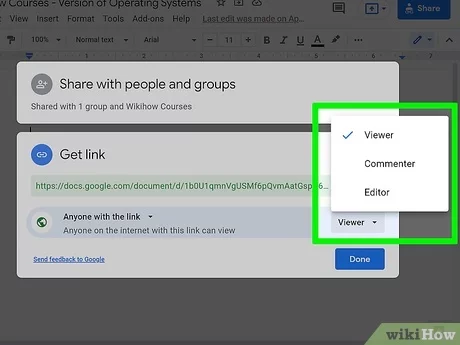
Types of Access Levels
Viewer
The Viewer access level allows users to view the document without making any changes. They cannot comment or share the document with others.
Commenter
Commenters can view the document and add comments. This access level is useful for collaborative reviews without altering the original content.
Editor
Editors have full access to the document, including the ability to make changes, share the document with others, and modify access levels for other users.
Sharing Options
Google Docs provides several sharing options to control document access:
- Specific People: Share the document with specific email addresses, allowing only those individuals to access it.
- Anyone with the Link: Makes the document accessible to anyone who has the link, without requiring sign-in.
- Public on the Web: The document can be found and accessed by anyone on the internet.
Setting Up and Managing Sharing Permissions
Steps to Share a Google Document
To share a Google Doc, follow these steps:
- Open the Google Doc you wish to share.
- Click the Share button located in the top-right corner.
- In the sharing settings, enter the email addresses of the individuals you want to share the document with.
- Select the appropriate access level (Viewer, Commenter, Editor) for each person.
- Click Send to share the document.
Adjusting Access Levels
Administrators and editors can modify the access levels of collaborators:
- Open the sharing settings by clicking the Share button.
- Locate the person whose access level you want to change.
- Click the dropdown next to their name and select the new access level.
- Confirm the changes.
Troubleshooting Common Access Issues
Access Denied Messages
If a user encounters an "Access Denied" message, consider the following steps:
- Verify that the email address used is correct and has been granted access.
- Ensure that the sharing settings allow the user to view or edit the document.
- For documents set to "Anyone with the link," confirm that the link is correctly copied and shared.
Requesting Access
If a user does not have the necessary permissions, they can request access by:
- Clicking the "Request access" button on the access denied page.
- Adding a personalized message explaining why they need access.
- Waiting for the document owner to approve the request.
Best Practices for Sharing Google Documents
Limiting Access to Necessary Individuals
Only share documents with individuals who need access to maintain confidentiality and control over the content.
Regularly Reviewing Sharing Settings
Periodically check and update sharing settings to ensure that only authorized users have access, especially for sensitive documents.
Using Advanced Settings for Enhanced Security
Utilize advanced sharing settings to prevent editors from changing permissions, downloading, printing, or copying the document:
- In the sharing settings, click on the gear icon.
- Toggle off options like "Editors can change permissions and share" and "Viewers and commenters can see the option to download, print, and copy."
Visual Guide to Google Docs Sharing Settings
| Sharing Option | Description | Use Case |
|---|---|---|
| Specific People | Share with designated email addresses. | Confidential documents requiring restricted access. |
| Anyone with the Link | Accessible to anyone who has the link. | General information or public resources. |
| Public on the Web | Visible and searchable by anyone on the internet. | Content intended for broad public dissemination. |
Enhancing Collaboration on Shared Documents
Using Comments and Suggestions
Encourage effective collaboration by utilizing the commenting and suggestion features:
- Use comments to provide feedback without altering the main content.
- Enable suggestion mode to propose changes that can be accepted or rejected by the document owner.
Real-Time Collaboration Features
Take advantage of real-time editing and presence indicators to collaborate seamlessly with others:
- See who is currently viewing or editing the document.
- Communicate through integrated chat during collaboration sessions.
Advanced Sharing Settings for Enhanced Control
Preventing Unauthorized Sharing
Limit the ability of collaborators to share the document further by adjusting settings:
- Restrict sharing permissions to "Viewers and Commenters" to prevent them from adding new editors.
- Disable the ability to download, print, or copy the document for additional security.
Expiring Access for Temporary Collaborations
Set expiration dates for document access to ensure temporary collaborators lose access after a specified period:
- When sharing with someone, click on the clock icon next to their name.
- Select an expiration date after which their access will be revoked automatically.
Managing Document Ownership and Permissions
Transferring Ownership
Change the document owner if necessary:
- Open the sharing settings by clicking the Share button.
- Find the user to whom you want to transfer ownership.
- Click the dropdown next to their name and select Make owner.
- Confirm the ownership transfer.
Removing Access
To revoke a user's access to the document:
- Access the sharing settings by clicking the Share button.
- Locate the user you wish to remove.
- Click the dropdown next to their name and select Remove.
- Confirm the removal.
Security Considerations for Shared Documents
Protecting Sensitive Information
Implement measures to safeguard sensitive data within shared documents:
- Limit sharing to trusted individuals.
- Use strong, unique passwords for your Google account.
- Enable two-factor authentication for added security.
- Regularly review who has access to your documents.
Monitoring Document Activity
Keep track of who is accessing and editing your documents:
-
Use the Version History feature to monitor changes and restore previous versions if necessary.
-
Review access logs to identify any unauthorized attempts to access the document.
Conclusion
Managing access to Google Docs is crucial for maintaining the integrity and confidentiality of your documents. By understanding and effectively utilizing sharing settings, permission levels, and security features, you can ensure that your documents are only accessible to intended recipients. Regularly reviewing and adjusting permissions helps prevent unauthorized access and fosters a secure collaborative environment.
References
Last updated February 5, 2025