
Unlocking Chrome's Full Potential: Beyond the Default Shortcuts
Strategies for Expanding and Customizing Your Google Chrome Homepage Experience
Key Insights into Chrome Shortcut Management
- Default Limit: Google Chrome's New Tab page typically displays a maximum of 10 shortcuts, which can be either manually added or automatically generated from your most visited sites.
- Customization Options: Users can easily add, edit, or remove these 10 shortcuts directly from the New Tab page's "Customize Chrome" menu.
- Beyond the Limit: To surpass the 10-shortcut limit, leveraging Chrome extensions from the Web Store is the most effective and recommended approach, offering enhanced features like unlimited shortcuts and integrated search.
Google Chrome's New Tab page is designed for quick access to your favorite and most frequently visited websites. By default, Chrome offers a streamlined experience with a limited number of shortcuts. While this simplicity is beneficial for many, power users often seek ways to expand this functionality to accommodate a larger array of essential sites. This guide will delve into various methods to add more shortcuts to your Chrome start page, ranging from native customization options to advanced solutions involving extensions and developer tools.
Understanding Chrome's Native Shortcut Capabilities
The Default Homepage Experience
When you open a new tab in Google Chrome, you're presented with a search bar and a grid of website shortcuts. By default, Chrome can automatically populate these shortcuts based on your browsing history, displaying your "Most visited sites." Alternatively, you can opt for "My shortcuts" to manually curate a selection of websites you wish to access quickly.
This native functionality is straightforward and user-friendly, allowing for basic management of your immediate browsing needs. However, a significant limitation of this default setup is the cap on the number of shortcuts. Chrome typically displays a maximum of 10 shortcuts (arranged in two rows of five). For users who frequently visit more than ten distinct websites and prefer direct homepage access, this limit can be restrictive.
This radar chart compares different methods for managing Chrome shortcuts across key usability and functionality metrics. Native Chrome shortcuts excel in ease of setup and minimal performance impact but are limited in customization and the number of shortcuts. Chrome extensions, while requiring a slightly more involved setup, significantly expand the number of shortcuts and offer deeper customization and advanced features. Advanced customization through DevTools or flags, though complex, provides the highest degree of control and potentially unique functionalities, albeit with a higher barrier to entry and potential for browser instability.
How to Add and Manage Native Shortcuts
Adding a shortcut to your Chrome homepage is a straightforward process:
Adding a Shortcut:
- From a New Tab Page: Open a new tab. At the bottom right, click "Customize Chrome" (a pencil icon). Under "Shortcuts," select "My shortcuts." Then, on the new tab page, click the "Add shortcut" tile (with a '+' icon). Enter the shortcut name and URL, then click "Done."
- From an Open Website: Navigate to the website you want to create a shortcut for. At the top right of the browser, click the three vertical dots (More menu). Select "Save and share" and then "Create shortcut." A dialog box will appear where you can name the shortcut. Optionally, you can check "Open as window" to have the website open in a separate, streamlined window without the browser UI. Click "Create."
Editing and Removing Shortcuts:
- On the New Tab Page: Hover over the shortcut icon you wish to manage. A "More actions" menu (three vertical dots) will appear in the top right corner of the icon. Click it and select "Edit shortcut" or "Remove."
- Through Customize Chrome: At the bottom right of a New Tab page, click "Customize Chrome." Under "Shortcuts," you can choose "My shortcuts" or "Most visited sites." You can also turn off "Show shortcuts" to hide them entirely.
It's important to remember that these native methods are subject to the 10-shortcut limit. If you consistently find yourself needing to access more than ten sites directly from your homepage, you'll need to explore alternative solutions.
Breaking the 10-Shortcut Barrier with Extensions
Leveraging the Chrome Web Store
For users who need to add more than the default 10 shortcuts, Chrome extensions provide the most robust and user-friendly solution. These extensions are specifically designed to enhance browser functionality, often by replacing or augmenting the default New Tab page. Extensions like "More Than 10 Shortcuts" are explicitly built to address this limitation, offering the ability to create an unlimited number of shortcuts.
Using a Chrome extension for shortcuts offers several advantages:
- Unlimited Shortcuts: The primary benefit is the removal of the 10-shortcut limit, allowing you to organize a vast collection of frequently visited sites.
- Enhanced Customization: Many extensions offer additional customization options beyond what Chrome natively provides, such as different layouts, visual themes, and even integrated search features.
- Organization Features: Some extensions allow for grouping shortcuts into folders or categories, making it easier to manage a large number of links.
- Syncing Capabilities: Certain extensions may offer synchronization across devices, ensuring your custom shortcuts are available wherever you log in to Chrome.
Popular Extensions for More Shortcuts:
- "More Than 10 Shortcuts": This extension explicitly states its purpose in its name, allowing users to create and manage an expanded number of shortcuts. It often includes quick search functionality and a user-friendly interface.
- "Shortkeys (Custom Keyboard Shortcuts)": While primarily focused on custom keyboard shortcuts for browser actions, some advanced shortcut managers might also offer expanded quick-access features for URLs.
- "Speed Dial" (various versions): Extensions with "Speed Dial" in their name often provide a highly customizable New Tab page with a grid of large, visually appealing shortcuts, usually with no practical limit on the number of entries.
How to Install and Use a Shortcut Extension:
- Open the Chrome Web Store: Navigate to the Chrome Web Store in your browser.
- Search for Extensions: Use the search bar to look for terms like "more than 10 shortcuts," "unlimited shortcuts," or "speed dial new tab."
- Select and Install: Choose an extension that fits your needs, read its reviews, and click "Add to Chrome." Follow any on-screen prompts to grant necessary permissions.
- Configure the Extension: Once installed, the extension may automatically replace your New Tab page, or you might need to configure it via Chrome's extensions management page (chrome://extensions) or its dedicated settings.
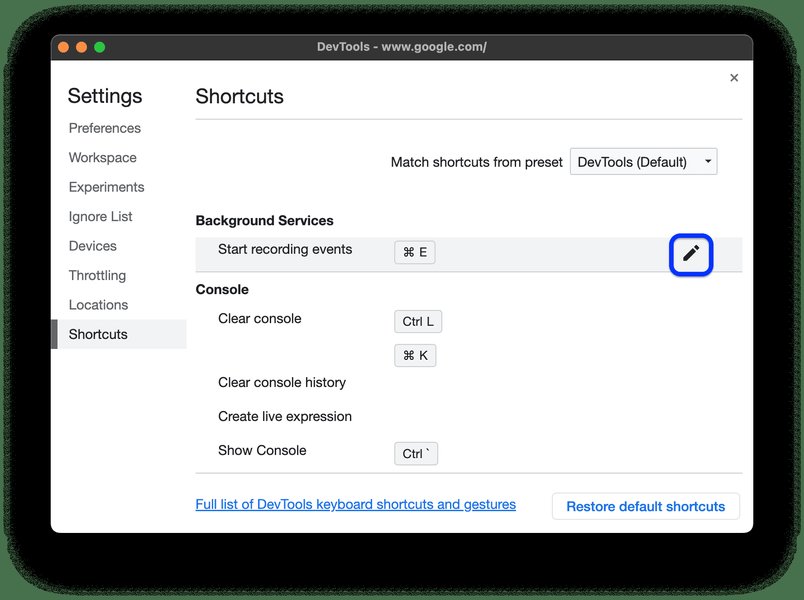
A screenshot from Chrome DevTools demonstrating how to customize keyboard shortcuts, indicating the browser's extensive customization capabilities beyond simple homepage shortcuts.
Advanced Customization and Workarounds
Exploring Beyond Standard Methods
While extensions are the most practical solution for most users, there are other, more advanced methods for managing shortcuts or desktop access to websites. These methods might not directly add more shortcuts to the Chrome homepage grid but offer alternative ways to achieve quick access.
Creating Desktop Shortcuts:
You can create direct desktop shortcuts for any website. Clicking these shortcuts will open the website in Chrome, either in a regular browser window or as a standalone "app" window.
- From an Open Website: Go to the website. Click the three vertical dots (More menu) > "Save and share" > "Create shortcut...". In the dialog, name it and optionally check "Open as window." Click "Create." This will place an icon on your desktop.
- Drag and Drop: You can also highlight the address in the address bar and drag it directly to your desktop to create a shortcut.
This video tutorial, titled "How to Add Shortcut in Google Chrome (NEW UPDATE in 2023)," provides a visual guide on the process of adding shortcuts within the Chrome browser, covering the standard methods for enhancing quick access to websites.
Keyboard Shortcuts for Chrome Actions:
While not for adding website shortcuts to the homepage, customizing keyboard shortcuts can significantly speed up your browsing. Chrome's DevTools allows for customization of its own shortcuts, and extensions like "Shortkeys" enable creating custom keyboard shortcuts for various browser actions, including opening specific URLs.
- Chrome DevTools Shortcuts: Open DevTools (F12 or Ctrl+Shift+I), then go to Settings (F1) > Shortcuts. Here you can edit existing shortcuts or create new ones for DevTools-specific actions.
- Using Extensions for Custom Keyboard Shortcuts: Extensions like "Shortkeys" allow you to assign custom key combinations to perform actions like opening specific URLs, navigating back/forward, or running custom JavaScript. This can be a powerful way to access frequently used sites without cluttering your homepage.
Using Chrome Flags (Experimental Features):
Chrome flags are experimental features that can be enabled or disabled through chrome://flags. Occasionally, flags related to the New Tab page layout or shortcut limits might appear. However, using flags comes with a caveat: they are experimental, can be unstable, and might be removed or changed without notice. For instance, discussions have revolved around flags like "NTP Modules Redesigned" or "2-row shortcut layout" which might affect the visual presentation of shortcuts. It's generally not recommended for stable, long-term solutions for adding more than 10 shortcuts.
Organizing Your Digital Workspace
Beyond Just Adding More Shortcuts
Simply adding more shortcuts isn't always the most efficient solution; effective organization is key to a productive browsing experience. Consider these strategies:
| Strategy | Description | Pros | Cons | Best For |
|---|---|---|---|---|
| Native Homepage Shortcuts | Up to 10 customizable icons on the New Tab page. | Easy to set up, built-in, low performance impact. | Limited to 10 shortcuts, basic customization. | Casual users, quick access to a few key sites. |
| Chrome Extensions (e.g., "More Than 10 Shortcuts") | Replaces/enhances New Tab page with unlimited shortcuts and features. | Unlimited shortcuts, advanced customization, search integration. | Requires installation, potential performance impact, third-party dependency. | Power users, those needing many direct homepage links. |
| Desktop Shortcuts / "Open as window" | Creates standalone icons on your desktop that open websites. | Direct access from OS, can create app-like experiences. | Clutters desktop, not integrated into browser homepage. | Frequently used web apps, specific project-related sites. |
| Bookmark Bar / Folders | Browser bar for one-click access, allows hierarchical organization. | Unlimited links, highly organized with folders, syncs across devices. | Not on the main New Tab page, requires visible bookmark bar. | Extensive collection of sites, organized research. |
| Custom Keyboard Shortcuts (via Extensions) | Assign key combinations to open specific URLs or perform actions. | Extremely fast access, keeps UI clean, hands-free. | Requires memorization, not visual. | Users who prefer keyboard-centric workflows, highly repetitive tasks. |
This table summarizes various strategies for quick website access and organization within and outside Google Chrome, highlighting their advantages and disadvantages for different user needs.
Utilizing the Bookmark Bar:
For an extensive collection of sites, the bookmark bar is an excellent alternative. You can enable it (Ctrl+Shift+B or through Chrome Settings > Appearance) and drag frequently visited sites onto it. You can also create folders within the bookmark bar to categorize your links, providing an organized, expandable system for hundreds of shortcuts just a click away.
Tab Groups and Pinning Tabs:
For ongoing projects or specific workflows, Chrome's tab grouping feature allows you to organize open tabs into colored groups. Pinned tabs remain in a fixed position on the left of your tab bar, are smaller, and automatically open when you launch Chrome, serving as a persistent form of quick access for your absolute essential sites.
Conclusion
While Google Chrome's native New Tab page offers a convenient way to access up to 10 favorite websites, expanding beyond this limit requires exploring additional strategies. For most users seeking to add significantly more shortcuts directly to their homepage, Chrome extensions from the Web Store are the most effective and user-friendly solution. These extensions provide unlimited shortcut capacity, enhanced customization, and often improved organizational features. Additionally, for quick access outside the browser, creating desktop shortcuts or utilizing the bookmark bar and tab management features remain valuable tools. By combining these methods, you can tailor your Chrome experience to efficiently navigate your digital landscape, ensuring your most important websites are always within easy reach.
Frequently Asked Questions
How many shortcuts can I add to Chrome's homepage by default?
Can I use extensions to add more than 10 shortcuts?
How do I add a shortcut to my Chrome homepage manually?
Is it possible to change Chrome's keyboard shortcuts?
What are the alternatives to homepage shortcuts for quick access?
Recommended Further Exploration
- Discover the best Chrome extensions for efficient tab management.
- Learn how to personalize your Chrome browser's theme and visual appearance.
- Explore advanced tips and tricks for becoming a Google Chrome power user.
- Gain insights into Chrome flags and how experimental features can impact your browsing.
References
Last updated May 21, 2025