
Unlock Your Adform Data: Seamless Integration with Looker Studio Explored
Discover how to connect Adform's powerful advertising data to Looker Studio for comprehensive visualization and reporting.
Integrating Adform data with Looker Studio (formerly Google Data Studio) allows advertisers and agencies to transform raw advertising metrics into actionable insights. This connection enables dynamic, customizable dashboards, providing a clearer view of campaign performance across various channels. Whether you're looking to automate reporting or conduct in-depth analysis, understanding how to bridge these platforms is crucial. This guide explores the primary methods: utilizing third-party connectors and, for those with development resources, building a custom connector.
Key Highlights: Connecting Adform to Looker Studio
- Third-Party Connectors: The most common and often simplest method involves using pre-built connectors from various data integration platforms, automating data extraction and synchronization.
- Custom Community Connectors: For bespoke needs, developing a custom connector using Google Apps Script offers maximum flexibility but requires technical expertise in JavaScript and API interactions.
- Enhanced Reporting Capabilities: Integrating Adform data allows for the visualization of key metrics like impressions, clicks, spend, conversions, and campaign-level performance directly within Looker Studio's interactive environment.
Choosing Your Integration Path: Third-Party vs. Custom Connectors
There are two main avenues for connecting Adform to Looker Studio. The choice largely depends on your technical resources, budget, and the level of customization required.
Leveraging Third-Party Connector Platforms
For most users, third-party data connectors offer a streamlined, no-code or low-code solution. These platforms act as a bridge, automatically pulling data from the Adform API and making it available in Looker Studio. This approach eliminates the need for manual data exports or complex API programming.
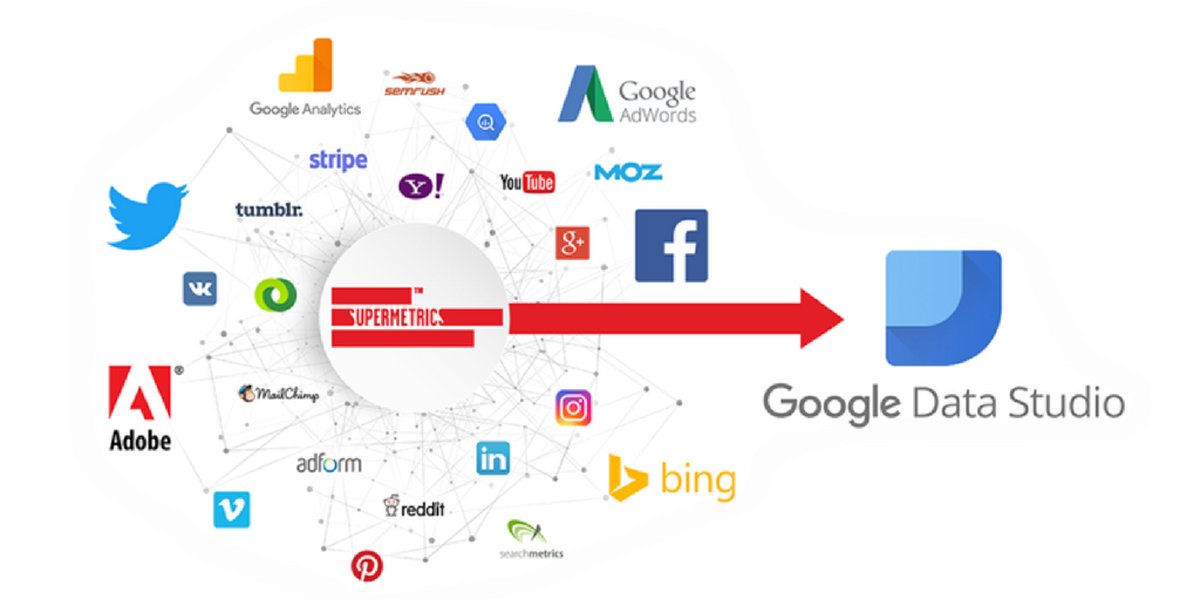
Visualizing data integration into Looker Studio.
Popular Connector Providers
Several established platforms provide Adform connectors for Looker Studio, including:
- Supermetrics
- Windsor.ai
- Improvado
- Dataddo
- Funnel.io
- Catchr
- Whatagraph
General Setup Process with Third-Party Connectors
- Select a Platform: Choose a third-party connector provider based on your specific needs, considering factors like pricing, available metrics and dimensions, ease of use, and data refresh frequency.
- Authenticate Adform Account: Within the chosen platform, you'll need to connect to Adform. This usually involves providing your Adform API credentials (username/password or API key) to authorize data access.
- Configure Data Extraction: Select the specific Adform metrics (e.g., impressions, clicks, spend, conversions) and dimensions (e.g., campaign name, ad group, date, audience segments) you wish to import.
- Connect to Looker Studio: In Looker Studio, add a new data source and select the connector provided by your chosen third-party platform. Authorize the connection.
- Build Reports: Once the data source is configured, you can start building your dashboards and reports in Looker Studio, visualizing your Adform campaign performance.
Advantages of Using Third-Party Connectors
- Automation: Data is typically refreshed automatically at scheduled intervals, ensuring your reports are always up-to-date.
- Ease of Use: User-friendly interfaces minimize the need for technical skills.
- Data Transformation: Some platforms offer capabilities to clean, blend, and transform data before it reaches Looker Studio.
- Multi-Source Reporting: Easily combine Adform data with data from other marketing platforms for a holistic view.
- Support: Benefit from customer support provided by the connector platform.
Comparative analysis of popular third-party Adform connector solutions for Looker Studio, evaluating key features. Scores are opinion-based for illustrative purposes.
Building a Custom Adform Connector with Google Apps Script
For users with specific requirements not met by third-party tools, or those who prefer greater control over the data pipeline, building a custom Community Connector for Looker Studio using Google Apps Script is an option. This method requires development knowledge, particularly in JavaScript and interacting with APIs.
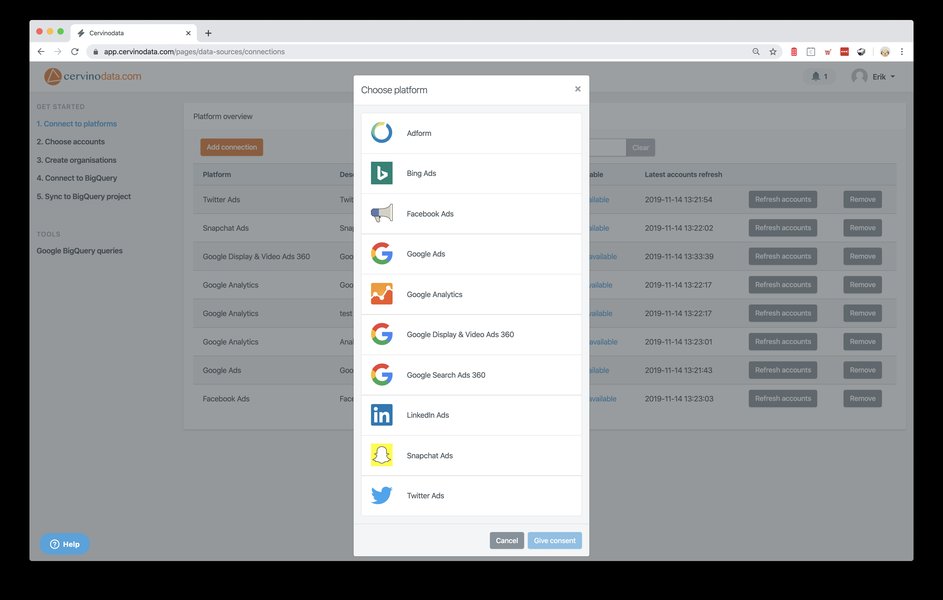
Conceptual flow of data into Looker Studio, relevant for custom connectors.
Prerequisites for Custom Connector Development
- Adform API Access: Valid Adform account with API credentials (API key or OAuth 2.0 details) and necessary permissions.
- Google Account: To access Google Apps Script (script.google.com).
- Technical Skills: Proficiency in JavaScript, understanding of OAuth 2.0 authentication (if Adform API uses it), and experience with HTTP requests and JSON parsing.
- Adform API Documentation: Familiarity with Adform API endpoints, rate limits, and data structures.
Key Steps in Building a Custom Connector
Developing a custom connector involves several distinct phases:
- Set up Google Apps Script Project: Create a new project at
script.google.com. - Define the Manifest File (
appsscript.json): This file configures the connector, including OAuth scopes and enabling it for Looker Studio.{ "timeZone": "GMT", "dependencies": {}, "oauthScopes": [ "https://www.googleapis.com/auth/script.external_request", "https://www.googleapis.com/auth/userinfo.email", "https://www.googleapis.com/auth/script.scriptapp" ], "dataStudio": { "name": "Adform Custom Connector", "company": "Your Company", "logoUrl": "URL_to_your_logo_icon", // Replace with actual logo URL "addonUrl": "URL_to_your_addon_documentation", // Replace with actual documentation URL "supportUrl": "URL_to_your_support_page", // Replace with actual support URL "description": "Fetches data from Adform API for Looker Studio." }, "exceptionLogging": "STACKDRIVER", "runtimeVersion": "V8" } - Implement Authentication (
getAuthType,isAuthValid,resetAuth): Handle authentication with the Adform API. If Adform uses OAuth 2.0, you'll need to implement the OAuth2 flow. For API key authentication, securely store and use the key. ThegetOAuthService()function is crucial for OAuth2.// Example structure for OAuth using Apps Script's OAuth2 library // function getOAuthService() { // return OAuth2.createService('Adform') // .setAuthorizationBaseUrl('ADFORM_AUTH_URL') // Replace with actual Adform Auth URL // .setTokenUrl('ADFORM_TOKEN_URL') // Replace with actual Adform Token URL // .setClientId('YOUR_ADFORM_CLIENT_ID') // Replace with your Client ID // .setClientSecret('YOUR_ADFORM_CLIENT_SECRET') // Replace with your Client Secret // .setCallbackFunction('authCallback') // .setPropertyStore(PropertiesService.getUserProperties()) // .setScope('ADFORM_API_SCOPES'); // Replace with necessary Adform API scopes // } // function authCallback(request) { // var service = getOAuthService(); // var authorized = service.handleCallback(request); // if (authorized) { // return HtmlService.createHtmlOutput('Success! You can close this tab.'); // } else { // return HtmlService.createHtmlOutput('Denied. You can close this tab.'); // } // } - Define Configuration (
getConfig): Allow users to input parameters if needed (e.g., specific account IDs). - Define the Schema (
getSchema): Specify the fields (metrics and dimensions) that your connector will provide to Looker Studio. Each field needs a name, label, data type, and semantic type.// function getSchema(request) { // var fields = [ // { name: 'campaignId', label: 'Campaign ID', dataType: 'STRING', semantics: { conceptType: 'DIMENSION' }}, // { name: 'campaignName', label: 'Campaign Name', dataType: 'STRING', semantics: { conceptType: 'DIMENSION' }}, // { name: 'impressions', label: 'Impressions', dataType: 'NUMBER', semantics: { conceptType: 'METRIC', isReaggregatable: true }}, // { name: 'clicks', label: 'Clicks', dataType: 'NUMBER', semantics: { conceptType: 'METRIC', isReaggregatable: true }}, // { name: 'spend', label: 'Spend', dataType: 'CURRENCY_USD', semantics: { conceptType: 'METRIC', isReaggregatable: true }} // // Add other fields as per Adform API // ]; // return { schema: fields }; // } - Implement Data Fetching (
getData): This function retrieves data from the Adform API usingUrlFetchApp.fetch(). It needs to handle API request parameters (like date ranges provided by Looker Studio), parse the API response (usually JSON), and format it according to the defined schema.
Note: The code snippets above are illustrative conceptual examples and require adaptation with actual Adform API details, error handling, and complete logic.// function getData(request) { // // Authenticate if needed // // var service = getOAuthService(); // // if (!service.hasAccess()) { /* Handle authorization error */ } // var requestedFieldIds = request.fields.map(function(field) { return field.name; }); // var requestedFields = getSchema().schema.filter(function(field) { // return requestedFieldIds.indexOf(field.name) > -1; // }); // // Construct Adform API URL based on request.dateRange, request.configParams etc. // var apiUrl = 'https://api.adform.com/v1/reportingstats?dimensions=campaignId,campaignName&metrics=impressions,clicks,grossCost&date=' + request.dateRange.startDate + '_' + request.dateRange.endDate; // // var options = { // // headers: { // // 'Authorization': 'Bearer ' + service.getAccessToken() // Or API key // // } // // }; // // var response = UrlFetchApp.fetch(apiUrl, options); // // var jsonData = JSON.parse(response.getContentText()); // // var rows = []; // // jsonData.data.forEach(function(apiRow) { // // var rowValues = []; // // requestedFields.forEach(function(field) { // // // Map API response fields to schema fields // // // Example: if (field.name === 'campaignId') rowValues.push(apiRow.campaignId); // // }); // // rows.push({ values: rowValues }); // // }); // // return { // // schema: requestedFields, // // rows: rows, // // cachedData: false // Set to true if data can be cached // // }; // } - Deploy the Connector: From the Apps Script editor, deploy your script as a Community Connector. This generates a deployment ID that you can use to add the connector in Looker Studio.
Visualizing Integration Pathways
The mindmap below illustrates the different approaches and key considerations when connecting Adform to Looker Studio, helping you visualize the decision-making process and the components involved in each method.
Ease of Use
Automation
Support"] id1i["Cons:
Subscription Cost
Less Customization"] id2["Custom Connector (Google Apps Script)"] id2a["Prerequisites:
Adform API Access
Google Account
JavaScript Skills"] id2b["Development Steps"] id2b1["Define Manifest (appsscript.json)"] id2b2["Implement Authentication (OAuth/API Key)"] id2b3["Define Schema (getSchema)"] id2b4["Fetch Data (getData with UrlFetchApp)"] id2b5["Deploy Connector"] id2c["Pros:
High Customization
Full Control"] id2d["Cons:
Development Time
Technical Expertise
Maintenance"]
Comparing Third-Party Connectors vs. Custom Development
To help you decide which path is best suited for your needs, the following table provides a comparison of using third-party connectors versus building a custom connector:
| Feature | Third-Party Connectors | Custom Connector (Google Apps Script) |
|---|---|---|
| Setup Time | Relatively fast (minutes to hours) | Moderate to long (days to weeks, depending on complexity) |
| Technical Skill Required | Low (often no-code or low-code interfaces) | High (requires JavaScript, API, and OAuth knowledge) |
| Cost | Typically subscription-based (monthly or annual fees) | Development time cost, potentially ongoing maintenance costs; no direct subscription for the connector itself |
| Flexibility & Customization | Limited by the features offered by the connector provider | High (can be tailored precisely to specific data needs and transformations) |
| Maintenance | Handled by the third-party provider (updates, API changes) | User's responsibility (adapting to Adform API changes, bug fixes) |
| Data Volume & Performance | Often optimized for large datasets and performance by providers | Performance depends on the custom implementation and Google Apps Script quotas/limitations |
| Support | Usually provided by the vendor | Community support or self-reliance; no dedicated support channel unless built by a consultant |
| Data Freshness | Configurable refresh schedules, often frequent | Dependent on triggers and execution limits in Apps Script; can be scheduled |
Fetching API Data into Looker Studio: A Practical Overview
Understanding how custom connectors fetch data from an API can be beneficial, even if you opt for a third-party solution. The process generally involves making authenticated requests to specific API endpoints, retrieving data (often in JSON format), and then parsing and structuring this data for Looker Studio. The video below provides a general illustration of fetching JSON data from an API into Looker Studio using a custom connector, which shares conceptual similarities with how an Adform custom connector would operate.
This tutorial walks through bringing JSON data from an API into Looker Studio via a custom connector developed with Google Apps Script. While the specific API is different, the fundamental principles of defining a schema, fetching data, and handling authentication are transferable to building a connector for Adform or any other platform with a well-documented API.
Frequently Asked Questions (FAQ)
What if I don't have Adform API credentials or access?
You will need to contact your Adform account administrator or Adform support to obtain API access credentials (like an API key or OAuth client ID and secret). API access is a prerequisite for any automated data integration.
How often can the Adform data be refreshed in Looker Studio?
This depends on the method used. Third-party connectors usually offer various refresh frequencies (e.g., hourly, daily). For custom connectors built with Google Apps Script, refresh rates are limited by Apps Script triggers and execution quotas, but can typically be set to run multiple times a day.
Can I combine Adform data with other data sources in Looker Studio?
Yes, Looker Studio's data blending feature allows you to combine data from Adform (via your chosen connector) with other sources like Google Analytics, Google Ads, spreadsheets, and more, to create comprehensive cross-platform reports.
Is building a custom Adform connector for Looker Studio difficult?
It requires proficiency in JavaScript, understanding of API concepts (REST, JSON, authentication like OAuth 2.0), and familiarity with the Google Apps Script environment. While powerful, it is more technically demanding than using pre-built third-party connectors.
Are there any free options to connect Adform to Looker Studio?
Most third-party connectors are paid services, though some may offer limited free tiers or trial periods. Building a custom connector with Google Apps Script doesn't have direct subscription costs for the connector itself, but involves development time and effort. Manual export/import via Google Sheets is a free but non-automated alternative for very basic needs.
Recommended Further Exploration
- How can I optimize my Adform campaign reporting within Looker Studio dashboards for better insights?
- What are considered best practices when it comes to visualizing advertising data effectively in Looker Studio?
- Could you provide a comparison of features and pricing for various Looker Studio community connectors designed for advertising platforms?
- What are some common issues encountered when connecting the Adform API to business intelligence tools and how can they be resolved?
References
Last updated May 7, 2025