

Highlights of Continuous Drag Event Handling
- Leverage the
draganddragoverevents: These are the primary mechanisms for maintaining a "live" drag experience, firing repeatedly during a drag operation to allow for real-time updates. - Crucial
event.preventDefault(): Always callevent.preventDefault()within yourdragoverevent handler on potential drop targets to enable successful drops and prevent the browser from terminating the drag operation prematurely. - Optimize performance with lightweight updates: While
draganddragoverfire frequently, avoid heavy DOM manipulations or complex calculations within their handlers to ensure smooth performance and a responsive user experience.
The HTML Drag and Drop API provides a robust framework for creating highly interactive web interfaces. To achieve a truly "live" and responsive drag experience, developers must understand and effectively utilize specific events within the drag-and-drop lifecycle. The key to continuous drag event handling lies in strategically managing the drag and dragover events, alongside proper setup and teardown procedures.
The Core Principle: Maintaining Event Continuity
At its heart, keeping a drag event "live" means ensuring that the browser continuously provides updates about the drag operation's status and position. This allows for dynamic visual feedback, real-time data processing, and a fluid user experience. The drag event on the draggable element and the dragover event on the potential drop target are central to this continuity.
Understanding the Drag Event Lifecycle
The HTML Drag and Drop API orchestrates a sequence of events to manage the entire drag operation, from initiation to completion. A thorough understanding of these events is crucial for implementing advanced, live drag functionalities:
dragstart: Fires when the user begins dragging an element. This is where you typically initialize data to be transferred (dataTransfer.setData()) and can customize the drag image (setDragImage()).drag: Fires continuously while the element is being dragged. This event is fired on the *draggable element* itself. It's suitable for lightweight updates related to the source element's state or position.dragenter: Fires when a dragged element or selection enters a valid drop target. Useful for providing visual cues, like highlighting the drop zone.dragover: Fires continuously when a dragged element is moving over a valid drop target. This event is critical for keeping the drag "live" over a drop zone, as preventing its default behavior allows for a drop.dragleave: Fires when a dragged element leaves a valid drop target. Used to remove any visual cues added bydragenter.drop: Fires when the dragged element is dropped onto a valid drop target. This is where the data transfer is finalized, and the drop action is performed.dragend: Fires after the drag operation has concluded (either by a successful drop or by cancelling the drag). This event is fired on the *draggable element* and is used for cleanup, such as resetting UI states.
A mindmap illustrating the HTML Drag and Drop event lifecycle and key actions for each stage.
The Indispensable Role of event.preventDefault()
A common pitfall that can prevent drag events from staying "live" is the failure to call event.preventDefault() within the dragover event handler. Browsers, by default, do not allow elements to be dropped onto other elements to prevent unintended actions. By calling event.preventDefault(), you override this default behavior, signaling to the browser that the drop target is valid and ready to receive the dragged item. This action is crucial for enabling the drop event to fire and for maintaining the continuous firing of dragover as the element moves within the drop zone.
const dropZone = document.querySelector('.drop-zone');

dropZone.addEventListener('dragover', (event) => {
  event.preventDefault(); // This is essential to allow a drop
  // Optional: Add visual feedback for the dragover state
});

dropZone.addEventListener('drop', (event) => {
  event.preventDefault(); // Prevent default browser handling of dropped data
  const data = event.dataTransfer.getData('text/plain');
  console.log('Dropped data:', data);
  // Perform actions based on the dropped data
});
Optimizing Performance for a Smooth Experience
While the drag and dragover events fire frequently (the drag event every ~350ms, dragover as fast as 1ms-5ms during rapid movement and ~50ms when stationary), it's vital to keep their handlers lightweight. Performing heavy computations or complex DOM manipulations in these events can lead to jank and a sluggish user experience. Instead, focus on minimal updates:
- Lightweight UI Feedback: Use CSS classes to apply styling changes (e.g., highlighting a drop zone) rather than recalculating layouts on every event fire.
- Throttling/Debouncing: For more complex operations that must occur during a drag, consider throttling or debouncing the event handlers to limit how often they execute.
- Deferring Heavy Work: If significant processing is required, defer it until the
dropevent, where it only needs to run once.
Customizing Drag Visuals
Enhancing the visual feedback during a drag operation significantly improves the user experience. The setDragImage() method, called during the dragstart event, allows you to define a custom visual representation for the dragged item. This can be an image, a canvas, or even a clone of the original element, giving you fine-grained control over how the drag operation is perceived.
const draggableItem = document.getElementById('myDraggable');

draggableItem.addEventListener('dragstart', (event) => {
  // Set data to be transferred
  event.dataTransfer.setData('text/plain', event.target.id);

  // Create a custom drag image
  const dragImage = document.createElement('img');
  dragImage.src = 'path/to/your/custom-drag-icon.png';
  dragImage.style.width = '50px';
  dragImage.style.height = '50px';
  document.body.appendChild(dragImage); // Temporarily add to DOM for setDragImage

  event.dataTransfer.setDragImage(dragImage, 25, 25); // Set custom image and offset
  // Remove the temporary image after a short delay
  setTimeout(() => document.body.removeChild(dragImage), 0);
});
The image above demonstrates how visual feedback can guide a user during a drag-and-drop operation, indicating valid drop zones and the current state of the dragged item.
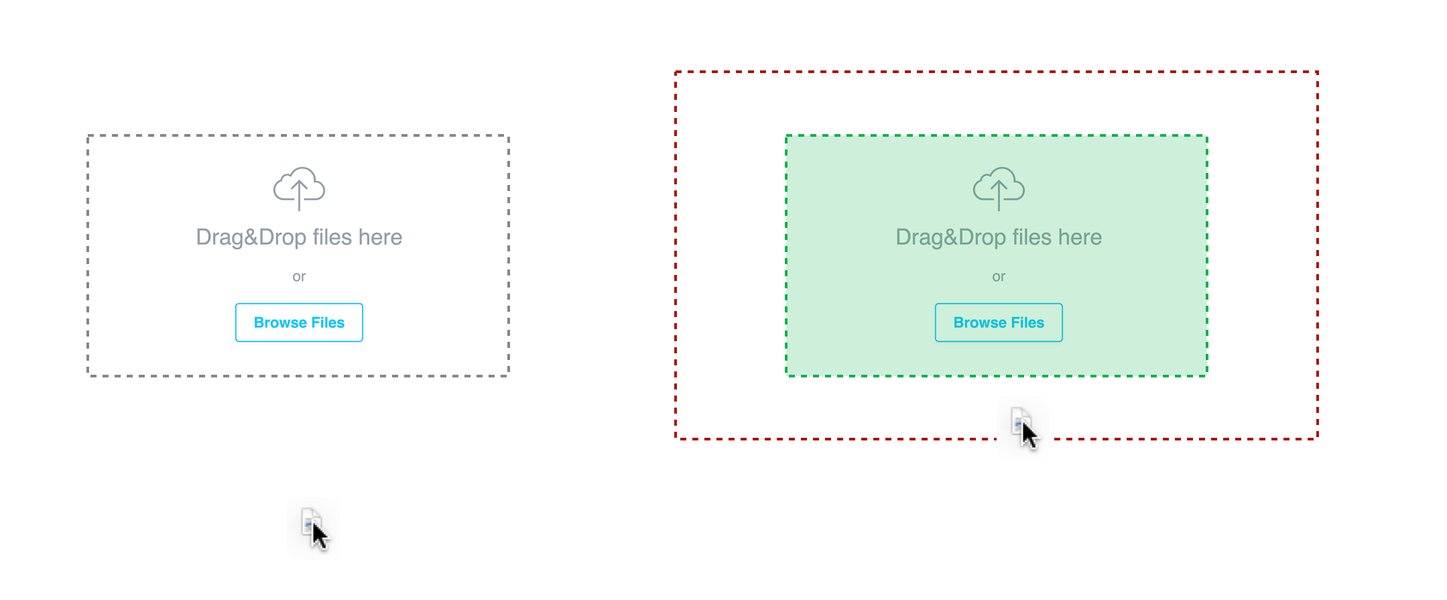
Visual cues, such as highlighting drop zones, greatly enhance the usability of drag-and-drop interfaces.
Advanced Considerations and Best Practices
Moving beyond the basics, several advanced techniques and considerations can further refine your drag-and-drop implementation:
Managing Multiple Draggable Elements and Data Transfer
For applications with numerous draggable elements or complex data structures, assign unique identifiers using dataTransfer.setData() in dragstart. This allows the drop event handler to retrieve specific information about the dragged item, enabling precise actions based on the dropped data.
| Event Phase | Key Action for "Live" Drag | DataTransfer Method | User Experience Impact |
|---|---|---|---|
dragstart |
Set unique data identifier | setData(), setDragImage() |
Initiates drag, customizes visual. |
drag |
Monitor position, lightweight updates | (N/A) | Continuous feedback of dragged item. |
dragenter |
Indicate valid drop zone | (N/A) | Highlights potential drop target. |
dragover |
Crucially: event.preventDefault() |
dropEffect |
Maintains drag "livestream", allows drop. |
drop |
Process dropped data | getData() |
Completes operation, updates UI. |
dragend |
Cleanup, reset states | (N/A) | Resets UI post-drag. |
A comprehensive overview of drag-and-drop event phases and their roles in maintaining a "live" interaction.
The dropEffect and effectAllowed Properties
These properties control the visual feedback to the user regarding the allowed drag operations (copy, move, link, none). By setting effectAllowed on the draggable element and dropEffect within the dragover handler, you can dynamically change the cursor to reflect whether the current drop target allows a copy, move, or link operation. This enhances user understanding and control.
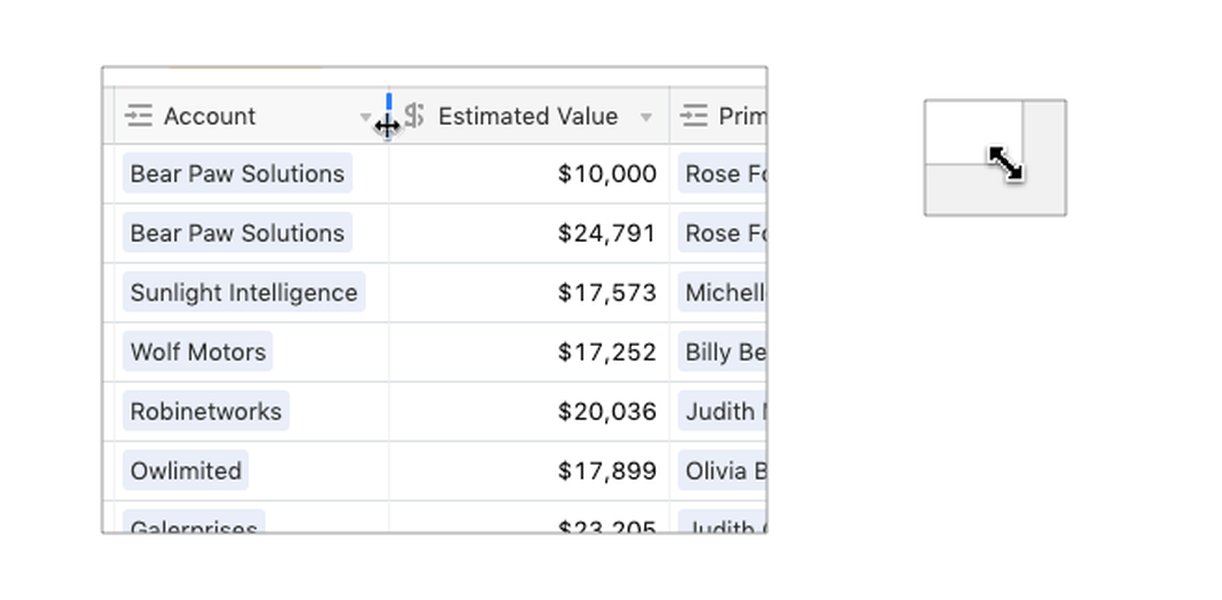
Different cursor styles, often influenced by dropEffect, provide intuitive feedback to the user during drag operations.
Handling File Drops
When dealing with file uploads via drag and drop, the DataTransfer interface provides access to DataTransferItem and DataTransferItemList objects, allowing you to retrieve file data. Proper handling of event.preventDefault() and event.stopPropagation() is vital here to avoid default browser behaviors like opening the dropped file.
Cross-Browser Compatibility and Mobile Support
While the HTML Drag and Drop API is widely supported on desktop browsers, its support and behavior on mobile devices can be inconsistent. For robust mobile drag-and-drop experiences, or for scenarios requiring finer control over drag behavior (e.g., specific snapping, complex gestures), developers often resort to custom mouse/touch event handling or specialized JavaScript libraries.
Applications and Use Cases for Continuous Drag Events
The ability to keep drag events "live" enables a wide range of interactive features:
- Real-time UI Updates: As an item is dragged, its position or associated data can be displayed to the user in real-time, for example, showing coordinates or a preview.
- Dynamic Grid/Layout Rearrangement: Users can reorder elements in a grid or list, with immediate visual feedback as items shift to accommodate the dragged element.
- Interactive Drawing/Design Tools: Dragging tools or components can have their properties or effects updated live as they are positioned on a canvas.
- Progress Indicators for Large File Transfers: While not directly part of the
dragevent, combined with backend processing, live drag-and-drop can initiate and show progress for large file uploads.
User Expectations vs. API Capabilities
Modern web users expect highly responsive and intuitive interfaces. The native HTML Drag and Drop API, when properly implemented, can meet many of these expectations for basic to moderately complex scenarios. However, for highly specialized interactions, such as those requiring physics-based animations or complex gesture recognition, supplementing with custom event handling or libraries might be necessary.
Youtube: Deep Dive into HTML5 Drag and Drop API
For a comprehensive visual guide on implementing drag-and-drop functionality and understanding the nuances of its events, the following video offers valuable insights:
This tutorial delves into the HTML5 Drag and Drop API, explaining how to handle various drag events like dragstart, dragend, drop, and dragover to create interactive web elements. It's particularly relevant for understanding how to set up the event listeners to ensure continuous feedback during a drag operation.
Frequently Asked Questions
Why does my drag event stop working after I move the mouse a little?
dragover event on your drop target. Make sure to call event.preventDefault() inside your dragover event listener for any element intended as a drop zone.How often do drag and dragover events fire?
drag event on the draggable element fires approximately every 350 milliseconds. The dragover event, when the dragged element is over a valid drop target, can fire much more frequently, roughly every 50ms when the mouse is stationary, and even faster (between 1ms and 5ms) during rapid mouse movements.Can I customize the visual representation of the dragged item?
event.dataTransfer.setDragImage() method during the dragstart event. This allows you to specify an image, a canvas element, or even a clone of your original element as the visual feedback for the user during the drag.Is the HTML Drag and Drop API suitable for mobile devices?
Conclusion
Mastering the HTML Drag and Drop API for continuous event handling revolves around a deep understanding of its event lifecycle, particularly the drag and dragover events. The consistent application of event.preventDefault() on drop targets is fundamental to allowing drops and maintaining a "live" drag experience. By coupling these core principles with performance optimization techniques and careful consideration of user experience, developers can create highly interactive and seamless drag-and-drop functionalities in their web applications. For scenarios requiring extreme customizability or robust cross-device compatibility, exploring specialized JavaScript libraries might provide additional benefits, but the native API offers a powerful foundation.
Recommended Further Exploration
- How to implement accessible drag-and-drop patterns for inclusive web design?
- What are the best practices for optimizing drag-and-drop performance with large datasets?
- How can drag and drop functionality be integrated efficiently with Web Components?
- What are the key differences and advantages of popular drag-and-drop JavaScript libraries versus the native API?