
Advanced Utilization of Microsoft Excel: Enhancing Productivity in Data Analysis, Forms/Surveys, and Scheduling
Unlocking the Full Potential of Excel for Comprehensive Data Management and Productivity
Key Takeaways
- Comprehensive Data Analysis: Leveraging PivotTables, Power Query, and advanced formulas to transform raw data into actionable insights.
- Efficient Forms and Surveys: Utilizing integrated tools and data validation to streamline data collection and ensure accuracy.
- Effective Scheduling Solutions: Implementing Gantt charts, calendar templates, and macro automation to optimize project management and resource allocation.
Introduction to Microsoft Excel
A Versatile Tool for Diverse Productivity Needs
Microsoft Excel stands as one of the most widely adopted spreadsheet applications globally, essential for professionals across various industries. Its primary purpose revolves around organizing, analyzing, and visualizing data to facilitate informed decision-making. Beyond its basic functionalities, Excel has evolved to incorporate advanced features that cater to complex data management tasks, making it indispensable for data analysts, project managers, and researchers alike.
Advanced Features of Microsoft Excel
Enhancing Data Analysis, Forms/Surveys, and Scheduling
Data Analysis Capabilities
Excel's robust data analysis tools empower users to extract meaningful insights from vast datasets. Key features include:
PivotTables and PivotCharts
PivotTables enable users to summarize and reorganize data dynamically. By dragging and dropping fields, users can analyze data from multiple perspectives, uncovering trends and patterns that inform strategic decisions. PivotCharts complement PivotTables by providing visual representations of the summarized data, enhancing data interpretation and communication.
Power Query
Power Query serves as an advanced data connectivity and transformation tool within Excel. It allows users to import data from various sources, including databases, web pages, and external files, and perform complex transformations to cleanse and prepare the data for analysis. This feature automates repetitive data preparation tasks, ensuring consistency and efficiency.
Power Pivot
Power Pivot extends Excel's data analysis capabilities by enabling the creation of sophisticated data models. Users can manage large datasets, define relationships between different data tables, and perform complex calculations using Data Analysis Expressions (DAX). This facilitates in-depth analysis and the creation of advanced analytical models.
Forms and Surveys
Excel provides versatile tools for creating and managing forms and surveys, ensuring efficient data collection and analysis:
Excel Forms
Users can design custom forms within Excel using data validation and form controls. These forms ensure that data entry adheres to predefined criteria, maintaining data integrity and reducing input errors.
Microsoft Forms Integration
Integration with Microsoft Forms allows users to create online surveys that automatically feed responses directly into Excel. This seamless connection facilitates real-time data collection and analysis, enabling timely insights from survey respondents.
Scheduling Tools
Excel's scheduling capabilities are enhanced through various features that support project management and resource allocation:
Gantt Charts
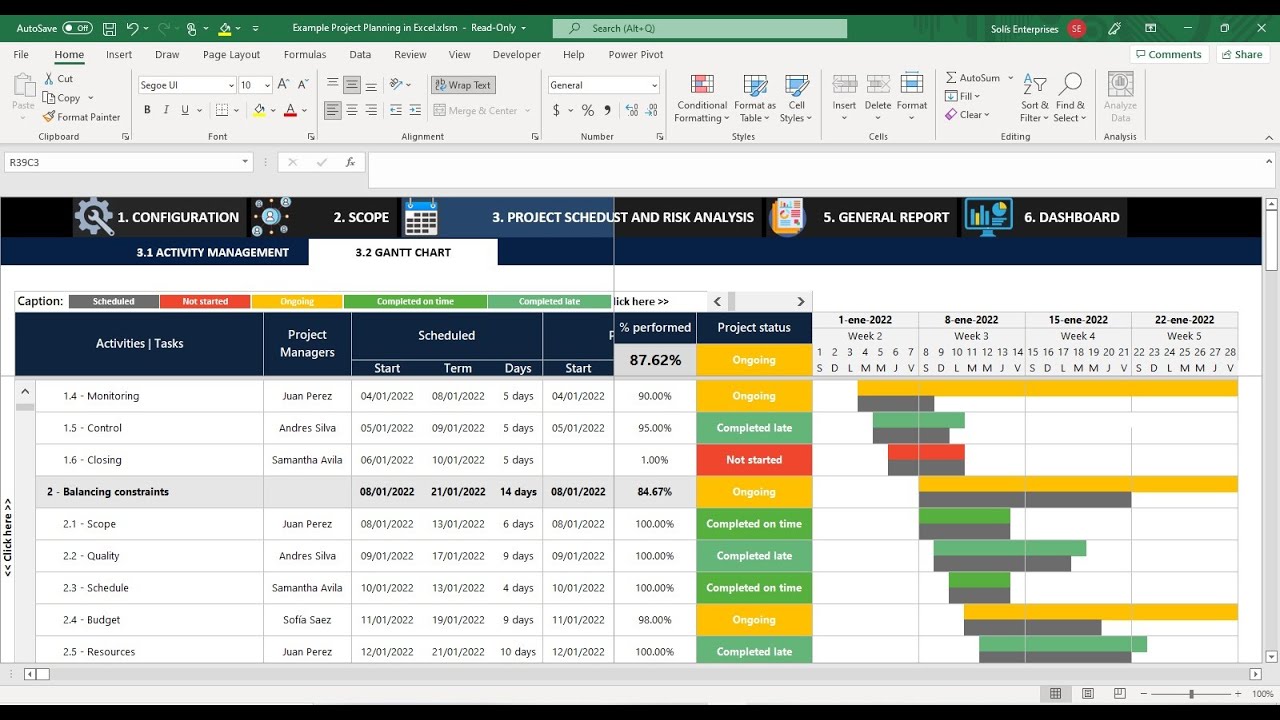
Although not a built-in feature, Gantt charts can be created in Excel using stacked bar charts. These charts provide a visual timeline of project tasks, deadlines, and progress, aiding in effective project management.
Calendar Templates
Excel offers customizable calendar templates that can be adapted for personal or professional scheduling needs. These templates help users track important dates, deadlines, and events systematically.
Macro Automation
Macros and Visual Basic for Applications (VBA) scripts automate repetitive scheduling tasks, such as updating calendars or generating progress reports. Automation reduces manual effort and minimizes errors, enhancing overall productivity.
Practical Example: Developing a Comprehensive Project Management Dashboard
Integrating Advanced Excel Features for Optimal Project Oversight
To demonstrate the application of Excel's advanced features, consider the development of a project management dashboard for a mid-sized company. This dashboard integrates data analysis, survey feedback, and scheduling tools to provide a holistic view of project performance and team dynamics.
Step 1: Data Import and Preparation
Using Power Query, import historical project data from multiple sources such as departmental databases and external CSV files. Transform and cleanse the data to ensure consistency and eliminate redundancies, setting a solid foundation for accurate analysis.
Step 2: Data Analysis with PivotTables
Create PivotTables to analyze key performance indicators (KPIs) such as project timelines, budget allocations, and resource utilization. PivotTables allow for dynamic filtering and grouping, enabling detailed insights into specific aspects of project performance.
Step 3: Data Visualization with PivotCharts
Generate PivotCharts based on the PivotTables to visualize trends and anomalies. These visual tools facilitate quick comprehension of data, aiding stakeholders in making informed decisions.
Step 4: Feedback Collection through Integrated Forms
Design an Excel-based survey using form controls to gather feedback from project team members. Utilize data validation and conditional formatting to ensure the accuracy and completeness of responses, and integrate the survey with Microsoft Forms for streamlined data collection.
Step 5: Scheduling with Gantt Charts
Create a Gantt chart to map out project tasks, deadlines, and dependencies. Use conditional formatting to highlight critical paths and overdue tasks, providing a clear visual timeline of project progress.
Step 6: Automation with Macros
Develop macros to automate the updating of PivotTables, PivotCharts, and Gantt charts whenever new data is imported. This automation ensures that the dashboard remains current without requiring manual intervention, saving time and reducing the risk of errors.
Outcome
The integrated dashboard streamlines project oversight by consolidating data analysis, feedback collection, and scheduling into a single, cohesive platform. This holistic approach enhances decision-making, improves project tracking, and fosters a data-driven management culture within the organization.
Best Practices for Effective Use of Microsoft Excel
Maximizing Productivity and Ensuring Data Integrity
Data Management
Maintain clean and well-structured spreadsheets to facilitate efficient data analysis. Implement consistent formatting conventions, utilize named ranges for clarity, and employ data validation rules to ensure data accuracy and integrity.
Performance Optimization
Optimize Excel performance by minimizing the use of volatile functions and reducing external links that can slow down calculations. Utilize efficient calculation methods and leverage keyboard shortcuts to enhance workflow speed.
Security and Collaboration
Implement workbook protection to safeguard sensitive data and restrict unauthorized access. Use shared workbook features and cloud synchronization to facilitate collaborative efforts, ensuring that team members can work simultaneously without conflicts.
Automation and Macros
Automate repetitive tasks using macros and VBA scripting to save time and reduce the potential for human error. Document and comment on VBA code to maintain clarity and ensure that automation processes are easily understandable and maintainable.
Leverage Templates and Add-ins
Utilize pre-built templates for common tasks such as project management, budgeting, and scheduling to maintain consistency and save time. Incorporate add-ins like Power Pivot and Analysis ToolPak to extend Excel's functionality and support advanced analytical tasks.
Continuous Learning and Skill Development
Stay updated with the latest Excel features and best practices through continuous learning and professional development. Invest in training resources and develop comprehensive user guides to enhance team proficiency and productivity.
Productivity Enhancements
Techniques to Streamline Workflow and Improve Efficiency
Keyboard Shortcuts
Mastering keyboard shortcuts can significantly expedite common tasks such as navigating cells, formatting data, and executing commands. Encouraging the use of shortcuts enhances overall efficiency and reduces reliance on mouse navigation.
Custom Cell Styles and Formatting
Implementing custom cell styles and conditional formatting can improve data readability and highlight critical information. Consistent styling aids in the quick identification of key data points and enhances the visual appeal of spreadsheets.
Template Utilization
Creating and utilizing templates for routine tasks ensures consistency across projects and saves time by eliminating the need to recreate common structures. Templates serve as a standardized foundation for various data management processes.
Macro Recording
Recording macros to automate sequences of actions can streamline complex workflows, reduce manual effort, and minimize the risk of errors. Macros play a crucial role in enhancing productivity and maintaining process consistency.
Regular Skill Development
Investing in regular training and skill development ensures that users stay proficient with Excel's evolving capabilities. Encouraging continuous learning helps teams adapt to new features and apply best practices effectively.
Conclusion
Harnessing Excel’s Advanced Features for Enhanced Productivity
Microsoft Excel's advanced features offer a powerful toolkit for data analysis, forms/surveys creation, and scheduling. By effectively leveraging PivotTables, Power Query, macros, and integrated form tools, users can transform raw data into insightful analyses, streamline data collection processes, and optimize project management tasks. Adhering to best practices in data management, performance optimization, and automation ensures that Excel serves as a reliable and efficient productivity tool. As organizations continue to seek data-driven solutions, mastering Excel’s comprehensive functionalities becomes essential for achieving operational excellence and informed decision-making.
References
Last updated February 14, 2025