
Unlock Supercharged Coding: Your Comprehensive Guide to the Cursor AI Editor
Discover how this intelligent editor transforms your development workflow with integrated AI power.
Highlights
- Seamless AI Integration: Cursor embeds powerful AI models directly into the familiar VS Code interface, offering features like code generation, editing, and debugging via natural language.
- Enhanced Productivity: Features like intelligent auto-completion, multi-line editing suggestions, and context-aware chat significantly speed up development and reduce repetitive tasks.
- Deep Codebase Understanding: The AI can analyze your entire project, reference specific files or documentation, and provide relevant suggestions, making complex tasks more manageable.
Introducing Cursor: Your AI Co-Pilot for Code
Cursor is a cutting-edge code editor developed by Anysphere, designed from the ground up to integrate Artificial Intelligence deeply into the software development process. Built upon the robust foundation of Visual Studio Code (VS Code), Cursor retains the familiar interface and extensibility many developers love while layering powerful AI capabilities on top. It aims to drastically enhance coding efficiency, assist with complex problem-solving, and streamline workflows for both individual developers and teams, regardless of their experience level. By leveraging advanced Large Language Models (LLMs) like OpenAI's GPT-4o, Anthropic's Claude 3.5, and Meta's Llama 3.1, Cursor acts as an intelligent partner, understanding your code's context and helping you write, debug, and optimize faster than ever before.
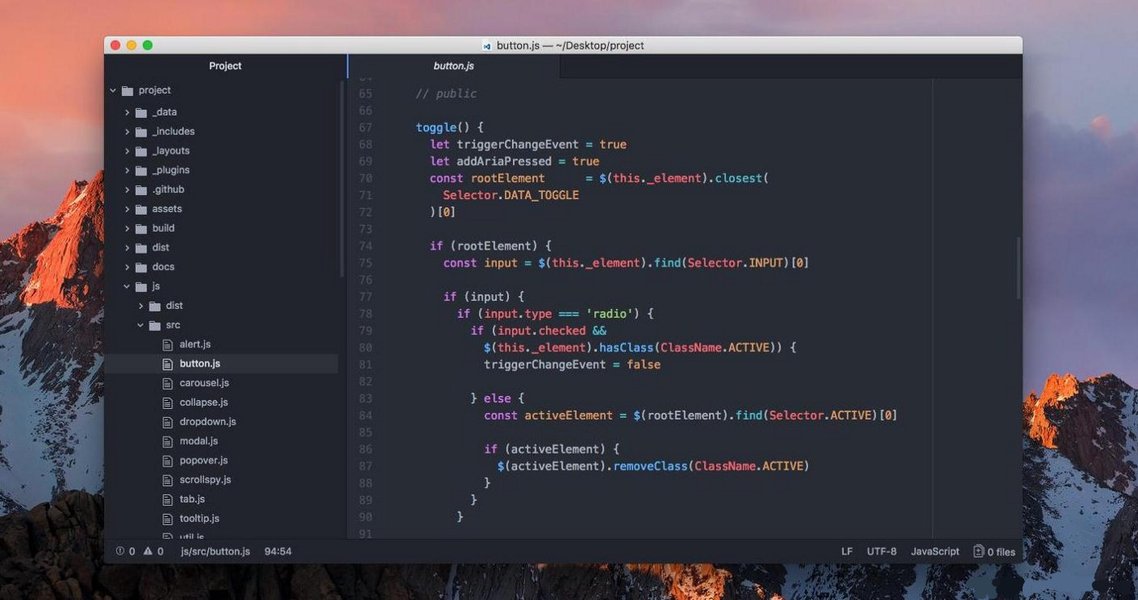
Cursor builds upon familiar editor interfaces, enhancing them with AI.
Getting Started: Installation and Setup
Setting up Cursor is straightforward. Follow these steps to integrate this powerful AI editor into your workflow.
Download and Install
Step 1: Obtain the Installer
Navigate to the official Cursor website (https://www.cursor.com/). The site will automatically detect your operating system (Windows, macOS, or Linux) and offer the appropriate download link. Click the download button to get the installer package.
Step 2: Run the Installation
Once downloaded, locate the installer file and double-click it. On Windows, you might need to grant administrator privileges. Follow the on-screen prompts, generally accepting the default settings for a standard installation. The process is typically quick, completing within a couple of minutes.
Account Registration
Upon launching Cursor for the first time, you'll be prompted to create or log in to an account. Registration is necessary to access the AI features. You can usually sign up using an email address or link a social media account. Be aware that the free tier has usage limitations, including restrictions on the number of advanced AI model queries and potentially device limits ("Too many free trial accounts used on this machine"). For unrestricted access, consider exploring their paid subscription plans.
Initial Configuration
Import VS Code Settings
If you're migrating from VS Code, Cursor offers an option during setup to import your existing settings, extensions, themes, and keybindings. This provides a seamless transition, allowing you to maintain your preferred development environment.
Language Preferences
Cursor's interface defaults to English. To switch to another language, such as Chinese, navigate to the extensions marketplace within Cursor (usually accessible via a sidebar icon), search for the desired language pack (e.g., "Chinese (Simplified) Language Pack"), install it, and restart the editor. You can also often set the preferred language for AI responses during the initial setup or in the settings menu ("Language for AI").
Command Line Integration
Like VS Code, you can configure Cursor to be launched from your terminal. This often involves adding Cursor to your system's PATH variable or running a command provided within the editor's command palette (e.g., "Install 'cursor' command in PATH"). Once set up, you can open projects directly by navigating to a directory in your terminal and typing `cursor .`.
Exploring Cursor's Core AI Features
Cursor integrates AI into nearly every aspect of the coding experience. Here's a breakdown of its key functionalities:
Intelligent Code Completion and Editing
Advanced Auto-Completion (Tab)
Cursor goes beyond basic suggestions. Its AI analyzes the context of your recent code changes and predicts your likely next steps, often suggesting multi-line code blocks. Simply pressing the `Tab` key accepts these intelligent completions, significantly speeding up routine coding tasks and reducing typos.
AI-Powered Generation & Modification (Ctrl+K / ⌘+K)
This is one of Cursor's most powerful features. Press `Ctrl+K` (Windows/Linux) or `⌘+K` (macOS) to open an inline prompt. Without selecting any code, you can type a natural language instruction (e.g., "Create a Python function to fetch data from an API") and Cursor will generate the code. If you select a block of code first, the prompt allows you to request modifications (e.g., "Refactor this function for better readability" or "Add error handling").
AI assistants like Cursor can generate code from various inputs, including natural language.
Multi-Line Editing Suggestions
When generating or modifying code, Cursor can propose changes across multiple lines or even multiple locations simultaneously, making complex refactoring tasks much quicker.
Cursor Position Prediction
To streamline navigation, Cursor attempts to predict where you'll want to place your cursor next after an edit or code generation, helping you move seamlessly through your code.
AI Chat and Interaction
Context-Aware Chat (Ctrl+L / ⌘+L)
Press `Ctrl+L` (Windows/Linux) or `⌘+L` (macOS) to open the AI chat panel. This is your conversational interface with the AI. By default, the chat understands the context of the currently open file and your cursor position. You can ask questions like "What does this function do?", "Are there any bugs in this selected code?", or "Explain this regular expression."
Specifying Context with '@'
The chat becomes even more powerful when you explicitly provide context using the `@` symbol. Examples include:
- `@file`: Refers to the currently open file.
- `@selection`: Refers to the currently selected code.
- `@codebase`: Instructs the AI to consider the entire project/workspace context. This is invaluable for questions about overall architecture or finding dependencies.
- `@` or `@`: References specific files or folders.
- `@Web`: Allows the AI to search the internet for information, useful for finding documentation or current best practices.
- `@Docs`: Lets you reference specific documentation (either popular libraries integrated by Cursor or custom documentation you add).
Interaction Modes (Normal vs. Agent)
While primarily offering a direct chat ('Normal' mode), some discussions mention an 'Agent' mode, suggesting potential for more automated, multi-step tasks, though this might be an evolving or premium feature. The primary modes are typically Chat (`Ctrl+L`) for conversation and Generate/Edit (`Ctrl+K`) for direct code manipulation.
Codebase Understanding and Management
Project-Wide Analysis
Using the `@codebase` context or simply asking project-level questions allows Cursor's AI to analyze relationships between different files and components within your entire project, providing more holistic insights and suggestions.
Applying AI Suggestions
Code generated or suggested in the chat panel often includes an "Apply" or "Insert" button (sometimes depicted as a play icon). This allows you to directly integrate the AI's code into your editor with a single click.
Documentation Integration
Cursor can be configured to reference documentation for popular libraries or even custom internal documentation, enabling the AI to answer questions and generate code based on specific APIs and standards relevant to your project.
Model Integration and Customization
Multiple LLM Choices
Cursor integrates several leading AI models. You can often switch between them in the settings based on your needs or subscription tier. Common options include:
- GPT-4 / GPT-4o: Strong all-around performers for complex reasoning and generation.
- Claude 3 / 3.5: Known for strong coding capabilities, context handling, and writing style.
- Llama 3.1: A powerful open-source alternative.
- Deepseek Coder: Optimized specifically for code-related tasks.
Custom Rules ("Rules for AI")
In the settings, you can define "System Prompts" or rules. These are instructions given to the AI to guide its behavior consistently. For example, you could specify a preferred coding style, ask it to always explain its reasoning, or define project-specific constraints. Rules can be set globally, per-project, or applied dynamically using `@Cursor Rules`.
Visualizing Cursor's Strengths
To better understand how Cursor excels, the following chart provides an opinionated comparison of its key capabilities. This radar chart rates aspects like code generation, debugging assistance, context awareness, ease of use, overall speed enhancement, and customization potential on a relative scale. Higher values indicate stronger performance in that area.
As illustrated, Cursor demonstrates strong capabilities across the board, particularly in context awareness (understanding your whole project) and direct code generation/editing features. Its foundation on VS Code contributes to its high ease of use for developers already familiar with that ecosystem.
Mapping Cursor's Functionality
This mind map provides a visual overview of Cursor's primary features and how they interconnect, helping you grasp the editor's structure and capabilities at a glance.
The mind map highlights the central role of AI in powering code completion, generation, editing, and chat. Interaction relies heavily on natural language and context specifiers, while customization options allow tailoring the experience through model selection and custom rules.
Usage Guide: From Basic Operations to Advanced Techniques
Let's walk through how to leverage Cursor in practical scenarios.
Basic Operations
Opening Projects and Navigating
Launch Cursor and open a project folder just as you would in VS Code (File > Open Folder... or using the `cursor .` command in the terminal). Use the file explorer sidebar to navigate your project structure and `Ctrl+P` (or `⌘+P`) to quickly search for files.
AI-Assisted Writing
Start typing code. Accept Tab completions when they appear relevant. For generating new code blocks, place your cursor where you want the code, press `Ctrl+K` (or `⌘+K`), type your request (e.g., "create a loop that iterates from 1 to 10"), and press Enter. Review the generated code and accept or modify it.
Chat Interaction
Open the chat panel (`Ctrl+L` / `⌘+L`). Ask questions about the code you're looking at ("Explain this class") or request actions ("Find potential errors in this file"). Use `@` symbols to provide more context if needed ("@codebase How is this function used elsewhere in the project?").
Advanced Techniques
Handling Large Codebases
When working on complex projects, leverage `@codebase` frequently in the chat to ensure the AI considers the entire project context. For instance, "@codebase Refactor the authentication flow across these modules: @auth/login.js @auth/session.js".
Error Fixing and Debugging
Select a block of code containing an error or a traceback message. Press `Ctrl+K` and ask the AI to "Fix this error" or "Debug this code snippet". Cursor will analyze the problem and suggest corrected code. You can also ask the chat to "Suggest debugging steps for this issue".
Multi-File Operations (Composer)
Some sources mention a 'Composer' mode (potentially triggered via `Ctrl+I` / `⌘+I` or available in the chat). This mode is designed for tasks requiring changes across multiple files simultaneously, such as large-scale refactoring or implementing a feature that touches various parts of the codebase. Describe the overall task, and Cursor attempts to orchestrate the necessary changes across the relevant files.
Web Search Integration
Need the latest information about a library or API? Use `@Web` in the chat: "`@Web What's the current recommended way to handle state management in React?`" The AI will search the web and summarize the findings.
Practical Examples
Data Analysis Task
Open a folder containing a CSV data file. In the chat, ask: "`@file:data.csv Generate Python code using pandas to load this data, calculate the average of the 'Sales' column, and plot a histogram of the 'Age' column.`" Cursor will generate the script, which you can then run or refine.

AI tools can automate script generation for tasks like data analysis.
Team Collaboration Considerations
When using Cursor in a team, especially with version control like Git, it's good practice to carefully review AI-generated changes before committing them. Use Git's diff tools to understand the modifications. While Cursor can speed up development, ensure the generated code aligns with team standards and logic.
Video Tutorial: Getting Started with Cursor
For a visual walkthrough, this video provides a step-by-step guide for beginners, covering installation, basic setup (including setting the language to Chinese), and demonstrates how to generate your first piece of code using Cursor's AI capabilities. It's a great resource to see the editor in action.
The tutorial covers initial download, installation, configuration options like language settings, and guides you through using the core AI features like code generation based on natural language prompts, making it ideal for those new to Cursor or AI-assisted coding.
Cursor vs. Competitors: A Quick Comparison
How does Cursor stack up against other popular AI coding assistants like GitHub Copilot? This table highlights some key differences and similarities based on common features.
| Feature | Cursor | GitHub Copilot | General Remarks |
|---|---|---|---|
| Base Editor | Fork of VS Code (Integrated) | Primarily a VS Code Extension (also supports other IDEs) | Cursor offers deeper integration as it *is* the editor. |
| Code Completion | Advanced, multi-line, Tab-based | Strong inline suggestions | Both are excellent, Cursor often emphasizes multi-line edits more proactively. |
| Code Generation | Via inline prompt (Ctrl+K) and Chat | Via comments/prompts and Chat (Copilot Chat) | Cursor's `Ctrl+K` offers a very direct workflow. |
| Chat Interface | Integrated panel (Ctrl+L), context-aware (@ symbols) | Separate Chat view/panel (Copilot Chat), context-aware | Both offer powerful chat; Cursor's `@` system provides explicit context control. |
| Codebase Context | Strong support via `@codebase` | Increasingly supported, especially with Copilot Enterprise features | Cursor was early to emphasize whole-codebase awareness. |
| Model Choice | Multiple models (GPT-4o, Claude 3.5, Llama 3.1, etc.) | Primarily OpenAI models (GPT-based) | Cursor offers more flexibility in choosing the underlying LLM. |
| Free Tier | Available with limitations | Paid subscription required (free for students/OSS maintainers) | Cursor provides an entry point for free usage. |
| Refactoring/Editing | Strong inline editing (`Ctrl+K` on selection) | Chat-based refactoring, inline suggestions | Cursor's direct editing flow (`Ctrl+K`) is a key feature. |
In essence, while both tools significantly boost productivity, Cursor differentiates itself through its native editor integration, flexible model choices, and highly accessible inline generation/editing features (`Ctrl+K`). GitHub Copilot is tightly integrated with the GitHub ecosystem and benefits from vast training data.
Tips, Considerations, and Potential Issues
Key Shortcuts Recap
Mastering these shortcuts will significantly enhance your speed with Cursor:
- `Tab`: Accept auto-completion suggestions.
- `Ctrl+K` / `⌘+K`: Open inline prompt for code generation or editing (when text is selected).
- `Ctrl+L` / `⌘+L`: Open the AI Chat panel.
- `Ctrl+Shift+L` / `⌘+Shift+L`: Focus the AI Chat panel (often similar to Ctrl+L).
- `@` (in chat): Specify context (e.g., `@codebase`, `@file`, `@Web`).
- `Ctrl+I` / `⌘+I`: Potentially opens the Composer for multi-file tasks (feature availability may vary).
Important Considerations
Free Tier Limitations
Remember that the free version has limits on the number of queries to advanced models (like GPT-4 or Claude 3.5) and may restrict usage based on the number of accounts used on a single machine. Monitor your usage or consider upgrading if you hit these limits frequently.
Performance and Connectivity
AI features require computational resources and a stable internet connection to communicate with the backend models. Ensure your machine meets reasonable system requirements, especially if working on large projects where context analysis can be demanding.
Data Privacy and Security
Cursor processes your code to provide suggestions. Review their privacy policy. Cursor typically offers settings to control data usage, such as opting out of using your code snippets for model training. Be cautious when working with highly sensitive or proprietary codebases and configure privacy settings accordingly.
Extension Compatibility
While Cursor is built on VS Code and supports most VS Code extensions, occasional compatibility issues might arise due to the modifications made for AI integration. If a critical extension doesn't work as expected, check Cursor's documentation or community forums for solutions or alternatives.
Quality of AI Output
AI-generated code is a powerful aid but not infallible. Always review suggestions for correctness, efficiency, security vulnerabilities, and adherence to best practices before accepting them. Treat the AI as a co-pilot, not an autopilot.
Frequently Asked Questions (FAQ)
References
- Cursor官网中文版 - Cursor
- Cursor Documentation - Cursor Docs
-
2025年AI编辑器Cursor使用及deepseek部署最全教程 - 知乎专栏
- 【AI工具】强大的AI编辑器Cursor详细使用教程 - CSDN博客
- AI编辑器Cursor使用指南 - 博客园
- Cursor AI编辑器 使用详解 - 小菜蔡
- Cursor AI 使用技巧超详细攻略 - 盘子叶
Recommended
Last updated April 17, 2025