
Creating Images with AI Tools
Unlock Your Creative Potential with AI-Driven Image Generation
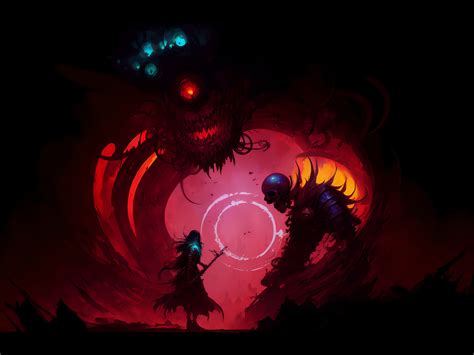
Key Takeaways
- Understand the variety of AI image generators available: From user-friendly platforms to advanced tools tailored for professionals.
- Leverage graphic design software for enhanced customization: Combine AI with traditional design tools for superior results.
- Utilize tips for optimizing your prompts: Improve the quality and relevance of generated images through effective prompt crafting.
Introduction
While I, as an AI language model, cannot directly create or generate images, I can provide comprehensive guidance on utilizing various AI-powered tools and platforms to bring your visual ideas to life. Whether you're aiming to design stunning digital art, create detailed diagrams, or generate photorealistic images, several tools can cater to your needs.
Methods to Create Images Using AI Tools
AI Image Generators
-
Microsoft Designer's AI Image Generator
- Access the tool at Microsoft Designer's AI Image Generator and sign in with your Microsoft account.
- Enter a detailed text prompt describing your desired image. The tool will produce high-quality images based on your description.
- Refine your results by adjusting the prompt or selecting from various styles to achieve the desired effect.
-
Canva's AI Image Generator
- Navigate to Canva's AI Image Generator and input your text prompt.
- Customize the generated image by choosing different styles, aspect ratios, and other parameters.
- Download or share your creation directly from Canva's platform.
-
Picsart's AI Image Generator
- Visit Picsart's AI Image Generator and type in your text prompt.
- Generate the image, then use Picsart's suite of editing tools to make further adjustments as needed.
-
Adobe Firefly's Text to Image
- Go to Adobe Firefly's Text to Image and provide a descriptive text prompt.
- Adobe Firefly leverages its advanced AI model to create detailed images, which you can download or edit within Adobe's ecosystem.
-
Craiyon (Formerly DALL·E Mini)
- Access Craiyon, enter your prompt, and click "Draw" to generate your image.
- This tool is free to use and supports a wide range of creative concepts.
-
DALL·E 2 by OpenAI
- Visit DALL·E 2 and sign up or log in to your OpenAI account.
- Input a text prompt to generate realistic or artistic images, known for its high-quality and detailed outputs.
Graphic Design Software
-
Adobe Photoshop and Illustrator
- Professional-grade graphic design software offering extensive tools for image creation and customization.
- Ideal for users who require advanced editing capabilities and precise control over design elements.
-
Canva
- User-friendly platform with templates and design tools suitable for beginners and professionals alike.
- Integrates AI image generation features for enhanced creativity.
Diagram and Infographic Makers
-
Lucidchart and Microsoft Visio
- Specialized tools for creating detailed diagrams, workflows, and schematics.
- Offer collaborative features for team projects and complex visualizations.
-
Venngage and Piktochart
- Platforms focused on designing engaging infographics with customizable templates.
- Suitable for transforming data and information into visually appealing formats.
Tips for Generating High-Quality AI Images
-
Be Specific: Craft detailed and descriptive prompts to guide the AI in generating accurate images. For instance, instead of "a sunset," try "a vibrant sunset over a calm beach with orange and pink hues reflecting on the water."
-
Experiment with Styles: Utilize available options to define the artistic style, such as "oil painting," "3D render," "vintage photograph," or "minimalist illustration."
-
Refine Your Prompts: If the initial output doesn't meet expectations, tweak your prompt by adding or adjusting details to better align with your vision.
-
Explore Multiple Tools: Different platforms may yield varying results. Experimenting with multiple AI image generators can help you find the one that best suits your aesthetic and functional needs.
-
Leverage Editing Tools: After generating an image, use graphic design software to make further enhancements or adjustments, achieving a polished final product.
-
Understand Tool Limitations: Recognize that AI-generated images may have constraints. Being aware of these can help set realistic expectations and guide prompt refinement.
Comparison of AI Image Generators
| Feature | Microsoft Designer | Canva AI | Picsart | Adobe Firefly | Craiyon | DALL·E 2 |
|---|---|---|---|---|---|---|
| Website | Link | Link | Link | Link | Link | Link |
| Ease of Use | User-friendly interface with guided prompts | Intuitive with extensive templates | Simple prompt-based generation with editing tools | Advanced features within Adobe ecosystem | Free and accessible, minimal interface | Powerful with high-quality outputs, requires OpenAI account |
| Customization | Adjustable styles and refinements | Wide range of styles and design elements | Editing tools post-generation | Integration with Adobe's suite for extensive customization | Basic customization options | Detailed prompt-based customizations |
| Output Quality | High-quality images suitable for professional use | Varied quality depending on prompt and style | Good quality with user editing | Professional-grade images | Moderate quality, suitable for casual use | Exceptional quality with realistic and artistic options |
| Cost | Freemium model with premium features | Freemium with Pro subscriptions | Freemium with premium editing tools | Subscription-based through Adobe Creative Cloud | Free to use | Freemium with more features for paid users |
Conclusion
Although I am unable to create images directly, the plethora of AI-powered tools and graphic design software available today empowers you to generate high-quality visuals tailored to your specific needs. By understanding the strengths and features of each platform, utilizing effective prompt strategies, and leveraging additional editing tools, you can achieve impressive and customized image creations. Whether for personal projects, professional presentations, or creative endeavors, these resources provide the flexibility and functionality required to bring your visual concepts to fruition.
References
Feel free to reach out if you have any specific prompts you'd like assistance with or need further guidance on using these image generation tools!
Last updated January 19, 2025