
Is Your Amazon Fire Tablet Crawling? Uncover the Top 10 Performance Killers
Pinpoint exactly why your Fire tablet feels sluggish and learn how to speed it up.
Quick Performance Insights
- Low Storage is the #1 Culprit: Running out of internal space drastically slows down your Fire tablet as the operating system struggles.
- Keep Software Updated: Outdated Fire OS versions miss crucial performance optimizations and bug fixes, leading to lag.
- Manage Background Apps: Too many apps running simultaneously consume limited RAM and CPU, impacting responsiveness.
Top 10 Factors Slowing Down Your Fire Tablet (Ordered by Impact)
Amazon Fire tablets offer great value, but over time, you might notice they become slower. Several factors contribute to this performance degradation. Understanding these can help you troubleshoot and potentially restore some speed. Here are the 10 most significant reasons, ranked from highest to lowest impact:
1. Critically Low Internal Storage Space
Why it's the biggest issue
This is consistently cited as the most impactful factor. Fire tablets, especially budget models, come with limited internal storage (e.g., 16GB, 32GB). Android, the underlying OS, requires free space for caching, temporary files, updates, and smooth operation. When storage is nearly full (typically below 1-2GB free), the system slows down dramatically. Apps may load slowly, freeze, or crash, and overall navigation becomes sluggish.
Mitigation
Regularly uninstall unused apps, clear app caches individually, delete unnecessary downloads (movies, photos, music), and consider moving media files (not apps) to a microSD card if available. Tools like Amazon's built-in storage manager or third-party apps like Files by Google can help identify large files.
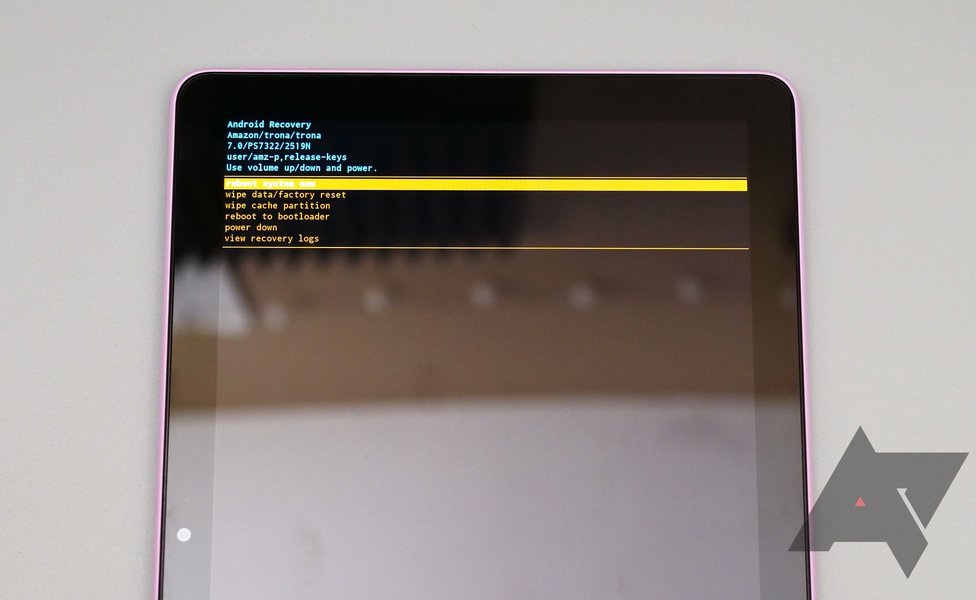
Managing storage and cache is crucial for Fire tablet performance.
2. Outdated Fire OS Software or Firmware
The importance of updates
Running an old version of Fire OS means you're missing out on performance improvements, security patches, and bug fixes implemented by Amazon. These updates are specifically designed to optimize how the tablet runs. An outdated OS can lead to inefficiencies, app compatibility issues, increased battery drain, and general sluggishness.
Mitigation
Ensure your tablet is connected to Wi-Fi and check for updates regularly. Navigate to Settings > Device Options > System Updates and tap "Check Now" or "Install Update" if one is available. Keeping the OS current is a fundamental step in maintaining performance.
3. Too Many Apps Running in the Background
Resource drain explained
Fire tablets typically have modest amounts of RAM (Random Access Memory). When multiple apps remain active in the background, they consume valuable RAM and CPU cycles, even when you're not actively using them. This leaves fewer resources available for the app you *are* using, causing lag, slow app switching, and sometimes freezing.
Mitigation
Regularly close apps you're finished using instead of just navigating away. You can force-stop apps via Settings > Apps & Notifications > See All Apps > [Select App] > Force Stop. Periodic restarts (holding the power button and selecting "Restart") also clear out background processes effectively.
4. Accumulated System and App Cache
When temporary files become a problem
Apps and the operating system store temporary data (cache) to load faster next time. While useful, this cache can become bloated or corrupted over time, consuming storage space and paradoxically slowing down the device. An excessively large or corrupt cache partition can lead to laggy UI, slow app loading, and instability.
Mitigation
You can clear cache for individual apps (Settings > Apps & Notifications > See All Apps > [Select App] > Storage > Clear Cache). A more comprehensive solution, often recommended for significant slowdowns, is wiping the system cache partition via the recovery menu (requires specific button combinations during boot-up, typically Power + Volume Down or Up). This process does not delete personal data.
This video provides several tips for addressing a slow or lagging Fire tablet.
5. Resource-Heavy or Poorly Optimized Apps
The impact of demanding applications
Some applications, particularly complex games, high-definition video streaming apps, or poorly coded applications, demand significant processing power and memory. Fire tablets, being budget devices, may struggle to run these smoothly, leading to stuttering, overheating, and overall system slowdown. Additionally, pre-installed Amazon apps (bloatware) can consume resources if not needed.
Mitigation
Be mindful of the types of apps you install. Uninstall apps you no longer use, especially games or utilities known to be resource-intensive. Consider using lighter alternatives if available. For pre-installed Amazon apps, you might be able to disable them or use third-party tools (like Fire Toolbox, for advanced users) to remove them, potentially freeing up resources.
6. Running Applications from a MicroSD Card
Internal vs. External Storage Speed
While adding a microSD card is great for storing photos, videos, and music, running apps directly from it can significantly slow down performance. Even fast microSD cards (like A1 or A2 rated) have much slower read/write speeds, especially for random access operations required by apps, compared to the tablet's built-in internal storage. This results in slower app launch times and lag during app usage.
Mitigation
Use the microSD card primarily for media storage. Keep applications installed on the internal storage whenever possible. If you previously moved apps to the SD card, consider moving essential or frequently used ones back to internal storage via the app settings.

Different Fire tablet models have varying internal storage speeds.
7. Network Connectivity Issues
Slow Wi-Fi Equals Slow Experience
Many tablet functions rely on an internet connection (streaming, browsing, syncing, updates). A slow, unstable, or congested Wi-Fi network can make the tablet *feel* slow, even if the device itself is performing adequately. Buffering videos, slow web page loading, or apps failing to update can all be symptoms of poor connectivity rather than a tablet hardware issue. Interference from other devices (microwaves, Bluetooth devices, other routers) or being too far from the router can also degrade the connection.
Mitigation
Restart your modem and router. Ensure your tablet is within a reasonable range of the router. Minimize interference by moving the router away from other electronic devices. Check if other devices on the same network are consuming excessive bandwidth. Try connecting to a different Wi-Fi network to rule out network issues.
8. Aging Hardware and General Limitations
The Inevitable Slowdown
Like all electronic devices, Fire tablets have a limited lifespan. Over time, hardware components age, and the processor and RAM that were adequate when new may struggle to keep up with more demanding modern apps and Fire OS updates. Budget processors and limited RAM in many Fire models mean they are inherently less powerful than premium tablets and will show their age sooner, typically becoming noticeably slower after 1-2 years of use.
Mitigation
While you can't upgrade the hardware, keeping the software lean (removing unused apps, clearing cache) helps maximize available resources. A factory reset can sometimes provide a temporary speed boost by clearing out accumulated cruft, but the underlying hardware limitations remain.
9. System Errors or Buggy Applications
Glitches and Conflicts
Occasional software glitches, internal system errors, or bugs within specific applications can cause unexpected slowdowns, freezing, or unresponsiveness. A poorly coded app might enter a loop, consuming excessive CPU, or a system process might hang. Sometimes firmware updates can introduce new bugs that affect performance.
Mitigation
A simple restart often resolves temporary glitches. Ensure all apps are updated via the Amazon Appstore, as updates often include bug fixes. If a specific app seems to cause slowdowns, try clearing its cache/data or uninstalling and reinstalling it. If problems started after a system update, check forums for similar reports or consider a factory reset as a last resort.
10. Battery Health Degradation
Power Management Throttling
As the lithium-ion battery in a Fire tablet ages, its capacity diminishes, and its ability to deliver peak power can decrease. To prevent unexpected shutdowns when the battery is weak or low, the operating system might automatically throttle the CPU performance. This makes the tablet operate more slowly but ensures stability. While less commonly cited than storage or RAM issues, significant battery wear can contribute to a perception of sluggishness.
Mitigation
Ensure the tablet is adequately charged. Avoid extreme temperatures, which can accelerate battery degradation. While battery replacement isn't typically feasible or cost-effective for Fire tablets, being aware of this potential factor can help explain slowdowns in older devices, especially when the battery drains quickly.
Visualizing Performance Impact Factors
The following chart provides a visual representation of the relative impact of these factors on Fire tablet performance and the general ease of addressing them. 'Potential Performance Impact' estimates how severely the factor can slow down the device (10 being highest impact), while 'Ease of Fixing' estimates how straightforward the solution is for an average user (10 being easiest).
As the chart illustrates, factors like Low Storage and Outdated OS have a high performance impact but are relatively straightforward to address. Conversely, Hardware Age and Battery Health have a lower ease-of-fixing score, indicating they are harder or impossible for the user to resolve directly.
Mindmap of Fire Tablet Slowdown Causes
This mindmap provides a hierarchical overview of the different categories contributing to a sluggish Fire tablet experience.
Quick Troubleshooting Guide
Here's a table summarizing common symptoms related to the top slowdown factors and their primary solutions:
| Factor | Common Symptoms | Primary Solution(s) |
|---|---|---|
| Low Storage | Apps crash, slow loading, system warnings, general lag | Delete unused apps/files, clear cache, move media to SD card |
| Outdated Software | Sluggish UI, app incompatibility, known bugs persist | Check for and install System Updates via Settings |
| Background Apps | Slow app switching, delayed response, battery drain | Restart tablet, force-stop unused apps |
| Cache Buildup | General lag, slow app performance, storage decrease | Clear individual app cache, wipe system cache partition |
| Heavy Apps | Stuttering in specific apps, overheating, system slowdown when app is active | Uninstall demanding apps, use lighter alternatives |
| Apps on SD Card | Slow app launch times, lag within apps stored on SD | Move apps back to internal storage, use SD for media only |
| Network Issues | Slow browsing/streaming, app update failures, connection drops | Restart router/modem, check Wi-Fi signal/interference |
| Hardware Age | Gradual overall slowdown over years of use | Manage software efficiently, Factory Reset (temporary), consider upgrade |
Frequently Asked Questions (FAQ)
Why did my Fire tablet suddenly become slow?
Sudden slowdowns are often caused by a recent app installation that's buggy or resource-heavy, running out of storage space, a problematic system update, or an accumulation of background processes. Try restarting the tablet first. If that doesn't help, check your storage space and consider uninstalling recently added apps.
Does a factory reset really speed up a Fire tablet?
Yes, a factory reset can often speed up a Fire tablet significantly, especially if the slowdown is due to software clutter, accumulated cache, system errors, or problematic apps. It returns the tablet to its original state, removing all user data and apps. However, it won't fix slowdowns caused by hardware limitations or aging. Remember to back up your important data before performing a reset.
Is it better to store apps on internal storage or an SD card?
For performance, it's always better to store apps on the tablet's internal storage. Internal storage is significantly faster than even the quickest microSD cards, leading to faster app loading times and smoother operation. Use the SD card primarily for storing media files like photos, videos, music, and documents.
How often should I restart my Fire tablet?
Restarting your Fire tablet periodically (e.g., once every few days or once a week) is a good practice. It helps clear temporary files, close unused background processes, and resolve minor software glitches that can contribute to slowdowns over time. If you notice sluggishness, a restart is often the first and easiest troubleshooting step.
Recommended Reading
- Learn the step-by-step process to clear the cache partition on your specific Fire tablet model.
- Discover effective methods for maximizing available storage space on your Fire device.
- Explore common solutions for fixing Wi-Fi connectivity issues affecting your tablet's performance.
- Understand the performance implications of using internal versus external storage for apps and data.
References
 amazonforum.com
amazonforum.com
amazonforum.com
 amazonforum.my.site.com
 uk.amazonforum.com
amazonforum.com
uk.amazonforum.com
uk.amazonforum.com
amazonforum.com
 amazon.com
amazonforum.com
amazonforum.com
amazon.com
amazon.com
amazonforum.com
amazonforum.com
Last updated May 2, 2025