
Counting and Visualizing Average White Pixels in Handwritten Digits
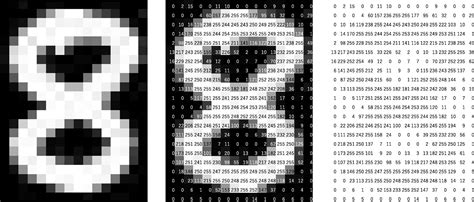
This document outlines how to count the average number of white pixels representing handwritten digits (0-9) in a dataset of grayscale images and visualize these averages using a histogram. The process involves loading images, identifying white pixels, calculating averages for each digit, and then plotting the results.
Core Steps
The process can be broken down into the following key steps:
- Import Libraries: Import necessary Python libraries for image processing, numerical computation, and plotting. These include
osfor file system operations,cv2(OpenCV) orPIL(Pillow) for image loading and manipulation,numpyfor numerical operations, andmatplotlib.pyplotfor creating visualizations. - Set Up Image Directory: Define the path to the directory containing the image files. The code assumes that the images are located in the same directory as the script, but this can be modified to point to a specific folder.
- Initialize Data Structures: Create lists or dictionaries to store the total white pixel counts and the number of images for each digit (0-9). This allows for efficient aggregation of data.
- Process Images: Iterate through each image file in the specified directory. For each image:
- Load the Image: Load the image using either
cv2.imread()(OpenCV) orImage.open()(PIL), converting it to grayscale if necessary. - Convert to NumPy Array: Convert the image data into a NumPy array for efficient pixel manipulation.
- Extract Digit from Filename: Extract the digit represented by the image from the filename. The code assumes that the last digit of the filename corresponds to the digit in the image.
- Count White Pixels: Count the number of white pixels in the image. White pixels are defined as those with a pixel value greater than a specified threshold (e.g., 200). This is done using NumPy's
np.sum()function with a boolean condition. - Update Counts: Add the white pixel count to the total count for the corresponding digit and increment the image count for that digit.
- Load the Image: Load the image using either
- Calculate Averages: After processing all images, calculate the average number of white pixels for each digit by dividing the total white pixel count by the number of images for that digit. Handle cases where there are no images for a particular digit to prevent division by zero.
- Visualize with Histogram: Use
matplotlib.pyplotto create a histogram (bar chart) visualizing the average white pixel count for each digit. The x-axis represents the digits (0-9), and the y-axis represents the average number of white pixels. - Display Results: Display the histogram and optionally print the average pixel counts for each digit to the console.
Detailed Implementation
Here's a detailed breakdown of the implementation, including code examples and explanations:
1. Importing Libraries
The following libraries are essential for this task:
import os
import cv2
import numpy as np
import matplotlib.pyplot as plt
import pandas as pd
from PIL import Image
os: For interacting with the operating system, such as listing files in a directory.cv2: OpenCV library for image processing (alternative to PIL).numpy: For numerical operations, especially array manipulation.matplotlib.pyplot: For creating plots and visualizations.pandas: For data manipulation and analysis (optional, but useful for histogram creation).PIL: Pillow library for image processing (alternative to OpenCV).
2. Setting Up Image Directory
The code needs to know where to find the image files. This can be done by specifying the directory path:
image_dir = os.getcwd()  # Assumes images are in the same directory as the script
# Or specify a path:
# image_dir = 'path/to/your/images'
Replace os.getcwd() or 'path/to/your/images' with the actual path to your image folder if it's different from the script's location.
3. Initializing Data Structures
Initialize lists or dictionaries to store pixel counts and image counts for each digit:
digit_pixel_counts = [0] * 10  # List to store total white pixels for each digit
digit_image_counts = [0] * 10  # List to store number of images for each digit
# Or using a dictionary:
# digit_pixel_counts = {i: 0 for i in range(10)}
# digit_image_counts = {i: 0 for i in range(10)}
4. Processing Images
Iterate through each image file, load it, count white pixels, and update the counts:
white_threshold = 200  # Threshold for considering a pixel as white

for filename in os.listdir(image_dir):
    if filename.endswith(".jpg"):
        try:
            digit = int(filename[-5])  # Extract digit from filename (adjust index if needed)
            # Using OpenCV:
            img = cv2.imread(os.path.join(image_dir, filename), cv2.IMREAD_GRAYSCALE)
            # Or using PIL:
            # img = Image.open(os.path.join(image_dir, filename)).convert('L')
            # img_array = np.array(img)

            white_pixels = np.sum(img > white_threshold) # Count white pixels
            digit_pixel_counts[digit] += white_pixels
            digit_image_counts[digit] += 1
        except (ValueError, IndexError):
            print(f"Skipping file {filename}: Invalid filename or image format.")
            continue
- The code iterates through all files in the specified directory.
- It checks if the file ends with
.jpg. - It extracts the digit from the filename (adjust the index
[-5]if your filename format is different). - It loads the image as grayscale using either OpenCV's
cv2.imread()or PIL'sImage.open()and converts it to a NumPy array. - It counts the white pixels (pixels with a value greater than
white_threshold). - It updates the total white pixel count and the image count for the corresponding digit.
- Error handling is included to skip files with invalid names or formats.
5. Calculating Averages
Calculate the average number of white pixels for each digit:
average_pixel_counts = [count / images if images else 0 for count, images in zip(digit_pixel_counts, digit_image_counts)]
# Or using a dictionary:
# average_pixel_counts = {digit: digit_pixel_counts[digit] / digit_image_counts[digit] if digit_image_counts[digit] > 0 else 0 for digit in range(10)}
This code calculates the average white pixel count for each digit, handling cases where there are no images for a particular digit to prevent division by zero.
6. Visualizing with Histogram
Create a histogram using matplotlib.pyplot:
plt.bar(range(10), average_pixel_counts)
plt.xlabel("Digit")
plt.ylabel("Average Number of White Pixels")
plt.title("Average White Pixels per Digit")
plt.xticks(range(10))
plt.show()
This code generates a bar chart showing the average white pixel count for each digit. The x-axis represents the digits (0-9), and the y-axis represents the average number of white pixels.
7. Displaying Results
Optionally, print the average pixel counts for each digit:
for i, count in enumerate(average_pixel_counts):
    print(f"Average white pixels for digit {i}: {count}")
Complete Code Example
Here's a complete code example combining all the steps:
import os
import cv2
import numpy as np
import matplotlib.pyplot as plt

# Directory containing the images
image_dir = os.getcwd()  # Assumes images are in the same directory as the script

# Threshold for white pixels
white_threshold = 200

# Initialize counts for each digit
digit_pixel_counts = [0] * 10
digit_image_counts = [0] * 10

# Process each image
for filename in os.listdir(image_dir):
    if filename.endswith(".jpg"):
        try:
            digit = int(filename[-5])  # Extract digit from filename
            img = cv2.imread(os.path.join(image_dir, filename), cv2.IMREAD_GRAYSCALE)
            white_pixels = np.sum(img > white_threshold)
            digit_pixel_counts[digit] += white_pixels
            digit_image_counts[digit] += 1
        except (ValueError, IndexError):
            print(f"Skipping file {filename}: Invalid filename or image format.")
            continue

# Calculate average pixel counts
average_pixel_counts = [count / images if images else 0 for count, images in zip(digit_pixel_counts, digit_image_counts)]

# Create histogram
plt.bar(range(10), average_pixel_counts)
plt.xlabel("Digit")
plt.ylabel("Average Number of White Pixels")
plt.title("Average White Pixels per Digit")
plt.xticks(range(10))
plt.show()

# Print the average pixel counts for each digit
for i, count in enumerate(average_pixel_counts):
    print(f"Average white pixels for digit {i}: {count}")
Alternative Implementation using Pandas
Here's an alternative implementation using Pandas for data manipulation and histogram creation:
import os
import cv2
import numpy as np
import pandas as pd
import matplotlib.pyplot as plt

# Load and process images
images = []
for file in os.listdir():
    if file.endswith('.jpg'):
        img = cv2.imread(file, cv2.IMREAD_GRAYSCALE)
        white_pixels = np.sum(img > 200)  # Count white pixels (handwriting)
        images.append((file.split('.')[0][-5], white_pixels))  # Store digit and count

# Calculate averages and create a DataFrame
data = pd.DataFrame(images, columns=['Digit', 'White Pixels'])
averages = data.groupby('Digit')['White Pixels'].mean().reset_index()

# Visualize with histogram
plt.hist(averages['White Pixels'], bins=10, alpha=0.7, color='blue', edgecolor='black')
plt.xlabel('Average Number of White Pixels')
plt.ylabel('Frequency')
plt.title('Average Number of White Pixels per Digit')
plt.xticks(averages['Digit'].unique())
plt.show()
This approach uses Pandas to create a DataFrame, group the data by digit, calculate the mean white pixel count, and then create a histogram.
Key Considerations
-
Filename Format: Ensure that the digit extraction logic (e.g.,
filename[-5]) matches the actual filename format of your images. -
Image Format: The code assumes that the images are grayscale JPG files. If your images are in a different format, you may need to adjust the loading and conversion steps.
-
White Pixel Threshold: The threshold for considering a pixel as white (e.g., 200) may need to be adjusted based on the specific characteristics of your images.
-
Error Handling: The code includes basic error handling to skip files with invalid names or formats. You may need to add more robust error handling for production use.
-
Library Installation: Make sure you have installed the required libraries (
opencv-python,numpy,matplotlib,Pillow, andpandas) using pip:pip install opencv-python numpy matplotlib Pillow pandas.
Additional Resources
Last updated January 6, 2025