
Unlock Seamless Android 10 Backups to Your Linux System: A Comprehensive Guide
Discover the best tools and a step-by-step process for easy, fast, and comprehensive Android backups and restores on Linux.
Backing up your Android 10 device to a Linux system is a prudent step to safeguard your valuable data. You're looking for a seamless, easy-to-follow process that allows for fast and complete recovery, restoring your phone to its exact previous state. While achieving a perfect mirror image can have nuances, especially without root access, modern tools offer robust solutions. This guide will walk you through the recommended methods and tools to achieve the most comprehensive backup possible.
Key Highlights for Your Android Backup Journey
- Open Android Backup (OAB) is highly recommended for its user-friendliness, modern approach (avoiding deprecated commands), and comprehensive features tailored for backing up Android devices to Linux, Windows, or macOS.
- Proper setup is crucial: Enabling "USB Debugging" in your Android device's Developer Options and installing the Android Debug Bridge (ADB) tools on your Linux system are fundamental prerequisites.
- Understand backup scope: While tools like OAB aim for a full restore (apps, data, photos, contacts), achieving an "exact previous state" for *all* app data can be challenging on non-rooted devices due to Android's security model. However, they provide excellent coverage for most user data.
Recommended Tools: Your Allies in Data Preservation
Choosing the right tool is paramount for a smooth backup and restore experience. Based on reliability, ease of use, and comprehensiveness for Android 10 on Linux, here are the top recommendations:
1. Open Android Backup (OAB)
Open Android Backup (formerly Linux Android Backup) stands out as the premier open-source solution. It's a shell script and Flutter application designed specifically to make Android backups on Linux (and other platforms) easy and secure. It intelligently uses ADB (Android Debug Bridge) but avoids the deprecated adb backup command, leading to greater reliability on modern Android versions like yours.
Key Features of Open Android Backup:
- User-Friendly: Offers both command-line script and a graphical interface (via its Flutter app).
- Comprehensive: Aims to back up apps (APKs), app data (to the extent possible without root), internal storage (photos, videos, documents), contacts (as vCard files), SMS messages, and call logs. Note that SMS/call logs backed up by some versions might be view-only.
- Secure: Supports encryption and compression for your backup files.
- Modern Approach: Actively maintained and avoids deprecated Android functionalities.
- Cross-Platform: Works on Linux, Windows, and macOS.
- Non-Root Focus: Designed to work effectively on non-rooted devices.
OAB is generally considered the most seamless option for achieving a near-complete backup and restore without delving into the complexities of rooting your device.
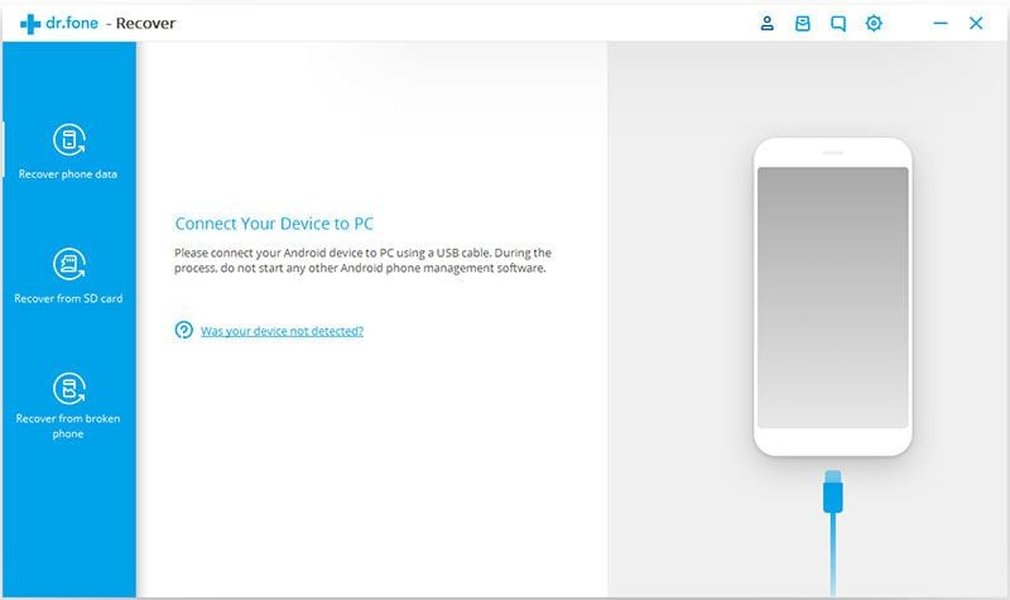
Visual representation of an Android device ready for connection, a key step in the backup process.
2. Android Debug Bridge (ADB) - Direct Usage (with Caveats)
ADB is a versatile command-line tool that lets your Linux system communicate with your Android device. It's the foundation upon which tools like OAB are built. While you can use ADB commands directly for backups, it's important to be aware of some limitations:
Using ADB Directly:
adb backupCommand: Historically, this command was used for full backups. However, it has been deprecated by Google and its functionality is often limited or disabled by manufacturers on newer Android versions (Android 9/10+). It may not reliably back up all app data and can sometimes fail unexpectedly.- File Transfers: ADB is excellent for manually pulling files and folders (
adb pull) from your device to your Linux PC (e.g., photos, downloads) and pushing them back (adb push). This is reliable for media and documents but doesn't cover apps or system settings comprehensively.
For most users seeking an easy and comprehensive solution, relying solely on direct ADB commands (especially the deprecated adb backup) is not recommended. OAB provides a more robust and user-friendly layer on top of ADB's capabilities.
Visualizing Backup Tool Capabilities
To better understand how these backup approaches compare, the radar chart below illustrates their strengths across various aspects. "Manual File Transfer" refers to simply copying files via MTP or adb pull.
This chart visually represents OAB's balanced strengths, particularly in ease of use, app backup capabilities (even for app data without root, though with limitations), and security features like encryption.
Step-by-Step Guide: Backing Up with Open Android Backup (OAB)
Here’s how you can use Open Android Backup for a seamless backup experience:
1. Prerequisites: Setting the Stage
a. Install ADB Tools on Linux:
If you don't have ADB installed, open a terminal and use your distribution's package manager. For Debian/Ubuntu-based systems:
sudo apt update
sudo apt install android-tools-adb android-tools-fastboot
For Fedora:
sudo yum install android-toolsb. Enable USB Debugging on Your Android 10 Device:
- Go to Settings > About phone.
- Tap on "Build number" repeatedly (usually 7 times) until you see a message saying "You are now a developer!".
- Go back to Settings > System > Developer options (the location might vary slightly by manufacturer).
- Enable "USB debugging". You might also want to enable "Default USB configuration" and set it to "File Transfer" for convenience.
2. Download and Set Up Open Android Backup
- Visit the Open Android Backup GitHub repository.
- Download the latest release package or clone the repository using git:
git clone https://github.com/mrrfv/open-android-backup.git cd open-android-backup - If you downloaded a package, extract it. If you cloned, navigate into the directory.
- There might be an installation script (e.g.,
install.sh) or instructions in the README. Typically, you might make the main script executable:
(The script name might vary, check the project's documentation).chmod +x open-android-backup.sh
3. Perform the Backup
- Connect your Android 10 device to your Linux system via a USB cable.
- On your Android device, a prompt will appear asking to "Allow USB debugging?" from your computer. Check "Always allow from this computer" and tap "OK" or "Allow".
- Open a terminal in the Open Android Backup directory on your Linux system.
- Run the Open Android Backup script (e.g.,
./open-android-backup.shor launch the Flutter app if available). - Follow the on-screen prompts provided by OAB. It will typically guide you to:
- Select the "Backup" option.
- Choose what to back up (apps, storage, contacts, etc.). For a full backup, select all relevant options.
- Set an encryption password for your backup file. Choose a strong, memorable password, as you'll need it for restoration.
- The backup process will begin. The time taken will depend on the amount of data on your device. Do not disconnect your phone or use it heavily during this process.
- Once completed, OAB will save the backup file (often with a
.aobor similar extension if it's OAB specific, or.abif it uses a more standard ADB format internally but managed by OAB) to a specified location on your Linux system.
Fast Recovery: Restoring Your Android Device with OAB
Restoring your data should be as straightforward as backing it up.
- Ensure your Android device is connected to your Linux PC via USB, with USB debugging enabled and authorized.
- Run the Open Android Backup script/application again from your terminal.
- Select the "Restore" option.
- OAB will prompt you to locate your backup file.
- Enter the encryption password you set when creating the backup.
- Follow any further prompts to confirm the restoration. The tool will then restore the backed-up apps, data, and files to your device.
- The phone may reboot during or after the process. Once completed, your phone should be restored to the state captured in the backup, as comprehensively as OAB allows.
Recovery speed depends on the backup size and your device's performance but is generally efficient with ADB-based tools like OAB.
Understanding the Android Backup Ecosystem: A Mindmap
The following mindmap provides a visual overview of the key components and considerations involved in backing up your Android 10 device to a Linux system.
(avoids deprecated `adb backup`)"] id2_1_3["Encryption & Compression"] id2_1_4["Backs Up: Apps (APK), App Data (limited),
Storage, Contacts, SMS/Call Logs"] id2_2["Android Debug Bridge (ADB)"] id2_2_1["Core Command-Line Tool"] id2_2_2["`adb backup` Command
(Deprecated - Use with Caution/Avoid)"] id2_2_3["Manual File Transfer
(`adb pull` / `adb push`)"] id3["Essential Preparation Steps"] id3_1["On Linux System"] id3_1_1["Install `android-tools-adb`"] id3_2["On Android Device"] id3_2_1["Enable Developer Options"] id3_2_2["Enable USB Debugging"] id3_2_3["Authorize Computer Connection"] id4["Backup & Restore Process (OAB)"] id4_1["Backup"] id4_1_1["Connect Device"] id4_1_2["Run OAB Script/App"] id4_1_3["Select 'Backup'"] id4_1_4["Choose Data Components"] id4_1_5["Set Encryption Password"] id4_2["Restore"] id4_2_1["Connect Device"] id4_2_2["Run OAB Script/App"] id4_2_3["Select 'Restore'"] id4_2_4["Choose Backup File"] id4_2_5["Enter Password"] id5["Important Considerations"] id5_1["Non-Root Limitations"] id5_1_1["Full app data backup can be challenging"] id5_1_2["Some protected app data may not be accessible"] id5_1_3["'Exact previous state' for all apps is difficult"] id5_2["Deprecated Methods"] id5_2_1["Avoid relying on old `adb backup` tutorials"] id5_3["Verification"] id5_3_1["Ideally, test restore a small backup first"] id5_3_2["Ensure backup file is stored securely"]
This mindmap illustrates the interconnectedness of tools, preparation, processes, and important factors to keep in mind for a successful backup strategy.
Comparing Backup Solutions: A Quick Overview
To further clarify your options, here's a table summarizing the key aspects of the discussed backup methods:
| Feature | Open Android Backup (OAB) | ADB (Direct adb backup command) |
Manual File Transfer (MTP/adb pull) |
|---|---|---|---|
| Primary Method | Shell script & Flutter app using modern ADB | Direct command-line adb backup (deprecated) |
GUI file manager (MTP) or adb pull commands |
| Ease of Use | High (guided process) | Moderate (command-line knowledge needed) | High (for files), Not applicable (for apps/settings) |
| Apps (APK) Backup | Yes | Yes (can be unreliable) | No |
| App Data (No Root) | Best effort, some limitations exist | Often incomplete or fails for many apps | No |
| Internal Storage (Media/Files) | Yes | Yes (via -shared flag, can be unreliable) |
Yes (primary use case) |
| Contacts/SMS/Call Logs | Yes (Contacts as vCard; SMS/Logs may be view-only) | Partial/Unreliable | No (requires separate apps for these) |
| System Settings | Limited (aims for some, but not full system state) | Limited/Unreliable | No |
| Security | Supports encryption & compression | Supports encryption (device prompt) | No inherent transfer encryption (MTP/ADB) |
| Reliability (Android 10+) | Higher; actively maintained | Lower; deprecated, often problematic | High (for files) |
| Restore Process | Guided restore via script/app | adb restore command (can be unreliable) |
Manual copy back (for files) |
| Best For | Most users seeking a comprehensive, user-friendly, non-root Linux solution | Advanced users aware of severe limitations, or if OAB is unavailable and other options fail | Quickly backing up photos, videos, documents |
Visual Aid: Transferring Data from Your Phone
While not a full backup solution like Open Android Backup, understanding how to get data off your phone is a fundamental concept. The following video discusses methods for quickly copying data from an Android phone, which can be a part of a broader backup strategy, especially for media files.
This video provides insights into transferring various types of data from your Android device to a PC.
Remember, for a comprehensive app and data backup on Linux, Open Android Backup is the more specialized and recommended tool over simple file copying.
Frequently Asked Questions (FAQ)
What is ADB and why is it important for Android backups on Linux?
ADB stands for Android Debug Bridge. It's a command-line tool that facilitates communication between your computer (Linux, in this case) and your Android device. It's crucial for backups because it allows for advanced operations like transferring files, installing and uninstalling apps, and, importantly, initiating backup and restore processes. Tools like Open Android Backup use ADB as their underlying engine to interact with the Android device and manage the backup data.
Is rooting my Android device necessary for a "full" backup on Linux?
For a true "full" backup that includes *all* application data (including private data of every app) and system partitions (like a Nandroid backup), rooting is typically required. Android's security model restricts access to certain data areas on non-rooted devices. However, tools like Open Android Backup aim to back up as much as possible without root, including app APKs, accessible app data, user files (photos, videos, documents), contacts, and SMS/call logs. This is often sufficient for most users' needs to restore their phone to a very functional state.
What data can I realistically expect to be backed up and restored using Open Android Backup without root?
Without root, Open Android Backup typically backs up:
- Applications (the APK files, so they can be reinstalled).
- App data that is accessible without root privileges (this varies by app; some apps protect their data more stringently).
- Internal storage contents: photos, videos, music, documents, downloads.
- Contacts (often as a .vcf file).
- SMS messages and call logs (sometimes these are exported in a format that might be view-only or require a specific app to restore fully integrated into the default messaging/phone apps).
While it aims to be comprehensive, restoring every single setting or internal app state to *exactly* how it was can be challenging due to Android OS and individual app restrictions.
How secure are backups created with these methods?
Open Android Backup supports encryption for backup files. When you create a backup, you'll be prompted to set a password. This encrypts the backup archive, making it unreadable without the password. This is a strong security measure. If using the old adb backup command directly, it also prompts for password encryption on the device. The security of your backup largely depends on the strength of the password you choose and keeping the backup file in a secure location.
What if the deprecated `adb backup` command doesn't work or gives errors?
This is a common issue because the adb backup command is deprecated and its functionality has been restricted or removed by many manufacturers on Android 9/10 and newer. If it fails or produces incomplete backups, it's best to avoid it. This is precisely why tools like Open Android Backup were developed – they use more modern and reliable ADB functionalities (not the deprecated adb backup command itself) to perform backups, leading to better compatibility and success rates on current Android versions.
Recommended Further Exploration
To deepen your understanding or troubleshoot specific aspects, you might find these related queries helpful:
- How to install ADB and set up USB debugging on Android for Linux systems?
- What are the detailed limitations of non-root Android backups for app data and system settings?
- Can I perform selective backup and restore of specific apps using Open Android Backup?
- How to troubleshoot Android Debug Bridge (ADB) connection issues between an Android phone and a Linux computer?
References
This response was synthesized using information from several sources, including:
 artofcode.wordpress.com
Last updated May 8, 2025