
打造功能全面的安卓計算機應用程式
從基礎設計到功能實現的完整指南
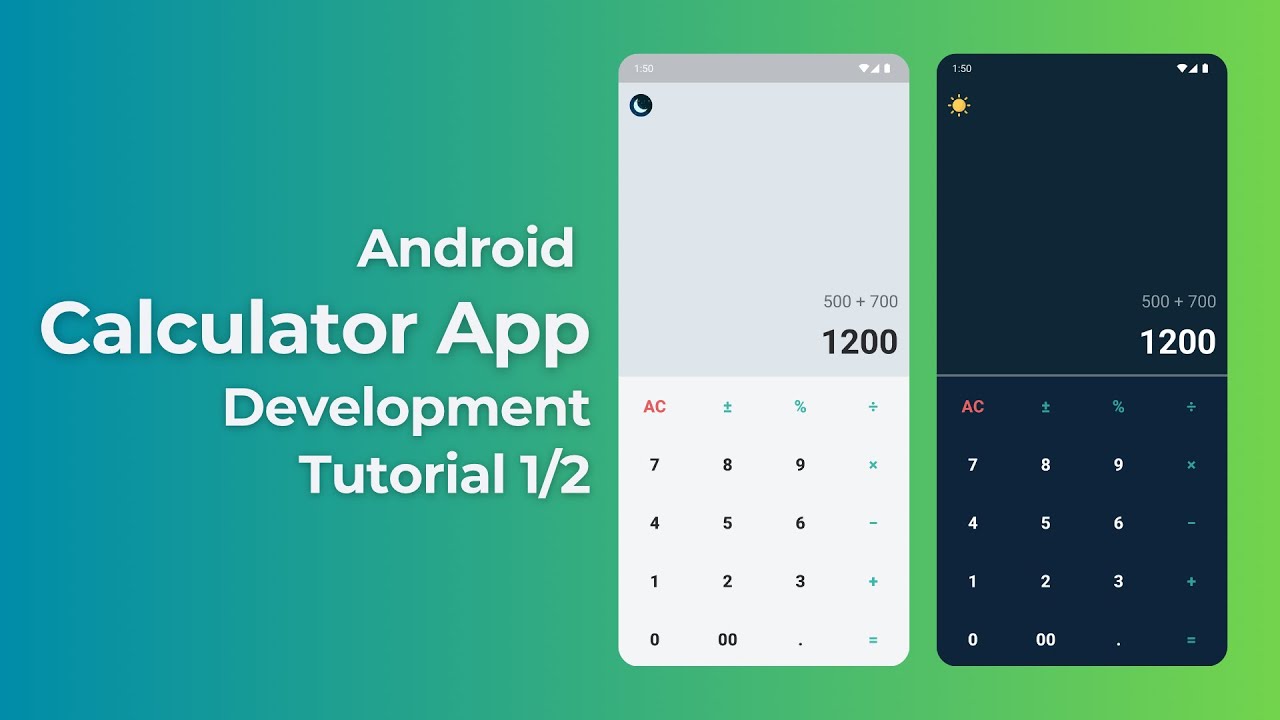
關鍵要點
- 整合現代設計元素:使用
ConstraintLayout或GridLayout來創建響應式且美觀的用戶界面。 - 實現穩定的運算邏輯:通過清晰的代碼結構,確保加、減、乘、除等基本運算的準確性。
- 增強用戶體驗:加入錯誤處理、清除功能和其他附加功能,如小數點支持和記憶功能,提升應用的實用性。
一、專案設置與初始化
1. 開發環境準備
在開始之前,確保您已經安裝了最新版本的Android Studio。此外,對Java或Kotlin以及XML有基本的了解將有助於開發過程。
2. 建立新專案
- 打開
Android Studio。 - 選擇「New Project」並選擇「Empty Activity」作為模板。
- 輸入專案名稱(例如
CalculatorApp),選擇開發語言為Kotlin或Java,並設定最低SDK版本(建議至少API 24以上)。 - 點擊「Finish」以創建專案。
二、設計用戶界面 (UI)
1. 布局文件編輯
打開res/layout/activity_main.xml,使用ConstraintLayout或GridLayout來設計計算機的界面。以下是一個使用GridLayout的範例:
<LinearLayout
        xmlns:android="http://schemas.android.com/apk/res/android"
        android:layout_width="match_parent"
        android:layout_height="match_parent"
        android:orientation="vertical"
        android:padding="16dp">

        <EditText
            android:id="@+id/inputField"
            android:layout_width="match_parent"
            android:layout_height="wrap_content"
            android:hint="0"
            android:gravity="end"
            android:textSize="32sp"
            android:inputType="none"
            android:focusable="false"
            android:background="@null" />

        <GridLayout
            android:layout_width="match_parent"
            android:layout_height="wrap_content"
            android:columnCount="4"
            android:rowCount="5"
            android:layout_marginTop="16dp">

            <Button
                android:id="@+id/btn7"
                android:layout_width="0dp"
                android:layout_height="wrap_content"
                android:layout_columnWeight="1"
                android:text="7" />

            <Button
                android:id="@+id/btn8"
                android:layout_width="0dp"
                android:layout_height="wrap_content"
                android:layout_columnWeight="1"
                android:text="8" />

            <Button
                android:id="@+id/btn9"
                android:layout_width="0dp"
                android:layout_height="wrap_content"
                android:layout_columnWeight="1"
                android:text="9" />

            <Button
                android:id="@+id/btnDivide"
                android:layout_width="0dp"
                android:layout_height="wrap_content"
                android:layout_columnWeight="1"
                android:text="/" />

            <!-- 類似方式添加其他數字和操作符按鈕 -->

            <Button
                android:id="@+id/btnEquals"
                android:layout_width="0dp"
                android:layout_height="wrap_content"
                android:layout_columnWeight="1"
                android:text="=" />

            <Button
                android:id="@+id/btnClear"
                android:layout_width="0dp"
                android:layout_height="wrap_content"
                android:layout_columnWeight="1"
                android:text="C" />

        </GridLayout>
    </LinearLayout>
2. 用戶界面設計要點
- 使用
EditText或TextView來顯示用戶輸入和計算結果。 - 使用
GridLayout來實現井然有序的按鈕布局,方便用戶操作。 - 確保按鈕大小和間距適中,提升用戶體驗。
三、實現運算邏輯
1. 初始化元件
打開MainActivity.kt或MainActivity.java,根據選擇的語言進行開發。以下提供Kotlin和Java的範例:
Kotlin範例:
package com.example.calculatorapp

import android.os.Bundle
import android.view.View
import android.widget.Button
import android.widget.EditText
import androidx.appcompat.app.AppCompatActivity

class MainActivity : AppCompatActivity() {

    private lateinit var inputField: EditText
    private var currentInput = ""
    private var operator = ""
    private var firstOperand = 0.0

    override fun onCreate(savedInstanceState: Bundle?) {
        super.onCreate(savedInstanceState)
        setContentView(R.layout.activity_main)

        inputField = findViewById(R.id.inputField)
        setButtonListeners()
    }

    private fun setButtonListeners() {
        val numberListener = View.OnClickListener { view ->
            val button = view as Button
            appendInput(button.text.toString())
        }

        val operatorListener = View.OnClickListener { view ->
            val button = view as Button
            setOperation(button.text.toString())
        }

        findViewById<Button>(R.id.btn0).setOnClickListener(numberListener)
        findViewById<Button>(R.id.btn1).setOnClickListener(numberListener)
        // 為其他數字按鈕設置監聽器...

        findViewById<Button>(R.id.btnAdd).setOnClickListener(operatorListener)
        findViewById<Button>(R.id.btnSubtract).setOnClickListener(operatorListener)
        findViewById<Button>(R.id.btnMultiply).setOnClickListener(operatorListener)
        findViewById<Button>(R.id.btnDivide).setOnClickListener(operatorListener)

        findViewById<Button>(R.id.btnEquals).setOnClickListener { calculateResult() }
        findViewById<Button>(R.id.btnClear).setOnClickListener { clearInput() }
    }

    private fun appendInput(value: String) {
        currentInput += value
        inputField.setText(currentInput)
    }

    private fun setOperation(op: String) {
        if (currentInput.isNotEmpty()) {
            firstOperand = currentInput.toDouble()
            operator = op
            currentInput = ""
        }
    }

    private fun calculateResult() {
        if (currentInput.isNotEmpty() && operator.isNotEmpty()) {
            val secondOperand = currentInput.toDouble()
            val result = when (operator) {
                "+" -> firstOperand + secondOperand
                "-" -> firstOperand - secondOperand
                "*" -> firstOperand * secondOperand
                "/" -> if (secondOperand != 0.0) firstOperand / secondOperand else 0.0
                else -> 0.0
            }
            inputField.setText(result.toString())
            currentInput = ""
            operator = ""
        }
    }

    private fun clearInput() {
        currentInput = ""
        operator = ""
        firstOperand = 0.0
        inputField.setText("")
    }
}
Java範例:
package com.example.calculatorapp;

import android.os.Bundle;
import android.view.View;
import android.widget.Button;
import android.widget.EditText;
import androidx.appcompat.app.AppCompatActivity;

public class MainActivity extends AppCompatActivity {

    private EditText inputField;
    private String currentInput = "";
    private String operator = "";
    private double firstOperand = 0.0;

    @Override
    protected void onCreate(Bundle savedInstanceState) {
        super.onCreate(savedInstanceState);
        setContentView(R.layout.activity_main);

		inputField = findViewById(R.id.inputField);
        setButtonListeners();
    }

    private void setButtonListeners() {
        View.OnClickListener numberListener = new View.OnClickListener() {
            @Override
            public void onClick(View view) {
                Button button = (Button)view;
                appendInput(button.getText().toString());
            }
        };

        View.OnClickListener operatorListener = new View.OnClickListener() {
            @Override
            public void onClick(View view) {
                Button button = (Button)view;
                setOperation(button.getText().toString());
            }
        };

        findViewById(R.id.btn0).setOnClickListener(numberListener);
        findViewById(R.id.btn1).setOnClickListener(numberListener);
        // 為其他數字按鈕設置聆聽器...

        findViewById(R.id.btnAdd).setOnClickListener(operatorListener);
        findViewById(R.id.btnSubtract).setOnClickListener(operatorListener);
        findViewById(R.id.btnMultiply).setOnClickListener(operatorListener);
        findViewById(R.id.btnDivide).setOnClickListener(operatorListener);

        findViewById(R.id.btnEquals).setOnClickListener(new View.OnClickListener() {
            @Override
            public void onClick(View view) {
                calculateResult();
            }
        });

        findViewById(R.id.btnClear).setOnClickListener(new View.OnClickListener() {
            @Override
            public void onClick(View view) {
                clearInput();
            }
        });
    }

    private void appendInput(String value) {
        currentInput += value;
        inputField.setText(currentInput);
    }

    private void setOperation(String op) {
        if (!currentInput.isEmpty()) {
            firstOperand = Double.parseDouble(currentInput);
            operator = op;
            currentInput = "";
        }
    }

    private void calculateResult() {
        if (!currentInput.isEmpty() && !operator.isEmpty()) {
            double secondOperand = Double.parseDouble(currentInput);
            double result = 0.0;
            switch(operator) {
                case "+":
                    result = firstOperand + secondOperand;
                    break;
                case "-":
                    result = firstOperand - secondOperand;
                    break;
                case "*":
                    result = firstOperand * secondOperand;
                    break;
                case "/":
                    if (secondOperand != 0.0) {
                        result = firstOperand / secondOperand;
                    } else {
                        result = 0.0;
                    }
                    break;
            }
            inputField.setText(String.valueOf(result));
            currentInput = "";
            operator = "";
        }
    }

    private void clearInput() {
        currentInput = "";
        operator = "";
        firstOperand = 0.0;
        inputField.setText("");
    }
}
2. 運算邏輯詳解
上述代碼展示了如何處理用戶輸入、設定運算符號、計算結果並清除輸入。關鍵部分包括:
appendInput方法:負責將用戶點擊的數字添加到當前輸入中。setOperation方法:設置當前運算符號並保存第一個操作數。calculateResult方法:根據選定的運算符號計算結果並顯示。clearInput方法:重置所有輸入和運算狀態。
四、擴展功能與優化
1. 增加小數點支持
為了支持小數點輸入,可以在布局中添加一個小數點按鈕,並在運算邏輯中處理小數點的輸入和顯示。例如:
<Button
    android:id="@+id/btnDecimal"
    android:layout_width="0dp"
    android:layout_height="wrap_content"
    android:layout_columnWeight="1"
    android:text="." />
2. 錯誤處理
為了提升應用的穩定性,應該加入錯誤處理機制,例如防止除以零的錯誤:
case "/":
    if (secondOperand != 0.0) {
        result = firstOperand / secondOperand;
    } else {
        // 顯示錯誤訊息
        inputField.setText("Error");
    }
    break;
3. 記憶功能 (M+, M-, MR)
增加記憶功能可以讓用戶暫存計算結果,以下是一個簡單的實現方式:
private var memory = 0.0

fun onMemoryAdd(view: View) {
    memory += firstOperand
}

fun onMemorySubtract(view: View) {
    memory -= firstOperand
}

fun onMemoryRecall(view: View) {
    appendInput(memory.toString())
}
4. 科學計算功能
可以添加平方根、指數、三角函數等科學計算功能,以下是添加平方根功能的範例:
fun onSquareRoot(view: View) {
    val value = inputField.text.toString().toDouble()
    val result = Math.sqrt(value)
    inputField.setText(result.toString())
}
5. 用戶界面優化
- 採用
Material Design提升界面的現代感和用戶體驗。 - 使用適當的顏色和字體,確保界面美觀且易於使用。
- 確保按鈕尺寸適中,方便觸控操作。
五、測試與調試
1. 使用模擬器進行測試
- 在
Android Studio中配置一個虛擬設備。 - 點擊「Run」按鈕,選擇虛擬設備進行安裝和運行。
2. 真實設備測試
- 使用USB線將安卓手機連接到電腦,並啟用USB調試。
- 在
Android Studio中選擇連接的設備作為運行目標。 - 點擊「Run」按鈕安裝並運行應用程式。
3. 功能驗證
- 測試所有基本運算(加、減、乘、除)的正確性。
- 確認小數點功能、錯誤處理和清除功能正常運作。
- 檢查記憶功能和科學計算功能的準確性。
4. 錯誤修復
- 根據測試結果修復發現的Bug和邏輯錯誤。
- 確保應用在不同設備和OS版本上的兼容性。
六、發布與維護
1. 準備發布
- 優化應用性能,確保運行流暢。
- 準備應用圖標和截圖,符合
Google Play的規範。 - 編寫應用描述,清晰說明功能和特色。
2. 上架Google Play
- 註冊
Google Play Console帳戶。 - 創建新的應用,並填寫相關資訊。
- 上傳應用包(APK或AAB文件)和資源。
- 提交審核,等待上架。
3. 持續維護與更新
- 根據用戶反饋進行功能改進和Bug修復。
- 定期更新應用,增加新功能和提升用戶體驗。
- 監控應用性能和用戶評價,保持應用的良好表現。
七、參考資源
- GeeksforGeeks - 如何使用Android Studio建立簡單的計算機應用程式
- Medium - 在Android Studio中創建基本計算機應用程式
- Reintech Media - 創建簡單的Android計算機應用程式
- Android Knowledge - 如何在Android Studio中創建計算機應用程式
- Android Studio官方網站
其他有用的參考資料:
結論
通過本指南,您已學會如何在Android Studio中從零開始構建一個功能全面的計算機應用程式。從界面設計到運算邏輯實現,再到功能擴展和應用發布,每個步驟都詳細說明,確保您能夠順利完成開發過程。隨著您的技術提升,還可以根據需求不斷優化和擴展應用的功能,滿足更多用戶的需求。
Last updated January 23, 2025