
Unlock the Power of Sound: Building Android Apps That Listen and Alert on Startup!
Your comprehensive guide to developing speech recognition keyword alert applications for Android, from initial concept to launching a market-ready product.
In an increasingly voice-driven world, Android applications capable of recognizing specific spoken keywords and triggering alerts offer immense potential. Whether for productivity, accessibility, security, or innovative user experiences, understanding how to develop such apps – especially for a startup venture or ensuring they launch seamlessly with the device – is crucial. This guide explores the technology, development process, existing solutions, and key considerations for creating speech recognition keyword alert apps on the Android platform.
Essential Insights: Key Takeaways
- Core Technology Fusion: Successful keyword alert apps rely on robust speech recognition engines (like Android's built-in
SpeechRecognizeror third-party SDKs) combined with efficient keyword spotting algorithms to process audio and identify predefined phrases. - Startup Viability & Challenges: While the demand for such apps is growing, startups must navigate challenges like ensuring high accuracy, maintaining user privacy, optimizing battery consumption, and differentiating their offering in a competitive market.
- Auto-Start Functionality: Apps can be configured to launch and begin listening upon device startup using Android's
BroadcastReceiverfor theBOOT_COMPLETEDaction, enabling persistent monitoring capabilities.
Understanding Speech Recognition Keyword Alert Apps
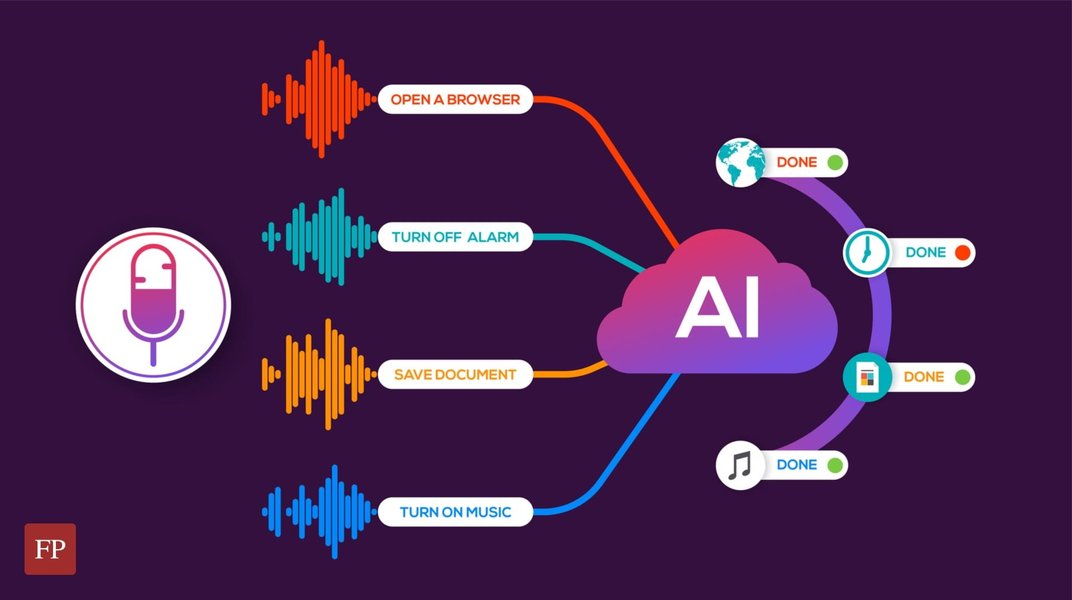
A speech recognition keyword alert app is designed to listen to audio input from an Android device's microphone, convert spoken language into text (Speech-to-Text or STT), and then scan this transcribed text for specific, predefined keywords or phrases. Upon detecting a match, the app triggers an alert, which could be a push notification, an email, a visual cue on the screen, or even an automated action.

Visualizing the development process of a voice recognition application.
Common Use Cases
- Productivity Boosters: Alerting users to important topics mentioned during meetings or lectures, allowing for focused note-taking.
- Accessibility Aids: Assisting individuals with hearing impairments by highlighting crucial spoken words in their environment.
- Security and Monitoring: Detecting specific trigger words for parental control applications or security systems.
- Hands-Free Automation: Enabling voice-activated workflows where specific spoken commands initiate actions within an app or the device.
- Content Monitoring: Keeping track of brand mentions or specific subjects in audio streams for media monitoring purposes.
The Technology Powering Keyword Alerts
Several layers of technology work in concert to enable keyword alerting functionality on Android devices. These range from native Android APIs to specialized third-party services and open-source projects.
Core Speech Recognition Engines
Android Native SpeechRecognizer API
Android provides the android.speech.SpeechRecognizer class, which is the foundational API for integrating speech-to-text capabilities into applications. It can process audio in real-time or in batches. While widely accessible, its performance can depend on network connectivity for cloud-based processing (though on-device options are increasingly available) and may sometimes be affected by ambient noise or accents.
Cloud-Based Speech-to-Text Services
Services like Google Cloud Speech-to-Text, Amazon Transcribe, and Microsoft Azure Speech to Text offer highly accurate and scalable speech recognition. They often support a vast number of languages and dialects, benefit from continuous AI model improvements, but typically require an internet connection and may involve costs based on usage.
On-Device Speech Recognition Solutions
For applications prioritizing privacy, low latency, and offline functionality, on-device SDKs are preferable. Companies like Picovoice offer wake word detection (Keyword Spotting - KWS) and speech-to-text engines that run entirely on the device. Google also provides on-device capabilities through features like Voice Access and for specific use cases.

User interface concept for a smart voice recognition application.
Open-Source Alternatives
Projects like Vosk offer open-source speech recognition toolkits that can be adapted for Android. These provide flexibility and control for developers who wish to customize the recognition engine or avoid proprietary solutions. They can scale from small devices to larger server-based systems.
Keyword Spotting (KWS)
Keyword Spotting is a specialized field within speech recognition focused on detecting specific predefined words or phrases in an audio stream. This is often more efficient than full speech-to-text transcription if the goal is only to identify particular terms. KWS systems can be designed to be "always-on" while consuming minimal power, making them ideal for wake words (like "Hey Google") or continuous monitoring for alert keywords.
Comparative Analysis of Speech Recognition Technologies
Choosing the right speech recognition technology is pivotal for a startup. The radar chart below offers an opinionated comparison of different approaches based on key factors. Note that "higher" values generally indicate better performance or more favorable characteristics in that specific dimension. The scale is relative and intended for illustrative comparison.
This chart compares Android's Native API, Cloud-based STT services (like Google Cloud Speech-to-Text), specialized On-Device SDKs (e.g., Picovoice), and Open-Source solutions (e.g., Vosk) across six critical dimensions: Accuracy, Latency (lower is better, so inverted for chart logic where higher score means lower latency), On-Device Capability, Development Cost, Privacy, and Customization Potential. Startups should weigh these factors based on their specific application requirements and user needs.
Developing Your Keyword Alert App: A Startup's Blueprint
For a startup venturing into this space, a clear development plan is essential. This involves defining features, choosing the right technologies, and implementing robustly.
Key Development Steps
- Define Keywords and Configuration:
- Allow users to define and manage a list of keywords or phrases that should trigger alerts.
- Consider options for sensitivity (e.g., exact match, partial match) and language selection.
- Store keywords securely, either locally on the device or synchronized via a cloud backend.
- Audio Capture and Permissions:
- Properly request and manage microphone permissions (
android.permission.RECORD_AUDIO). Transparency with the user is key. - Implement audio capturing using
AudioRecordor similar mechanisms.
- Properly request and manage microphone permissions (
- Speech Recognition Integration:
- Integrate the chosen speech recognition engine (Native, Cloud, On-Device, or Open-Source).
- Handle continuous listening or session-based recognition based on app requirements and battery considerations.
- Keyword Matching:
- Once speech is transcribed to text, implement an efficient algorithm to search for the predefined keywords within the transcribed text.
- Alerting Mechanism:
- Trigger alerts using Android's Notification system.
- Consider options for custom sound, vibration, visual cues, or integration with other services (e.g., email, SMS).
- Use Notification Channels for better user control over alerts on modern Android versions.
- Background Operation (Optional but often crucial):
- For continuous monitoring, implement a foreground service to keep the app running and listening in the background. This requires careful battery optimization and clear user notification that the service is active.
- User Interface and Experience (UI/UX):
- Design an intuitive interface for managing keywords, viewing alert history, and configuring settings.
Mindmap: Core Components of a Keyword Alert App Startup
The following mindmap illustrates the interconnected components and considerations for a startup developing a speech recognition keyword alert application.
Keyword Alert App
(Startup Focus)"] id1["Core Technology"] id1a["Speech-to-Text Engine
(Native, Cloud, On-Device, Open-Source)"] id1b["Keyword Spotting (KWS)"] id1c["Audio Processing & Management"] id2["Development Lifecycle"] id2a["Requirement Analysis & MVP Definition"] id2b["UI/UX Design"] id2c["Backend (Optional - for sync, advanced features)"] id2d["Android App Development"] id2e["Testing (Accuracy, Performance, Battery)"] id2f["Deployment & Maintenance"] id3["Key Features"] id3a["Customizable Keyword Lists"] id3b["Real-time Alerts (Notifications, etc.)"] id3c["Alert History/Log"] id3d["Background Listening (Foreground Service)"] id3e["Language Support"] id3f["Sensitivity Settings"] id4["Startup Considerations"] id4a["Market Niche & Differentiation"] id4b["Monetization Strategy (Freemium, Subscription, Ads)"] id4c["Privacy Policy & Data Security"] id4d["User Acquisition & Marketing"] id4e["Scalability"] id5["Critical Challenges"] id5a["Accuracy in Noisy Environments"] id5b["Battery Consumption"] id5c["Privacy Concerns (Mic Access)"] id5d["False Positives/Negatives"] id5e["OS Compatibility & Background Restrictions"] id6["Auto-Start on Boot"] id6a["BroadcastReceiver (BOOT_COMPLETED)"] id6b["Starting Service on Boot"] id6c["Permissions (RECEIVE_BOOT_COMPLETED)"]
This mindmap highlights key areas from technology choices and development steps to crucial startup considerations like market positioning and addressing technical challenges. An important feature for some use cases is ensuring the app can start its monitoring service automatically when the device boots up.
Making Your App "Startup" Ready: Auto-Launch on Device Boot
For applications that require continuous monitoring, such as parental controls or accessibility tools, ensuring the keyword alert service starts automatically when the Android device boots up is a critical feature. This involves using a BroadcastReceiver to listen for the system's boot completion event.
Step 1: Declare Permissions in AndroidManifest.xml
Your app needs permission to receive the boot completed broadcast and to record audio.
<?xml version="1.0" encoding="utf-8"?>
<manifest xmlns:android="http://schemas.android.com/apk/res/android"
    package="com.example.keywordalertapp">

    <uses-permission android:name="android.permission.RECEIVE_BOOT_COMPLETED" />
    <uses-permission android:name="android.permission.RECORD_AUDIO" />
    <!-- Add other necessary permissions -->

    <application
        android:allowBackup="true"
        android:icon="@mipmap/ic_launcher"
        android:label="@string/app_name"
        android:roundIcon="@mipmap/ic_launcher_round"
        android:supportsRtl="true"
        android:theme="@style/AppTheme">

        <!-- Your Main Activity -->
        <activity android:name=".MainActivity">
            <intent-filter>
                <action android:name="android.intent.action.MAIN" />
                <category android:name="android.intent.category.LAUNCHER" />
            </intent-filter>
        </activity>

        <!-- BroadcastReceiver to listen for boot completion -->
        <receiver android:name=".BootCompletedReceiver"
            android:enabled="true"
            android:exported="true"> <!-- Set exported based on your target SDK and needs -->
            <intent-filter>
                <action android:name="android.intent.action.BOOT_COMPLETED" />
                <action android:name="android.intent.action.QUICKBOOT_POWERON" /> <!-- For some devices -->
            </intent-filter>
        </receiver>

        <!-- Your Speech Recognition Service -->
        <service android:name=".SpeechRecognitionService" />

    </application>
</manifest>
Step 2: Implement the BroadcastReceiver
Create a class BootCompletedReceiver.java that extends BroadcastReceiver. Its onReceive method will be called when the boot process is complete.
package com.example.keywordalertapp;

import android.content.BroadcastReceiver;
import android.content.Context;
import android.content.Intent;
import android.os.Build;
import android.util.Log;

public class BootCompletedReceiver extends BroadcastReceiver {
    private static final String TAG = "BootCompletedReceiver";

    @Override
    public void onReceive(Context context, Intent intent) {
        if (intent.getAction() != null &&
            (intent.getAction().equals(Intent.ACTION_BOOT_COMPLETED) ||
             intent.getAction().equals("android.intent.action.QUICKBOOT_POWERON"))) { // Some devices use QUICKBOOT_POWERON

            Log.d(TAG, "Boot completed event received.");
            Intent serviceIntent = new Intent(context, SpeechRecognitionService.class);

            // For Android Oreo (API 26) and above, startForegroundService is required for background services
            if (Build.VERSION.SDK_INT >= Build.VERSION_CODES.O) {
                context.startForegroundService(serviceIntent);
            } else {
                context.startService(serviceIntent);
            }
            Log.d(TAG, "SpeechRecognitionService started.");
        }
    }
}
Step 3: Create the SpeechRecognitionService
This service will handle the continuous speech listening. Below is a conceptual outline. You would integrate your chosen speech recognizer (e.g., android.speech.SpeechRecognizer) here. Remember to manage it as a foreground service to prevent the system from killing it, which involves showing a persistent notification.
package com.example.keywordalertapp;

import android.app.Notification;
import android.app.NotificationChannel;
import android.app.NotificationManager;
import android.app.PendingIntent;
import android.app.Service;
import android.content.Intent;
import android.os.Build;
import android.os.IBinder;
import android.speech.RecognitionListener;
import android.speech.RecognizerIntent;
import android.speech.SpeechRecognizer;
import android.os.Bundle;
import android.util.Log;
import androidx.core.app.NotificationCompat; // Use androidx

import java.util.ArrayList;

public class SpeechRecognitionService extends Service {
    private static final String TAG = "SpeechRecService";
    private SpeechRecognizer speechRecognizer;
    private Intent speechRecognizerIntent;
    public static final String CHANNEL_ID = "KeywordAlertServiceChannel";

    @Override
    public void onCreate() {
        super.onCreate();
        Log.d(TAG, "Service onCreate");
        // Create notification channel for Android Oreo and above
        createNotificationChannel();

        // Initialize SpeechRecognizer
        speechRecognizer = SpeechRecognizer.createSpeechRecognizer(this);
        speechRecognizerIntent = new Intent(RecognizerIntent.ACTION_RECOGNIZE_SPEECH);
        speechRecognizerIntent.putExtra(RecognizerIntent.EXTRA_LANGUAGE_MODEL, RecognizerIntent.LANGUAGE_MODEL_FREE_FORM);
        speechRecognizerIntent.putExtra(RecognizerIntent.EXTRA_CALLING_PACKAGE, this.getPackageName());
        speechRecognizerIntent.putExtra(RecognizerIntent.EXTRA_PARTIAL_RESULTS, true); // Get partial results

        speechRecognizer.setRecognitionListener(new RecognitionListener() {
            @Override
            public void onReadyForSpeech(Bundle params) { Log.d(TAG, "onReadyForSpeech"); }
            @Override
            public void onBeginningOfSpeech() { Log.d(TAG, "onBeginningOfSpeech"); }
            @Override
            public void onRmsChanged(float rmsdB) { /* Log.d(TAG, "onRmsChanged: " + rmsdB); */ } // Can be noisy
            @Override
            public void onBufferReceived(byte[] buffer) { Log.d(TAG, "onBufferReceived"); }
            @Override
            public void onEndOfSpeech() { Log.d(TAG, "onEndOfSpeech"); }
            @Override
            public void onError(int error) {
                Log.e(TAG, "onError: " + error);
                // Restart listening after an error, with some delay
                // Be careful not to create a tight loop if errors are persistent
                restartListening();
            }
            @Override
            public void onResults(Bundle results) {
                Log.d(TAG, "onResults");
                ArrayList<String> matches = results.getStringArrayList(SpeechRecognizer.RESULTS_RECOGNITION);
                if (matches != null && !matches.isEmpty()) {
                    String recognizedText = matches.get(0);
                    Log.i(TAG, "Recognized: " + recognizedText);
                    checkForKeywords(recognizedText);
                }
                restartListening(); // Continue listening
            }
            @Override
            public void onPartialResults(Bundle partialResults) {
                // Process partial results if needed
                 ArrayList<String> matches = partialResults.getStringArrayList(SpeechRecognizer.RESULTS_RECOGNITION);
                if (matches != null && !matches.isEmpty()) {
                    String recognizedText = matches.get(0);
                    Log.d(TAG, "Partial: " + recognizedText);
                    // Optionally check keywords on partial results for faster response
                }
            }
            @Override
            public void onEvent(int eventType, Bundle params) { Log.d(TAG, "onEvent"); }
        });
    }

    private void checkForKeywords(String text) {
        // Your keyword checking logic here
        // Example:
        // if (text.toLowerCase().contains("your_keyword")) {
        //     sendNotification("Keyword Detected!", text);
        // }
    }

    private void sendNotification(String title, String message) {
        // Code to create and show a notification
    }

    private void restartListening() {
        // Add a small delay before restarting to avoid hammering the recognizer on repeated errors
        // Handler handler = new Handler();
        // handler.postDelayed(() -> {
        //     if (speechRecognizer != null) {
        //         speechRecognizer.startListening(speechRecognizerIntent);
        //     }
        // }, 1000); // 1 second delay
        if (speechRecognizer != null) {
             speechRecognizer.startListening(speechRecognizerIntent); // Restart immediately or with delay
        }
    }

    @Override
    public int onStartCommand(Intent intent, int flags, int startId) {
        Log.d(TAG, "Service onStartCommand");

        Intent notificationIntent = new Intent(this, MainActivity.class); // App's main activity
        PendingIntent pendingIntent = PendingIntent.getActivity(this,
                0, notificationIntent, PendingIntent.FLAG_IMMUTABLE); // Use FLAG_IMMUTABLE

        Notification notification = new NotificationCompat.Builder(this, CHANNEL_ID)
                .setContentTitle("Keyword Alert Service")
                .setContentText("Listening for keywords...")
                .setSmallIcon(R.mipmap.ic_launcher) // Replace with your app's icon
                .setContentIntent(pendingIntent)
                .build();

        startForeground(1, notification); // Unique ID for the notification, must be > 0

        // Start listening
        speechRecognizer.startListening(speechRecognizerIntent);

        return START_STICKY; // Service will be restarted if killed by the system
    }

    @Override
    public void onDestroy() {
        super.onDestroy();
        Log.d(TAG, "Service onDestroy");
        if (speechRecognizer != null) {
            speechRecognizer.destroy();
        }
    }

    @Override
    public IBinder onBind(Intent intent) {
        return null; // We are not using binding
    }

    private void createNotificationChannel() {
        if (Build.VERSION.SDK_INT >= Build.VERSION_CODES.O) {
            NotificationChannel serviceChannel = new NotificationChannel(
                    CHANNEL_ID,
                    "Keyword Alert Service Channel",
                    NotificationManager.IMPORTANCE_DEFAULT
            );
            NotificationManager manager = getSystemService(NotificationManager.class);
            if (manager != null) {
                manager.createNotificationChannel(serviceChannel);
            }
        }
    }
}
Important Note on Continuous Listening: Android's native SpeechRecognizer might not be ideal for true, long-running continuous listening without interruptions or beeps, especially on all devices. It's often designed for shorter voice commands. For robust, seamless, always-on keyword spotting, third-party SDKs like Picovoice Porcupine (for wake words) or Cheetah (for streaming STT) are often more suitable, as they are optimized for low power and continuous operation. The code above shows how to restart listening, but this can still have limitations and audible cues on some devices.
Notable Android Apps and Tools
Several applications and tools already exist in the Android ecosystem that provide keyword alerting or foundational speech recognition capabilities:
Tutorial on building a Speech-to-Text app in Android Studio, relevant for understanding foundational concepts.
The video above provides a foundational understanding of how to build a basic speech-to-text application in Android Studio. This knowledge is directly applicable when developing the speech recognition component of a keyword alert system. It covers setting up the necessary components, handling permissions, and processing voice input, which are all core tasks in creating the apps discussed.
| App/Tool Name | Key Features | Primary Use | On-Device Option | Notes |
|---|---|---|---|---|
| Google Speech Recognition & Synthesis | Powers voice input across Android, multi-language support. | General STT/TTS | Yes (often with cloud fallback) | Core Android component, can be leveraged by other apps. |
| AlertMe - Notification Alarms | Set alerts for keywords found in notifications from other apps. | Notification-based keyword alerts | N/A (processes text from notifications) | Can be indirectly combined with speech-to-text apps that generate notifications. |
| Dragon Anywhere (Nuance) | Professional-grade dictation, high accuracy, customizable commands. | Dictation, Transcription | No (Cloud-based) | Subscription-based, known for accuracy. |
| Picovoice Platform (Porcupine, Cheetah, Leopard) | Wake word detection, streaming STT, batch STT. | Voice control, on-device STT | Yes (Primary focus) | SDKs for developers, focuses on privacy and efficiency. |
| Vosk API | Open-source speech recognition toolkit. | Custom STT solutions | Yes | Supports multiple languages, scalable. |
| iKeyMonitor / Fenced.ai | Parental control, employee monitoring with keyword alerts. | Monitoring | Varies | Commercial products, often focus on text-based keyword alerts but can include spoken ones. |
This table provides a snapshot of different types of tools available. Some are end-user apps, while others are SDKs or services that developers can integrate into their own keyword alert applications. The choice depends on the specific requirements of the project, such as the need for on-device processing, language support, and desired accuracy.
Conceptual image related to open-source speech recognition systems.
Critical Considerations: Challenges and Best Practices
Developing a successful speech recognition keyword alert app involves navigating several technical and user-centric challenges.
Addressing Key Challenges
- Accuracy: Speech recognition accuracy can be affected by background noise, accents, speech impediments, and microphone quality. False positives (incorrectly identifying a keyword) or false negatives (missing a keyword) can frustrate users.
- Best Practice: Utilize high-quality speech recognition engines, offer sensitivity adjustments, and potentially allow users to train custom voice models for specific keywords.
- Battery Consumption: Continuous microphone access and audio processing can significantly drain the device's battery, especially if not optimized.
- Best Practice: Implement power-efficient keyword spotting algorithms, use foreground services judiciously, and provide users with options to control listening frequency or activate it only in specific contexts. On-device solutions are generally more power-efficient than constant cloud streaming.
- Privacy: Apps that listen to conversations raise significant privacy concerns. Users must trust that their data is handled responsibly.
- Best Practice: Be transparent about when and why the microphone is active. Process audio on-device whenever possible. If cloud processing is necessary, ensure data is anonymized and encrypted. Provide a clear privacy policy.
- Android Background Restrictions: Modern Android versions have strict limitations on background processes to conserve battery and improve performance. Ensuring your app's listening service runs reliably in the background requires careful implementation of foreground services and handling of Doze mode and App Standby Buckets.
- Resource Management: Efficiently manage system resources to avoid impacting overall device performance.
Frequently Asked Questions (FAQ)
How accurate are speech recognition keyword alert apps?
Accuracy varies significantly based on the underlying speech recognition engine, background noise, microphone quality, and the speaker's accent and clarity. High-end commercial engines (like Dragon or Google Cloud STT) can achieve over 95-99% accuracy in ideal conditions. On-device solutions offer good accuracy for specific tasks like keyword spotting. However, real-world performance may differ, and false positives/negatives are always possible.
What are the main privacy concerns with these apps?
The primary concern is continuous microphone access, which could potentially record sensitive conversations. Users need assurance that:
- Audio is processed securely (preferably on-device).
- Data is not shared or sold without explicit consent.
- The app only listens when necessary and clearly indicates when it's active.
- A comprehensive and transparent privacy policy is provided.
Can these apps work offline without an internet connection?
Yes, many apps and SDKs offer on-device speech recognition and keyword spotting capabilities. These process audio directly on the Android device without needing to send data to the cloud, enabling offline functionality. Examples include Picovoice SDKs and some configurations of Google's speech services or open-source tools like Vosk.
How much battery do keyword alert apps typically consume?
Battery consumption is a significant concern. Apps that continuously listen and process audio can drain the battery quickly. However, well-optimized apps, especially those using dedicated on-device keyword spotting engines (which are designed for low power consumption), can minimize battery impact. Cloud-based continuous streaming is generally more power-intensive. Users should look for apps with power-saving modes or contextual listening features.
What does "startup" mean in the context of these Android apps?
"Startup" can have two meanings here:
- For a new business (a startup company): It refers to the process of developing and launching such an app as a new venture, considering market needs, technology choices, and business models.
- App auto-start functionality: It refers to an app's ability to automatically launch its services (like keyword listening) when the Android device boots up. This is achieved using a `BroadcastReceiver` for the `BOOT_COMPLETED` intent.
Recommended Further Exploration
To delve deeper into related topics, consider exploring these queries:
- How can I optimize Android foreground services for continuous speech recognition to minimize battery drain?
- What are the key differences between on-device and cloud-based speech recognition SDKs for Android regarding user privacy?
- What are the best practices for handling microphone permissions and obtaining user consent in Android voice-activated applications?
- How can I implement robust error handling and automatic recovery mechanisms for the Android SpeechRecognizer API in a long-running service?
References
Last updated May 9, 2025