
Unlock Dynamic Data Insights: Mastering Filtered Enhanced Dashboards in AppSheet
Go beyond basic views and empower users with highly customized, interactive data filtering capabilities in your AppSheet applications.
AppSheet's enhanced dashboards offer a powerful way to create sophisticated, user-driven data exploration experiences. Unlike standard interactive dashboards, enhanced dashboards provide a greater degree of customization, allowing developers to build tailored filtering mechanisms that precisely meet user needs. This guide will delve into how to construct and utilize these dynamic dashboards for more effective data analysis and interaction.
Key Insights: Enhanced Dashboard Filtering
- Customization is Key: Enhanced dashboards allow for manual construction, offering superior control over filter logic, UI elements, and overall user experience compared to standard interactive dashboards.
- Component-Based Architecture: Building an effective filtered enhanced dashboard involves strategically using tables for filter criteria, slices for dynamic data subsets, specific views for user interaction, and actions for control.
- User-Centric Design: The goal is to empower users with personalized and intuitive ways to explore data, often by filtering based on their specific inputs or roles within the application.
Understanding Enhanced Dashboards in AppSheet
What Sets Enhanced Dashboards Apart?
In AppSheet, a dashboard view allows you to combine multiple individual views (like tables, charts, maps, or detail views) onto a single screen. While AppSheet offers a built-in "interactive mode" for dashboards, where selecting an item in one view can filter data in another, an enhanced dashboard takes this a step further. It typically refers to a more manually constructed and customized dashboard experience. Developers build these by meticulously defining how data is filtered and displayed, often using dedicated tables for filter inputs, slices to create dynamic data subsets, and specific views to act as filter controls.
This approach is particularly valuable when you need:
- User-driven filtering capabilities where users can input specific criteria.
- Complex filter logic involving multiple conditions or fields.
- Customized user interface controls for applying and clearing filters.
- Personalized dashboard views based on individual user settings or roles.
- Real-time interactivity where user selections in dedicated filter controls update multiple data views simultaneously.
Benefits of Enhanced Dashboard Filtering
Opting for an enhanced dashboard with custom filtering offers several advantages:
- Greater Flexibility: Tailor the filtering mechanism precisely to your application's workflow and data structure.
- Complex Scenarios: Implement sophisticated filtering that might not be possible with standard interactive mode alone, such as filtering based on multiple dropdown selections, date ranges, or user-specific attributes.
- Improved User Experience (UX): Provide clear, intuitive filter controls that make it easy for users to find the exact information they need.
- Personalization: Allow filter criteria to be saved per user or session, offering a more personalized experience.
- Scalability: Design dashboards that can adapt to evolving data and user requirements.
Core Components for Building a Filtered Enhanced Dashboard
Constructing a robust filtered enhanced dashboard in AppSheet involves orchestrating several key components. Each plays a crucial role in capturing user input, processing the filter logic, and displaying the relevant data.
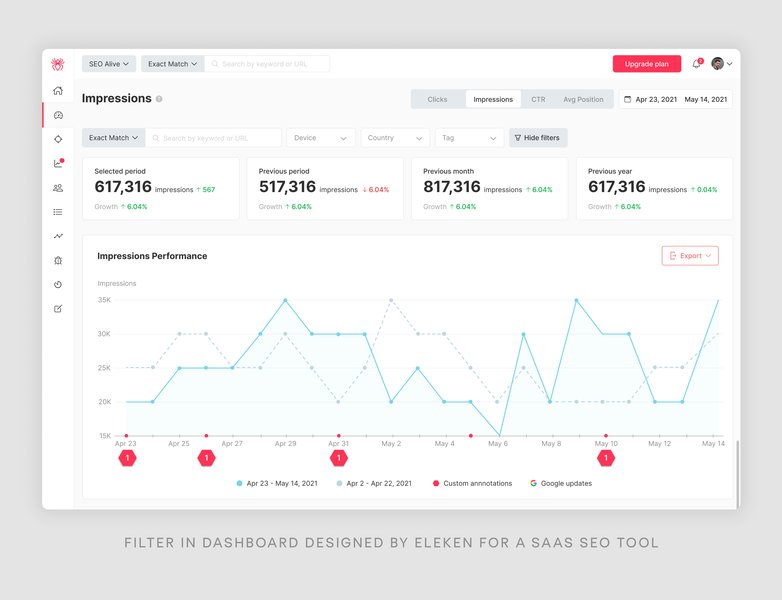
Visual example of common filter UI elements that can be incorporated into an AppSheet enhanced dashboard.
1. User Filter Table (Criteria Table)
The Control Panel for User Inputs
This is a dedicated table (e.g., User_Filters, Current_User_Settings) designed to store the filter criteria selected or entered by the user. Typically, each logged-in user might have a single row in this table, or a shared row could be used if filters are not user-specific. This table will have columns corresponding to each filterable aspect of your data (e.g., Status, Category, StartDate, AssignedTo). Users interact with a view based on this table (often a form or detail view with quick-edits) to set their desired filters.
2. Slices Based on User Input
Dynamically Shaping Your Data
Slices are filtered subsets of your main data tables. For an enhanced dashboard, you'll create slices whose filter conditions dynamically reference the values stored in the User Filter Table. For example, if your main data is in Tasks_Table and your filter criteria are in User_Filters_Table, a slice named Filtered_Tasks_Slice might have a row filter condition like:
AND(
    ([Status] = ANY(User_Filters_Table[Selected_Status_Filter])),
    ([DueDate] >= ANY(User_Filters_Table[Selected_StartDate_Filter]))
)
This slice will then only contain rows from Tasks_Table that match the criteria currently set by the user in the User_Filters_Table.
3. Dashboard Views and Filter Control Views
Presenting Data and Interactivity
The main dashboard view will combine several other views. Crucially, it will include:
- Filter Control View(s): These are views (often a detail view or form view with quick-edit enabled columns) based on the User Filter Table. Users interact with these controls (dropdowns, input fields, buttons) to specify their filter preferences.
- Data Display View(s): These are views (tables, charts, galleries, maps) based on the dynamic slices created in the previous step. As users change their filter criteria in the control view, these data views automatically update to reflect the filtered dataset.
While AppSheet's "interactive mode" can be used, many enhanced dashboards rely on the slice logic tied to the filter control table for primary filtering, offering more explicit control.
4. Actions for Enhanced Control
Streamlining User Interaction
Actions can significantly improve the usability of your filtered dashboard. Common actions include:
- Clear Filters: An action that resets all the filter criteria columns in the User Filter Table to their default (often blank) values. This allows users to quickly start a new search.
- Apply Filters (Implicit): Often, changes in the quick-edit filter control view automatically trigger data updates. Explicit "apply" buttons are less common but can be implemented.
- Navigate/Link: Actions can be used to navigate to specific filtered views or pre-set filter configurations.
Summary of Components and Roles
The following table summarizes the key components and their functions within a filtered enhanced dashboard architecture:
| Component | Primary Role | Typical Implementation | Key Benefit |
|---|---|---|---|
| User Filter Table | Store active filter criteria | A dedicated table with columns for each filterable field (e.g., Status, Date Range, Category). Often linked to USEREMAIL() for personalized filters. |
Centralizes filter settings, enabling dynamic referencing. |
| Slices | Create dynamic subsets of data | Slices on main data tables with row filter conditions referencing the User Filter Table. | Efficiently presents only relevant data based on user choices. |
| Filter Control View | Provide UI for filter input | A detail or form view of the User Filter Table, often with quick-edit enabled for dropdowns, input fields, etc. | Offers an intuitive interface for users to specify filters. |
| Data Display Views | Show filtered data | Charts, tables, galleries, etc., based on the dynamic slices. | Visualizes the results of the applied filters. |
| Actions | Enhance usability | Buttons or automated processes, e.g., "Clear Filters," which resets values in the User Filter Table. | Simplifies common tasks like resetting filters. |
Visualizing the Enhanced Dashboard Structure
A mindmap can help illustrate the relationships between the various components involved in creating a filtered enhanced dashboard in AppSheet. This structure facilitates dynamic and user-driven data exploration.
Enhanced vs. Standard Interactive Dashboards: A Comparison
To better understand the value of enhanced dashboards, it's helpful to compare their capabilities against AppSheet's standard interactive dashboards. The following radar chart provides a visual comparison across key attributes. Enhanced dashboards generally offer more power and flexibility, particularly for complex filtering needs, though they may require more setup effort.
This chart highlights that while standard interactive dashboards are quicker to set up, enhanced dashboards excel in customization, handling complex filters, and offering personalized user experiences, albeit with potentially more development effort.
Step-by-Step: Building Your Enhanced Dashboard Filter
While specific implementations vary, here’s a general workflow based on common AppSheet practices and templates for creating an enhanced dashboard with filtering:
- Define Your Data Tables:
- Main Data Table(s): The table(s) containing the information you want to display and filter (e.g.,
Projects,Sales_Records,Inventory). - User Filter Table: A new table (e.g.,
Dashboard_Filters) with columns for each filter criterion. For example,Filter_Status(Enum),Filter_StartDate(Date),Filter_Category(EnumList). Consider adding aUserEmailcolumn (typeEmail, initial valueUSEREMAIL(), and make it the key if filters are per-user) to ensure each user has their own filter settings.
- Main Data Table(s): The table(s) containing the information you want to display and filter (e.g.,
- Create Slices for Filtered Data:
- For each main data table you want to filter, create a slice.
- The slice's row filter condition will reference the columns in your User Filter Table. Example for a slice
Filtered_Projects:
This expression checks if a filter value is provided; if so, it applies the filter, otherwise, it includes all records for that criterion. EnsureAND( IF(ISNOTBLANK(ANY(Dashboard_Filters[Filter_Status])), [Status] = ANY(Dashboard_Filters[Filter_Status]), TRUE), IF(ISNOTBLANK(ANY(Dashboard_Filters[Filter_StartDate])), [StartDate] >= ANY(Dashboard_Filters[Filter_StartDate]), TRUE), IF(ISNOTBLANK(ANY(Dashboard_Filters[Filter_Category])), IN([Category], ANY(Dashboard_Filters[Filter_Category])), TRUE) )ANY(Dashboard_Filters[...])correctly targets the current user's filter row if applicable (e.g., by first creating a slice of theDashboard_Filterstable for the current user).
- Design the Filter Control View:
- Create a detail view for your User Filter Table.
- Add the filter columns (e.g.,
Filter_Status,Filter_StartDate,Filter_Category) to theColumn order. - Enable "Quick edit" for these columns so users can change values directly on the dashboard.
- Create Data Display Views:
- Create views (charts, tables, galleries) based on the slices you created (e.g., a table view for
Filtered_Projects).
- Create views (charts, tables, galleries) based on the slices you created (e.g., a table view for
- Assemble the Dashboard:
- Create a new view of type "Dashboard".
- Add the Filter Control View (the detail view of
Dashboard_Filters) to this dashboard. - Add your Data Display Views (based on the slices) to the dashboard.
- Arrange the views as needed. You might place the filter controls at the top or side.
- Add "Clear Filters" Action (Recommended):
- Create an action for the User Filter Table (e.g., named "Clear All Filters").
- Type: "Data: set the values of some columns in this row".
- Set each filter column (e.g.,
Filter_Status,Filter_StartDate) to""(blank) or its default value. - Display this action prominently in the Filter Control View on the dashboard.
- Test Thoroughly:
- Verify that changing values in the filter controls correctly updates the data display views.
- Test the "Clear Filters" action.
- Check behavior for different users if filters are personalized.
Watch and Learn: Enhanced Dashboard Implementation
Visual guides can be incredibly helpful. The following video demonstrates how to implement an "Enhanced Dashboard" in AppSheet, showcasing a live-edit section for filters and a display section for the filtered data. This provides a practical look at some of the concepts discussed.
This video, "Enhanced Dashboard || Sample App," walks through building a dashboard with interactive filter sections.
Advanced Tips and Best Practices
Optimizing Your Filtered Dashboards
- Use
USEREMAIL()for Personalization: If filters should be specific to each user, ensure your User Filter Table usesUSEREMAIL()to distinguish rows or use a slice on the filter table that shows only the current user's settings. - Handle Multi-Select Filters: For EnumList type filter criteria, use
IN([ColumnToFilter], LOOKUP(USEREMAIL(), "UserFilterTable", "UserEmailColumn", "EnumListFilterColumn"))orCONTAINS()expressions within your data slices. - Provide Clear Visual Cues: Make it obvious which filters are active. Consider using formatting rules or showing selected filter values prominently.
- Performance: Complex filter expressions on very large datasets can impact performance. Optimize expressions, ensure data tables are structured efficiently, and consider the amount of data being loaded. Use security filters to limit the initial dataset if possible.
- Mobile Responsiveness: Test your dashboard on various screen sizes. AppSheet views are generally responsive, but complex layouts might need adjustments for smaller screens.
- Iterative Design: Start with simple filters and gradually add complexity. Test frequently as you build.
Frequently Asked Questions (FAQ)
What is an enhanced dashboard in AppSheet?
An enhanced dashboard in AppSheet is a customized dashboard built by the app developer that offers more sophisticated filtering and interactivity than the standard "interactive mode." It typically involves using dedicated tables for filter criteria, slices to dynamically filter data based on these criteria, and specific views to act as user-facing filter controls. This allows for more complex and tailored user experiences.
How is an enhanced dashboard different from a standard interactive dashboard?
Standard interactive dashboards primarily rely on AppSheet's built-in feature where selecting an item in one view (e.g., a table row) filters data in other views on the same dashboard based on existing relationships (Ref columns). Enhanced dashboards are manually constructed with more granular control. They often use a separate "filter control table" and slices to implement custom filter logic, allowing for multi-faceted filtering, persistent filter settings, and more complex UI for filter selection that goes beyond simple row selection.
What are the main components needed to build a filtered enhanced dashboard?
The key components are:
- User Filter Table: A table to store the user's selected filter criteria.
- Slices: Filtered subsets of your main data tables, with filter conditions referencing the User Filter Table.
- Filter Control View: A view (often a detail view with quick-edits) based on the User Filter Table, allowing users to input their filter choices.
- Data Display Views: Views (charts, tables, etc.) based on the dynamic slices that show the filtered data.
- Dashboard View: The container that brings all these views together.
- Actions (Optional): Such as a "Clear Filters" action for user convenience.
Can I filter based on the currently logged-in user?
Yes. You can make filters user-specific by including a column in your User Filter Table to store the user's email (e.g., using `USEREMAIL()` as an initial value). Then, ensure your slices and views correctly reference the filter settings for the currently logged-in user. This often involves creating a slice of the User Filter Table itself that only shows the row for `USEREMAIL()`, and then referencing this "current user filter" slice in your main data slices.
How do I allow users to clear their applied filters?
You can create an "Action" in AppSheet for the User Filter Table. This action would be of the type "Data: Set the values of some columns in this row." In the action's configuration, you would set each of the filter columns in the User Filter Table back to a blank (`""`) or default value. Then, display this action (e.g., as a button) in the filter control view on your dashboard.
Recommended Further Exploration
- How can I implement multi-select dropdown filters in an AppSheet enhanced dashboard?
- What are the best practices for optimizing performance in AppSheet dashboards with many filters?
- Can I save and load different filter presets in an AppSheet enhanced dashboard?
- How do I use USERSETTINGS() in conjunction with enhanced dashboard filters for personalization?
References
Last updated May 17, 2025