
Unlocking Dynamic Data Insights with AppSheet Enhanced Filter Dashboards
Transforming Raw Data into Interactive, User-Centric Views
AppSheet's enhanced filter dashboards are powerful tools that allow users to interact with their data dynamically, enabling them to make informed decisions quickly. Unlike static reports, these dashboards provide a fluid experience where users can apply various filters to drill down into specific datasets, visualize trends, and gain actionable insights. This capability is crucial for businesses that rely on real-time data analysis for operations, strategy, and overall efficiency.
Key Highlights of AppSheet Enhanced Filter Dashboards
- Interactive Filtering: AppSheet dashboards can be configured with an "interactive mode" that links multiple views together. When a user selects an item in one view, related data in other views automatically updates, providing a seamless and intuitive filtering experience. This is particularly useful for exploring parent-child relationships within your data, such as clicking a folder to see its messages.
- Customizable User Experience: AppSheet allows for significant customization, enabling app developers to build bespoke filtering mechanisms. This includes setting up user-specific filters, creating quick-edit control boxes for filter criteria, and implementing actions to clear or save filter selections. Such flexibility ensures the dashboard precisely meets the unique needs of different users and workflows.
- Leveraging Slices and Expressions: The core of advanced filtering in AppSheet lies in using "slices" and complex expressions like
FILTER(). Slices create subsets of your main data based on specific conditions, and these slices can then be displayed in dashboard views. By combining slices with user input from filter controls, AppSheet dashboards can deliver highly targeted and relevant data visualizations.
Understanding AppSheet Dashboards
More Than Just a Collection of Views
At its core, an AppSheet dashboard is a single view that consolidates multiple other views, presenting a comprehensive overview of your application's data. These dashboards are designed to provide a centralized hub for data visualization, trend analysis, and interactive data exploration. They are not merely static displays but dynamic environments that respond to user interactions, making data more accessible and actionable.
AppSheet dashboards go beyond simple aggregation by offering advanced features like "interactive mode" and "enhanced dashboards." Interactive mode allows different views within a dashboard to be linked, so a selection in one view (e.g., a list of projects) can automatically filter the data displayed in another view (e.g., tasks related to that project). This creates a powerful, interconnected data exploration experience.
The Role of Views in AppSheet Dashboards
To construct an effective AppSheet dashboard, you typically combine various view types, each serving a specific purpose. Common views include:
- Detail Views: Show comprehensive information for a single record. In a dashboard, a detail view might display the specifics of an item selected from a list or chart.
- Table/Deck/Gallery Views: Present lists of records, often used for selection or initial data browsing. These can serve as the "control" views in an interactive dashboard.
- Chart Views: Visualize data trends, distributions, and comparisons through various chart types (bar, pie, line, etc.). These views often display filtered results based on user selections.
The synergy between these views within a dashboard setup allows for a highly customized and efficient user experience, empowering users to navigate and analyze data effortlessly.
Implementing Enhanced Filters in AppSheet
Building Dynamic Filtering Capabilities
Enhanced filter dashboards in AppSheet are built by leveraging a combination of data structure, slices, and user input. The goal is to provide users with direct control over the data they see, allowing them to apply custom filters on the fly. This contrasts with simple predefined filters and offers a more dynamic and personalized experience.
Creating a User Filter Table
A common approach to building enhanced filters is to create a dedicated "User Filter" table. This table typically contains columns that correspond to the criteria users will use for filtering. For example, if you want to filter job entries by "Department" and "Status," your User Filter table would have columns for these criteria.
Each user can have their own record in this User Filter table, which serves as a "control box" for their filter selections. These columns are often set up as quick-edit fields within a detail view, allowing users to easily select or input their desired filter values.
Utilizing Data Slices for Filtering Logic
The magic of enhanced filtering happens with AppSheet slices. A slice is a filtered subset of your main data table. Instead of directly filtering the base table, you create a slice that dynamically filters data based on the values in the User Filter table. The expression for such a slice would typically compare columns in your main data table to the values selected by the user in the User Filter table.
For instance, a slice expression might look like this:
FILTER("Construction_Job_Entries",
  AND(
    IF(ISBLANK([_GLOBAL_FILTER_DEPARTMENT]), TRUE, [_GLOBAL_FILTER_DEPARTMENT] = [Department]),
    IF(ISBLANK([_GLOBAL_FILTER_STATUS]), TRUE, [_GLOBAL_FILTER_STATUS] = [Status])
  )
)
In this example, _GLOBAL_FILTER_DEPARTMENT and _GLOBAL_FILTER_STATUS would reference the values from the user's filter record. The IF(ISBLANK(...), TRUE, ...) pattern ensures that if a filter field is left blank by the user, that specific filter condition is ignored, allowing for optional filtering.
Views displayed within the dashboard (e.g., charts, tables) are then built from this dynamically filtered slice, ensuring that they always show data relevant to the user's current selections.
Actions for Enhanced Control
To further improve the user experience, you can implement actions within your dashboard. A common and highly recommended action is a "Clear Filters" action, which resets all the filter criteria in the User Filter table, effectively clearing the dashboard's filters. This prevents users from having to manually clear each field.
Users can also save multiple groups of filters by adding more rows to their user table and creating actions to set the filter controls to specific saved presets.
Visualizing Data with AppSheet Dashboards
Bringing Insights to Life
Data visualization is a cornerstone of effective dashboards. AppSheet allows you to present filtered data through various interactive charts and graphs, enabling users to quickly grasp trends and patterns that might be hidden in raw tabular data. When combined with enhanced filtering, these visualizations become powerful tools for dynamic analysis.
Here’s an example of how different aspects contribute to a well-rounded enhanced filter dashboard:
Comparative Radar Chart: Basic vs. Enhanced Dashboards
The radar chart above illustrates the comparative strengths of a basic AppSheet dashboard versus an enhanced filter dashboard. An enhanced dashboard excels in providing high levels of data interactivity, customization options, sophisticated filtering logic, and extensive user control, making it a superior choice for complex data analysis needs.
Integrating Charts and Tables
Within an enhanced dashboard, you can display various chart types (e.g., bar charts, pie charts, line graphs) and tabular data. These visual elements update in real-time as users interact with the filters, offering immediate feedback on their data exploration. For example, a pie chart showing sales by region can instantly reflect the sales figures for a specific date range once the user applies a date filter.
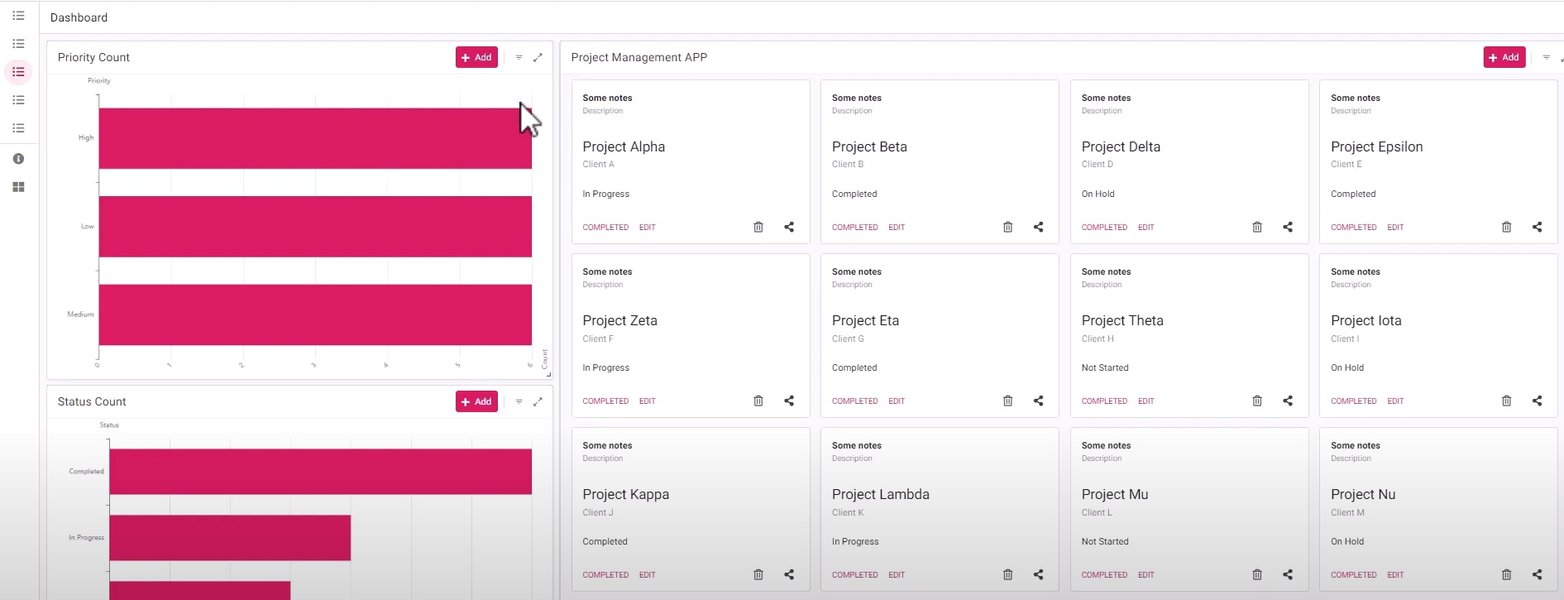
Example of a customized AppSheet dashboard with interactive elements.
Step-by-Step Implementation Guide
Building Your Enhanced Filter Dashboard
Creating an enhanced filter dashboard in AppSheet involves several key steps. This process ensures that your dashboard is not only functional but also intuitive and user-friendly.
1. Prepare Your Data Source
Ensure your data is well-structured and contains the necessary columns for filtering and display. For example, if you're tracking tasks, you might have columns for "Task Name," "Status," "Assigned To," and "Due Date."
2. Create a "Filter Control" Table
This table will hold the user's filter selections. It typically has a single row per user (or can be designed to store multiple saved filter presets). Columns in this table should correspond to your desired filter criteria (e.g., Filter_Department, Filter_Status, Filter_DateRange).
| Column Name | Type | Purpose |
|---|---|---|
UserEmail |
Key column, links to current user. | |
Filter_Department |
Enum (Base Type: Text) | User selection for department. |
Filter_Status |
Enum (Base Type: Text) | User selection for task status. |
Filter_StartDate |
Date | Start date for filtering date ranges. |
Filter_EndDate |
Date | End date for filtering date ranges. |
Example Structure for a Filter Control Table
3. Create a Slice Based on User Input
This is where the dynamic filtering logic resides. Create a new slice for your main data table (e.g., "Tasks") and apply a row filter condition that references the values from your "Filter Control" table. Use expressions like FILTER() combined with AND() and ISBLANK() to handle multiple, optional filters.
// Example slice expression for "Filtered_Tasks"
AND(
  IF(ISBLANK([_USER_FILTER_TABLE].[Filter_Department]), TRUE, [Department] = [_USER_FILTER_TABLE].[Filter_Department]),
  IF(ISBLANK([_USER_FILTER_TABLE].[Filter_Status]), TRUE, [Status] = [_USER_FILTER_TABLE].[Filter_Status]),
  IF(ISBLANK([_USER_FILTER_TABLE].[Filter_StartDate]), TRUE, [DueDate] >= [_USER_FILTER_TABLE].[Filter_StartDate]),
  IF(ISBLANK([_USER_FILTER_TABLE].[Filter_EndDate]), TRUE, [DueDate] <= [_USER_FILTER_TABLE].[Filter_EndDate])
)
Remember that [_USER_FILTER_TABLE] refers to the single row from your User Filter table corresponding to the current user.
4. Configure Dashboard Views
Create a dashboard view and add the necessary sub-views:
- A "Detail" view for your "Filter Control" table, displaying the filter fields as quick-edit columns. This acts as your filter pane.
- One or more "Chart," "Table," or "Deck" views that display data from your newly created filtered slice (e.g., "Filtered_Tasks").
Ensure that the dashboard is set to "interactive mode" if you want selections in one view to filter others directly (though with a dedicated filter control table, much of the filtering is handled by the slice).
5. Implement Filter Actions (Optional but Recommended)
Create actions to enhance the user experience:
- Clear Filters Action: An action that sets all filter columns in the "Filter Control" table to blank. This provides a quick way for users to reset their selections.
- Save/Load Filter Presets: More advanced implementations can allow users to save their current filter settings as a new record in the "Filter Control" table (or a related table) and then load them later.
Advanced Considerations for Enhanced Dashboards
Optimizing Performance and Usability
While building enhanced filter dashboards, it's important to consider performance and scalability, especially with large datasets. Efficient slice expressions and thoughtful data modeling can significantly impact the responsiveness of your application.
Performance Tips
- Efficient Slice Expressions: Complex expressions can impact performance. Test your filter conditions thoroughly.
- Indexing: Ensure that columns used in filter conditions are properly indexed in your data source for faster queries.
- Data Volume: For very large datasets, consider strategies like data partitioning or pre-aggregated tables if real-time filtering becomes too slow.
User Experience Enhancements
Consider features that further improve usability:
- Default Filters: Set initial filter values to present a relevant default view to users.
- Visual Cues: Use conditional formatting or prominent labels to indicate when filters are active.
- Export Options: Allow users to export filtered data to CSV or PDF, enabling them to share or work with the specific dataset they've generated. AppSheet provides capabilities for this, though ensuring the export reflects the filtered dashboard data might require specific template configurations.
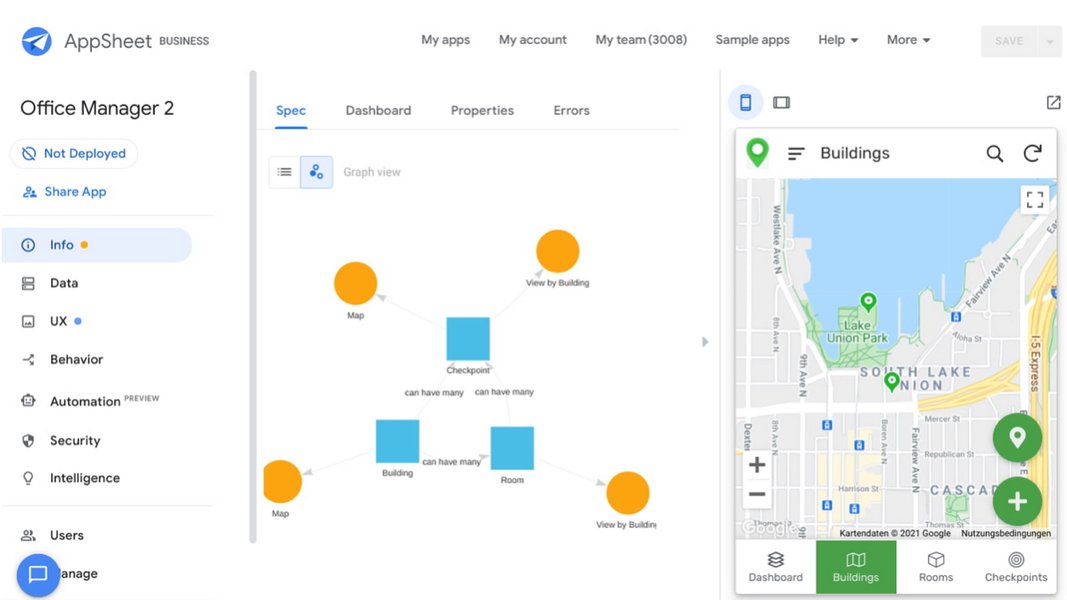
A clean and functional AppSheet user interface, emphasizing clarity for data interaction.
Video Deep Dive: Creating a Filtered Dashboard
A Practical Walkthrough
To provide a more hands-on understanding of creating a filtered dashboard with multiple criteria, the following video offers a detailed tutorial. It covers the practical steps involved in setting up the necessary data structures and AppSheet configurations.
AppSheet How To Create a Filtered Dashboard with Multiple Filters.
This video demonstrates the process of building a dashboard that allows users to apply multiple filters. It illustrates how to create the filter controls, link them to data slices, and ensure that the various views within the dashboard dynamically update based on user selections. It's an excellent resource for seeing the concepts discussed here applied in a real AppSheet environment, particularly highlighting the setup of filter fields and the use of slice expressions for advanced data segmentation.
Frequently Asked Questions (FAQ)
What is the main difference between an "interactive dashboard" and an "enhanced dashboard" in AppSheet?
Can I filter a dashboard based on the current user's login?
USEREMAIL(). You would typically create a slice or a filter condition that compares a column in your data table to the current user's email address, ensuring each user only sees their relevant data.How do I clear all filters on an enhanced dashboard?
Is it possible to save multiple filter configurations for users?
Recommended Queries
- AppSheet dynamic charts with user input
- How to create per-user dashboards in AppSheet
- AppSheet slice expressions for advanced filtering
- Best practices for AppSheet dashboard performance
References
Last updated May 21, 2025