
Empowering Your AppSheet Creations with Google Maps Locations
Seamlessly Integrate Geographic Data and Enhance User Experience in Your No-Code Applications
AppSheet, Google's no-code development platform, offers powerful capabilities for creating applications that leverage geographic data. Integrating Google Maps locations into your AppSheet app allows you to visualize data on a map, provide directions, capture GPS coordinates, and even use custom floor plans. This integration is crucial for a wide range of applications, from field service management and asset tracking to site inspections and delivery services. By understanding how to effectively incorporate location data, you can build dynamic and highly functional apps that meet your specific business needs.
Key Insights for Google Maps Integration in AppSheet
- Effortless Geocoding: AppSheet automatically geocodes address data from your spreadsheets, converting street addresses into precise latitude and longitude coordinates for map display.
- Versatile Map Views: You can create various map views, including standard Google Maps for real-world locations and custom XY maps for indoor layouts or specialized diagrams.
- Enhanced Data Capture: Leverage your device's GPS to capture accurate location data directly within your AppSheet application, enriching your datasets with real-time geographic information.
Understanding AppSheet's Location Capabilities
AppSheet's strength lies in its ability to transform raw data, often from sources like Google Sheets, into interactive and functional applications. When it comes to location data, AppSheet intelligently interprets specific column types to display information on a map. This can range from simple address listings to complex, interactive maps with custom markers and dynamic areas.
Automatic Geocoding and Data Recognition
One of the most user-friendly aspects of AppSheet is its automatic handling of address data. If your data source (e.g., a Google Sheet) contains a column with addresses, AppSheet can often automatically identify it as a location column. For optimal results, ensure your address data is complete, including city, state, and country. Using a column header like "Address" can further assist AppSheet in recognizing this data efficiently. Once recognized, AppSheet uses the Google Maps API to geocode these addresses, converting them into precise latitude and longitude coordinates that can be visualized on a map.
Beyond standard street addresses, AppSheet also supports direct latitude and longitude (LatLong) coordinates. If your data already contains these, AppSheet can directly use them to plot points on a map. For highly specific or indoor mapping scenarios, AppSheet also supports XY coordinates, allowing you to plot points on custom images like floor plans or site maps.
Creating and Customizing Map Views
AppSheet offers a "Map" view type that allows you to display location data within your app. Depending on your app's requirements, you can display location data, drop pins, and even provide directions. When creating a map view, AppSheet provides several options:
- Automatic: AppSheet intelligently selects the most appropriate map type based on your data.
- Road: Displays standard road maps, showing transportation infrastructure.
- Aerial: Shows satellite imagery, similar to Google Earth.
- XY: This is for custom maps, allowing you to use an image as a background map.
You can configure AppSheet map views to provide directions, which is particularly useful for field service, logistics, or delivery apps. Users can simply tap on a pin to get routing information to that location.
Capturing Real-Time Location Data
AppSheet empowers users to capture their current GPS location directly within the app. This is typically done through a "LatLong" or "ChangeLocation" column type. When a user interacts with this field, AppSheet utilizes the HTML5 geolocation API to estimate the device's current location, drawing from various available mechanisms. It's important to ensure that location services are enabled for AppSheet on the user's device for this functionality to work correctly.
This feature is invaluable for applications requiring real-time tracking, proof of visit, or accurate location stamping for tasks completed in the field. For instance, a delivery driver could update a delivery status with their current GPS location upon arrival.
Integrating Google Maps with Your AppSheet Data Source
The foundation of any AppSheet app lies in its data source. For map-based applications, this data source will typically contain geographic information. Google Sheets is a popular choice due to its seamless integration with AppSheet and ease of use.
Preparing Your Data for Map Integration
To effectively use Google Maps locations in AppSheet, your data needs to be structured appropriately. Here's how to prepare your data, primarily focusing on Google Sheets:
- Address Column: If you're using street addresses, create a column (e.g., "Address") and enter complete addresses, including city, state, and country. This helps Google Maps accurately geocode the locations.
- Latitude/Longitude Columns: If you already have precise coordinates, create two separate columns, one for Latitude and one for Longitude. Ensure they are formatted as decimal numbers.
- XY Coordinates for Custom Maps: For custom images like floor plans, you'll need an XY column type. This column will store coordinates relative to your custom image.
It's crucial to have column headers in the first row of your tables for AppSheet to read your data appropriately.
Example Data Structure for Google Sheets
Here's a simple example of how your Google Sheet might be structured for an AppSheet map application:
| LocationID | Address | Latitude | Longitude | Description |
|---|---|---|---|---|
| 1 | 1600 Amphitheatre Pkwy, Mountain View, CA 94043, USA | 37.422 | -122.084 | Google Headquarters |
| 2 | Times Square, New York, NY 10036, USA | 40.758 | -73.986 | Busy NYC Landmark |
Connecting Your Data to AppSheet
Once your data is prepared, connect it to AppSheet. You can typically start by selecting "Create > App > Start with existing data" in the AppSheet editor. Choose your Google Sheet (or other data source) as the foundation for your app. AppSheet will then analyze your data and suggest initial app views, including a map view if it detects location data.
Advanced Map Functionality in AppSheet
AppSheet's mapping capabilities extend beyond basic pin drops. You can implement custom maps, draw dynamic areas, and even integrate with the broader Google Maps Platform for more advanced geocoding and routing needs.
Custom Floor Plans and XY Maps
For scenarios that don't involve real-world geographic locations, such as warehouse layouts, manufacturing floors, or building floor plans, AppSheet allows you to use custom images as background maps. This feature is known as "XY Map Views." You upload an image, define its scale, and then add points to it using XY coordinates. This is particularly useful for:
- Visualizing inspection points on a floor plan.
- Tracking assets within a defined indoor space.
- Adding comments or logging events to specific locations on a custom diagram.
AppSheet sample apps like "XYMAPDATA" and "Custom maps" demonstrate how to implement these features effectively.
Building an XY Map View
To create an XY Map View:
- Create a table in your data source with a column for "Position" (or similar).
- In AppSheet, set the column type of "Position" to "XY".
- In the XY column definition, paste the URL to your floor plan image.
- Create a new view in your app and select "Map" as the view type, then configure it to use your XY column.
You can then drag and drop pins onto your custom map to mark specific locations and associate data with them.
Dynamic Areas and Boundaries
AppSheet also supports creating dynamic areas or boundaries on maps. This can be useful for defining service areas, operational zones, or sales territories. Sample apps demonstrate how users can draw rectangular areas on a map by defining top-left and bottom-right corners, and even calculate the measured area based on a defined map scale.
Google Maps Platform Integration and Usage Limits
While AppSheet provides built-in Google Maps integration, there are usage limits to consider, especially for high-volume geocoding. AppSheet accounts typically have a monthly usage limit of 1000 addresses for high-precision geocoding. If your application exceeds this limit, you can connect your own Google Maps Platform account to AppSheet. This provides you with more extensive usage limits, as Google offers a $200/month free credit, equivalent to about 40,000 geocoded addresses.
To connect your own Google Maps account:
- Obtain a Browser access key from the Credentials section of your Google Maps Platform account.
- In AppSheet, navigate to "Account > Integrations > App Services" and add your Browser access key.
This allows your AppSheet apps to leverage your Google Maps account, effectively removing the default AppSheet usage limits for geocoding.
Visualizing AppSheet's Mapping Capabilities
To further illustrate the versatility of AppSheet's integration with Google Maps, let's look at a radar chart that represents different aspects of its mapping capabilities.
A radar chart illustrating AppSheet's strengths in various mapping dimensions.
This radar chart visually represents AppSheet's strong points in mapping. It highlights high scores in 'Ease of Setup' and 'Real-time Location Capture', reflecting how straightforward it is to get basic map views up and running and capture live GPS data. 'Custom Map Flexibility' shows a good score, indicating its ability to handle both standard and custom (XY) maps. 'Geocoding Accuracy' and 'Scalability with Google Maps API' are also solid, benefiting from Google's underlying mapping technology. 'Route Optimization Potential' is slightly lower, indicating that while AppSheet can provide directions, advanced route optimization might require additional integration or custom logic.
Visualizing AppSheet's Core Strengths
To further illustrate the process and the benefits of integrating Google Maps with AppSheet, here's a highly relevant video. This video showcases the practical steps and immediate impact of incorporating geolocation into your AppSheet applications.
This video provides a quick tutorial on how to create an AppSheet app with Google Maps and geolocation features, demonstrating the ease and speed of integration.
This video titled "How to Create an App with Google Maps and Geolocation in 5 minutes with AppSheet" is highly relevant as it directly addresses the user's query by providing a visual, step-by-step guide. It quickly demonstrates the power of AppSheet in converting spreadsheets into mobile applications with integrated mapping capabilities. The tutorial highlights the simplicity of adding geolocation features, showing how readily AppSheet can turn data into interactive map views. This visual aid complements the textual explanation by offering a practical walkthrough, emphasizing the no-code aspect and immediate results when dealing with Google Maps locations.
Enhancing Your App with Imagery
Incorporating images into your AppSheet map views can significantly enhance clarity and user experience, especially for custom maps like floor plans.
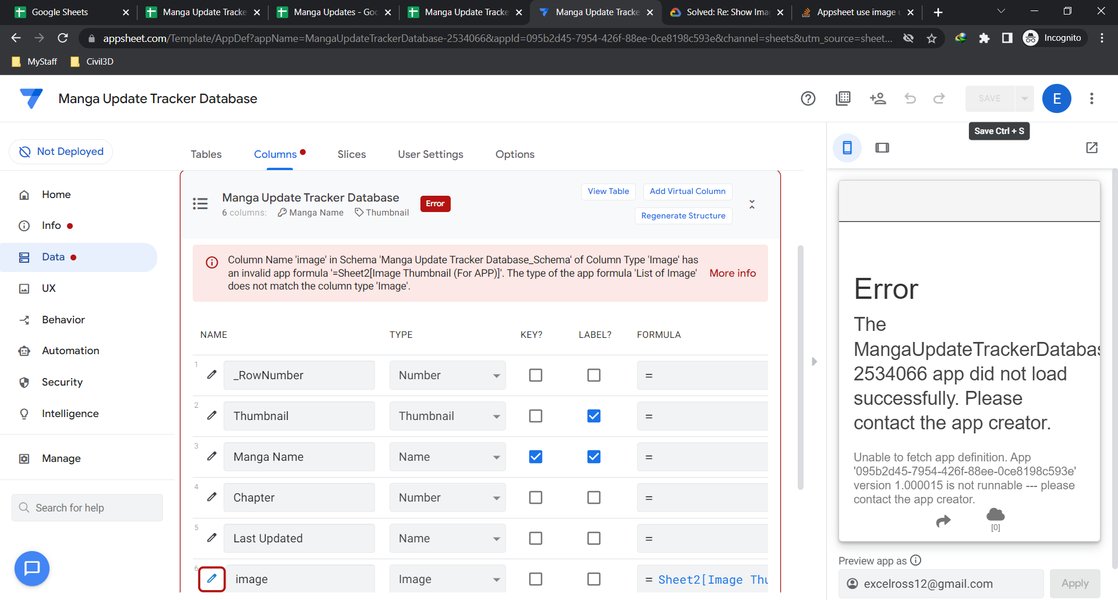
An example of how an image can be integrated into an AppSheet application, potentially as part of a custom map or data point.
This image demonstrates how visuals can be integrated into AppSheet. While not directly a map, it illustrates the platform's capability to display images, which is fundamental for custom XY maps where an image (like a floor plan) serves as the background. You can upload custom images and use them immediately as background maps, then add new "points" or log "events" to these points, making your map highly interactive and tailored to specific needs, such as tracking locations within a warehouse or a multi-floor building.
Troubleshooting Common AppSheet Map Issues
While AppSheet generally provides a smooth experience, users might occasionally encounter issues with map views. Common problems include "Oops! Something went wrong" messages or difficulties in displaying locations.
- Data Accuracy: Ensure your address data is consistent and complete. Inaccurate or incomplete addresses can prevent proper geocoding.
- Column Types: Verify that your location columns (Address, LatLong, XY) are correctly identified and configured in AppSheet.
- Permissions: On mobile devices, ensure AppSheet has permission to access location services.
- Google Maps API Key: If you're exceeding the default usage limits or seeing errors related to geocoding, consider setting up and linking your own Google Maps Platform API key to your AppSheet account.
Frequently Asked Questions (FAQ)
What data formats does AppSheet support for map locations?
Can I use custom icons for pins on my AppSheet map?
Is there a cost associated with using Google Maps in AppSheet?
How can I create an interactive map with user-added locations in AppSheet?
Conclusion
Integrating Google Maps locations into your AppSheet applications unlocks a new dimension of functionality and user experience. Whether you need to visualize business data on a global scale, track assets within a building, or provide precise navigation for field operations, AppSheet offers robust tools to achieve your goals without writing a single line of code. By leveraging automatic geocoding, versatile map views (including custom XY maps), and real-time location capture, you can build powerful, location-aware apps that streamline processes and enhance decision-making. Remember to structure your data effectively and consider connecting your own Google Maps Platform account for high-volume usage to ensure seamless operation.
Recommended Further Exploration
- Explore advanced use cases for AppSheet apps with real-time geolocation tracking.
- Learn how to optimize delivery and service routes using AppSheet and Google Maps API.
- Discover step-by-step tutorials on creating interactive custom floor plans in AppSheet.
- Understand how AppSheet integrates with other external services to enhance map functionality.
Referenced Search Results
 appsheet.wordpress.com