
ASUS Notebook Powers On to a Mysterious Black Screen? Unraveling the Culprits
Discover why your ASUS laptop shows a black screen despite powering on and learn targeted troubleshooting steps to revive your display.
When your ASUS notebook turns on—indicated by power lights, fan sounds, or other signs of life—but the screen remains stubbornly black, it's a clear signal that something is amiss between the system's core operations and its visual output. This frustrating issue can stem from a variety of sources, ranging from simple software glitches to more complex hardware malfunctions. Understanding the potential causes is the first step towards an effective solution.
Key Insights: Decoding the Black Screen
- Power & Connection Basics: Often, the issue can be as simple as a loose power connection, a drained battery, or an incorrect brightness setting. A hard reset can also resolve temporary glitches.
- Software vs. Hardware: The black screen can be due to software issues (like corrupted graphics drivers or OS boot problems) or hardware failures (such as a faulty display, loose internal cables, RAM issues, or even motherboard problems).
- Diagnostic Steps Are Crucial: Systematically trying solutions like connecting an external monitor, booting into Safe Mode, or using Windows recovery tools can help isolate whether the problem is with the screen itself, graphics drivers, or the operating system.
Understanding the Common Culprits
A black screen on an ASUS notebook, despite the system powering on, can be attributed to several distinct categories of problems. Identifying the most likely cause will guide your troubleshooting efforts.
Display and Graphics-Related Issues
Internal Display Problems
The laptop's internal display panel itself might be faulty, or the video cable connecting the screen to the motherboard could be loose, damaged, or disconnected. Accidental damage or wear and tear can lead to such issues.
Graphics Card Malfunctions
The graphics card, whether integrated into the CPU or a dedicated unit, is responsible for rendering images. If it malfunctions or its drivers are corrupted, outdated, or incompatible, a black screen can result. This is a common reason, especially after system updates or if the graphics card overheats.
Brightness and Display Settings
It might sound overly simple, but sometimes the screen brightness is accidentally turned down to its lowest setting, making the screen appear black. Alternatively, the system might be trying to output to a non-existent or incorrectly configured external display.
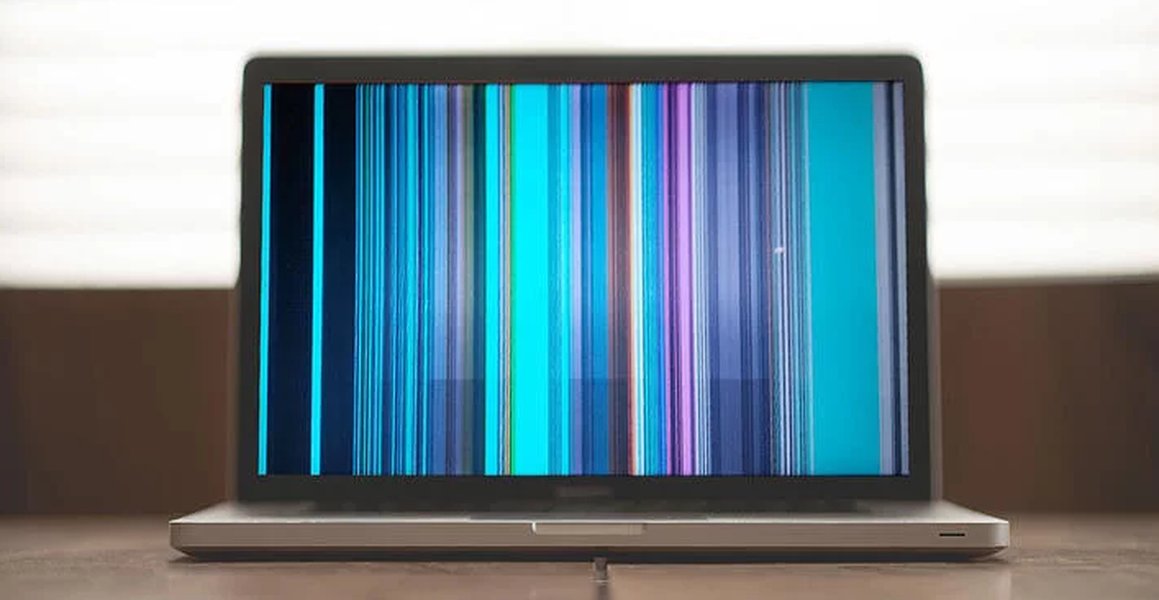
Common laptop display issues can range from backlight failure to driver conflicts.
Power and Core Hardware Failures
Power Supply Irregularities
While the laptop may show signs of power (lights, fans), the power supply unit (PSU) or battery might not be delivering stable or sufficient power to all components, especially the display or graphics card. A faulty AC adapter or a depleted/defective battery can cause this.
RAM and Motherboard Issues
Faulty Random Access Memory (RAM) modules are a frequent cause of boot failures that manifest as a black screen. If the RAM is not seated correctly or has failed, the system cannot complete its Power-On Self-Test (POST). Similarly, more severe issues with the motherboard, such as a failed component or a corrupted BIOS chip, can prevent the display from initializing.
Peripheral Device Interference
Sometimes, connected external devices (like USB drives, external hard drives, printers, or docking stations) can interfere with the boot process, leading to a black screen. The system might be trying to boot from a non-bootable external device or encountering a conflict.
Software, Firmware, and Operating System Glitches
Corrupted BIOS/UEFI Firmware
The BIOS (Basic Input/Output System) or UEFI (Unified Extensible Firmware Interface) is critical firmware that initializes hardware during startup. If the BIOS/UEFI is corrupted, perhaps due to a failed update or power surge, the laptop may power on but fail to display anything.
Operating System Boot Failures
Corrupted Windows system files, issues with recent updates, or problematic drivers can prevent the operating system from loading the graphical user interface, resulting in a black screen after the initial power-on sequence or after the manufacturer's logo appears.
Systematic Troubleshooting Steps
Approach the black screen issue methodically, starting with simpler fixes and progressing to more complex diagnostics.
Initial Checks and Resets
- Verify Power and Connections: Ensure the AC adapter is securely plugged into both the laptop and a working power outlet. Check if the power indicator LED on the laptop lights up. If using battery power, try connecting the AC adapter.
- Adjust Brightness: Use the function keys (e.g., Fn + F5/F6, or as indicated by icons on your keyboard) to increase the screen brightness.
- Disconnect Peripherals: Unplug all external devices, including USB drives, external monitors, printers, and docking stations. Then, try restarting the notebook.
- Perform a Hard Reset (Power Reset):
- Turn off the laptop completely.
- Disconnect the AC adapter.
- If your ASUS notebook has a removable battery, take it out. For models with non-removable batteries, you might need to look up model-specific instructions for an EC (Embedded Controller) reset, or simply proceed with holding the power button.
- Press and hold the power button for 40-60 seconds to discharge any residual static electricity.
- Reconnect the AC adapter (and battery, if removed).
- Try turning the notebook on again.
- Windows Display Reset Shortcut: If you suspect a temporary display driver glitch and the system seems to be running in the background, press the
Windows logo key + Ctrl + Shift + Bsimultaneously. This key combination attempts to refresh the screen by restarting the graphics driver. You might hear a beep if it works.
External Display Test
Connecting an external monitor can help determine if the issue lies with the laptop's internal display or the graphics output itself.
- Connect an external monitor or TV to your laptop using an HDMI, DisplayPort, or USB-C cable (whichever is appropriate for your model).
- Turn on the laptop.
- If the external display shows an image, the problem is likely with the laptop's screen, its cable, or its connection. You might need to press a function key combination (e.g., Fn + F8, or as indicated by a display icon on your keyboard) to toggle or extend the display.
- If the external display also shows a black screen, the issue is more likely related to the graphics card, motherboard, or other internal hardware.
Booting into Safe Mode or Windows Recovery Environment (WinRE)
If the issue is software-related (e.g., driver conflict, problematic update), booting into Safe Mode or accessing WinRE can help.
Accessing WinRE
- Turn on your laptop. As soon as you see the ASUS logo (or any sign of booting), press and hold the power button for about 15 seconds until the device shuts down.
- Repeat this process two or three times. On the third or fourth boot attempt, Windows should automatically enter the Windows Recovery Environment (WinRE).
- In WinRE, navigate to
Troubleshoot > Advanced options. - Select
Startup Settings > Restart. - After the laptop restarts, you'll see a list of options. Press
4orF4to boot into Safe Mode (or5orF5for Safe Mode with Networking if you need internet access). - If your laptop boots successfully into Safe Mode, the black screen is likely caused by a recently installed driver (especially graphics drivers), software, or Windows update. You can try:
- Uninstalling recent updates.
- Rolling back or uninstalling/reinstalling the graphics driver via Device Manager.
- Running a system restore.
- Turn on the laptop and repeatedly press the BIOS entry key as soon as you power it on (commonly F2, DEL, or ESC for ASUS laptops – it often appears briefly on the screen).
- If you successfully enter the BIOS setup, look for an option to "Load Optimized Defaults," "Load Setup Defaults," or similar.
- Save the changes and exit. The laptop will restart.
- Reseat RAM Modules: Turn off and unplug the laptop. Open the access panel for RAM. Carefully remove each RAM stick, clean the contacts gently with an eraser or isopropyl alcohol on a lint-free cloth, and reinsert them firmly. Try booting with one RAM stick at a time if you have multiple.
- Check Internal Cables: This is more advanced. It involves checking if the display cable is securely connected to both the motherboard and the back of the screen. Loose cables are a common culprit, especially after a drop or bump.
- Learn how to perform an EC reset on an ASUS laptop with a non-removable battery.
- Discover the steps to update ASUS graphics drivers specifically when in Safe Mode.
- Find out how to create a bootable USB drive for ASUS BIOS recovery.
- Explore the common signs that indicate RAM failure in a laptop.
Using Safe Mode
From Advanced options in WinRE:
BIOS/UEFI Troubleshooting
Resetting BIOS to Defaults
If you can access the BIOS/UEFI setup utility:
BIOS Update or Recovery
If a BIOS update was interrupted or corrupted, it might cause a black screen. Some ASUS motherboards have a BIOS recovery feature (like EZ Flash or CrashFree BIOS). This typically involves downloading the correct BIOS file from the ASUS support website for your specific model onto a FAT32 formatted USB drive and following specific procedures that may involve particular key presses during boot. Consult your laptop's manual or the ASUS support site for precise instructions, as this process is model-dependent and carries risks if done incorrectly. Performing an Embedded Controller (EC) Reset or Real-Time Clock (RTC) clear might also be necessary in scenarios following a problematic BIOS update.
Visualizing Potential Problem Areas
The radar chart below offers an opinionated perspective on the relative likelihood of different problem categories causing a black screen issue on an ASUS notebook, along with the general ease of a do-it-yourself (DIY) fix. "Likelihood" is an estimation of how frequently a category is the root cause, and "Ease of DIY Fix" estimates how readily an average user might be able to resolve it without professional help (higher score means easier).
This chart suggests that while graphics card/driver issues and software/OS corruption are highly likely causes, power supply issues are often easier for users to fix themselves. Conversely, display hardware failures or motherboard faults are typically less common but much harder to resolve without professional assistance.
Troubleshooting Mindmap
This mindmap provides a visual overview of the diagnostic paths you can take when faced with a black screen on your ASUS notebook.
Black Screen Issue"] id1["Potential Causes"] id1a["Hardware Issues"] id1a1["Display Panel/Cable"] id1a2["Graphics Card (GPU)"] id1a3["RAM (Memory)"] id1a4["Motherboard"] id1a5["Power Supply/Battery"] id1a6["Peripherals Interference"] id1b["Software/Firmware Issues"] id1b1["Corrupted OS Files"] id1b2["Graphics Drivers"] id1b3["BIOS/UEFI Corruption"] id1b4["Failed Updates"] id2["Troubleshooting Steps"] id2a["Basic Checks"] id2a1["Check Power & Connections"] id2a2["Adjust Brightness"] id2a3["Disconnect Peripherals"] id2a4["Windows + Ctrl + Shift + B"] id2b["Resets"] id2b1["Hard Reset (Power Cycle)"] id2b2["EC Reset / RTC Clear"] id2c["Display Diagnostics"] id2c1["External Monitor Test"] id2d["Software Diagnostics"] id2d1["Boot into Safe Mode"] id2d2["Access WinRE"] id2d3["Update/Rollback Drivers"] id2d4["System Restore"] id2e["Firmware Checks"] id2e1["Reset BIOS to Defaults"] id2e2["BIOS Recovery/Update (Caution!)"] id2f["Hardware Checks (Advanced)"] id2f1["Reseat RAM"] id2f2["Check Internal Cables (Professional advised)"] id2g["Last Resorts"] id2g1["System Reset/Reinstall Windows"] id2g2["Professional Repair"]
The mindmap illustrates how the black screen problem branches into different categories of causes, each with corresponding sets of troubleshooting actions, from simple checks to more involved procedures.
Hardware Checks (Advanced)
If simpler steps don't work, and you are comfortable with opening your laptop (and it's out of warranty, as this might void it), you could consider these. Otherwise, professional help is recommended.
When to Seek Professional Help
If none of the above steps resolve the black screen issue, or if you suspect a significant hardware failure (like a dead motherboard, faulty GPU, or damaged screen) and are not comfortable performing internal hardware diagnostics, it's time to contact ASUS Customer Support or take your notebook to a qualified professional repair technician. They have specialized tools and expertise to diagnose and fix complex hardware problems.
Summary Table: Quick Troubleshooting Guide
Here's a quick reference table summarizing common symptoms, potential causes, and initial actions for the ASUS notebook black screen issue:
| Symptom Detail | Potential Cause Category | Initial Troubleshooting Step(s) |
|---|---|---|
| Power lights on, fans spin, no display at all, even on external monitor. | Hardware (Motherboard, RAM, GPU), Severe BIOS issue | Hard Reset, Reseat RAM (if comfortable), BIOS reset (if accessible blind or via keys). |
| Power lights on, black screen on laptop, but external monitor works. | Display Hardware (Laptop screen, cable, connection) | Check display cable (advanced), consider screen replacement (professional). |
| Black screen after ASUS logo or during Windows loading. | Software (OS corruption, driver issue), Minor BIOS issue | Boot to Safe Mode, use WinRE for startup repair/system restore, update/rollback graphics drivers. |
| Screen is very dim, almost black, but faint image visible. | Display Setting (Brightness), Backlight issue | Increase brightness using function keys. If backlight, professional repair needed. |
| Black screen after a recent update (Windows or BIOS). | Software Conflict, BIOS incompatibility/corruption | Rollback update in Safe Mode/WinRE. For BIOS, attempt recovery or reset (caution). |
| Intermittent black screen. | Loose connection, Overheating, Failing component | Check external connections, ensure proper ventilation. If persistent, hardware check needed. |
Helpful Video Guide
For a visual walkthrough of some common troubleshooting steps for an ASUS notebook that powers on but shows a black screen, the following video from ASUS Support can be very helpful. It covers basic checks and how to enter the Windows Recovery Environment.
This video from ASUS Support demonstrates how to troubleshoot when a notebook cannot power on or shows a black screen, including accessing recovery options.
Frequently Asked Questions (FAQ)
What's the very first thing I should try if my ASUS laptop screen is black?
Start with the simplest solutions:
1. Check if the laptop is actually powered on (lights, fan noise).
2. Try increasing the screen brightness using the keyboard function keys.
3. Perform a hard reset: Unplug the AC adapter, remove the battery (if possible), and hold the power button for 40-60 seconds. Then, reconnect power and try again.
4. Press Windows key + Ctrl + Shift + B to reset the graphics driver.
Can a software update cause a black screen?
Yes, absolutely. A problematic Windows update, a faulty graphics driver update, or even a corrupted BIOS update can lead to a black screen. If this happens after an update, try booting into Safe Mode to uninstall the recent update or roll back the driver. For BIOS issues, you might need to use recovery options specific to your ASUS model.
How do I know if it's a hardware problem or a software problem?
Connecting an external monitor is a good diagnostic step. If the external monitor works, the issue is likely with your laptop's internal display or its connection. If neither display works, it could be a graphics card, motherboard, RAM, or severe software/BIOS issue. If you can boot into Safe Mode or see the BIOS screen, the problem is more likely software-related (OS or drivers). If you see nothing at all, not even the manufacturer logo, it leans more towards hardware or a critical BIOS failure.
Is it safe to try updating the BIOS if I have a black screen?
Updating or recovering the BIOS when you have a black screen can be risky and should generally be done with caution, following precise instructions for your specific ASUS model. If a BIOS update was interrupted and caused the black screen, a BIOS recovery (often via USB) might be necessary. However, if the cause of the black screen is unknown, attempting a BIOS update without being able to see the screen can make things worse if not done correctly. Ensure the laptop is connected to a stable power source and the battery is sufficiently charged if attempting any BIOS procedure.
Recommended Further Exploration
References
Last updated May 13, 2025