
Mastering Your Auto Loan: A Comprehensive Google Sheet Tracker for Personal Loans
Effortlessly track, manage, and optimize your auto loan with a dynamic Google Sheet solution, designed for clarity and automatic updates.
Managing a personal auto loan, especially when lending to a friend, requires a clear and organized system. A well-structured Google Sheet can provide the transparency and automation needed to track payments, outstanding balances, and any additional transactions. This guide will walk you through creating a simple yet powerful Google Sheet that updates automatically, ensuring you always have an accurate overview of the loan's status.
Key Insights for Effective Loan Tracking
- Automated Calculations: Leverage Google Sheets' built-in functions like
PMTto automatically calculate monthly payments, and implement formulas for principal and interest breakdowns, ensuring accuracy with minimal manual input. - Dynamic Tracking: Design your sheet to adapt to new transactions, such as additional payments or further disbursements, allowing for real-time adjustments to the loan balance.
- Comprehensive Overview: Create an amortization schedule that visualizes the loan's progression over time, clearly showing how each payment contributes to reducing the principal and interest.
Setting Up Your Auto Loan Tracker in Google Sheets
Creating an effective loan tracker in Google Sheets involves setting up dedicated sections for loan details, a transaction log, and an amortization schedule. This structure ensures all relevant information is captured and calculations are performed accurately.
Step 1: Initial Loan Details Setup
Begin by defining the core parameters of the loan. These values will serve as the foundation for all subsequent calculations. Open a new Google Sheet and dedicate the first few rows to these crucial inputs.
Essential Loan Parameters
- Loan Amount: The initial principal borrowed. In your case, this is $20,743.55.
- Annual Interest Rate: The annual percentage rate for the loan.
- Loan Term (in Years): The total duration over which the loan is to be repaid.
- Monthly Payment: The calculated fixed monthly payment.
- Start Date: The date when the loan officially began.
Here’s how you can set up the initial cells (adjust cell references as you build your sheet):
| Cell | Description            | Value/Formula                               |
|------|------------------------|---------------------------------------------|
| A1   | Loan Amount            | $20,743.55                                  |
| A2   | Annual Interest Rate   | 5.00% (or your agreed-upon rate)            |
| A3   | Loan Term (Years)      | 5 (or your agreed-upon term)                |
| A4   | Monthly Payment        | =PMT(A2/12, A3*12, -A1)                     |
| A5   | Loan Start Date        | 2025-01-01                                  |
The PMT function is critical here. It calculates the payment for a loan based on constant payments and a constant interest rate. The syntax is PMT(rate, number_of_periods, present_value). Ensure the rate and number of periods are consistent (e.g., monthly rate and total number of monthly payments).
For example, if your annual interest rate is 5% (0.05) and the loan term is 5 years, the monthly rate is 0.05/12, and the total number of payments is 5*12 = 60. The present value is the initial loan amount, entered as a negative number in the PMT function to return a positive payment amount.
Step 2: Creating a Transaction Log
A transaction log is essential for tracking all money paid back or loaned out. This provides a chronological record and allows for dynamic updates to the loan balance.
Transaction Log Columns
- Date: The date of the transaction.
- Description: A brief description (e.g., "Monthly Payment", "Extra Payment", "Additional Loan").
- Amount: The monetary value of the transaction. Payments should be entered as positive values, additional loans as negative values.
- Running Balance: A calculated field that shows the current outstanding loan balance after each transaction.
Set up your transaction log starting from a row below your initial loan details, perhaps in column A. Let's assume your loan details are in A1:A5. Your transaction log could start from A7.
| Cell | Column Header      | Formula/Example Value                              |
|------|--------------------|----------------------------------------------------|
| A7   | Date               | 2025-01-01 (Loan Disbursed)                        |
| B7   | Description        | Initial Loan Disbursed                           |
| C7   | Amount             | =-A1 (References the initial loan amount as a negative) |
| D7   | Running Balance    | =C7                                                |
| A8   | Date               | 2025-02-01                                         |
| B8   | Description        | Monthly Payment                                    |
| C8   | Amount             | =A4 (References the calculated monthly payment)    |
| D8   | Running Balance    | =D7+C8                                             |
Drag the formula in the "Running Balance" column down to automatically update with each new transaction. Each entry in the "Amount" column will either reduce (payment) or increase (additional loan) the balance.
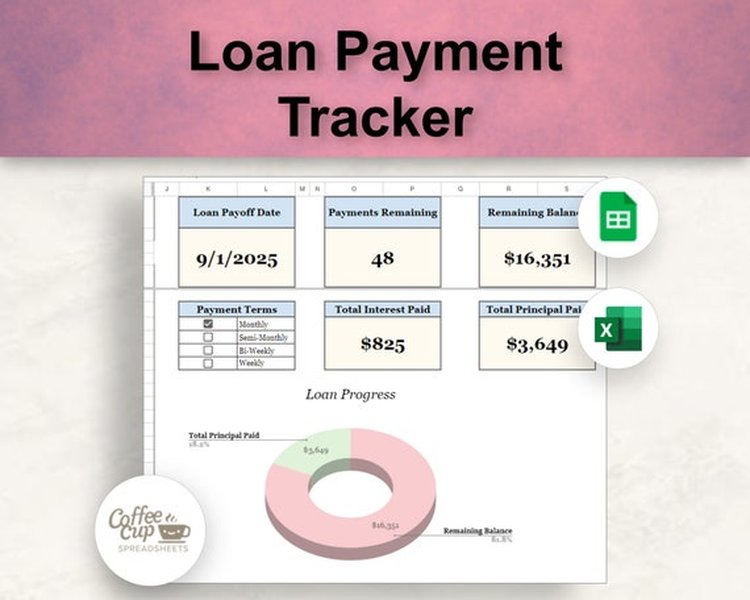
Example of a Loan Payment Tracker in Google Sheets.
Step 3: Creating an Amortization Schedule
An amortization schedule provides a detailed breakdown of each payment, showing how much goes towards interest and how much reduces the principal. This is crucial for understanding the loan's progression.
Amortization Schedule Columns
- Payment Number: Sequential number of the payment.
- Payment Date: The date each payment is due.
- Beginning Balance: The outstanding loan balance at the start of the period.
- Scheduled Payment: The fixed monthly payment (from your PMT calculation).
- Interest Paid: The portion of the payment that goes towards interest.
- Principal Paid: The portion of the payment that reduces the principal.
- Ending Balance: The remaining loan balance after the payment.
Start your amortization schedule in a separate section of your sheet, perhaps in column F. This schedule can extend for the full term of the loan (e.g., 60 rows for a 5-year loan paid monthly).
| Cell | Column Header      | Formula/Example Value                                                                                                        |
|------|--------------------|------------------------------------------------------------------------------------------------------------------------------|
| F7   | Payment Number     | 1                                                                                                                            |
| G7   | Payment Date       | =EDATE(A5, F7) (Adds F7 months to the Loan Start Date)                                                                       |
| H7   | Beginning Balance  | =IF(F7=1, A1, L6) (If first payment, use initial loan amount; otherwise, use previous row's Ending Balance)                  |
| I7   | Scheduled Payment  | =A4 (References the calculated monthly payment)                                                                              |
| J7   | Interest Paid      | =H7 * (A2/12)                                                                                                                |
| K7   | Principal Paid     | =I7 - J7                                                                                                                     |
| L7   | Ending Balance     | =H7 - K7                                                                                                                     |
Drag these formulas down for the entire loan term. The EDATE function helps calculate future payment dates. The IF statement in "Beginning Balance" ensures the first payment correctly references the initial loan amount.
It's important to note that the amortization schedule is a theoretical projection based on the initial loan terms. The transaction log is where the actual payments are recorded, allowing for deviations like extra payments or additional disbursements to be accounted for in the running balance.
Integrating Dynamic Updates and Visualizations
To make your sheet truly dynamic and insightful, you need to link the transaction log to your amortization schedule and incorporate visual elements. The "Running Balance" in your transaction log is the most accurate reflection of the current loan status.
Tracking Additional Payments or Loans
When your friend makes an extra payment or if you loan more money, simply add a new row to your transaction log. The "Running Balance" formula (e.g., =D[Previous Row]+C[Current Row]) will automatically adjust the outstanding amount.
Example of an Extra Payment Entry
| Date       | Description     | Amount | Running Balance |
|------------|-----------------|--------|-----------------|
| 2025-05-15 | Extra Payment   | 100    | [New Balance]   |
Visualizing Loan Progress with a Radar Chart
A radar chart can effectively visualize how different aspects of the loan (e.g., principal paid, interest paid, remaining balance) evolve over time or compare against different scenarios. While a traditional amortization schedule shows linear progress, a radar chart can offer a multi-dimensional perspective, for example, comparing the impact of extra payments versus regular payments on key metrics.
For this specific scenario, we'll use the radar chart to illustrate the "Health" of the Loan from your perspective as the lender, considering factors like repayment consistency, remaining term, and the ratio of principal paid to interest accrued. This provides a qualitative assessment that can be helpful in managing a personal loan.
Radar chart illustrating different aspects of loan health and progression.
This radar chart provides a qualitative assessment of the loan's status. For instance, "Repayment Consistency" at 80 for the ideal scenario indicates strong, on-time payments, whereas 40 for irregular payments highlights a challenge. Similarly, a lower "Remaining Principal" score in the ideal scenario signifies better progress in reducing the debt. The "Interest Accrued (Total)" is presented such that a lower score indicates less interest paid, which is ideal. The "Extra Payment Frequency" indicates how often additional payments are made, with higher values being more favorable. This visual tool helps in quick assessments of the loan's health beyond just raw numbers.
Key Formulas and Functions in Google Sheets
Google Sheets offers several powerful functions that are essential for building a robust loan tracker. Understanding these will enable you to customize and enhance your spreadsheet.
PMT Function for Monthly Payments
The PMT function calculates the payment for a loan based on constant payments and a constant interest rate. As demonstrated earlier, it's fundamental for determining the regular payment amount.
=PMT(rate, number_of_periods, present_value, [future_value], [type])
rate: The interest rate per period (e.g., annual rate / 12 for monthly payments).number_of_periods: The total number of payments for the loan (e.g., loan term in years * 12 for monthly payments).present_value: The current value of the annuity or lump-sum payment (the loan amount).[future_value](optional): The future value, or a cash balance you want to attain after the last payment. Defaults to 0.[type](optional): When payments are due. 0 = end of period (default), 1 = beginning of period.
IPMT and PPMT for Interest and Principal Portions
While an amortization table manually calculates these, IPMT and PPMT can directly compute the interest and principal portions of a specific payment, respectively. These are useful if you want to quickly check the breakdown for a particular payment without creating a full schedule.
IPMT (Interest Payment): Calculates the interest portion of a loan payment for a given period.
=IPMT(rate, period, number_of_periods, present_value, [future_value], [type])
PPMT (Principal Payment): Calculates the principal portion of a loan payment for a given period.
=PPMT(rate, period, number_of_periods, present_value, [future_value], [type])
For both, period refers to the specific payment period you're interested in (e.g., 1 for the first payment, 2 for the second, etc.).
EDATE for Payment Dates
The EDATE function returns the date that is a specified number of months before or after a start date. This is highly useful for automatically generating a series of payment dates.
=EDATE(start_date, months)
start_date: The initial date.months: The number of months to add or subtract from the start date.
Understanding Loan Amortization
Amortization is the process of paying off a debt over time in regular installments. Each payment consists of both principal and interest. Early in the loan term, a larger portion of the payment goes towards interest, while later payments allocate more to the principal. Your amortization schedule visually represents this dynamic.
This video explains how to create a car loan amortization schedule with extra payments in Google Sheets and Microsoft Excel, providing a practical demonstration of the concepts discussed.
The video above provides a practical walkthrough of creating an amortization schedule, specifically focusing on car loans and incorporating extra payments. This can be immensely helpful in understanding the mechanics behind the spreadsheet you are building, allowing you to tailor it to your specific needs, such as accounting for irregular payments or additional principal contributions from your friend. Understanding the impact of extra payments is crucial for accelerating loan payoff and minimizing total interest paid.
Benefits of Using a Google Sheet for Loan Tracking
Beyond just tracking the numbers, a Google Sheet offers several advantages for managing a personal loan:
- Accessibility: As it's cloud-based, you and your friend can access the sheet from anywhere with an internet connection, facilitating transparency and collaboration.
- Automation: Formulas handle complex calculations automatically, reducing manual errors and saving time.
- Transparency: A shared sheet ensures both parties have the same, up-to-date information, fostering trust and clear communication.
- Flexibility: Easily adjust parameters (interest rate, term, extra payments) to model different scenarios and understand their impact.
- Record Keeping: Serves as a digital record of all transactions, valuable for future reference or in case of disputes.
Detailed Loan Payment Breakdown Table
This table summarizes the core components of each loan payment, showcasing how principal and interest are allocated over time. This structure is typically found within the amortization schedule.
| Payment # | Payment Date | Beginning Balance | Scheduled Payment | Interest Paid | Principal Paid | Ending Balance |
|---|---|---|---|---|---|---|
| 1 | 2025-02-01 | $20,743.55 | Calculated by PMT | Calculated (Beginning Balance * Monthly Rate) | Calculated (Scheduled Payment - Interest Paid) | Calculated (Beginning Balance - Principal Paid) |
| 2 | 2025-03-01 | Previous Ending Balance | Calculated by PMT | Calculated (Beginning Balance * Monthly Rate) | Calculated (Scheduled Payment - Interest Paid) | Calculated (Beginning Balance - Principal Paid) |
| ... (Continue for remaining payments) ... | ||||||
This table provides a clear template for the rows in your amortization schedule. The values for "Scheduled Payment," "Interest Paid," "Principal Paid," and "Ending Balance" are dynamically calculated based on the formulas we discussed earlier, ensuring accuracy throughout the loan's lifecycle.
Frequently Asked Questions (FAQ)
How does the sheet automatically update for extra payments?
What if I loan my friend more money later?
Can I track multiple loans on one sheet?
How can I share this sheet with my friend?
What if the interest rate changes during the loan term?
Conclusion: Your Personalized Loan Management Solution
Creating a simple Google Sheet to track your auto loan to a friend transforms a potentially confusing financial arrangement into a clear, manageable, and transparent process. By utilizing basic formulas for calculating payments and balances, alongside a structured transaction log and amortization schedule, you gain real-time insights into the loan's status. The ability to dynamically update for additional payments or disbursements ensures accuracy, while the cloud-based nature of Google Sheets promotes easy sharing and collaboration. This personalized tracker empowers you to maintain a healthy financial relationship while effectively managing the loan.
Recommended Further Queries
- How to create a debt snowball spreadsheet in Google Sheets
- Advanced Google Sheets functions for financial tracking
- How to automate email notifications for loan payments for loans using Google Sheets
- Best practices for personal loan agreements between friends