
Safeguarding Your Digital Life: Comprehensive Samsung Phone Backup Strategies
Unlock peace of mind by mastering multiple, robust methods for backing up your Samsung smartphone.
Key Backup Insights
- Diverse Methods for Data Security: Samsung offers a variety of backup options, including cloud-based services like Samsung Cloud and Google Drive, alongside local solutions such as Samsung Smart Switch and external storage. Employing multiple methods enhances data safety.
- Effortless Automation: Both Samsung Cloud and Google Drive provide automatic backup features that can be configured to run regularly, ensuring your data is always current without manual intervention.
- Versatile Data Management with Smart Switch: Samsung Smart Switch is a powerful tool for comprehensive backups and seamless data transfers, whether you're migrating to a new device, backing up to a computer, or using external storage.
Backing up your Samsung phone is an indispensable practice to protect your invaluable personal data against unforeseen circumstances like loss, theft, accidental damage, or when upgrading to a new device. As of May 29, 2025, a robust array of methods ensures your contacts, messages, photos, videos, app data, and critical settings remain securely stored and easily recoverable. This guide will delve into the most effective and user-friendly backup strategies available, offering a comprehensive approach to data preservation.
Why Comprehensive Backup is Crucial
In our increasingly digital world, a smartphone is often the central repository for personal and professional information. Losing this data can range from a minor inconvenience to a significant catastrophe. Regular and multifaceted backups act as a digital safety net, providing the assurance that your memories, communications, and essential configurations are always retrievable. Combining cloud solutions with local storage options offers the best defense against data loss, ensuring accessibility even during internet outages or service disruptions.
Cloud-Based Backup Solutions
Cloud services provide convenient, off-site storage that can be accessed from virtually anywhere, making them ideal for automatic and remote data protection.
Samsung Cloud: Your Native Galaxy Guardian
Samsung Cloud is an integrated backup solution designed specifically for Galaxy devices, offering seamless integration with your phone's ecosystem. It's excellent for backing up core data types and offers automatic backup capabilities.
Steps to Manually Back Up Data with Samsung Cloud:
- Open your Samsung phone's Settings app.
- Navigate to Accounts and backup.
- Under the "Samsung Cloud" section, tap Back up data.
- Select the specific types of data you wish to back up (e.g., messages, call logs, contacts, settings).
- Tap Back up now to initiate the process. It's recommended to be connected to Wi-Fi for stability.
Enabling Automatic Backups on Samsung Cloud:
For hands-free data protection, Samsung Cloud can be configured to back up automatically. Your phone typically needs to be connected to Wi-Fi, charging, and have its screen off for approximately an hour for this to occur.
- Open your phone's Settings app.
- Go to Accounts and backup.
- Select Samsung Cloud.
- Tap the three vertical dots (More options) and then navigate to Settings.
- Under "Sync and auto backup settings," activate Auto back up.
While Samsung Cloud is highly convenient, it has certain limitations, such as typically offering 15GB of free storage and not supporting all file types, especially large files or third-party app data. It also works best across Samsung devices.
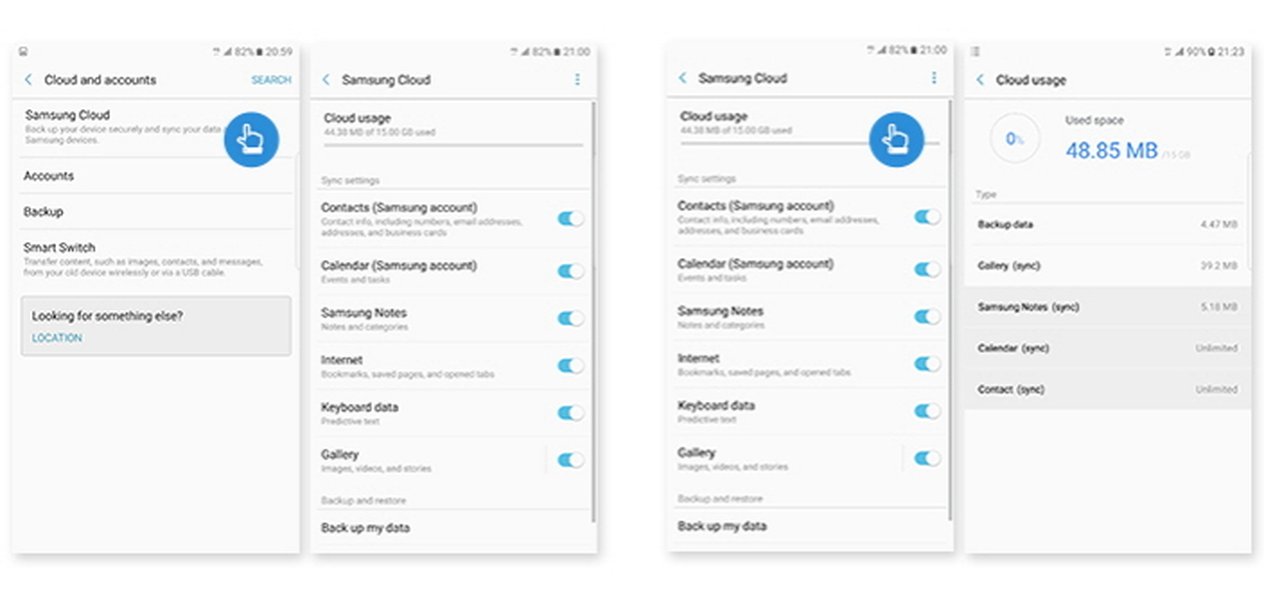
An illustrative image of the Samsung Cloud interface, highlighting its role in managing your Galaxy device's data.
Google Drive: Universal Android Backup
Google Drive provides a robust cloud backup solution that is especially beneficial if you use various Google services or anticipate switching to a non-Samsung Android device. It backs up selected app data, SMS/MMS messages, call history, and Google account data.
Steps to Back Up Data with Google Drive:
- Open your phone's Settings app.
- Tap Accounts and backup.
- Under the "Google Drive" section, tap Back up data.
- If it's your first time, you may need to tap Turn on.
- Ensure "Back up by Google One" is enabled.
- Review the "Backup details" to see what data types are included.
- Tap Back up now to initiate the process.
Google Drive offers 15GB of free storage, which is shared across Gmail and Google Photos. Backups are synced to your Google Account, facilitating easy restoration when you sign into a new Android device with the same account.
Local and Direct Transfer Backup Methods
For those who prefer local storage or are migrating to a new device, several powerful methods ensure comprehensive data transfer and backup without relying solely on cloud services.
Samsung Smart Switch: The Ultimate Transfer Tool
Samsung Smart Switch is a highly versatile application for transferring and backing up data. It's invaluable when moving to a new Samsung device, allowing for near-complete data migration, including contacts, photos, music, videos, messages, notes, calendars, and even device settings and home screen layouts. Smart Switch supports wireless, USB cable, and computer-based backups.
Backing Up to a PC or Mac via Smart Switch:
- Download and install the Samsung Smart Switch desktop application from Samsung's official website onto your PC or Mac.
- Connect your Samsung phone to your computer using a USB cable.
- Open Smart Switch on your computer.
- Click Backup from the options.
- You may be prompted to allow permissions on your phone.
- To select specific items, click "MORE" (usually in the top right), then "Preferences," and then "Backup items."
- Wait for the backup to complete. Backup files are typically saved to a default location on your computer (e.g.,
C:\Users\*your PC user id*\Documents\Samsung\SmartSwitch\backup\*device model number*\on Windows).

A visual representation of the Samsung Smart Switch desktop application, showcasing its intuitive interface for data backup.
Transferring Data Between Devices with Smart Switch (Wireless or USB):
This method is ideal for setting up a new phone with data from an old one.
- Ensure Smart Switch is installed on both devices (often pre-installed on Galaxy models).
- On your new Galaxy phone, open Smart Switch and tap Receive data.
- Select your old device's platform (Galaxy/Android or iPhone/iPad).
- Choose your connection method: Wireless or USB cable.
- On your old device, open Smart Switch and tap Send data.
- Place the two phones close together (for wireless) or connect them directly with a USB-C cable.
- Follow the on-screen instructions to establish the connection and select the data you wish to transfer.
Smart Switch is highly praised for its ability to handle large backups and its compatibility with various devices, including iPhones, making it a powerful tool for migration.
External Storage and Third-Party Applications
For maximum control and offline storage, directly backing up to external media or utilizing specialized third-party apps provides additional flexibility.
Backing Up to a MicroSD Card or USB Flash Drive:
If your Samsung phone features a microSD card slot or supports USB On-The-Go (OTG) for connecting a USB drive, this offers a direct, local backup option.
- Insert a microSD card into your phone or connect a USB flash drive via an OTG adapter.
- Use your phone's Files app or My Files to manually copy important data (e.g., photos, videos, documents) to the external storage.
- Some applications may also offer an option to export data directly to external storage.
Leveraging Third-Party Backup Apps:
The Google Play Store hosts numerous third-party applications that offer diverse backup functionalities, from specialized photo backup (like Google Photos) to comprehensive PC sync solutions. Apps like AirDroid, AirMore, or MobileTrans can facilitate wireless transfers or full backups to your computer.
- Download a reputable third-party app from the Google Play Store.
- Follow the app's setup instructions, often involving connecting your phone and computer to the same Wi-Fi network for wireless transfers.
- Select the data you wish to back up and follow the prompts to transfer it to your chosen destination (e.g., computer, another cloud service).
Visualizing Backup Strategy Effectiveness
To illustrate the effectiveness and characteristics of different backup methods, consider the following radar chart. It provides a comparative overview based on key attributes such as ease of use, data comprehensiveness, restoration flexibility, and storage capacity.
This radar chart provides a visual comparison, rating each backup method on various attributes. For instance, Smart Switch to a PC excels in data comprehensiveness and offline accessibility, while Google Drive offers superior cross-device compatibility and ease of setup for cloud backups.
Understanding Backup Considerations with a Mindmap
A structured mindmap helps visualize the critical aspects and best practices involved in ensuring a reliable Samsung phone backup strategy.
This mindmap organizes the various backup methods and their sub-components, along with essential best practices and restoration considerations. It highlights that a robust backup strategy often involves a combination of cloud and local solutions.
Comparative Analysis of Backup Methods
To help you choose the best backup strategy for your needs, here's a detailed comparison of the primary methods discussed:
| Method | Description | Pros | Cons |
|---|---|---|---|
| Samsung Cloud | Integrated cloud backup for Galaxy devices, storing contacts, messages, settings, etc. | Seamless integration, automatic backup options, easy restoration on Samsung devices. | Limited free storage (typically 15GB), does not back up all file types or third-party app data, best for Samsung devices. |
| Google Drive | Cloud backup linked to your Google Account, covers app data, SMS, call history, and Google services. | Accessible across all Android devices, 15GB free storage, reliable for core data, excellent cross-platform compatibility. | Shared storage with Gmail/Photos, may require paid upgrades for large data sets, relies on Google services. |
| Samsung Smart Switch (PC) | Local backup to a computer (PC/Mac) via USB cable, provides comprehensive phone backup. | Full backup including app data and home screen layout, ideal for large backups, works offline. | Requires a computer and USB cable, manual initiation, backup files stored locally. |
| Samsung Smart Switch (Phone-to-Phone) | Direct data transfer between phones (wireless or USB) for migrations. | Easy transfers, works with iOS and Android devices, fast for direct device migration. | Primarily for transferring to a new device, not a continuous backup solution, may not back up everything for non-Samsung phones. |
| External Storage (microSD/USB OTG) | Manual copying of files to a physical microSD card or USB flash drive. | Physical copy of data, no internet connection required, full control over files. | Manual management, limited to specific file types (photos, videos, documents), device must support external storage. |
Deep Dive: Using Samsung Smart Switch for Data Transfer
Samsung Smart Switch is not just a backup utility; it's a powerful tool for migrating your entire digital life from an old phone to a new Samsung Galaxy device. This video tutorial provides an excellent visual guide on how to leverage Smart Switch to transfer all your data seamlessly, whether you're coming from another Android phone or even an iPhone. It covers the various connection methods and the simplicity of the transfer process, making it a must-watch for anyone upgrading their Samsung phone.
This video demonstrates how to transfer data from an old Samsung phone to a new one using Samsung Smart Switch, covering essential steps for a smooth transition.
Best Practices for Effective Backups
Beyond choosing the right method, consistent habits are key to ensuring your data is always safe:
Regularity is Key:
Set up automatic backups for cloud services (Samsung Cloud, Google Drive) to run daily or weekly, depending on how frequently your data changes. For local backups via Smart Switch or external storage, establish a routine to perform them periodically.
Diversify Your Backup Strategy:
Relying on a single backup method is risky. Combining at least two different methods (e.g., cloud for convenience and local for comprehensive coverage) provides redundancy and significantly reduces the risk of data loss.
Optimize Your Environment:
For cloud and wireless backups, ensure your phone is connected to a stable Wi-Fi network and is adequately charged to prevent interruptions. Charging your phone during backups also facilitates automatic backup triggers for certain services.
Prioritize Security:
Always use strong, unique passwords for your Samsung and Google accounts. If performing local backups, consider encrypting the backup files on your computer for an added layer of security. Only use reputable third-party apps.
Manage Your Data Efficiently:
Before initiating a major backup, it's good practice to clean up your phone. Delete duplicate photos, old videos, and unnecessary files to free up space and make the backup process quicker and more efficient.
Frequently Asked Questions (FAQ)
What data types can I back up from my Samsung phone?
How much free storage do cloud backup services offer?
Can I back up my Samsung phone without an internet connection?
How do I restore data to a new Samsung phone?
What if my Samsung Cloud automatic backup isn't working?
Conclusion
Proactively backing up your Samsung phone is an essential step in safeguarding your digital assets. By understanding and utilizing a combination of Samsung's native solutions like Samsung Cloud and Smart Switch, alongside Google Drive and external storage options, you can create a comprehensive and resilient data protection strategy. Regular backups, coupled with informed best practices, ensure that your valuable information remains secure and accessible, providing invaluable peace of mind in our increasingly connected world.
Recommended Further Exploration
- How to securely transfer data from old Samsung to new Galaxy?
- Best practices for managing Samsung phone storage?
- Understanding Samsung Cloud vs. Google Drive backup differences?
- Advanced data encryption for Samsung phone backups?