
Mastering Zapier: Your Guide to Workflow Automation
Unlock the Power of Automation with Zapier: A Comprehensive Beginner's Overview
Zapier is a powerful online automation tool that connects your favorite apps, allowing you to automate repetitive tasks and streamline your workflows without needing to write code. It acts as a bridge between different software applications, enabling them to "talk" to each other and exchange information automatically. This can save you significant time and effort, allowing you to focus on more important aspects of your work or business.
Key Highlights for Learning Zapier
- Start with the Basics: Begin by understanding core concepts like Triggers and Actions and how they form the building blocks of a Zap.
- Utilize Pre-built Templates: Leverage Zapier's extensive library of templates to quickly set up common automations and learn from existing workflows.
- Hands-on Practice: The most effective way to learn is by building and testing your own Zaps, starting with simple tasks and gradually increasing complexity.
Understanding the Fundamentals of Zapier
At its core, Zapier operates on the principle of "Zaps." A Zap is an automated workflow that connects your apps. Each Zap consists of two main parts:
Triggers and Actions: The Building Blocks of Automation
A Trigger is an event that starts a Zap. For example, a new email arriving in Gmail, a new row being added to a Google Sheet, or a new form submission. When this specific event occurs in the Trigger app, the Zap is activated.
An Action is the event that a Zap performs after it is triggered. This could be creating a new contact in your CRM, posting a message to Slack, or adding a task to a project management tool. The Action takes place automatically in the Action app as a result of the Trigger.
Think of it as an "If This, Then That" statement: If (Trigger) happens in App A, Then (Action) happens in App B.
Getting Started with Zapier: A Step-by-Step Approach
Learning Zapier is most effective when you approach it systematically. Here’s a recommended path for beginners:
1. Explore the Zapier Platform
Begin by familiarizing yourself with the Zapier interface. Navigate through the dashboard and explore the different sections, such as "Zaps," "Apps," and "Task History." Understanding the layout will make it easier to find what you need as you start building.
2. Learn the Core Concepts
Spend some time understanding the relationship between Triggers and Actions. Zapier provides helpful guides and tutorials that explain these fundamental concepts in detail.
3. Identify Automation Opportunities
Think about the repetitive tasks you perform regularly in your work or personal life. These are prime candidates for automation with Zapier. Identify simple workflows that involve two apps where one event in the first app should lead to an action in the second.
4. Start with Simple Zaps
Don't try to automate your entire business processes on day one. Begin with a simple, two-step Zap. This could be something like saving Gmail attachments to Google Drive or posting new WordPress articles to LinkedIn.
Here's a visual representation of a simple Zap:
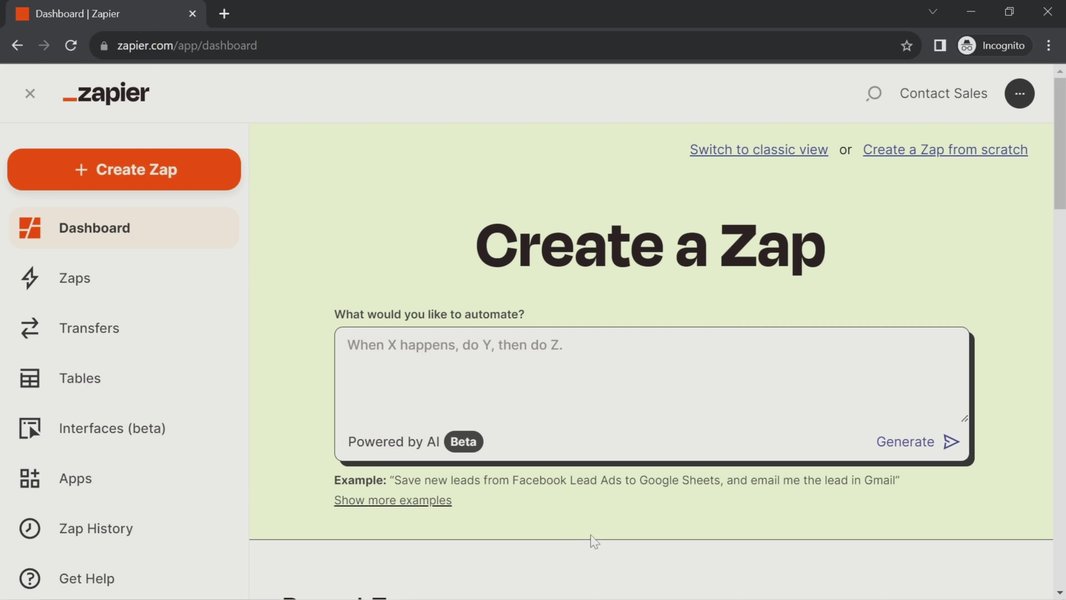
A glimpse into the Zapier dashboard, showcasing potential automation workflows.
5. Utilize Zap Templates
Zapier offers a vast library of pre-built Zap templates for common workflows. Using a template is an excellent way to get started quickly and see how Zaps are structured. You can find templates for various categories and applications. Simply click on a template that interests you and follow the steps to set it up.
Using templates can significantly reduce the time and effort required to create a Zap from scratch. They also provide practical examples of how different apps can be connected.
6. Build Your First Zap
Once you understand the basics and have identified a simple task to automate, it's time to build your first Zap. The Zapier interface guides you through the process of selecting your Trigger app and event, and then your Action app and event. You will also need to connect your accounts for the apps you are using.
During the setup, you will map data fields from the Trigger to the Action. This tells Zapier what information from the Trigger event should be used in the Action event.
7. Test Your Zap Thoroughly
Before turning your Zap on, always test it to ensure it works as expected. Zapier provides testing tools that allow you to simulate a Trigger event and see if the Action is performed correctly. If something isn't working, you can go back to the Zap editor and make adjustments.
8. Explore Advanced Features (Gradually)
Once you are comfortable with creating simple Zaps, you can start exploring some of Zapier's more advanced features. These include:
Filters:
Filters allow you to add conditions to your Zap, so the Action only runs if certain criteria are met. This adds a layer of logic to your workflows.
Paths:
Paths enable you to create multi-step Zaps with conditional logic, allowing different actions to occur based on different conditions in the Trigger.
Formatter:
The Formatter tool allows you to transform data between apps. This can be useful for things like changing date formats or extracting specific information from text.
Multi-Step Zaps:
As you become more proficient, you can build Zaps with multiple Action steps, automating more complex sequences of tasks across several apps.
Where to Find Learning Resources
Zapier offers a wealth of resources to help you learn and master the platform:
Zapier Learn
Zapier's official learning platform offers structured courses and tutorials covering the basics to more advanced topics. This is an excellent starting point for beginners.
Zapier Blog
The Zapier blog is a great source of inspiration, tips, and use cases for automation. You can find articles on productivity, workflow automation, and how to use Zapier with specific apps.
Zapier Community and Support
The Zapier community forums are a valuable resource for asking questions, sharing ideas, and learning from other Zapier users. Zapier also provides comprehensive support documentation.
YouTube Tutorials
Many content creators on YouTube offer video tutorials on using Zapier, ranging from beginner introductions to advanced techniques. Watching someone build a Zap can be a very effective way to learn.
Here is a relevant video that provides a beginner's guide to Zapier:
This video provides a comprehensive beginner's guide to understanding and using Zapier.
Practical Applications of Zapier
Zapier can automate tasks across a wide range of applications and use cases. Here are some common examples:
| Category | Common Automation Examples |
|---|---|
| Marketing | Adding new leads from Facebook Ads to a CRM, sharing new blog posts on social media, sending welcome emails to new subscribers. |
| Sales | Creating new opportunities in a CRM from form submissions, notifying sales reps of new leads, logging calls and emails automatically. |
| Customer Support | Creating support tickets from emails, notifying team members of new support requests, saving customer feedback to a spreadsheet. |
| Project Management | Creating tasks in a project management tool from emails or form submissions, updating project status based on activity in other apps, sending notifications for task deadlines. |
| Data Management | Transferring data between spreadsheets and databases, backing up files to cloud storage, syncing contacts between different apps. |
This table illustrates various categories where Zapier automation can be applied, along with specific examples.
Tips for Effective Zapier Learning
To maximize your learning experience with Zapier, consider these tips:
Start Small and Build Up
As mentioned earlier, begin with simple Zaps and gradually increase the complexity as you become more comfortable with the platform.
Experiment and Play
Don't be afraid to experiment with different apps and Zaps. The best way to learn is by doing and seeing what's possible.
Join the Community
Engage with the Zapier community. Ask questions, share your experiences, and learn from others who are using Zapier.
Stay Organized
As you create more Zaps, it's helpful to stay organized by naming your Zaps clearly and using folders to group related workflows.

An example of browsing within the Zapier interface to explore options.
Regularly Review and Optimize
Periodically review your existing Zaps to ensure they are still serving your needs and running efficiently. You can also look for opportunities to optimize your workflows.
FAQ about Learning Zapier
Do I need to know how to code to use Zapier?
No, one of the main benefits of Zapier is that it allows you to automate tasks without writing any code. It uses a visual interface to set up your workflows.
How long does it take to learn Zapier?
The time it takes to learn Zapier depends on your learning style and how much time you dedicate to it. You can learn the basics and create your first Zap in under an hour, while mastering more advanced features will take longer and require practice.
Is there a free version of Zapier?
Yes, Zapier offers a free plan that allows you to create a limited number of Zaps and perform a certain number of tasks per month. This is a great way to get started and experiment with the platform.
What kind of tasks can I automate with Zapier?
You can automate a wide variety of tasks with Zapier, including sending emails, creating documents, updating spreadsheets, posting on social media, managing leads, and much more. The possibilities are vast, limited only by the apps you use and your creativity.
What if an app I use isn't directly integrated with Zapier?
Zapier integrates with over 7,000 apps. If an app isn't directly integrated, you might still be able to connect it using Zapier's Webhooks or by using a third-party integration service that connects to both your app and Zapier.
References
Last updated April 21, 2025