
Step-by-Step Guide to Customizing Blogger Layouts
Enhance Your Blog's Appearance and Functionality in a Few Simple Steps
Highlights
- Easy Navigation: Learn how to access your Blogger dashboard and navigate between themes, layouts, and customization options.
- Comprehensive Customization: Step-by-step instructions on resizing, style adjustments, and advanced HTML/CSS modifications.
- Practical Best Practices: Tips to back up your template, preview changes, and optimize both desktop and mobile experiences.
Introduction
Customizing your Blogger layout is an essential process to give your blog a unique identity and improve user engagement. Whether you are new to Blogger or looking to enhance your current design, this guide will walk you through each step thoroughly. Below, we detail the steps from accessing your Blogger account to making advanced customizations through HTML and CSS.
Accessing the Blogger Dashboard
Getting Started
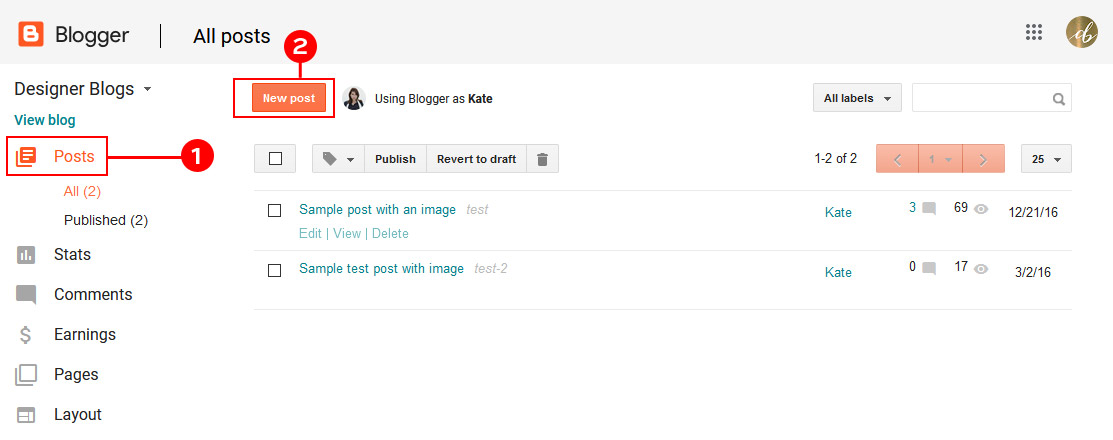
The first step in customizing a Blogger layout is to access your Blogger dashboard. To do this, log in to your Blogger account with your Google credentials. Once logged in, you'll be presented with a global view of your blogs. Select the particular blog that you intend to customize. This selection is crucial, especially if you manage multiple blogs.
Key Actions
Sign In: Navigate to the Blogger homepage and enter your credentials.
Select Blog: Use the dropdown menu at the top left to choose the specific blog you wish to modify.
Navigating to Theme and Layout Sections
Understanding the Dashboard Layout
Once inside your selected blog's dashboard, you'll find a menu on the left side containing a range of options like "Posts", "Stats", "Comments", "Earnings", "Pages", "Layout", and "Theme". Both the "Theme" and "Layout" sections are central to controlling your blog's appearance.
Theme Section
The Theme section allows you to apply pre-designed templates and make minor adjustments like color, font, and background image. To get started:
- Click on the "Theme" option.
- View the available templates on display.
- Click "Customize" to open the deeper customizer interface.
Layout Section
The Layout section, on the other hand, is where you can adjust the arrangement of widgets or gadgets that make up various parts of your blog such as the header, main content, sidebar, and footer. Here, you can drag-and-drop items and add new elements to enrich the blog’s functionality.
Step-By-Step Process to Customizing Your Blogger Layout
Step 1: Choosing a Template or Theme
Start by selecting a theme that closely fits your blog’s purpose and desired aesthetic. The Blogger template carousel displays several options. Once you choose a theme:
- Click on your preferred design to preview the layout.
- If satisfied, click on "Apply" to set the template as your blog’s theme.
When selecting a theme, consider the overall style, color scheme, and ease of navigation. Themes can be modified further to ensure they align with your brand's personality.
Step 2: Customizing Design Elements
After applying a theme, the next step is to personalize your blog's design elements. This includes adjusting the background, fonts, and colors to match your desired visual style. Follow these steps in the "Customize" interface:
Background Settings
Choose a background that enhances readability and complements your content. This can be a solid color, a gradient, or an image. Experiment with different settings to see what works best.
Font Styles and Colors
Changing fonts and adjusting text colors are crucial for ensuring that your content is both attractive and legible. In the same customization window, you can select different font families and sizes. It is recommended to stick to two or three fonts to maintain a consistent look.
Other Visual Settings
Beyond backgrounds and fonts, consider modifying margins, padding, and border styles to create a well-balanced layout. These settings help delineate various sections of your blog and improve user experience.
Step 3: Adjusting the Layout Structure
In addition to visual customization, altering the structural layout of your blog is equally important. This step involves using the "Layout" section of your Blogger dashboard, where you customize the arrangement of gadgets and widgets.
Arranging Widgets and Gadgets
In the Layout section, you can add, remove, or re-arrange the various elements that make up your blog's interface. Each section (header, sidebar, footer, etc.) is typically represented by a container that holds one or more gadgets.
To add a gadget, click on the "Add a Gadget" link in the desired section. A variety of options will appear, including:
- Recent Posts
- Profile Widgets
- Archives
- Labels
- Search Bars
After selecting a gadget, you can configure its settings by following the prompts that appear in a pop-up dialog. Additionally, drag-and-drop functionality allows you to reposition the gadgets for optimal layout flow.
Saving Layout Adjustments
It is important to save all the modifications you make. After rearranging or adding various gadgets, click on the "Save arrangement" button located at the top of the Layout page to prevent any loss of changes.
Step 4: Using the Advanced Customization Tools (HTML/CSS)
For users with coding knowledge who want to further customize their blog, Blogger provides an "Edit HTML" option. This advanced method gives you direct control over your blog’s source code.
Before You Begin
It is highly advisable to back up your current template before editing HTML or CSS. This precaution will help you revert changes if something does not work as expected.
Editing HTML
To edit the HTML:
- In the Theme section, click on the "Edit HTML" button.
- Carefully navigate through the code to locate sections you wish to modify.
- Apply your changes incrementally to ensure consistency.
While editing, make sure to comment your code for better organization. Here's an example of how to comment in HTML:
    <!-- This is a comment example -->
    <!-- Adjusting the background section -->
Adding Custom CSS
In the advanced customization options, you can add specific CSS rules to target elements that aren’t covered in the standard customization settings. Access this option by:
- Clicking "Advanced" within the Customize menu.
- Selecting "Add CSS".
- Entering your custom styles.
Custom CSS can adjust a range of properties from colors and spacing to hover effects and responsive design tweaks.
Step 5: Mobile Template Customization
With an increasing number of users accessing the Internet via mobile devices, ensuring that your blog is optimized for mobile viewing is essential. Blogger has an integrated mobile template customization feature.
Accessing Mobile Settings
In the Theme section, locate the mobile settings option. Here, you can:
- Select between default and custom mobile templates.
- Preview how your blog appears on mobile devices.
- Adjust elements to improve mobile navigation and readability.
Responsive design is key in today’s digital world. Check that your images, menus, and text adjust fluidly across different screens.
Step 6: Previewing and Publishing Your Changes
Before making your new customizations live, it is wise to preview all changes. Blogger provides a preview mode that lets you see how your blog looks in real time.
Using the Preview Feature
The preview feature allows you to:
- Test your layout adjustments.
- Ensure that gadgets and widgets function properly.
- Check display consistency across different devices.
It is important to carefully inspect your blog from a reader's perspective before clicking the final "Publish" button.
Publishing Your Layout
When you are completely satisfied with how your blog looks, publish the changes. This final step makes your customization live so that visitors can enjoy your updated layout.
Additional Tips and Best Practices
Backup Your Template
Every time you make significant changes to your blog's design, especially through the HTML/CSS route, backup your existing template. This ensures that you have a fallback option if any issues arise during customization.
Testing and Iteration
Don’t hesitate to experiment with multiple layouts or styling options in the preview mode. Testing different combinations can help you identify a setup that maximizes both aesthetics and usability. Always gather feedback from peers or a test audience to make informed decisions.
Keep It Simple and Consistent
While customization allows a lot of creative freedom, ensure that you maintain consistency across various elements such as color schemes, fonts, and gadget placement. A coherent design language improves the overall user experience.
Utilizing Third-Party Tools
Several third-party tools and extensions can help facilitate more sophisticated customizations. Tools like Stylebot provide an easy-to-use interface for modifying styles without deep involvement with code. These tools complement the built-in Blogger customization options well.
Understanding Advanced Customizations
In addition to the standard customization options, exploring advanced customizations can further set your blog apart. This involves using HTML/CSS and JavaScript to add interactive features or refined design tweaks.
Embedding Custom Features
You may consider inserting custom widgets, interactive menus, or dynamic content sections. For instance, adding JavaScript-based interactive elements can improve visitor engagement. Ensure that any code you integrate is optimized for performance so that it does not compromise your blog’s loading speed.
Maintaining SEO-Friendly Coding Practices
While customizing, keep SEO best practices in mind. Proper use of heading tags (<h1>, <h2>, etc.), alt attributes for images, and organized code can contribute to better search engine rankings. Always validate your HTML/CSS and optimize images to maintain fast loading times.
Utilizing HTML Tables for Content Organization
If your blog content benefits from organized data presentations, consider using HTML tables. Here’s an example of a simple HTML table that might be used for organizing widget settings or comparison data:
| Section | Function | Key Settings |
|---|---|---|
| Header | Displays logo and title | Logo upload, title text style |
| Sidebar | Holds navigation and widgets | Widget arrangement, background color |
| Footer | Contains copyright and additional links | Social media links, minimal design |
Tables provide a clear way to layout and compare information, making the design both professional and easy to navigate.
Common Pitfalls and How to Avoid Them
Over-Customization
One common mistake is over-customizing your blog to the point where it becomes cluttered or difficult to navigate. It is critical to balance creativity with usability.
Maintain Simplicity
Avoid overwhelming your visitors with too many colors, fonts, or interactive elements. Instead, choose a primary layout structure and stick to it, ensuring that each change enhances rather than detracts from the overall user experience.
Ignoring Mobile Optimization
With an increasing reliance on mobile devices for browsing, neglecting mobile optimization can alienate a large portion of your audience. Always check and adjust your mobile settings to ensure responsive design, so your blog looks great on devices of all sizes.
Not Backing Up Changes
Before making any major modifications, back up your current template. This guarantees that you always have a reversal option should the need arise, thereby saving time and avoiding potential disruptions in your blog’s appearance.
Conclusion and Final Thoughts
Customizing your Blogger layout is a dynamic process that allows you to tailor your blog not only to your aesthetic taste but also to the functional needs of your audience. By following these detailed steps—from accessing the dashboard, selecting and customizing themes, adjusting layout structures, and implementing advanced customizations—you can achieve a visually appealing and well-organized blog. Remember to continuously test and refine your customizations to meet both personal and technological updates in design trends.
Incorporating measures such as regular backups, mobile optimization, and SEO-friendly coding practices will ensure that your blog remains both attractive and functional. Whether you choose to make minor tweaks or delve into advanced HTML/CSS modifications, always balance creativity with practicality. Ultimately, the goal is to enhance user engagement while retaining the uniqueness of your personal or brand identity.
References
- Ultimate Guide to Blogger (Blogspot) Customization - TechRBun
- Blogger Dashboard Made Easy: A Beginner's Guide - Innate Blogger
- How to Change Your Blogger Layout - Designer Blogs
- How to customize a Blogger blog [Guide] - dotTech
-
Customize your Blogger Blog with Blogger's Template Designer - ValuePane
Recommended Queries for Further Exploration
 blogger-hints-and-tips.blogspot.com
Last updated February 27, 2025