
Never Lose Data Again: Automate Your Boat's Mini PC Shutdown
Cleverly use your existing network gear to trigger a safe shutdown when main power cuts, protecting your Firebat P8.
Highlights: Key Takeaways for a Clean Shutdown
- Leverage Your Network: Use the immediate power-off state of your Cudy WiFi router (connected directly to the battery) as a reliable signal that main power has been cut.
- Automate with Scripts: Implement a simple monitoring script on your Firebat P8 Mini PC to detect when the router goes offline and automatically initiate a graceful operating system shutdown.
- Prioritize Timing: Configure the script and shutdown process to complete well within the ~20 minutes of backup power provided by your UPS, preventing abrupt power loss to the PC.
Understanding Your Setup's Challenge: The Silent UPS
Why your Mini PC doesn't know the power is out.
Your current 12V UPS performs its primary function well: it keeps your Firebat P8 Mini PC running when the main boat battery is cut. However, its limitation is the lack of a communication interface (like USB or network connectivity) to inform the Mini PC that it's running on backup power and that the main supply is gone. Consequently, the PC remains unaware of the impending power loss until the UPS battery depletes after approximately 20 minutes, leading to an abrupt, unclean shutdown. This risks data corruption, file system errors, and potential hardware stress. The goal is to bridge this communication gap using your existing equipment.
Leveraging Your Network for Power Loss Detection
Using your Cudy Router as a Smart Power Sensor
How It Works
The most practical solution involves using the state of your Cudy WiFi router as an indicator of main power status. Since the router is connected directly to the main 12V battery (via a DC-DC converter) and not the UPS, it powers off instantly when you cut the battery supply. Your Mini PC, running on the UPS, can be configured to constantly check for the router's presence on the local network. When the router suddenly becomes unreachable, the PC can reliably infer that main power has been lost and initiate its own clean shutdown sequence.
Setting up the Monitoring Script
You'll need a small script running continuously in the background on your Firebat P8. This script periodically attempts to contact the router.
Step 1: Find Your Router's IP Address
You need the local IP address of your Cudy router. While connected to your boat's network (with the router powered on), you can find this on your Mini PC:
- Windows: Open Command Prompt (cmd) and type
ipconfig. Look for the "Default Gateway" address under your active network connection (likely Ethernet or WiFi). - Linux: Open a terminal and type
ip route | grep default. The address listed after "default via" is usually your router's IP.
Common router IPs include 192.168.1.1, 192.168.0.1, or similar. Note this address down.
Step 2: Create the Script (Choose based on your OS)
For Windows (using Batch Script):
Create a text file, paste the following code, replace [Router_IP_Address] with your router's actual IP, and save it with a .bat extension (e.g., ups_monitor.bat).
@echo off
set ROUTER_IP=[Router_IP_Address]
set CHECK_INTERVAL=15 REM Check every 15 seconds
set SHUTDOWN_DELAY=60 REM Shutdown initiates after 60 seconds of router offline

:check_loop
REM Ping the router once, wait max 1 second for reply (-w 1000ms)
ping -n 1 %ROUTER_IP% -w 1000 > nul

REM Check the result. Errorlevel 0 means success (router is online)
if %errorlevel% equ 0 (
    REM Router is online, wait and check again
    timeout /t %CHECK_INTERVAL% /nobreak > nul
    goto check_loop
) else (
    REM Router is offline, initiate shutdown
    echo %date% %time%: Router (%ROUTER_IP%) is offline. Initiating shutdown in %SHUTDOWN_DELAY% seconds... >> C:\ups_monitor_log.txt
    REM Execute shutdown command with a delay and force close applications (/f)
    shutdown /s /f /t %SHUTDOWN_DELAY% /c "Main power detected offline. Shutting down..."
    goto :eof REM End the script
)

:eof
exit
Note: This script logs the shutdown event to C:\ups_monitor_log.txt. Adjust CHECK_INTERVAL and SHUTDOWN_DELAY as needed. Ensure the total time (detection + delay + shutdown) is less than your UPS runtime.
For Linux (using Bash Script):
Create a text file, paste the following code, replace [Router_IP_Address] with your router's IP, make it executable (chmod +x your_script_name.sh), and save it (e.g., ups_monitor.sh).
#!/bin/bash

ROUTER_IP="[Router_IP_Address]"
CHECK_INTERVAL=15 # Check every 15 seconds
LOG_FILE="/var/log/ups_monitor.log"

echo "$(date): UPS Monitor Script Started" >> $LOG_FILE

while true; do
  # Ping router once (-c 1), wait max 1 second (-W 1)
  if ping -c 1 -W 1 $ROUTER_IP &> /dev/null; then
    # Router is online, sleep for the interval
    sleep $CHECK_INTERVAL
  else
    # Router is offline, initiate shutdown
    echo "$(date): Router ($ROUTER_IP) offline. Initiating shutdown now." >> $LOG_FILE
    # Use 'shutdown -h now' for immediate shutdown or '+1' for 1 minute warning
    sudo shutdown -h +1 "Main power lost. System shutting down."
    exit 0 # Exit script after initiating shutdown
  fi
done
Note: This script logs to /var/log/ups_monitor.log. Ensure the user running the script has privileges to execute sudo shutdown (often requires running as root or via a service).
Step 3: Automating the Script on Startup
The script needs to run automatically whenever the Mini PC starts.
- Windows:
- Press
Win + R, typeshell:startup, and press Enter. This opens the Startup folder. - Place a shortcut to your
.batscript in this folder. - Alternatively, use the Task Scheduler for more control (e.g., run with higher privileges, configure restarts on failure). Create a basic task set to trigger "When the computer starts", running your
.batfile.
- Press
- Linux:
- Using systemd (Recommended): Create a service file (e.g.,
/etc/systemd/system/ups-monitor.service) to manage the script.
Then enable and start it:[Unit] Description=UPS Network Monitor Service After=network.target [Service] ExecStart=/path/to/your/ups_monitor.sh Restart=always User=root # Or another user with shutdown privileges [Install] WantedBy=multi-user.targetsudo systemctl enable ups-monitor.serviceandsudo systemctl start ups-monitor.service. Replace/path/to/your/ups_monitor.shwith the actual path. - Using cron (Simpler): Edit the root crontab (
sudo crontab -e) and add:
The@reboot /path/to/your/ups_monitor.sh &&runs it in the background.
- Using systemd (Recommended): Create a service file (e.g.,
Visualizing Shutdown Strategies
Comparing Different Approaches
To better understand the options for ensuring a clean shutdown, consider the following mindmap outlining the main strategies based on your situation:
This mindmap illustrates that while hardware upgrades offer robust solutions, software-based methods using your existing setup, particularly the network monitoring approach, provide a practical path forward.
Comparing Shutdown Methods
A Radar Chart Analysis
The following chart provides a visual comparison of the different shutdown strategies across key factors. Scores are subjective estimations (1=Low, 10=High) to help illustrate the trade-offs:
As shown, the Router Ping Script offers a good balance of reactivity and cost-effectiveness using your current hardware, though its reliability depends on network stability. A Smart UPS is generally the most robust solution but requires investment.
Alternative: Simple Timed Shutdown Script
A Less Reactive but Simpler Approach
How it Works & Limitations
If the network monitoring script seems too complex, or if your network environment is unstable, a simpler alternative is a timed shutdown. This involves starting a script that waits for a predetermined duration (e.g., 18 minutes, leaving a small buffer before the UPS dies) and then initiates shutdown.
Limitation: This method isn't reactive. It assumes you cut the power relatively soon after the PC (and script) starts. If the PC runs for hours before you cut the power, the script might trigger shutdown prematurely or too late relative to the actual power cut event. It's less ideal for variable usage patterns but very simple to implement.
Script Examples
Windows (Batch): Save as .bat and run at startup.
@echo off
REM Wait for 18 minutes (1080 seconds)
timeout /t 1080 /nobreak > nul
REM Initiate shutdown
shutdown /s /f /t 30 /c "Scheduled shutdown initiated based on expected UPS runtime."
exit
Linux (Bash): Save as .sh, make executable, run at startup (e.g., via cron @reboot).
#!/bin/bash
# Wait for 18 minutes (1080 seconds)
sleep 1080
# Initiate shutdown
sudo shutdown -h now "Scheduled shutdown based on expected UPS runtime."
exit 0
This approach is straightforward but relies heavily on consistent timing and operational procedures.
Important Considerations for Reliability
Fine-tuning Your Setup
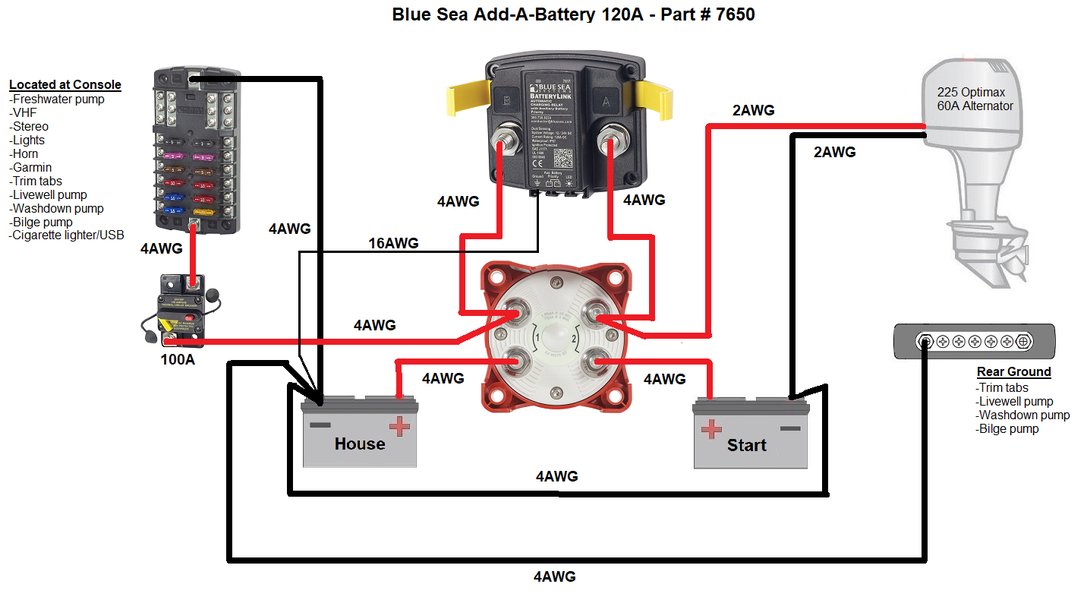
Example diagram illustrating typical boat battery, switch, and distribution panel connections. Your UPS and PC integrate into this system.
Network Check Robustness (for Router Ping method):
Ping is simple but can fail due to temporary network issues unrelated to power loss. For greater robustness, consider scripting a check for a specific service on the router, like its web interface (e.g., trying to connect to port 80 or 443), though this requires more advanced scripting (e.g., using `curl` on Linux or `Invoke-WebRequest` in PowerShell).Timing and UPS Buffer:
Accurately estimate your UPS runtime under the Mini PC's typical load. Ensure your script's detection time plus any shutdown delay is significantly less than this runtime. Aim for at least a 5-minute buffer (e.g., initiate shutdown within 15 minutes if runtime is 20).BIOS Configuration:
Check your Firebat P8's BIOS/UEFI settings. Look for options related to "AC Power Loss" or "Restore on AC Power Loss". Set this to "Stay Off" or "Last State" to prevent the PC from unexpectedly trying to power back on when shore power/generator restores power, especially if the battery switch is still off.Operating System Health:
Ensure your operating system (Windows or Linux) is configured for clean shutdowns. Regularly check disk health (e.g., `chkdsk` on Windows, `fsck` on Linux after unclean shutdowns during testing). Ensure critical applications save data frequently or handle shutdown signals gracefully.Thorough Testing is Crucial:
Simulate power cuts multiple times by switching off the main battery. Verify that the script detects the router loss (if using that method) or the timer expires (if using timed method) and that the Mini PC shuts down cleanly *before* the UPS runs out. Check system logs (Windows Event Viewer, Linux `/var/log/syslog` or journalctl) for errors after rebooting.
Video Insight: Scheduling PC Shutdowns
Automating Power Management Tasks
While the following video discusses scheduling shutdowns and startups generally for Windows Mini PCs, the principles of using built-in tools like Task Scheduler are directly relevant to implementing either the timed shutdown script or automating the network monitoring script on your Firebat P8 if it's running Windows. It demonstrates how to configure tasks to run automatically, which is key to making your chosen solution hands-free.
Feature Comparison of Shutdown Methods
Pros and Cons at a Glance
This table summarizes the key characteristics of the discussed methods:
| Method | Trigger Mechanism | Pros | Cons | Estimated Setup Difficulty |
|---|---|---|---|---|
| Router Ping Script | Loss of network connectivity to router | Reacts directly to power cut, uses existing hardware, cost-effective | Relies on network stability, requires scripting, needs testing | Medium |
| Timed Shutdown Script | Fixed time delay after PC/script starts | Very simple script, cost-effective, uses existing hardware | Not reactive to actual power cut time, assumes consistent usage pattern | Low |
| Smart UPS Upgrade | Direct signal from UPS via USB/Network | Most reliable, standardized solution, highly reactive | Requires purchasing new UPS, potential compatibility check | Low-Medium (Hardware install + Software config) |
| DIY Hardware Monitor | External sensor detecting voltage drop | Highly reactive, customizable | Requires electronics skills, custom hardware/software, potentially higher effort | High |
Frequently Asked Questions (FAQ)
Quick Answers to Common Concerns
What if my router's IP address changes?
Most home/boat routers assign IP addresses using DHCP but usually keep the router's own gateway address static (e.g., 192.168.1.1). If you suspect it might change, consider configuring a DHCP reservation for your Mini PC and setting the router's IP manually in its settings if possible, or use the router's hostname instead of IP in the script if your network reliably resolves hostnames (e.g., `ping CudyRouterName`). Alternatively, check the IP periodically and update the script if needed.
How often should the router ping script check?
Checking every 10-30 seconds is usually a good balance. Checking too frequently (e.g., every second) adds unnecessary network traffic and CPU load. Checking too infrequently (e.g., every 5 minutes) might delay the detection of power loss significantly, eating into your UPS buffer time. Adjust the `CHECK_INTERVAL` in the provided scripts based on your testing.
What happens if the script itself fails or crashes?
This is a risk with any custom script. If the monitoring script crashes, it won't trigger the shutdown when power is cut. Using robust startup methods like Windows Task Scheduler (with retry options) or Linux systemd (with `Restart=always`) can help mitigate this by automatically restarting the script if it fails. Regular testing helps ensure the script remains operational.
Can I use PowerShell on Windows instead of Batch?
Yes, PowerShell offers more advanced scripting capabilities. You could use `Test-Connection` instead of `ping` and `Stop-Computer` instead of `shutdown`. A simple PowerShell equivalent for the ping check might look like:
$RouterIP = "[Router_IP_Address]"
$CheckInterval = 15 # Seconds
$LogFile = "C:\ups_monitor_log_ps.txt"

Write-Output "$(Get-Date): UPS Monitor Script Started" | Out-File -Append $LogFile

while ($true) {
    if (Test-Connection -ComputerName $RouterIP -Count 1 -Quiet -ErrorAction SilentlyContinue) {
        # Router is online
        Start-Sleep -Seconds $CheckInterval
    } else {
        # Router is offline
        Write-Output "$(Get-Date): Router ($RouterIP) offline. Initiating shutdown." | Out-File -Append $LogFile
        Stop-Computer -Force -Delay 1 # Shutdown with 1 min delay (optional)
        break # Exit loop
    }
}
Save this as a `.ps1` file and configure Task Scheduler to run it using `powershell.exe -ExecutionPolicy Bypass -File "C:\path\to\your\script.ps1"`.
Recommended Next Steps & Further Reading
- Learn more about configuring Windows Task Scheduler for reliable script execution at startup.
- Explore tutorials on creating systemd services in Linux for robust background script management.
- Investigate best practices for managing power for sensitive electronics in a marine environment.
- Compare small UPS models that feature USB communication for potential future upgrades.
References

Last updated May 5, 2025