
Understanding and Defending Against Brute Force Attacks on Your Windows 10 Pro Laptop
A Comprehensive Guide to Identifying Attack Vectors and Securing Your Device
Key Insights
- Attack Vectors: Brute force attacks typically exploit common remote access services like RDP (port 3389) or SSH (port 22) to gain unauthorized access to your laptop, often leveraging weak passwords or compromised credentials.
- Detection: Monitoring Windows Event Logs (Event ID 4625 for failed logins) and analyzing network traffic are crucial steps for identifying the specific services and source IPs involved in the brute force attack.
- Prevention: Implementing strong, unique passwords, enabling multi-factor authentication (MFA), disabling unnecessary remote access features, and using a robust firewall are essential defenses against current and future brute force attempts.
Experiencing a brute force attack on your Windows 10 Pro laptop, especially one with a built-in SIM card, is a serious concern. This type of attack involves cybercriminals systematically trying many username and password combinations until they find the correct one to gain unauthorized access. Understanding how these attackers are reaching your device and which services they are targeting is critical for effective defense.
Understanding Brute Force Attack Vectors
An attack vector is the pathway or method hackers use to gain unauthorized access to a system. In the context of a brute force attack on a Windows 10 Pro laptop, the primary goal is often to guess your login credentials or encryption keys. Given your laptop has a built-in SIM card, it suggests a potential for network exposure, possibly through cellular data connections, alongside traditional Wi-Fi or wired networks.
Common Attack Vectors for Windows Systems
Attackers leverage various methods to conduct brute force attacks. The most common pathways on Windows systems include:
- Remote Desktop Protocol (RDP) Attacks: RDP (typically uses TCP port 3389) allows users to connect to a computer remotely. If RDP is enabled and exposed to the internet, attackers can continuously try to guess login credentials. Many RDP brute force attacks are automated using specialized tools.
- SSH (Secure Shell) Brute Force: Although more common on Linux systems, SSH (typically uses TCP port 22) can also be configured on Windows for remote access. Similar to RDP, exposed SSH services are prime targets for credential guessing.
- NTLM Authentication Protocol: Malicious actors frequently use the NTLM authentication protocol to carry out account enumeration and brute-force attacks to compromise accounts. This protocol is often used in internal network environments.
- Web Application Logins: If you host any web services or frequently access web-based applications from your laptop, these login portals can be targets for brute force, often relying on HTTP/HTTPS (ports 80/443).
- Other Services: Any service that requires authentication and is exposed to the internet, such as FTP (ports 20, 21), Telnet (port 23), or specific database services, could be a target.
The built-in SIM card might imply that your laptop is connecting directly to the internet via cellular networks, potentially bypassing some layers of network security that a traditional home or office network might provide (like a router's firewall). This direct exposure can make identifying the source IP challenging if the attackers are routing through various proxies, but the principles of detection remain similar.
Identifying the Attack Vector and Port Services
To determine how attackers are performing the brute force attack and which port services they are using, you need to analyze your system's logs and network activity. Here's a step-by-step guide:
Step 1: Check Windows Event Logs for Failed Login Attempts
Windows Event Logs are your primary source of information for detecting brute force attacks. Failed login attempts are recorded and can indicate the service being targeted.
Accessing Event Viewer:
- Press
Windows key + R, typeeventvwr.msc, and press Enter to open Event Viewer. - Navigate to Windows Logs > Security.
Identifying Relevant Event IDs:
Look for the following Event IDs, which are key indicators of failed login attempts:
- Event ID 4625: This is the most crucial event ID for failed login attempts. It records the failure audit for an account logon. When you see a high volume of these events for the same username or different usernames over a short period, it strongly suggests a brute force attack.
- Event ID 4776: This event ID records authentication audit failures by the NTLM authentication protocol. A high frequency might indicate NTLM brute force attempts.
- Event ID 4624: While this indicates a successful login, a successful login following numerous 4625 events could mean the brute force attack succeeded.
Analyzing Event Details:
For each relevant event (especially 4625), examine the details:
- Account Name: Identifies the username being targeted. Attackers often target common usernames like "Administrator" or "Guest."
- Source Network Address / Source Workstation: This field often provides the IP address from which the login attempt originated. If the attackers are using proxy servers, this IP might change frequently, but it's still a vital piece of information.
- Logon Type: This indicates how the logon attempt was made.
- Logon Type 3: Network logon (common for RDP, network shares, web applications).
- Logon Type 10: RemoteInteractive (for RDP).
winlog.event_data.LogonType: 10specifically targets RDP brute force attempts.
A high volume of failed login attempts, especially from unfamiliar or geographically dispersed IP addresses, is a clear sign of a brute force attack.
Step 2: Monitor Network Traffic
While Event Logs tell you about login attempts, network traffic analysis can help identify the specific ports being targeted and the patterns of connection attempts.
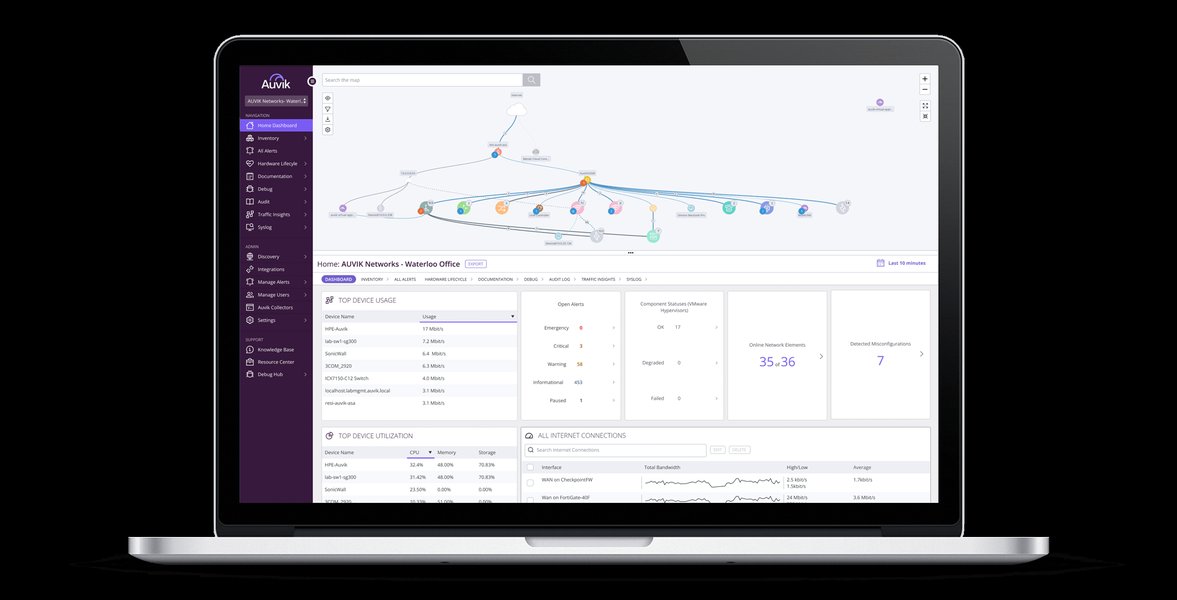
Analyzing network traffic can help pinpoint the specific ports under attack.
Tools for Network Monitoring:
- Windows Resource Monitor: A built-in tool (type
resmonin Run) that can show active network connections and listening ports. Go to the "Network" tab to see which processes are using the network. - Wireshark: A powerful network protocol analyzer. While it requires some technical knowledge, it can capture and inspect packets to reveal the source and destination IPs, ports, and protocols involved in suspicious traffic. Look for a high volume of connection attempts to specific ports (e.g., 3389 for RDP, 22 for SSH) from unusual IP addresses.
- Netstat: A command-line utility (
netstat -anoin Command Prompt) that lists active connections, listening ports, and the associated process IDs. This can help identify if a service is unexpectedly listening on a public port.
Pay close attention to inbound connections to common remote access ports (3389, 22, 80, 443) and any unusual spikes in network activity that correspond with the timing of failed login attempts.
Analyzing Attack Sophistication and Risk Factors
To better understand the brute force attack, consider the sophistication and potential risk factors. This radar chart visualizes various aspects of the attack you might be experiencing:
This radar chart illustrates different aspects of a brute force attack. Your current attack (orange) might show a high volume of attempts and persistence, potentially indicating a dedicated attacker. Comparing it to a "Typical Automated Brute Force" (teal) helps highlight if the attack against your system has specific characteristics, such as a wider variety of usernames being tried or more advanced evasion techniques (like rotating IP addresses to avoid simple IP blocking). Understanding these dimensions helps in tailoring your defense strategy.
Protective Measures Against Brute Force Attacks
Protecting your laptop requires a multi-layered approach, focusing on prevention, detection, and response. The fact that your laptop has a built-in SIM card means you should also consider cellular network security alongside Wi-Fi.
Immediate Steps to Protect Your Device
- Disconnect from the Internet: If the attack is ongoing and severe, immediately disconnect your laptop from all networks (Wi-Fi, Ethernet, and disable the SIM card/cellular data). This stops the attack in its tracks and gives you time to implement defenses.
- Change All Passwords: Change passwords for all accounts on your laptop, especially local administrator accounts and any cloud services you access. Use strong, unique passwords that are long, complex, and include a mix of uppercase and lowercase letters, numbers, and symbols.
- Enable Multi-Factor Authentication (MFA): This is one of the most effective defenses. Even if attackers guess your password, they won't be able to log in without the second factor (e.g., a code from your phone, a physical key). Enable MFA for your Microsoft account, sensitive applications, and any remote access services.
Long-Term Prevention Strategies
1. Secure Remote Access Features
If you don't use Remote Desktop or SSH, disable them. If you do, secure them rigorously.
- Disable Remote Desktop (RDP) if not needed:
- Press
Windows key + Ito open Settings. - Go to System > Remote Desktop and turn it off. Alternatively, go to Control Panel > System and Security > System > Allow remote access, then uncheck "Allow Remote Assistance connections to this computer" and select "Don't allow remote connections to this computer" in the Remote tab.
- Consider disabling Remote Assistance as well.
Disabling Remote Assistance and Remote Desktop is crucial if not actively used.
- Press
- Change Default RDP Port: If RDP is essential, change its default port (3389) to a non-standard, high-numbered port. This won't stop a determined attacker but reduces automated scanning.
- Restrict RDP Access via Firewall: Configure Windows Firewall to only allow RDP connections from specific, trusted IP addresses. This is particularly effective if you only access your laptop remotely from a known, static IP. For your built-in SIM card, this might be challenging if your mobile IP changes, but it's still good practice for other networks.
- Use a VPN: If you need remote access, connect to your network via a Virtual Private Network (VPN) first. This encrypts your connection and makes it much harder for attackers to intercept or brute force.
- Enable Account Lockout Policy: Configure your Windows account lockout policy to temporarily lock out accounts after a certain number of failed login attempts. This is a direct countermeasure against brute force. While built-in local administrator accounts historically didn't allow lockout, recent Windows updates (like KB5020282) have introduced this capability.
- To configure: Press
Windows key + R, typesecpol.msc, and navigate to Account Policies > Account Lockout Policy. Define "Account lockout threshold," "Account lockout duration," and "Reset account lockout counter after."
- To configure: Press
2. Enhance System Security
- Keep Windows Updated: Regularly apply Windows updates, as they often include crucial security patches that fix vulnerabilities exploited by attackers.
- Antivirus and Anti-Malware Software: Use a reputable antivirus and anti-malware solution (like Microsoft Defender, which is built-in and updated automatically, or third-party solutions like Comodo or Hitmanpro Alert). Ensure it's always up-to-date and performs regular scans.
- Firewall Configuration: Ensure your Windows Firewall is enabled and properly configured to block unauthorized incoming and outgoing connections. This is a fundamental layer of defense.
- Disable Guest Accounts and Default Usernames: Guest and default accounts can provide easy entry points. Disable them and change default usernames if possible.
- Encrypt Sensitive Data: If you have confidential files, store them in encrypted folders or use full disk encryption (like BitLocker) to protect your data even if your device is compromised or stolen.
- Pop-up Blocker and SmartScreen: Keep your browser's pop-up blocker enabled and ensure Microsoft Edge's SmartScreen is active to protect against phishing and malware.
3. User Awareness and Best Practices
- Strong Password Practices: Beyond length and complexity, use unique passwords for every account. Consider a password manager to help generate and store these securely.
- Be Wary of Social Engineering: Phishing and other social engineering tactics often precede brute force attempts to gather information or trick users into revealing credentials. Be suspicious of unsolicited emails, calls, or messages.
- Regular Data Backups: Regularly back up your important data to an external drive or secure cloud storage. This minimizes damage in case of a successful attack.
Summary of Brute Force Attack Detection and Prevention
Here's a concise overview of how to detect and prevent brute force attacks:
| Category | Detection Measures | Prevention Strategies |
|---|---|---|
| Authentication | Monitor Windows Event ID 4625 (failed logins), 4776 (NTLM failures). Look for high volume, rapid attempts, unusual usernames. | Implement strong, unique passwords. Enable Multi-Factor Authentication (MFA). Configure account lockout policies. |
| Network Activity | Analyze network traffic for unusual connections to remote access ports (RDP 3389, SSH 22, HTTP/S 80/443). Use tools like Wireshark, Resource Monitor, Netstat. | Disable unnecessary remote access services (RDP, SSH). Restrict RDP/SSH access via firewall rules (IP whitelisting). Use VPN for remote access. |
| System Health | Look for unusual system performance, unexpected processes, or modifications in Windows Registry (often indicative of malware post-compromise). | Keep OS and software updated. Use reputable antivirus/anti-malware. Ensure firewall is active and configured. Disable Guest accounts. |
| User Behavior | Monitor for account lockouts, unusual access times/locations, or changes to account settings. | Educate users on phishing and social engineering. Encourage password manager use. |
Understanding Attack Vectors in Context
For a deeper dive into attack vectors and their role in cybersecurity, consider this informative video:
This video provides a foundational understanding of attack vectors in cybersecurity, detailing common types and their significance.
The video clarifies that an attack vector is essentially the path an attacker takes to exploit a vulnerability. This aligns with what you're experiencing – the brute force is the "method," and the RDP/SSH port is the "pathway" into your system. Understanding these core concepts helps in building a more robust defense.
Frequently Asked Questions (FAQ)
What is a brute force attack?
How can I tell if my Windows 10 laptop is being brute forced?
Can a built-in SIM card increase my laptop's vulnerability?
What are the most important steps to prevent future brute force attacks?
Conclusion
Detecting and mitigating a brute force attack on your Windows 10 Pro laptop requires a proactive approach involving diligent monitoring of system logs and network activity, coupled with implementing robust security measures. By understanding the common attack vectors, particularly those targeting remote access services like RDP and SSH, you can identify how attackers are reaching your device. The detailed analysis of Windows Event Logs, especially Event ID 4625, combined with network traffic analysis, will pinpoint the exact services and source IPs involved. Once identified, immediate actions such as disconnecting from the internet and changing passwords are crucial. For long-term protection, prioritize multi-factor authentication, disable unneeded remote access features, and enforce strong password policies. Regularly updating your system, using comprehensive antivirus software, and maintaining a well-configured firewall will further harden your device against current and future cyber threats. Stay vigilant and adapt your security posture as attack methods evolve.
Recommended Further Exploration
- Advanced Windows Event Log analysis for security
- Securing Remote Desktop Protocol (RDP) best practices
- Implementing Multi-Factor Authentication for Windows security
- Network forensics tools for home users