
Unlock Offline AI: Building Chatbots That Live Entirely in Your Browser
Discover how modern web technologies enable powerful, private chatbots without needing a server.
Building a chatbot application that operates entirely within the user's web browser is becoming increasingly achievable thanks to advancements in web technologies and machine learning. Unlike traditional chatbots that rely on server-side processing, a fully browser-based chatbot handles computations locally, offering significant advantages in privacy, offline accessibility, and reduced infrastructure costs. This guide explores how you can create such an application using modern tools and techniques.
Key Highlights
- Privacy First: User data never leaves the browser, ensuring maximum confidentiality as all processing happens client-side.
- Offline Capability: Once models are loaded and cached, the chatbot can function without an internet connection, providing uninterrupted access.
- Leveraging Modern Tech: Technologies like WebAssembly (WASM), WebGPU, and specialized JavaScript libraries (e.g., WebLLM, TensorFlow.js) make running complex AI models feasible directly in the browser.
The Rise of Browser-Based AI
Why Run a Chatbot Client-Side?
Traditionally, chatbots required powerful servers to run the complex Natural Language Processing (NLP) and Large Language Models (LLMs) needed for intelligent conversation. User input was sent to a server, processed, and the response sent back. While effective, this approach raises privacy concerns and requires constant internet connectivity.
Running the chatbot entirely in the browser flips this model. The core AI logic executes directly on the user's device. This shift is powered by several key technological advancements:
Core Enabling Technologies
- WebAssembly (WASM): A binary instruction format that allows code written in languages like C++ or Rust to run in web browsers at near-native speed. This is crucial for executing computationally intensive AI model code efficiently.
- WebGPU: A modern web API providing low-level access to the Graphics Processing Unit (GPU). It enables hardware acceleration for complex calculations, significantly speeding up the inference process for AI models directly within the browser. Modern browsers (Chrome, Edge, Firefox from 2024 onwards) increasingly support WebGPU.
- JavaScript Libraries for AI: Frameworks and libraries specifically designed for running machine learning models client-side have emerged:
- WebLLM: A prominent library focused on running LLMs (like Llama 3, Mistral 7B) entirely in the browser using WebGPU. It simplifies loading quantized models and managing chat sessions.
- TensorFlow.js: Google's library for training and deploying ML models in JavaScript environments, including the browser. It supports various models and can leverage WebGL or WebGPU for acceleration.
- ONNX Runtime Web: Allows running models in the Open Neural Network Exchange (ONNX) format in the browser, often using WebAssembly or WebGL/WebGPU.
- Brain.js: A simpler library for neural networks in JavaScript, suitable for less complex tasks.
- Quantized Models: AI models, especially LLMs, are often very large. Quantization techniques reduce model size and computational requirements (often by using lower-precision numbers) with minimal impact on performance, making them suitable for resource-constrained environments like browsers. Models like Mistral 7B or smaller variants of Llama 3 are often available in quantized formats optimized for browser use.
Step-by-Step: Building Your Browser Chatbot
From Setup to Interaction
Here’s a structured approach to building your fully browser-based chatbot application:
1. Setting Up the Development Environment
- Browser Check: Ensure you are using a recent version of a browser that supports WebGPU (e.g., Chrome 113+, Edge 113+). This is vital for performance, especially with LLMs.
- Code Editor: Use any standard code editor like Visual Studio Code.
- Local Server (Optional but Recommended): Use a simple local web server (like VS Code's Live Server extension or Python's `http.server`) for testing, especially when dealing with module loading or fetching local model files, to avoid potential browser security restrictions (CORS).
- Project Structure: Create a basic project folder with an `index.html` file, a `style.css` file, and a `script.js` file.
2. Building the User Interface (UI)
The UI is the visual front-end where the user interacts with the chatbot. Use standard web technologies:
- HTML (Structure): Define the core elements: a container for the chat messages, an input field for the user to type, and a button to send the message.
<!DOCTYPE html> <html lang="en"> <head> <meta charset="UTF-8"> <meta name="viewport" content="width=device-width, initial-scale=1.0"> <title>Browser Chatbot</title> <link rel="stylesheet" href="style.css"> </head> <body> <div id="chat-container"> <h1>In-Browser Chatbot</h1> <div id="chat-history"> <!-- Messages will appear here --> </div> <div id="input-area"> <input type="text" id="user-input" placeholder="Type your message..."> <button id="send-button">Send</button> </div> <div id="status">Loading model...</div> <!-- Status indicator --> </div> <!-- Include necessary libraries (e.g., WebLLM) --> <script type="module" src="script.js"></script> <!-- Use type="module" for modern JS --> </body> </html> - CSS (Styling): Style the elements for a clean chat interface. Differentiate user messages from bot messages, make the history scrollable, etc.
body { font-family: sans-serif; display: flex; justify-content: center; align-items: center; min-height: 100vh; background-color: #f4f4f4; } #chat-container { width: 90%; max-width: 600px; background: white; border-radius: 8px; box-shadow: 0 2px 10px rgba(0,0,0,0.1); padding: 20px; display: flex; flex-direction: column; } #chat-history { height: 400px; overflow-y: auto; border: 1px solid #eee; margin-bottom: 15px; padding: 10px; display: flex; flex-direction: column; gap: 10px; } .message { padding: 8px 12px; border-radius: 15px; max-width: 70%; word-wrap: break-word; } .user-message { background-color: #e1f5fe; align-self: flex-end; border-bottom-right-radius: 0; } .bot-message { background-color: #f1f8e9; align-self: flex-start; border-bottom-left-radius: 0; } #input-area { display: flex; gap: 10px; } #user-input { flex-grow: 1; padding: 10px; border: 1px solid #ccc; border-radius: 4px; } #send-button { padding: 10px 15px; background-color: #388278; color: white; border: none; border-radius: 4px; cursor: pointer; } #send-button:hover { background-color: #2d6a61; } #status { font-size: 0.8em; color: #666; text-align: center; margin-top: 10px; } - JavaScript (Interactivity): Handle button clicks or Enter key presses, retrieve user input, display messages in the chat history, and trigger the chatbot logic.
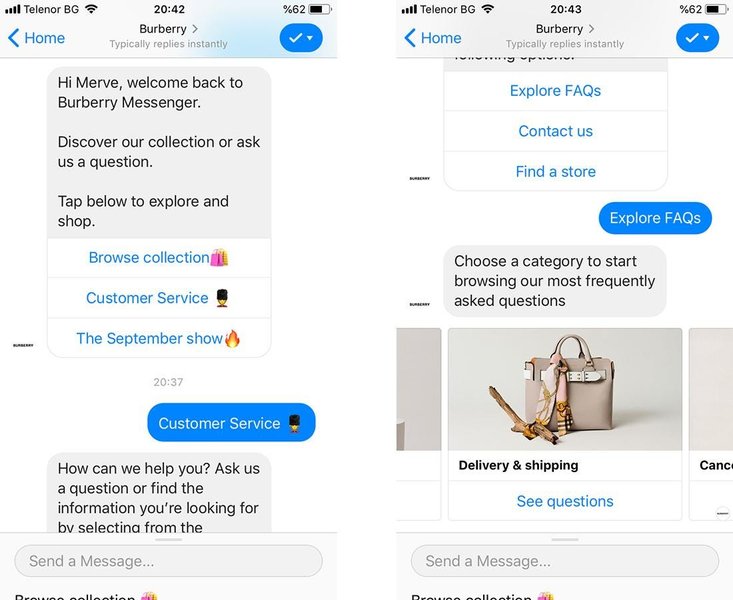
Good UX is crucial for chatbot usability (Image related to Chatbot UX considerations).
3. Choosing and Loading the AI Model
- Select a Model: Choose a quantized model compatible with your chosen library (e.g., WebLLM supports various Llama 3, Mistral, Gemma models). Smaller models load faster and run better on less powerful devices but might be less capable.
- Load the Model with JavaScript: Use your chosen library (e.g., WebLLM) to load the model. This typically happens asynchronously when the page loads. Update the status indicator for the user.
// Example using WebLLM (requires installation/import) // Note: This is conceptual. Refer to the specific library's documentation. import { CreateWebWorkerMLCEngine } from "https://esm.run/@mlc-ai/web-llm"; // Example import const statusElement = document.getElementById('status'); let chatEngine; async function initializeChat() { try { statusElement.textContent = 'Loading AI model (may take a moment)...'; // Example: Initialize WebLLM engine (using a Web Worker for non-blocking execution) chatEngine = await CreateWebWorkerMLCEngine( new Worker( new URL('./worker.js', import.meta.url), { type: 'module' } ), "Llama-3-8B-Instruct-q4f32_1-MLC", // Example model ID { initProgressCallback: (progress) => { statusElement.textContent = `Loading: ${progress.text}`; console.log(progress); } } ); statusElement.textContent = 'Model loaded. Ready to chat!'; } catch (error) { statusElement.textContent = 'Error loading model. Ensure WebGPU is enabled.'; console.error("Initialization error:", error); } } // Call initialization function when the page loads initializeChat(); - Model Caching for Offline Use: Leverage the browser's Cache API to store the downloaded model files. This allows the chatbot to load instantly on subsequent visits and function entirely offline after the first load. WebLLM often handles caching implicitly or provides options for it. Check the library documentation for specifics.
4. Implementing the Chat Logic
Connect the UI to the loaded AI model using JavaScript:
- Capture Input: Add an event listener to the send button and the input field (for Enter key).
- Display User Message: When the user sends a message, add it to the chat history UI with appropriate styling.
- Generate Bot Response: Pass the user's message (and potentially the conversation history for context) to the loaded model's generation function (e.g., `chatEngine.chat.completions.create()` in WebLLM). This is an asynchronous operation.
- Display Bot Message: Once the model generates a response, display it in the chat history UI. Handle streaming responses if the library supports it for a more interactive feel (showing words as they are generated).
- Manage State: Keep track of the conversation history if the model requires context from previous turns.
// Continuing the script.js example...
const chatHistory = document.getElementById('chat-history');
const userInput = document.getElementById('user-input');
const sendButton = document.getElementById('send-button');

function displayMessage(message, sender) {
  const messageDiv = document.createElement('div');
  messageDiv.classList.add('message', sender === 'user' ? 'user-message' : 'bot-message');
  messageDiv.textContent = message;
  chatHistory.appendChild(messageDiv);
  chatHistory.scrollTop = chatHistory.scrollHeight; // Auto-scroll
}

async function handleUserInput() {
  const messageText = userInput.value.trim();
  if (!messageText || !chatEngine) return; // Do nothing if input is empty or engine not ready

  displayMessage(messageText, 'user');
  userInput.value = ''; // Clear input
  userInput.disabled = true; // Disable input while bot replies
  sendButton.disabled = true;
  statusElement.textContent = 'Bot is thinking...';

  try {
    // Example using WebLLM's chat completion API (check library docs for exact usage)
    const reply = await chatEngine.chat.completions.create({
        messages: [{ role: "user", content: messageText }], // Pass message history if needed
        stream: false, // Set to true for streaming responses
    });

    const botResponse = reply.choices[0].message.content;
    displayMessage(botResponse, 'bot');

  } catch (error) {
    console.error("Error during chat generation:", error);
    displayMessage("Sorry, I encountered an error.", 'bot');
  } finally {
    userInput.disabled = false; // Re-enable input
    sendButton.disabled = false;
    statusElement.textContent = 'Ready.';
    userInput.focus();
  }
}

sendButton.addEventListener('click', handleUserInput);
userInput.addEventListener('keypress', (event) => {
  if (event.key === 'Enter') {
    handleUserInput();
  }
});
5. Testing and Refinement
- Test Thoroughly: Interact with your chatbot extensively. Test edge cases and different conversation flows.
- Offline Test: After the first load (where the model is downloaded and cached), disconnect from the internet and reload the page. Verify the chatbot still functions correctly.
- Performance Monitoring: Check browser developer tools for performance bottlenecks, especially during model inference. Consider smaller models if performance is an issue on target devices.
- Error Handling: Implement robust error handling, informing the user if the model fails to load or generate a response. Check for WebGPU support early and provide feedback if it's unavailable.
- Progressive Web App (PWA): Consider adding a manifest file and a service worker to make your application installable and enhance its offline capabilities further.
Visualizing the Components
Understanding the Architecture
A mindmap helps visualize the interconnected parts of your browser-only chatbot application:
(WebLLM, TensorFlow.js, ONNX Web)"] id3["AI Model"] id3a["Quantized LLMs
(Llama 3, Mistral 7B, etc.)"] id3b["Client-Side Inference"] id4["Data Handling"] id4a["Cache API (Offline Storage)"] id4b["Local Conversation State"] id5["Key Benefits"] id5a["Privacy (No Data Leaves Browser)"] id5b["Offline Capability"] id5c["No Server Costs"] id6["Challenges"] id6a["Model Size & Loading Time"] id6b["Performance/Resource Usage"] id6c["Model Capability Limits"]
This structure highlights how the UI, core technologies, AI model, and data handling mechanisms work together entirely within the browser environment.
Comparing Chatbot Architectures
Browser-Based vs. Server-Based Approaches
Understanding the trade-offs between different chatbot architectures is important. This radar chart compares a fully browser-based approach against traditional server-based and hybrid (using serverless functions for some logic) approaches across key factors. Higher scores generally indicate better performance or capability in that area, based on typical implementations.
As the chart illustrates, the fully browser-based approach excels in privacy and offline capability but faces limitations in handling highly complex models compared to server-based solutions. Latency is minimal as there's no network round-trip for inference, but raw computation speed depends heavily on the user's device hardware (especially the GPU).
Browser AI/ML Library Comparison
Choosing the Right Tool
Selecting the appropriate JavaScript library is crucial for your project's success. Here's a comparison of some popular options for running AI/ML models in the browser:
| Library | Primary Focus | Model Support | Performance (GPU Acceleration) | Ease of Use | Community/Docs |
|---|---|---|---|---|---|
| WebLLM | Large Language Models (LLMs) | Optimized for specific quantized LLMs (Llama, Mistral, Gemma, etc.) | Excellent (WebGPU focus) | Relatively high-level API for chat | Growing, good documentation |
| TensorFlow.js | General Machine Learning | Wide range (TF Hub, custom models, Keras conversion) | Good (WebGL, WebGPU, WASM backends) | Moderate (more versatile, steeper curve than WebLLM for just chat) | Large, extensive documentation |
| ONNX Runtime Web | Interoperable Models (ONNX format) | Any model converted to ONNX | Good (WASM, WebGL, WebGPU backends) | Moderate (requires model conversion steps) | Good, part of larger ONNX ecosystem |
| Brain.js | Simpler Neural Networks | Basic NNs (feedforward, RNN, LSTM) | CPU-based (WASM possible via other means) | Very Easy (for basic network types) | Smaller, good for simpler tasks |
| Compromise.cool | Natural Language Processing (Rule-based/Statistical) | NLP tasks (parsing, tagging, matching) - Not deep learning models | CPU-based (Fast for its scope) | Easy for specific NLP tasks | Good, focused documentation |
For the specific goal of an in-browser LLM chatbot, WebLLM is often the most direct and optimized choice currently. TensorFlow.js offers more flexibility if you plan to integrate other types of ML models. ONNX Runtime Web is suitable if you work within the ONNX ecosystem. Brain.js and Compromise are better suited for simpler, non-LLM-based conversational logic or NLP tasks.
Demonstrating the Client-Side Build
Building the Interface with HTML, CSS, and JavaScript
While our goal is a fully *in-browser* model execution, understanding how the client-side interface is built is fundamental. Many tutorials demonstrate creating the chat UI using standard web technologies (HTML, CSS, JS) even if they ultimately connect to an external API (like Google Gemini AI, OpenAI, or a custom backend). The video below shows how to construct the visual chat elements and handle user input/output display purely in the browser, which is a necessary first step regardless of where the AI logic resides.
This video ("Build HTML JS CSS Browser Chatbot...") is relevant because it focuses on the front-end construction using basic web technologies – the exact same techniques you'd use for the UI part of your fully browser-based chatbot. Although it uses the Gemini API for the 'brain', you would replace that API call step with a call to your locally running model (using WebLLM or TensorFlow.js, as described earlier) to achieve the completely in-browser functionality.
Challenges and Considerations
Navigating the Trade-offs
While powerful, building entirely browser-based chatbots comes with challenges:
- Model Size and Initial Load: Even quantized LLMs can be hundreds of megabytes or gigabytes. The initial download can be slow, though caching mitigates this for subsequent visits.
- Performance Variability: Inference speed heavily depends on the user's device hardware (CPU, RAM, and especially GPU if using WebGPU). Performance might be sluggish on older or lower-end devices.
- Computational Limits: Browsers have resource limitations compared to dedicated servers. Running very large or complex models might not be feasible or could significantly impact browser responsiveness.
- Model Capabilities: Browser-compatible models are often smaller or more heavily quantized than state-of-the-art server-based models. This might result in less nuanced or sophisticated responses compared to services like ChatGPT run on massive server infrastructure.
- Browser Compatibility: Reliance on cutting-edge features like WebGPU means compatibility might be limited to the latest browser versions. Fallbacks (e.g., using WASM/CPU) might be necessary but will be slower.
Frequently Asked Questions (FAQ)
Can this chatbot run completely offline?
Yes, after the initial loading and caching of the AI model and application files. Once cached using the browser's Cache API, the entire application, including the chatbot's inference logic, can run without any internet connection.
What kind of AI models can realistically run in a browser?
Primarily quantized versions of Large Language Models (LLMs) specifically optimized for efficient execution (e.g., Mistral 7B, Llama 3 8B variants, Gemma). Smaller, more traditional machine learning models (like those for classification or intent recognition built with TensorFlow.js or ONNX) also run very well. The key is model size and computational efficiency.
Will my browser chatbot be as powerful as ChatGPT or Claude?
Generally, no. Commercial services like ChatGPT run on massive, highly optimized server infrastructure with access to far larger and more complex models than what's currently feasible to run efficiently within browser constraints. Browser-based models offer impressive capabilities for their size but usually can't match the depth, knowledge, or reasoning power of the largest server-based models.
What are the main benefits of a browser-only chatbot?
The primary benefits are enhanced privacy (user data stays local), offline capability (works without internet after initial load), potentially lower latency (no network round-trip for responses), and reduced infrastructure costs (no need for powerful backend servers for inference).
What are the main challenges?
Key challenges include managing model size for reasonable download times, ensuring acceptable performance across different user devices, dealing with potential limitations in model capabilities compared to server-based giants, and handling browser compatibility, especially regarding WebGPU support.
References
- Build a local and offline-capable chatbot with WebLLM - web.dev
- Practical Recipe for an AI-based Chatbot in the Browser - Codemotion
- I built a free in-browser LLM chatbot powered by WebGPU (Llama 3 & Mistral 7B) - Reddit
-
I built a free in-browser Llama 3 chatbot powered by WebGPU - Hacker News
- How to build a basic chat app with JavaScript (UI Basics) - CometChat
- Building a simple chatbot application using Angular... (Client-side focus) - Medium
Recommended
Last updated April 22, 2025