
Unlock Cantonese Subtitling: Your Definitive Guide to Using Custom Whisper Models in Subtitle Edit
Integrate the 'alvanlii/whisper-small-cantonese' model into Subtitle Edit with these step-by-step instructions for highly accurate Cantonese transcriptions.
Subtitle Edit is a powerful, free, and open-source tool for creating, editing, and synchronizing subtitles. When combined with OpenAI's Whisper, an advanced automatic speech recognition (ASR) system, it becomes an incredibly efficient solution for transcribing audio to text. This guide will walk you through using a specialized Whisper model, alvanlii/whisper-small-cantonese, hosted on Hugging Face, directly within Subtitle Edit to generate accurate Cantonese subtitles.
Key Highlights
- Custom Model Integration: Subtitle Edit allows for the use of custom Whisper models, including the
alvanlii/whisper-small-cantonesemodel specifically fine-tuned for Cantonese. - Setup is Crucial: Correctly downloading, placing, and configuring the model files within Subtitle Edit's designated folders is essential for the software to recognize and utilize the custom model.
- Refinement is Key: While Whisper provides highly accurate transcriptions, always review and refine the auto-generated subtitles for optimal timing, readability, and contextual accuracy.
Understanding the Tools: Subtitle Edit and Whisper
Subtitle Edit: Your Go-To Subtitling Software
Subtitle Edit (SE) is a widely acclaimed free software primarily for Windows, designed for creating, editing, translating, and synchronizing video subtitles. It supports a vast array of subtitle formats and offers a comprehensive suite of tools, including waveform integration for precise timing, spell checking, and, importantly, integration with various speech recognition engines like Whisper. You can download it from the official Nikse.dk website.
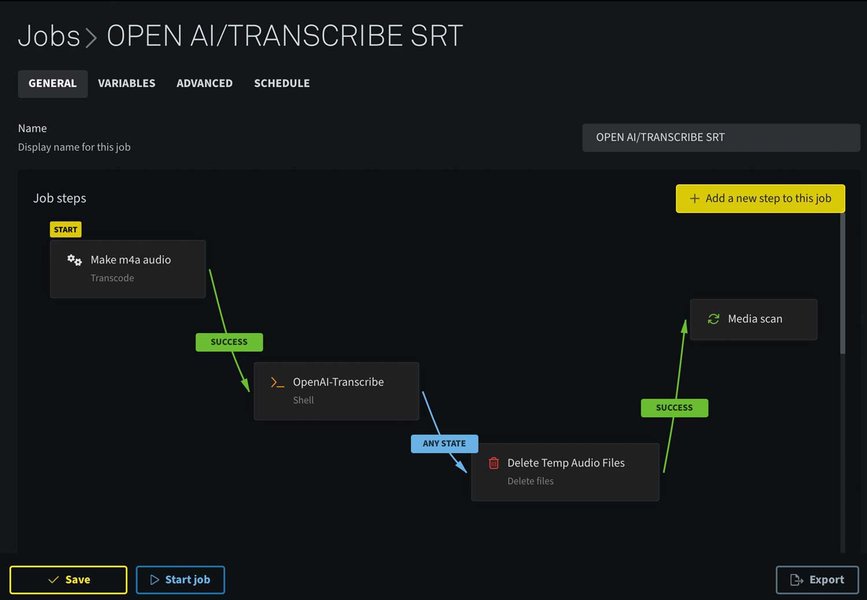
Subtitle Edit provides a user-friendly interface for various subtitling tasks.
OpenAI's Whisper: Advanced Speech Recognition
Whisper is an ASR model developed by OpenAI, trained on a large and diverse dataset of audio. It's known for its robustness and accuracy in transcribing speech into text across multiple languages. Subtitle Edit leverages Whisper to automate the transcription process, significantly speeding up subtitle creation.
The Star of the Show: `alvanlii/whisper-small-cantonese` Model
The `alvanlii/whisper-small-cantonese` model is a version of OpenAI's Whisper Small model that has been specifically fine-tuned for the Cantonese language. This fine-tuning results in significantly improved accuracy for Cantonese speech compared to generic Whisper models. It boasts a Character Error Rate (CER) of approximately 7.93% (without punctuation), making it an excellent choice for projects involving Cantonese audio.
Prerequisites: Setting Up for Success
Installing Subtitle Edit
Ensure you have the latest version of Subtitle Edit installed. Newer versions (e.g., 4.0.x and later) generally offer better support and more streamlined integration for Whisper models. Download it from the official website.
Downloading the `alvanlii/whisper-small-cantonese` Model
To use this specific model, you'll need to download its files from Hugging Face:
- Visit the model's page: `alvanlii/whisper-small-cantonese`.
- Navigate to the "Files and versions" tab.
- Download the necessary model weight files (e.g., files like `ggml-model-f16.bin` or other `.bin` files if available, or PyTorch `.pt` files if you plan to use a Python-based Whisper engine that supports them) and any configuration files (e.g., `config.json`, `tokenizer.json`). For direct use in Subtitle Edit with engines like Whisper.cpp or Faster-Whisper, GGML format (`.bin`) files are typically preferred.
System Considerations
- Python and PIP: While Subtitle Edit often bundles necessary components, having Python (version 3.8 or later) and PIP installed can be beneficial, especially if you need to manually install or manage Whisper dependencies for certain engines or if considering the alternative Python script method.
- Hardware: Whisper models, even "small" ones, perform significantly faster with a dedicated GPU (NVIDIA CUDA-enabled is common). While CPU processing is possible, it will be much slower. Ensure you have sufficient RAM (at least 8GB recommended, 16GB better for larger files).
Integrating the Cantonese Whisper Model into Subtitle Edit
Once you have Subtitle Edit installed and the Cantonese model files downloaded, follow these steps to integrate the model:
Step 1: Locating the Correct Model Folder
Subtitle Edit needs to know where to find the Whisper model files. The location can vary, but common paths include:
C:\Users\[YourUserName]\AppData\Roaming\SubtitleEdit\WhisperC:\Users\[YourUserName]\AppData\Roaming\SubtitleEdit\WhisperModels- A
modelssubfolder within your Subtitle Edit installation directory.
Check Subtitle Edit's documentation or settings if you're unsure. Some Whisper engines within Subtitle Edit might also allow you to specify a custom model path directly in their settings.
Step 2: Placing the Model Files
Copy the downloaded `alvanlii/whisper-small-cantonese` model files (e.g., the `.bin` file) into the identified Whisper model folder. It's good practice to name the model file clearly, for instance, `ggml-whisper-small-cantonese.bin`, so you can easily identify it in Subtitle Edit's settings.
Step 3: Configuring Subtitle Edit
- Open Subtitle Edit.
- Load your video or audio file (File > Open).
- Navigate to Video > Audio to text (Whisper).... This will open the Whisper ASR dialog.
- In the Whisper dialog, you'll typically find options to select an "Engine" (e.g., Whisper.cpp, Faster-Whisper, OpenAI Whisper (via command line)) and a "Model."
-
Selecting the Model:
If you've placed the model file correctly and the chosen engine supports custom local models, your Cantonese model might appear in a dropdown list. Look for an option to "Browse" for a model file or a list of detected models.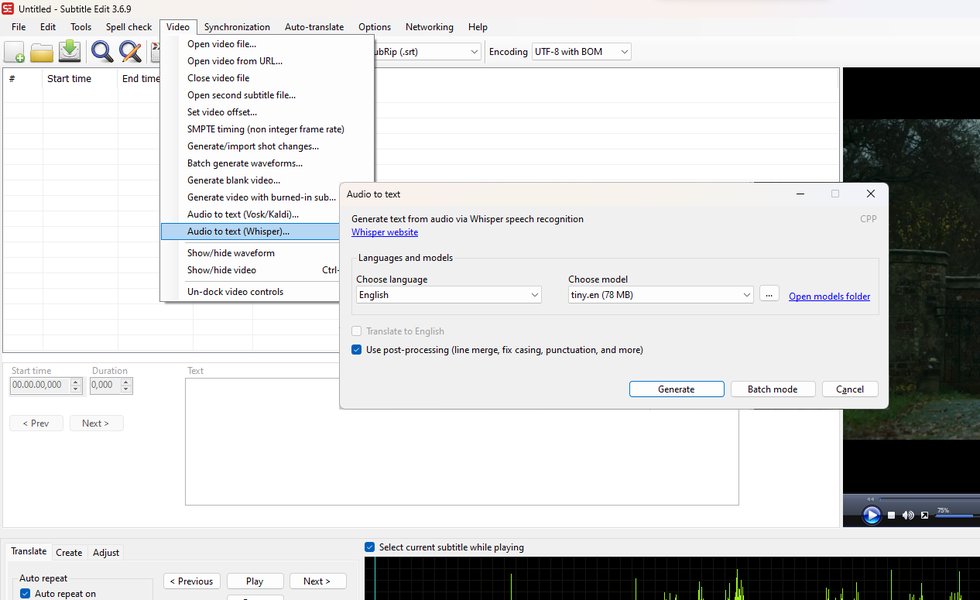
Example of Subtitle Edit's Whisper interface where you select engines and models.
-
Language Selection:
Crucially, select "Cantonese" (or its language code, often `yue` or `zh-yue`, depending on the Whisper engine's implementation) as the language for transcription. The `alvanlii/whisper-small-cantonese` model is specifically tuned for Cantonese. -
Engine Choice:
Different engines offer various performance and compatibility trade-offs:- Faster-Whisper: Often recommended for its speed and lower VRAM usage. It's well-suited for models like `alvanlii/whisper-small-cantonese`.
- Whisper.cpp: A C++ implementation that can run efficiently on CPUs and also supports various GPUs. Good for GGML models.
- OpenAI Whisper (Command Line/Python): Might require Python and OpenAI's Whisper package to be installed separately. More flexible but potentially more complex to set up initially for custom models if not directly supported by SE's UI for that engine.
Some versions or engines in Subtitle Edit might have a "Manage models" button or an "Advanced" tab where you can explicitly point to your custom model file or pass command-line arguments if using an engine that supports it.
The Transcription Process: From Audio to Text
Loading Your Audio/Video File
Ensure your video or audio file containing Cantonese speech is loaded into Subtitle Edit. The quality of the audio will significantly impact transcription accuracy.
Initiating Transcription with the Cantonese Model
Once all settings are configured in the "Audio to text (Whisper)" dialog (engine, model, language set to Cantonese):
- Click the "Generate" or "Start" button.
- Subtitle Edit will begin processing the audio. The duration depends on the audio length, your system's hardware (CPU vs. GPU), and the chosen Whisper engine. GPU acceleration will make this process considerably faster.
- Upon completion, the transcribed text will appear in Subtitle Edit, segmented into subtitle lines with timestamps.
Reviewing and Refining Generated Subtitles
Automatic transcription is rarely perfect. It's essential to:
- Check for Accuracy: Listen to the audio and compare it with the generated text. Correct any misheard words or phrases.
- Adjust Timing: Use Subtitle Edit's waveform display and timing tools to ensure subtitles appear and disappear in sync with the speech.
- Improve Readability: Split long lines, merge short ones, and ensure appropriate line breaks for comfortable reading.
- Punctuation and Formatting: Add or correct punctuation. Some Whisper models output text with minimal punctuation.
The `alvanlii/whisper-small-cantonese` model is quite accurate for Cantonese, but nuances, speaker overlaps, or background noise can still lead to errors.
Visualizing Model Performance: A Comparative Look
To understand how the specialized Cantonese model might compare to generic Whisper models, the radar chart below offers a conceptual comparison across several key performance indicators. These are illustrative values based on general expectations and model characteristics, not precise benchmarks.
This chart illustrates that while the `alvanlii/whisper-small-cantonese` model excels in Cantonese accuracy, generic models might offer broader language support. Its resource demand is relatively low as a "small" model, and GPU significantly boosts its speed. Setup ease depends on how readily Subtitle Edit detects custom models.
Workflow at a Glance: Cantonese Subtitling Mindmap
The following mindmap provides a visual overview of the entire process, from initial setup to final subtitle output when using the `alvanlii/whisper-small-cantonese` model with Subtitle Edit.
with Whisper & Subtitle Edit"] Input["Audio/Video File (.mp4, .wav, etc.)"] SoftwareSetup["Software Setup"] SE["Install Subtitle Edit"] Model["Download alvanlii/whisper-small-cantonese Model
(.bin / GGML format)"] Placement["Place Model in SE's Whisper Folder"] SEConfig["Subtitle Edit Configuration"] LoadMedia["Load Media into SE"] AccessWhisper["Navigate: Video > Audio to text (Whisper)"] EngineSelect["Select Whisper Engine (e.g., Faster-Whisper, Whisper.cpp)"] ModelSelect["Select/Specify Cantonese Model File"] LangSelect["Set Language: Cantonese (yue / zh-yue)"] Transcription["Transcription Process"] Generate["Start Transcription"] Monitor["Monitor Progress (CPU/GPU usage)"] Refinement["Subtitle Refinement"] AccuracyCheck["Verify Text Accuracy"] Timing["Adjust Timestamps (Sync with Audio)"] Formatting["Edit for Readability (Line breaks, Punctuation)"] Output["Final Output"] Save["Save Subtitles (.srt, .vtt, etc.)"]
This mindmap outlines the key stages: preparing your input and software, configuring Subtitle Edit to use the specific Cantonese model, running the transcription, and finally, refining the output for professional-quality subtitles.
Optimizing Your Workflow: Tips and Tricks
Leveraging GPU Acceleration
If your computer has a compatible NVIDIA GPU, enabling GPU acceleration in Subtitle Edit's Whisper settings can drastically reduce transcription time. Look for options related to "CUDA" or "GPU" in the engine settings.
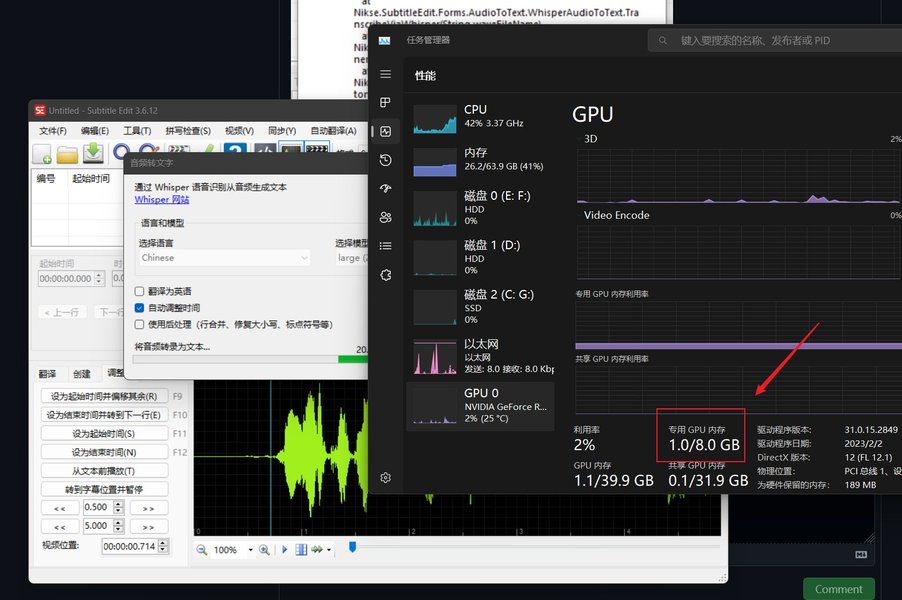
Example of GPU selection within Subtitle Edit's Whisper settings.
Understanding Whisper Engines in Subtitle Edit
Subtitle Edit often offers multiple "engines" or backends to run Whisper. These are different implementations of the Whisper model designed for various optimizations:
- Faster-Whisper: A reimplementation of Whisper using CTranslate2, known for being significantly faster and using less VRAM than OpenAI's original PyTorch implementation, especially on GPUs. Highly recommended for custom models if supported.
- Whisper.cpp: A port of Whisper in C/C++, optimized for CPU execution but also supports GPU acceleration on various platforms (including Metal on Apple Silicon, CUDA on NVIDIA). It primarily uses models in the GGML format.
- Const-me/Whisper: Another optimized version often found in Subtitle Edit, offering GPU support.
- OpenAI Whisper (via Python/Command Line): This typically uses the official OpenAI Whisper Python package. It's very accurate but can be slower and more resource-intensive without specific optimizations like those in Faster-Whisper. It might require a local Python installation and the `openai-whisper` package.
For the `alvanlii/whisper-small-cantonese` model, especially if you have a GGML format file (`.bin`), engines like Faster-Whisper or Whisper.cpp are excellent choices due to their efficiency and support for local model files.
Alternative: Python Script for Transcription (If Direct Integration is Challenging)
If you encounter difficulties with direct integration in Subtitle Edit, or if you prefer more control, you can transcribe the audio using a Python script with the Hugging Face `transformers` library or OpenAI's `whisper` package, and then import the generated subtitle file (e.g., SRT) into Subtitle Edit for refinement.
Conceptually, a Python script would involve:
- Installing necessary libraries (e.g., `pip install transformers torch torchaudio` or `pip install openai-whisper`).
- Loading the `alvanlii/whisper-small-cantonese` model from Hugging Face.
- Processing your audio file through the model.
- Saving the output in a subtitle format like SRT.
# Conceptual Python code using Hugging Face Transformers pipeline
# Note: This is a simplified example. Actual implementation might vary.
# Ensure you have the necessary libraries installed.

# from transformers import pipeline
# from pydub import AudioSegment # For audio conversion if needed

# # Load the ASR pipeline with your specific Cantonese model
# # You might need to specify device (CPU/GPU)
# asr_pipeline = pipeline("automatic-speech-recognition", model="alvanlii/whisper-small-cantonese")

# # Path to your audio file
# audio_file = "path/to/your/cantonese_audio.mp3" # or .wav

# # Transcribe (this is highly simplified, real usage involves more audio handling)
# # For long audio, you might need to process in chunks
# print(f"Transcribing {audio_file}...")
# # transcription_result = asr_pipeline(audio_file, generate_kwargs={"language": "cantonese"})
# # transcript_text = transcription_result["text"]

# # print("Transcription complete:")
# # print(transcript_text)

# # Further steps would involve formatting this text into SRT with timestamps.
# # Libraries like 'stable-ts' can assist with timestamp generation if not directly provided by pipeline.
This method gives you full control but requires familiarity with Python. The generated SRT file can then be easily opened and edited in Subtitle Edit.
This video demonstrates how to utilize GPU capabilities with Whisper in Subtitle Edit, which is highly relevant for optimizing transcription speed with models like `alvanlii/whisper-small-cantonese`.
The embedded video provides a visual guide on setting up Whisper with GPU acceleration in Subtitle Edit. While it may not specifically cover custom Cantonese models, the principles of configuring Whisper engines and leveraging hardware acceleration are broadly applicable and can significantly enhance your efficiency when working with the `alvanlii/whisper-small-cantonese` model.
Key Configuration Parameters in Subtitle Edit for Whisper
When using Whisper in Subtitle Edit, especially with a custom model, paying attention to certain parameters is crucial. Here’s a table summarizing some important ones:
| Parameter | Description | Recommended Setting/Consideration for `alvanlii/whisper-small-cantonese` |
|---|---|---|
| Engine | The Whisper implementation Subtitle Edit uses (e.g., Faster-Whisper, Whisper.cpp, OpenAI command line). | Choose an engine that supports local GGML models efficiently (e.g., Faster-Whisper or Whisper.cpp if your model is in `.bin` format). |
| Model | The specific Whisper model file to be used for transcription. | Select or browse to your downloaded `alvanlii/whisper-small-cantonese` model file (e.g., `ggml-whisper-small-cantonese.bin`). |
| Language | The language of the audio to be transcribed. | Crucial: Set to "Cantonese" (or `yue`, `zh-yue` depending on engine's specific codes). |
| Task | Usually "transcribe" or "translate." | Set to "transcribe" for Cantonese audio to Cantonese text. |
| GPU Acceleration | Option to use the computer's graphics card for faster processing. | Enable if you have a compatible GPU (e.g., NVIDIA CUDA). Select the appropriate GPU device if multiple are present. |
| Beam Size | A parameter in beam search decoding. Larger values can increase accuracy but also processing time. | Default is often 5. You can experiment (e.g., 10 or 20) if you need higher accuracy, but be mindful of increased processing time. For a "small" model, defaults are often fine. |
| VAD (Voice Activity Detection) | Helps in filtering out non-speech segments. | Generally useful to enable. Some engines have different VAD levels or options. |
| Max Text Length / Chars per line | Controls how long subtitle lines can be. | Adjust according to standard subtitle readability guidelines (e.g., 37-42 characters per line). This is more of a post-processing/SE setting than a Whisper model parameter. |
Always refer to the specific documentation or tooltips within Subtitle Edit for the chosen Whisper engine, as parameter names and availability can vary.
Frequently Asked Questions (FAQ)
What if the `alvanlii/whisper-small-cantonese` model isn't listed in Subtitle Edit after I've placed the files?
Ensure you've placed the model file (e.g., the `.bin` GGML file) in the correct directory that your selected Whisper engine in Subtitle Edit is looking for. Some engines might require you to manually browse and select the model file. Double-check the engine's specific requirements (e.g., Whisper.cpp and Faster-Whisper typically use GGML files). Also, ensure the file name is exactly as expected or doesn't have unsupported characters. Restart Subtitle Edit after placing the model files. If it still doesn't appear, check the Subtitle Edit forums or help for guidance specific to the version and engine you are using.
How can I improve transcription accuracy for Cantonese?
Using a model fine-tuned for Cantonese like `alvanlii/whisper-small-cantonese` is the biggest step. Additionally:
- Ensure your audio quality is as good as possible (clear speech, minimal background noise).
- Explicitly set the language to "Cantonese" in Whisper settings.
- Experiment with parameters like "beam size" if your chosen engine supports it (larger beam size can sometimes improve accuracy at the cost of speed).
- For very noisy audio, consider pre-processing it with noise reduction tools.
- Always manually review and edit the transcriptions.
Do I absolutely need a GPU to use this model in Subtitle Edit?
No, you don't absolutely need a GPU. Whisper models, including `whisper-small-cantonese` (especially via engines like Whisper.cpp), can run on a CPU. However, transcription will be significantly slower compared to using a GPU. For short audio clips, CPU processing might be acceptable, but for longer videos, a GPU is highly recommended to save time.
What about audio with mixed languages (e.g., Cantonese and English)?
The `alvanlii/whisper-small-cantonese` model is primarily fine-tuned for Cantonese. While base Whisper models have some multilingual capabilities, a specialized model might perform less optimally on parts of the audio that are not in Cantonese. You might find that English segments are transcribed less accurately or that the model attempts to interpret them as Cantonese. In such cases, extensive manual editing will be necessary for the non-Cantonese parts. Alternatively, you could process segments in different languages with different models/settings if feasible, or use a larger, more general multilingual Whisper model if Cantonese accuracy is less critical than handling mixed languages.
Recommended Further Exploration
- How can I optimize Faster-Whisper settings in Subtitle Edit for the best performance with custom models?
- What are the key differences between GGML, PyTorch (.pt), and ONNX model formats for Whisper, and which is best for Subtitle Edit?
- What are some common errors encountered when setting up or using Whisper in Subtitle Edit, and how can they be resolved?
- Are there advanced techniques for synchronizing and formatting subtitles in Subtitle Edit after they have been generated by an AI like Whisper?
References

Last updated May 17, 2025