
Mastering Spreadsheet Categorization: Grouping Rows with Varied Spellings
Unlock the Power of Fuzzy Matching and Advanced Techniques for Data Organization
- Fuzzy Matching is Your Key: For categorizing rows based on text with inconsistent spellings, the most effective approach is to leverage "fuzzy matching" tools available in spreadsheet software like Excel's Power Query or the Fuzzy Lookup Add-In. These tools allow for approximate matching, identifying similar text strings despite minor variations, typos, or different phrasing.
- Power Query for Robust Solutions: Excel's Power Query provides powerful fuzzy grouping capabilities that can handle complex scenarios, including setting similarity thresholds and utilizing translation tables for specific term mappings. This is ideal for large datasets and ongoing data cleaning needs.
- Strategic Sorting and Manual Grouping: While fuzzy matching handles variations, foundational spreadsheet techniques like sorting data by the relevant column and then utilizing the built-in grouping features (collapsible outlines) or subtotals are crucial for initial organization and visual clarity of exact matches.
Categorizing rows in a spreadsheet when the identifying item in a column has different spellings is a common data cleaning challenge. Standard sorting and filtering methods often fall short because they require exact matches. This guide will delve into advanced techniques, primarily focusing on "fuzzy matching," alongside other useful strategies to help you organize your data effectively, even with inconsistencies.
Understanding the Challenge of Inconsistent Data
In many real-world datasets, textual information, such as product names, customer addresses, or survey responses, can be entered with slight variations. These inconsistencies can include typos, abbreviations, different casing, or variations in phrasing (e.g., "ABC Company," "ABC Co," "ABC Company, Inc."). Traditional spreadsheet functions like exact match lookups or simple sorting will treat these as distinct entries, making it difficult to group or analyze data accurately.
Why Exact Matches Fail
When you have data like "Apple," "Apples," "Aplle," or "Apple Inc." in a single column, a simple sort or filter will list these as separate items. If your goal is to group all entries related to "Apple" regardless of their minor spelling differences, you need a more sophisticated approach. This is where the concept of "fuzzy matching" becomes invaluable.
Leveraging Fuzzy Matching for Smart Categorization
Fuzzy matching is a technique that allows you to compare and match text strings that are similar but not identical. It uses algorithms to calculate the similarity between two text values, often returning a "similarity score" (typically between 0 and 1, where 1 is an exact match). This functionality is particularly robust in Microsoft Excel through its Power Query feature and a dedicated add-in.
Power Query's Fuzzy Grouping Feature
For users of modern Excel versions (Excel 2013 and later, including Microsoft 365), Power Query offers a powerful "fuzzy grouping" feature that can group items based on a similarity threshold. This is often the most efficient and scalable method for large datasets with many variations.
Here’s a general workflow for using Power Query's fuzzy grouping:
- Load Your Data: First, convert your data range into an Excel Table. Then, go to the "Data" tab, and in the "Get & Transform Data" group, click "From Table/Range" to load your table into the Power Query Editor.
- Group by Column: In the Power Query Editor, select the column containing the text you want to group (e.g., "Software" or "Name"). Go to the "Transform" tab and click "Group By."
- Enable Fuzzy Grouping: In the "Group By" dialog box, you'll see an option for "Fuzzy Grouping." Check this box.
- Adjust Similarity Threshold: This is crucial. Power Query allows you to set a "Similarity Threshold" (a percentage or decimal between 0 and 1) to determine how close two text strings need to be to be considered a match. A higher threshold means a stricter match. You might need to experiment with this value to get the desired grouping.
- Optional: Translation Table: For known variations (e.g., "Bill" and "William," or "Nathan" and "Nate"), you can create a "translation table" (a separate Excel table with "From" and "To" columns) and import it into Power Query. This table can be used to explicitly define how certain terms should be mapped, even if their similarity score isn't high enough for automatic fuzzy matching.
- Load Results to Excel: After configuring fuzzy grouping, Power Query will create a new table with the grouped data. You can then load this back into an Excel worksheet.
This process will consolidate similar, but not identical, text entries into recognized groups, making your data much cleaner and easier to analyze.
 An example of Power Query's interface for fuzzy matching and grouping.
Fuzzy Lookup Add-In for Excel
For older versions of Excel (2007, 2010, 2013, 2016) or if Power Query isn't immediately intuitive, Microsoft Research developed a free "Fuzzy Lookup Add-In for Excel." This add-in allows you to perform fuzzy matching of textual data and identify fuzzy duplicate rows within a single table or fuzzy join similar rows between two different tables.
To use the Fuzzy Lookup Add-In:
- Download and Install: Download the add-in from the official Microsoft Download Center. Follow the installation instructions, which may include enabling it in Excel's Trust Center.
- Select Tables: Once installed, a "Fuzzy Lookup" tab will appear in Excel. You'll need to select your left table and right table (even if it's the same table being compared against itself for duplicates).
- Choose Match Columns: Specify the columns you want to match based on similar text.
- Adjust Similarity Threshold: Similar to Power Query, you can adjust the similarity threshold to control the looseness or strictness of the match.
- Generate Results: The add-in will generate a new table showing matched rows along with a "Similarity Score," indicating how closely the values match.
While powerful, the Fuzzy Lookup Add-In might encounter "out of memory" errors with extremely large datasets (e.g., 36,000+ rows), especially if you have limited RAM.
Considerations for Fuzzy Matching
- Similarity Threshold: Experimentation is key. A threshold of 0.8 might be too strict for some variations but too loose for others. Adjust based on your data's nature.
- Transformation Steps: Before fuzzy matching, it's often beneficial to standardize your text. This could involve converting text to lowercase, removing extra spaces, or stripping out punctuation. Power Query allows you to add these transformation steps before the fuzzy grouping.
- Performance: Fuzzy matching can be computationally intensive, especially on very large datasets. Be prepared for longer processing times.
Alternative and Complementary Categorization Methods
While fuzzy matching is the ideal solution for varied spellings, other traditional Excel features can complement this process or be used for simpler categorization tasks where variations are minimal or can be handled with specific rules.
Sorting Data for Initial Grouping
Even with varied spellings, sorting is always the first step to bring similar entries closer together. This makes it easier to visually identify patterns and plan your fuzzy matching or manual grouping strategies.
- Select Your Data: Select any cell within your dataset, or highlight the specific range you want to sort.
- Sort by Column: Go to the "Data" tab in the Ribbon and click "Sort." In the Sort dialog box, choose the column that contains the items you want to categorize (e.g., "Software"). Select "A to Z" or "Z to A" for ascending or descending order.
Sorting will arrange all entries alphabetically, bringing "Adobe Acrobat 1", "Adobe Acrobat 2", and "Adobe Acrobat 3" together, even if they have slight differences beyond the common "Adobe Acrobat" prefix.
Manual Grouping and Outlining
For smaller datasets or after an initial sort, you can manually group rows to create collapsible and expandable sections. This doesn't handle varied spellings automatically but helps in organizing visually similar items.
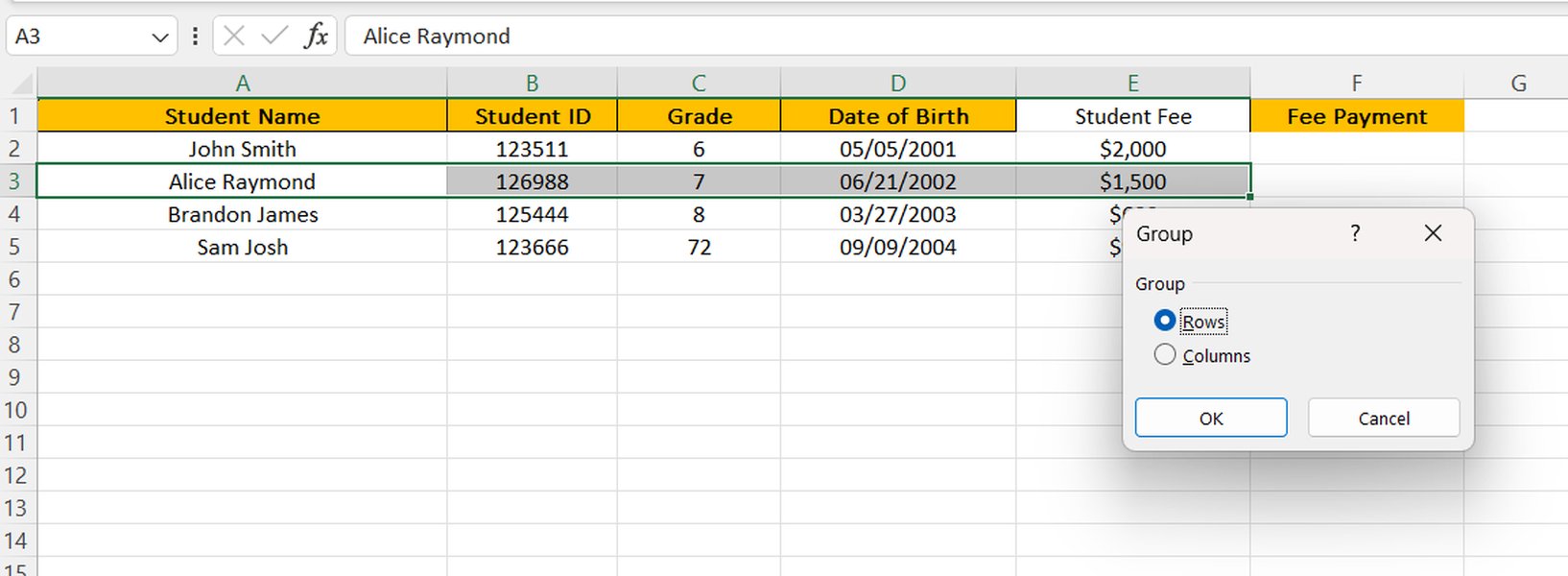
- Select Rows: Select the rows you wish to group together. Ensure these rows are contiguous.
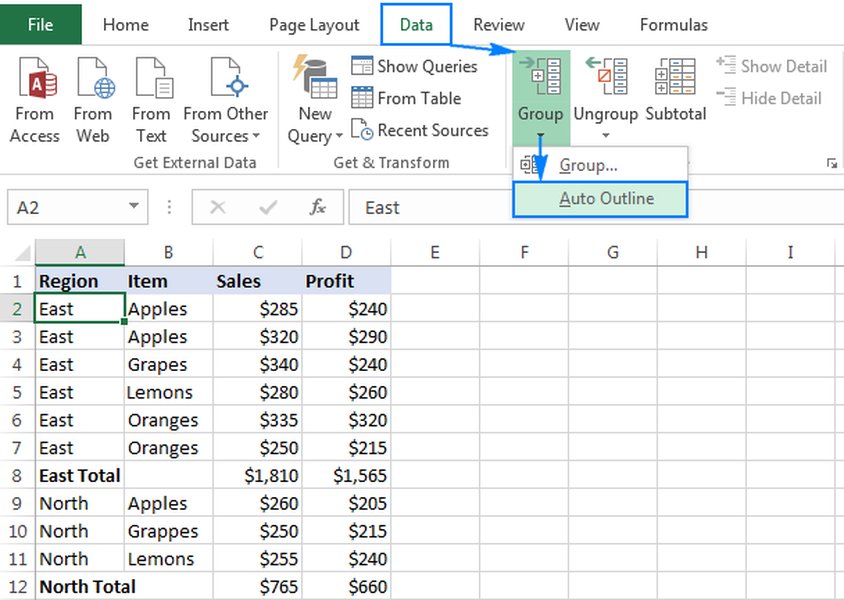
- Apply Group: Go to the "Data" tab, and in the "Outline" group, click "Group." A dialog box will appear asking if you want to group rows or columns; select "Rows."
- Collapse/Expand: A bar will appear on the left side of your worksheet. You can click the "-" button to collapse the group or the "+" button to expand it. You can also use the "1" and "2" buttons in the top-left corner to collapse all groups or expand all groups, respectively.
 Demonstration of manually grouping rows in Excel, creating collapsible sections.
Using Helper Columns with Text Functions
For specific patterns of "similar text" (e.g., always differing by a number at the end, or a consistent suffix), you can use helper columns with Excel's text functions to extract a consistent "root" or "category" name.
- LEFT or MID Functions: If the consistent part of the text is always at the beginning, you can use the
LEFTfunction. For example,=LEFT(A2, 12)might extract "Adobe Acrobat" from "Adobe Acrobat 1". - FIND and SEARCH: Combine these with
LEFTorMIDto extract text up to a certain character or word. For instance, to get text before the first number or a specific delimiter. - SUBSTITUTE and CLEAN: These can help standardize text by removing unwanted characters or spaces.
Once you have a cleaner, more consistent column, you can then sort or use Pivot Tables on this new column.
Pivot Tables for Summarization and Categorization
Pivot Tables are excellent for summarizing and categorizing data, especially after you've used fuzzy matching or helper columns to create a clean category column. They allow you to quickly group data and perform calculations (like counts or sums) based on unique values in a column.
- Select Data: Select your entire dataset, including column headers.
- Insert Pivot Table: Go to the "Insert" tab and click "PivotTable."
- Arrange Fields: Drag the column you want to categorize (e.g., your cleaned "Software Category" column) into the "Rows" area. Drag a unique identifier (or the same column) into the "Values" area and set it to "Count" to see the number of items in each category.
Understanding Data Categorization Techniques
The table below summarizes various techniques for categorizing data, highlighting their applicability to inconsistent spellings and general use cases:
| Technique | Description | Applicability to Varied Spellings | Ideal Use Case |
|---|---|---|---|
| Fuzzy Matching (Power Query) | Compares text strings for similarity, not exactness, based on a defined threshold. | High: Specifically designed to handle inconsistencies and typos. | Large datasets, recurring data cleaning, inconsistent free-form text. |
| Fuzzy Lookup Add-In | An older Excel add-in for approximate textual data matching and joining. | High: Effective for identifying similar, non-identical text. | Older Excel versions, one-off matching tasks. |
| Sorting & Filtering | Organizes data alphabetically/numerically and displays rows meeting specific criteria. | Low: Requires exact matches for effective categorization; helps with visual grouping. | Initial data exploration, exact match filtering, preparing for manual grouping. |
| Manual Grouping (Outline) | Allows users to create collapsible sections of rows or columns. | None: Doesn't automatically handle inconsistencies; relies on user identification. | Visual organization of already sorted or clearly defined groups. |
| Helper Columns (Text Functions) | Uses functions like LEFT, MID, FIND, SUBSTITUTE to extract or transform text. |
Medium: Effective if inconsistencies follow a predictable pattern (e.g., trailing numbers, consistent prefixes). | Standardizing specific parts of text strings, creating new clean columns. |
| VLOOKUP/XLOOKUP with Helper Table | Matches values against a lookup table to assign categories. | Low: Requires exact matches in the lookup value; can't directly handle typos. | Assigning categories based on a predefined list of exact keywords. |
| Pivot Tables | Summarizes and reorganizes data, creating dynamic reports. | Low: Groups based on unique exact values; ideal *after* data is cleaned. | Summarizing data by categories, creating reports, dynamic analysis. |
Visualizing Categorization Capabilities
To further illustrate the effectiveness of different approaches when dealing with varied spellings, let's look at a radar chart. This chart represents the perceived strength of various Excel methods in handling data with inconsistent spellings, focusing on their ability to group or categorize such data.
As the radar chart illustrates, Power Query's Fuzzy Grouping stands out for its high performance across multiple dimensions, especially in handling typos, scalability, and automation. The Fuzzy Lookup Add-In also performs well but might have limitations with very large datasets. Manual methods, while useful for simple organization, are not effective for varied spellings.
Practical Example and Deep Dive: Fuzzy Grouping in Power Query
Let's consider a practical scenario where you have a list of software installations, but the entries are messy due to different naming conventions or typos:
ID  Software
1   Adobe Acrobat 1
2   Adobe Acrobat 2
3   Adobe Acrobat 3
4   Adobe Flash 1
5   Adobe Flash 2
6   Adobe Flash 3
7   Google Chrome v1.0
8   Google Chrome 2.0
9   Google Chrome 3.0
10  Ms Office 2019
11  Microsoft Office 365
12  MS Office 2016
13  Adobe Photoshop CC
14  Adob Photoshop
Our goal is to group these into clean categories like "Adobe Acrobat," "Adobe Flash," "Google Chrome," "Microsoft Office," and "Adobe Photoshop."
Step-by-Step Fuzzy Grouping Example
- Load Data to Power Query:
Select your data (e.g., A1:B14). Go to
Data > From Table/Range. This opens the Power Query Editor.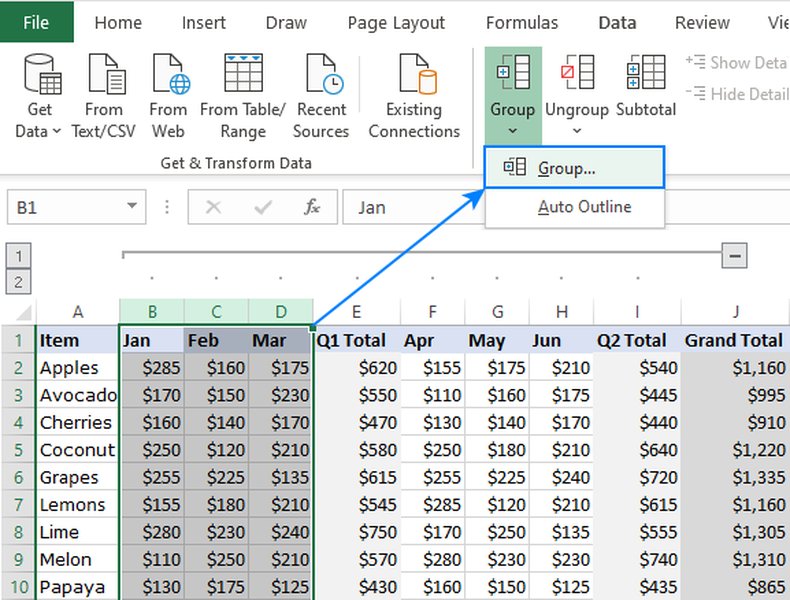 The Power Query Editor interface ready for transformations.
- Select Column for Grouping:
In the Power Query Editor, select the 'Software' column.
- Apply Group By with Fuzzy Matching:
Go to the
Transformtab, then clickGroup By. In the "Group By" dialog:- Set "New column name" to "Software Category".
- Set "Operation" to "Count Rows". (You can choose other operations like "All Rows" to keep the original data grouped).
- Check the "Use fuzzy matching to group" box.
- Configure Fuzzy Matching Options:
Click "Fuzzy matching options". Here you can refine the process:
- Similarity Threshold: Start with a value like
0.8or0.9. For our example, a higher threshold like0.9might be good to differentiate between "Adobe Acrobat" and "Adobe Flash," but still catch "Adob Photoshop". - Ignore case: Keep this checked to treat "adobe" and "Adobe" as the same.
- Group by combining text parts: Useful if you want to group based on combined words rather than individual tokens.
- Transformation table (optional): For known equivalences like "Ms Office" and "Microsoft Office", you can create a separate table in Excel with columns "From" and "To" (e.g., "Ms Office" | "Microsoft Office"). Load this table into Power Query as well, and then select it here. This explicitly tells Power Query how to treat specific variations.
For the example data, a transformation table for "Ms Office" to "Microsoft Office" would be highly beneficial.
A detailed explanation of cleaning similar text in Excel using Power Query's fuzzy clustering feature. This video provides practical insights into applying fuzzy matching for data normalization. - Similarity Threshold: Start with a value like
- Load Results:
Click "OK" in the Group By dialog. Then, go to the
Hometab and clickClose & Load. This will load your new, categorized table into a new worksheet in Excel.
The result would be a table similar to this (depending on your similarity threshold and transformation table):
Software Category   Count
Adobe Acrobat       3
Adobe Flash         3
Google Chrome       3
Microsoft Office    3
Adobe Photoshop     2
Notice how "Ms Office 2019", "Microsoft Office 365", and "MS Office 2016" would all be grouped under "Microsoft Office" if the similarity threshold was set correctly or if a transformation table was used. Similarly, "Adobe Photoshop CC" and "Adob Photoshop" would group under "Adobe Photoshop".
Frequently Asked Questions
How does fuzzy matching differ from exact matching?
What is a "Similarity Threshold" in fuzzy matching?
Can I use fuzzy matching in Google Sheets?
VLOOKUP or INDEX/MATCH functions combined with helper columns for partial text extraction might achieve limited similar results.Is it possible to automate the categorization process for future data?
Conclusion
Categorizing rows in a spreadsheet where column items have different spellings is a sophisticated task that goes beyond simple sorting or filtering. The most effective and scalable solution lies in leveraging fuzzy matching capabilities, particularly through Excel's Power Query. This powerful tool allows you to define similarity thresholds and even use translation tables to intelligently group inconsistent text data, transforming messy spreadsheets into organized, analyzable datasets. While manual grouping and text functions offer complementary solutions for specific scenarios, fuzzy matching remains the go-to technique for robust and automated data cleaning and categorization when confronted with spelling variations.
Recommended Searches
- How to clean messy text data in Excel using Power Query
- Advanced Excel data categorization techniques
- Understanding Power Query's fuzzy matching options
- Best practices for data standardization in spreadsheets