

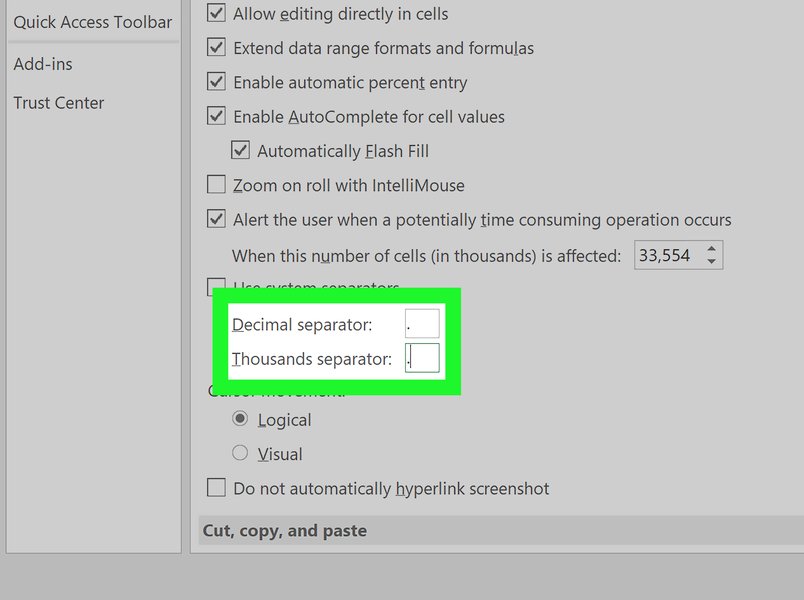
Navigating Excel's options to customize decimal separators.
Essential Insights for Decimal Separator Management
- Global Configuration: The most effective and permanent way to change Excel's default decimal separator is by adjusting its advanced options to uncheck "Use system separators" and manually set the period as the decimal.
- Data Conversion: For existing data containing commas as decimal separators, the "Find and Replace" feature is a quick and efficient method to convert them to periods, ensuring numerical recognition.
- System-Wide Impact: For a consistent experience across all applications, modifying your operating system's regional settings to use a period as the decimal symbol will influence Excel and other programs.
Excel's interpretation of decimal separators, whether a comma or a period, is a crucial aspect of data integrity and calculation accuracy, particularly when working with international datasets. This guide will provide a comprehensive overview of how to switch decimal separators from commas to periods in Excel, covering various scenarios and platforms.
Understanding Excel's Default Behavior
By default, Excel often inherits its decimal and thousands separator settings from your computer's operating system's regional preferences. This means that if your system is configured for a region where commas are used as decimal separators (e.g., much of Europe), Excel will follow suit. Conversely, if your system uses periods (e.g., the United States), Excel will adopt that convention. Understanding this underlying mechanism is key to choosing the most appropriate method for your needs.
Why Change Decimal Separators?
The need to change decimal separators typically arises when:
- Data Import: You're importing data from a source that uses a different decimal convention than your Excel setup, leading to numbers being treated as text.
- Regional Differences: You need to share your workbooks with users in other regions whose Excel settings differ from yours.
- Consistency: You prefer a specific decimal separator for personal or professional consistency, regardless of your system's default.
Methods for Changing Decimal Separators in Excel
There are primarily two types of changes you can make: those that affect Excel globally (all workbooks) and those that are specific to a selection of cells or a workbook.
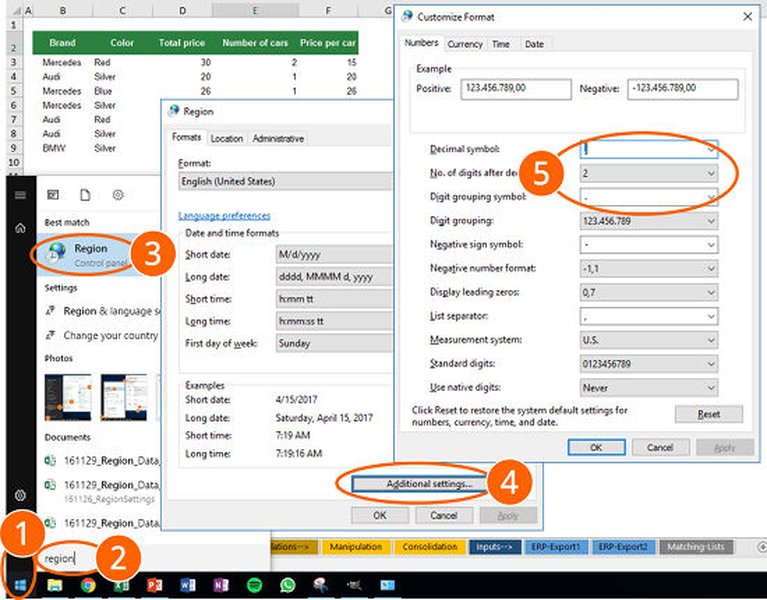
Windows regional settings influencing number formatting.
Method 1: Configuring Excel's Advanced Options (Application-Level)
This method allows you to override your system's regional settings specifically within Excel. It's recommended for a permanent change that affects all your Excel workbooks without altering other applications on your computer.
Step-by-Step Guide for Windows:
- Navigate to File > Options.
- In the Excel Options dialog box, select the Advanced tab from the left-hand menu.
- Locate the "Editing options" section.
- Uncheck the box labeled "Use system separators". This action enables you to customize the separators.
- In the Decimal separator field, type a period (.).
- In the Thousands separator field, you can type a comma (,) or leave it blank based on your preference.
- Click OK to apply these changes.
After performing these steps, Excel will interpret and display new numerical entries using a period as the decimal separator. Any existing data, however, might still appear with commas if they were originally formatted as text due to the differing separator. For such data, a manual conversion might be necessary, as described in Method 2.
Considerations for macOS and Excel Online:
- macOS: On macOS, you might find similar options within Excel's Preferences under "Language" or related settings. Alternatively, changing the system's "Language & Region" settings can also influence Excel's behavior.
- Excel Online: For Excel Online, the decimal separator is often tied to your Microsoft account's region settings. You would need to adjust your Microsoft account profile's region to one that uses the dot as a decimal separator for this change to take effect.
Method 2: Using Find and Replace (Data-Level Conversion)
This method is ideal for converting existing data within specific cells or an entire worksheet that currently uses commas as decimal separators but should be treated as numbers with periods.
Step-by-Step Guide:
- Select the range of cells you wish to modify. If you want to convert the entire sheet, press Ctrl+A (Windows) or Cmd+A (macOS).
- Open the "Find and Replace" dialog box by pressing Ctrl+H (Windows) or Cmd+Shift+H (macOS).
- In the "Find what:" field, enter a comma (
,). - In the "Replace with:" field, enter a period (
.). - Click "Replace All".
This action will replace all commas with periods within your selected range. If the original data was treated as text due to the comma, Excel should now recognize these as numbers. You might need to reformat these cells to a "Number" or "General" format afterward to ensure proper numerical interpretation.
Method 3: Utilizing the NUMBERVALUE Function (Formulaic Conversion)
When you need to explicitly convert text strings that use commas as decimal separators into numerical values, the NUMBERVALUE function is highly effective. This is particularly useful for imported data where a direct Find and Replace might be risky or less flexible.
Syntax and Example:
The syntax for NUMBERVALUE is:
=NUMBERVALUE(Text, Decimal_separator, Group_separator)For example, if cell A1 contains the text "1,234.56" and you want to interpret the comma as the decimal separator, you would use:
=NUMBERVALUE(A1, ",", ".")This formula tells Excel to treat the comma as the decimal point and the period as the thousands separator, resulting in a true numerical value that can be used in calculations.
When to Use:
- For specific cells or columns without altering global Excel settings.
- When dealing with mixed data formats where some numbers are text and others are already numeric.
- To create a helper column for conversion before performing calculations.
Impact of Regional Settings on Decimal Separators
Your operating system's regional settings play a significant role in how Excel and other applications interpret numbers. Making a system-wide change ensures consistency across all your software, but it might not always be desirable if you frequently switch between regional number conventions.
This mindmap visually outlines the various strategies for managing decimal separators in Excel, categorizing them by their scope and method. From application-level changes via Excel Options and system-wide adjustments through Regional Settings to data-specific conversions using Find & Replace or the NUMBERVALUE function, it highlights the interconnectedness of these approaches and considerations for Excel Online.
Method 4: Adjusting Operating System Regional Settings (System-Wide)
For a truly consistent experience across all applications, including Excel, you can modify your operating system's regional settings. This is a more profound change and will affect how numbers, dates, and times are displayed globally on your computer.
For Windows Users:
- Open the Control Panel.
- Search for "Region" or "Region and Language".
- Go to the Formats tab and click on "Additional settings...".
- In the "Customize Format" dialog box, set the "Decimal symbol" to a period (.) and the "Digit grouping symbol" (thousands separator) to a comma (,).
- Click Apply and then OK. You may need to restart Excel for these changes to take full effect.
For macOS Users:
- Go to System Preferences > Language & Region.
- Click on "Advanced..." (usually at the bottom).
- Here, you can set the "Decimal separator" to a period (.) and the "Thousands separator" to a comma (,).
- Restart Excel if necessary.
Choosing the Right Method
The best method depends on your specific needs:
- If you want Excel to always use a period as the decimal separator regardless of your system settings, use Method 1 (Excel Options).
- If you have existing data with commas that need conversion to periods, Method 2 (Find and Replace) is the fastest solution.
- If you need to convert specific text-based numbers within formulas without global changes, Method 3 (NUMBERVALUE) is appropriate.
- If you desire a consistent decimal separator across all applications on your computer, implement Method 4 (OS Regional Settings).
Comparative Overview of Decimal Separator Methods
To help you decide, here's a comparative table summarizing the characteristics of each method:
| Method | Scope of Change | Impact on Existing Data | Impact on New Data | Ease of Reversion | Recommended Scenario |
|---|---|---|---|---|---|
| Excel Options | Application-wide (Excel only) | Requires manual conversion (e.g., Find & Replace) | Interprets period as decimal | Easy (re-check "Use system separators") | Consistent Excel behavior across all workbooks. |
| Find and Replace | Selected cells/workbook | Directly converts commas to periods | No direct impact on new data entry | Manual (undo or re-replace) | Converting imported data or specific datasets. |
| NUMBERVALUE Function | Cell-specific (formula-based) | Converts text-to-number with specified separators | No direct impact on new data entry | Remove formula | Converting specific text-based numbers without altering settings. |
| OS Regional Settings | System-wide (all applications) | Requires manual conversion (e.g., Find & Replace) | Interprets period as decimal | Medium (change OS settings back) | Global consistency across all software. |
Advanced Considerations and Best Practices
When dealing with decimal separators, especially in a professional context, keep these points in mind:
- Data Validation: Always validate your data after making changes, especially if calculations are involved. Incorrectly interpreted numbers can lead to significant errors.
- Backup Your Work: Before making large-scale changes, especially with "Find and Replace," save a backup copy of your workbook.
- Understand Your Audience: If sharing workbooks internationally, consider saving files in formats that explicitly define number formatting or include instructions for the recipient.
Visual Guide: Converting Comma to Decimal Point in Excel
This video provides a practical demonstration of how to convert commas to decimal points in Excel, reinforcing the techniques discussed.
A comprehensive tutorial on changing decimal separators in Microsoft Excel.
The embedded video "How to Convert Comma to Decimal Point and Dot to Comma" by Learn Excel Basics offers a clear visual walkthrough of the fundamental steps involved in changing decimal separators. It covers both directions of conversion, showing how to handle commas as decimals and periods as decimals. This visual aid complements the text-based instructions, providing practical context for users who prefer to learn by seeing the steps in action. It reinforces the importance of using appropriate tools like Find & Replace for existing data and understanding Excel's default behaviors.
FAQ: Frequently Asked Questions
How do I change the decimal separator for just one Excel file?
Will changing Excel's decimal separator affect my entire computer?
My numbers with commas are being treated as text. How can I fix this?
Can I have both commas and periods as decimal separators in different parts of my Excel sheet?
Conclusion
Effectively managing decimal separators in Excel is fundamental for accurate data analysis and seamless collaboration across different regional standards. Whether you opt for a global change via Excel's advanced options or your operating system's settings, or prefer a localized conversion using "Find and Replace" or the NUMBERVALUE function, understanding each method's scope and impact is crucial. By applying these techniques, you can ensure your numerical data is correctly interpreted and functions as expected within your spreadsheets, enhancing both efficiency and data integrity.
Recommended Reading
- Advanced Excel Number Formatting Techniques
- Troubleshooting Excel Data Import Issues
- Managing Regional Settings in Microsoft Office
- Best Practices for International Data Collaboration in Excel