
Navigating the Command Line: A Deep Dive into Shells, Tools, and OS Interactions
Unraveling Git, CMD, Bash, PowerShell, Python, Java, and their roles across Windows, Linux, and macOS.
Key Insights at a Glance
- CLI, Shell, and Terminal Demystified: The Command-Line Interface (CLI) is the general concept of text-based interaction; a Shell (like Bash or PowerShell) is the specific program that interprets your commands; and a Terminal is the application window that hosts the shell.
- Shell Evolution and Diversity: Windows has evolved from the basic CMD to the powerful, object-oriented, and cross-platform PowerShell. Linux and macOS environments predominantly use Unix-like shells such as Bash (historically) and Zsh (increasingly common on macOS).
- Cross-Platform Power Tools: Git (for version control), Python (for scripting and development), and Java (for application development) are indispensable, platform-agnostic tools that seamlessly integrate into various shell environments across Windows, Linux, and macOS.
Understanding the Core Concepts: CLI, Shell, and Terminal
What is a Command-Line Interface (CLI)?
A Command-Line Interface (CLI) is a text-based user interface (UI) used to view and manage computer files and run programs. It involves typing commands into a prompt, which are then executed by the system. This method contrasts with Graphical User Interfaces (GUIs), which rely on visual elements like icons and windows. CLIs are favored for their efficiency in automation, scripting, and performing complex tasks that might be cumbersome through a GUI. Every major operating system provides one or more CLI environments.
What is a Shell?
A shell is a special user program that provides an interface for users to interact with the operating system. It acts as a command interpreter, taking commands typed by the user and passing them to the OS kernel for execution. The shell is the heart of the command-line experience. Different shells offer varying features, scripting capabilities, and syntax. Prominent examples include Bash, Zsh, PowerShell, and the Windows Command Prompt (CMD). Think of the shell as the engine running inside the terminal window, processing your instructions.
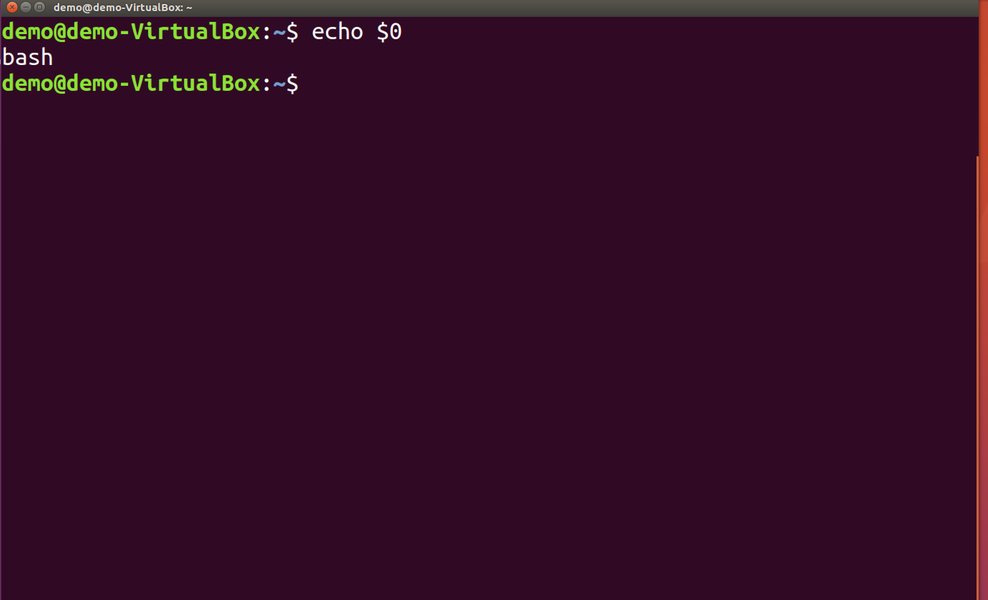
A typical Bash shell prompt, commonly found on Linux and macOS systems.
What is a Terminal?
A terminal, often referred to as a terminal emulator, is the application that provides the text-based window for interacting with a shell. When you open a terminal application (like Windows Terminal, macOS Terminal, or xTerm on Linux), it typically starts a default shell. The terminal handles input and output, displaying the shell's prompt, the commands you type, and the results of those commands. Essentially, the terminal is the "window" through which you access and use the shell.
Deep Dive into Shells: CMD, Bash, and PowerShell
CMD (Command Prompt): The Windows Legacy
Definition and Context
CMD, or Command Prompt, is the traditional command-line interpreter for Microsoft Windows operating systems. It's rooted in MS-DOS and uses Windows-specific commands (e.g., dir for listing files, copy for copying). While still available in modern Windows versions for backward compatibility, it's considered less powerful and flexible than PowerShell, especially for complex scripting and automation tasks.
Operating System Relevance
CMD is exclusive to Windows. It was the default CLI for many years but has largely been superseded by PowerShell for advanced users and system administrators.
Bash (Bourne Again SHell): The Unix Staple
Definition and Context
Bash is a widely-used Unix shell and command language. It's known for its powerful scripting capabilities, command-line editing, job control, and a vast array of utilities common in Unix-like environments. Many online tutorials and development toolchains assume a Bash-like environment.

Git Bash provides a Bash emulation environment on Windows, useful for running Unix-like commands.
Operating System Relevance
- Linux: Bash is the default shell on most Linux distributions.
- macOS: Bash was the default shell for many years. Newer versions of macOS (Catalina and later) default to Zsh, but Bash remains available.
- Windows: Bash is not native to Windows. However, it can be used through:
- Git Bash: Bundled with Git for Windows, it provides a Bash emulation environment along with common Unix utilities. This is particularly popular among developers who need to use Git and are familiar with Unix commands.
- Windows Subsystem for Linux (WSL): Allows users to run a genuine Linux environment, including Bash and other Linux utilities, directly on Windows.
- Third-party tools like Cygwin.
PowerShell: Microsoft's Modern Powerhouse
Definition and Context
PowerShell is a task automation and configuration management framework from Microsoft, consisting of a command-line shell and an associated scripting language. It's built on the .NET Framework (Windows PowerShell) or .NET Core (PowerShell Core/PowerShell 7+). A key distinction is its use of objects rather than text streams, allowing for more robust and complex operations. It features "cmdlets" (pronounced "command-lets"), which are specialized commands.
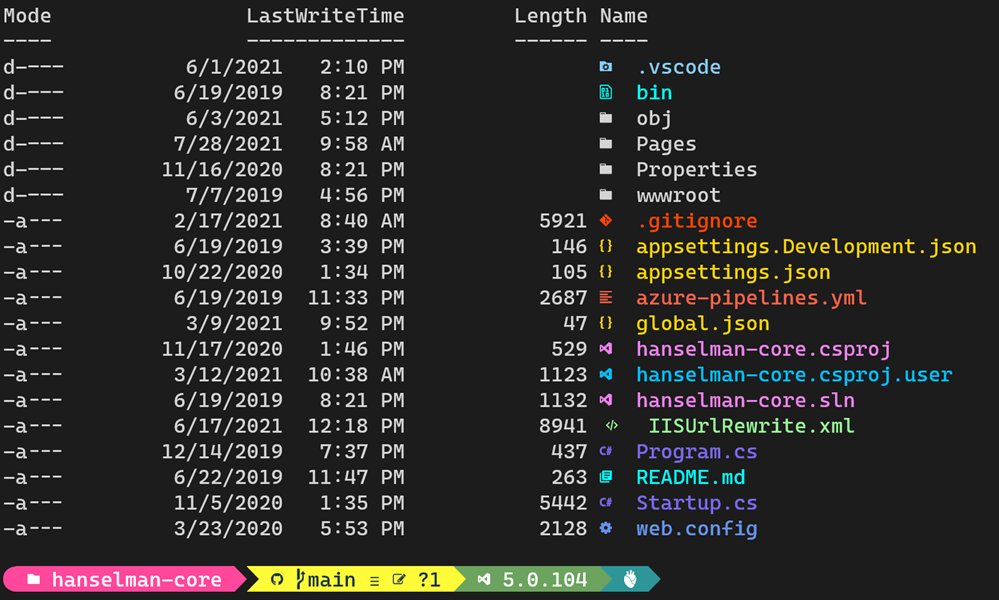
A modern PowerShell interface, often customized for enhanced productivity.
Operating System Relevance
- Windows: PowerShell is the default command-line shell and scripting environment in modern Windows versions, offering deep integration with the operating system and its components.
- Linux and macOS: PowerShell (starting with PowerShell Core 6) is cross-platform and can be installed and used on Linux and macOS, providing a consistent shell experience for administrators and developers working across different operating systems.
Visualizing Shell Capabilities: A Comparative Overview
The radar chart below offers a visual comparison of CMD, Bash, and PowerShell across several key attributes relevant to developers and system administrators. This helps in understanding their relative strengths and suitability for different tasks and environments. Each axis represents a specific feature, with values ranging from 1 (less capable) to 10 (highly capable). Higher values indicate stronger performance or more extensive capabilities in that area. This is an opinionated analysis intended for illustrative comparison.
Essential Developer Tools: Git, Python, and Java
Git: Mastering Version Control
Git is a distributed version control system (DVCS) designed to handle everything from small to very large projects with speed and efficiency. Created by Linus Torvalds (the creator of Linux), Git is the most widely used modern version control system in the world. It allows multiple developers to collaborate on projects, track changes to source code, manage different versions (branches), and revert to previous states if needed. Git is primarily a set of command-line utilities and can be used in any shell (CMD, PowerShell, Bash, Zsh) on Windows, Linux, and macOS. While GUIs for Git exist, understanding its command-line operations provides access to its full power.
Python: The Versatile Scripting Language
Python is a high-level, interpreted programming language renowned for its readability, simplicity, and extensive libraries. It supports multiple programming paradigms, including procedural, object-oriented, and functional programming. Python is cross-platform, meaning Python scripts can run on Windows, Linux, and macOS with little to no modification, provided the Python interpreter is installed. It's widely used for web development, data science, machine learning, automation, and scripting tasks that can interact with the operating system or other command-line tools. Python scripts are typically executed from a shell.
Java: Powering Enterprise Applications
Java is a high-level, class-based, object-oriented programming language designed to have as few implementation dependencies as possible. Its "write once, run anywhere" (WORA) philosophy means that compiled Java code (bytecode) can run on any platform that supports Java without needing to be recompiled, thanks to the Java Virtual Machine (JVM). Java is extensively used for developing enterprise-scale applications, Android mobile apps, web servers, and large systems. Like Python, Java programs are often compiled and run from the command line in various shells across Windows, Linux, and macOS, using commands like javac (to compile) and java (to run).
Connecting the Dots: Relationships and Interactions
The following mindmap illustrates the relationships between these command-line interfaces, shells, developer tools, and their typical operating system environments. It helps to visualize how these components interconnect and where they primarily operate, showing how general concepts like CLI and Shell branch out into specific implementations, and how tools like Git, Python, and Java are utilized within these environments across different operating systems.
(Command Line Interface)"] idCLIConcept["General text-based interaction method"] idShell["Shell
(Command Interpreter)"] idShellConcept["Program that processes commands"] idBash["Bash
(Bourne Again SHell)"] idBashOS["Primarily Unix/Linux, macOS
Available on Windows via Git Bash, WSL"] idPowerShell["PowerShell"] idPowerShellOS["Windows (native, modern default)
Cross-platform for Linux, macOS"] idCMD["CMD
(Command Prompt)"] idCMDOS["Windows (legacy)"] idTerminal["Terminal
(Emulator Application)"] idTerminalConcept["Window hosting the shell"] subTools["Developer Tools & Languages"] idGit["Git
(Version Control System)"] idGitUse["Used within any shell (Bash, PowerShell, CMD)"] idGitOS["Cross-platform (Windows, Linux, macOS)"] idPython["Python
(Programming Language)"] idPythonUse["Scripting, Automation, Development"] idPythonRun["Executed from any shell"] idPythonOS["Cross-platform (Windows, Linux, macOS)"] idJava["Java
(Programming Language)"] idJavaUse["Application Development, Enterprise Systems"] idJavaRun["Compiled & run via JVM, invoked from shell"] idJavaOS["Cross-platform (Windows, Linux, macOS)"] subOS["Operating Systems"] idWindows["Windows"] idWinShells["Shells: CMD, PowerShell (default), Git Bash (via Git for Windows), WSL (for Linux shells)"] idLinux["Linux"] idLinuxShells["Shells: Bash (common default), Zsh, etc."] idMacOS["macOS"] idMacShells["Shells: Zsh (current default), Bash (available)"]
Cross-Platform Comparison: Tools Across Operating Systems
Understanding which tools are native, available, or commonly used on Windows, Linux, and macOS is crucial for developers and system administrators. The table below provides a summary of each term's type, compatibility, and primary function across these major operating systems. This aids in choosing the right tool for the task based on the operating environment.
| Term | Type | Windows Availability | Linux Availability | macOS Availability | Primary Function |
|---|---|---|---|---|---|
| Git | Version Control System | Yes (often with Git Bash) | Yes (Native CLI) | Yes (Native CLI) | Tracking changes in code, collaboration. |
| CMD (Command Prompt) | Shell / Command Interpreter | Yes (Native, legacy) | No | No | Basic command-line operations on Windows. |
| CLI (Command Line Interface) | Interface Type | Yes (e.g., CMD, PowerShell) | Yes (e.g., Bash, Zsh) | Yes (e.g., Bash, Zsh via Terminal app) | General text-based interaction with an OS. |
| Python | Programming Language | Yes (Installable) | Yes (Often pre-installed, installable) | Yes (Often pre-installed, installable) | Scripting, automation, web development, data analysis. |
| Java | Programming Language | Yes (Installable, requires JVM) | Yes (Installable, requires JVM) | Yes (Installable, requires JVM) | Application development, especially enterprise and Android. |
| Bash (Bourne Again SHell) | Shell / Command Interpreter | Yes (via Git Bash, WSL, Cygwin) | Yes (Common default) | Yes (Available, formerly default) | Powerful command-line operations and scripting in Unix-like systems. |
| Shell | Generic Command Interpreter | Yes (CMD, PowerShell) | Yes (Bash, Zsh, etc.) | Yes (Bash, Zsh, etc.) | Interface for OS command execution. |
| PowerShell | Shell / Scripting Language | Yes (Native, modern default) | Yes (Installable as PowerShell Core/7+) | Yes (Installable as PowerShell Core/7+) | Advanced system administration, automation, object-oriented scripting. |
Exploring Shell Differences: A Video Insight
To further clarify the distinctions, especially between popular shells like CMD, PowerShell, and Bash, the following video offers a comparative look. It discusses their features, historical context, and common use cases, providing a dynamic perspective on these command-line environments and helping you understand when you might choose one over the other.
Frequently Asked Questions (FAQ)
What's the main difference between a shell and a terminal?
Is PowerShell "better" than Bash?
Can I use Git without a command line?
Do I need to learn CMD if I know PowerShell on Windows?
Are Python and Java considered shells?
Recommended Further Exploration
- Explore the key differences between Zsh and Bash, especially for macOS users.
- Learn how to effectively use Windows Subsystem for Linux (WSL) for development purposes.
- Discover advanced scripting techniques in PowerShell for automating system administration tasks.
- Understand how Python scripting and shell scripting (e.g., Bash) can complement each other for complex automation.
References
 programmingwithjim.wordpress.com
Last updated May 7, 2025