
Unleash the Dragons: Bridging the Command-Line Worlds of CLI and PowerShell
A comprehensive guide comparing essential commands, complete with mystical analogies to master both realms.
Welcome, brave adventurer, to the world of command-line interfaces! Whether you're navigating the traditional paths of CLIs like Bash or wielding the mighty cmdlets of PowerShell, understanding their core commands is key to mastering your digital domain. This guide offers a comparative look at essential commands, sprinkled with dragon analogies to make the journey more memorable and engaging. Prepare to command your system like never before!
Highlights: Key Insights into CLI vs. PowerShell
- Core Philosophy: Traditional CLIs (like Bash) predominantly operate on text streams, while PowerShell is built on the .NET framework and works with objects, offering more structured data handling.
- Command Structure: PowerShell uses "cmdlets" (e.g.,
Verb-NounlikeGet-ChildItem), which are often more descriptive than their concise CLI counterparts (e.g.,ls). Many common CLI commands have aliases in PowerShell for ease of transition. - Platform Prowess: While Bash is native to Unix-like systems (Linux, macOS) and available on Windows via WSL, PowerShell, originally Windows-centric, is now cross-platform, running on Windows, Linux, and macOS.
The Two Dragons: Understanding CLI (Bash) and PowerShell
Interacting with your computer through a command-line interface (CLI) offers powerful control and automation capabilities. Think of these interfaces as two distinct, mighty dragons, each with its own strengths and ways of interacting with the digital world.
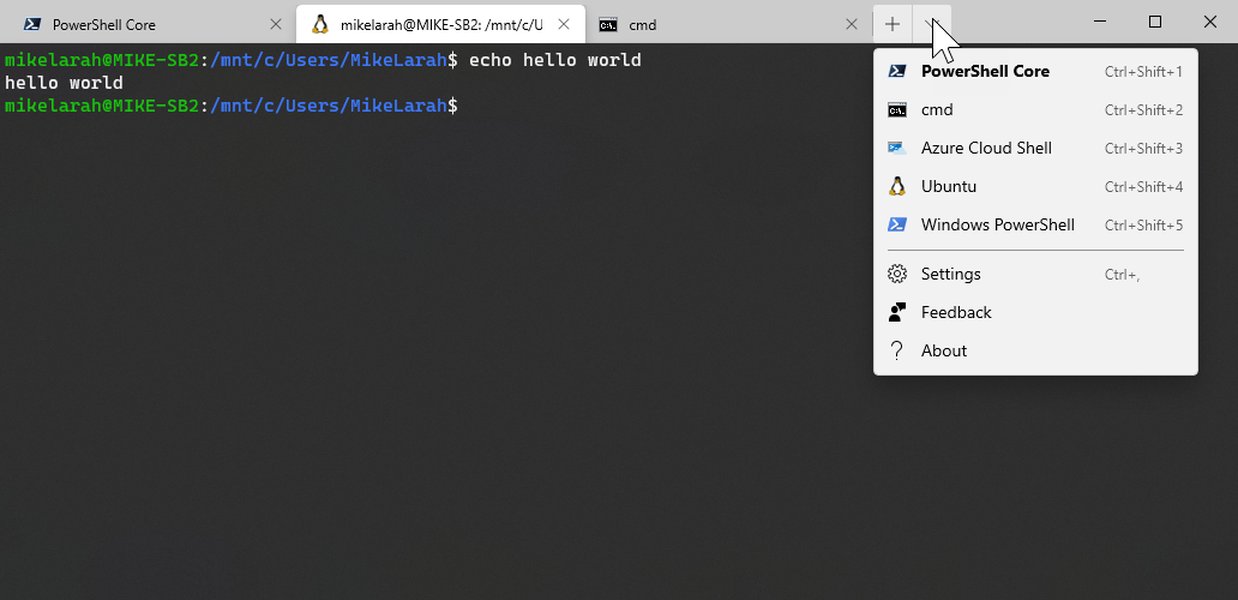
A modern terminal interface, capable of hosting various shells like PowerShell and Bash (via WSL).
The Elder Dragon: CLI (Bash)
The Command Line Interface, often represented by shells like Bash (Bourne Again SHell), is the venerable elder dragon of Unix-like systems. It communicates through streams of text, making it incredibly efficient for text manipulation and scripting simple, powerful commands. Its wisdom is etched in countless scripts that have managed systems for decades.
The Arcane Dragon: PowerShell
PowerShell is a younger, yet immensely powerful arcane dragon, forged by Microsoft. It speaks in terms of objects, not just text. This allows it to understand and manipulate the very fabric of the Windows ecosystem (and now, other platforms too) with greater precision and complexity. Its cmdlets are like spells, performing specific tasks with rich output.
Command Codex: CLI (Bash) vs. PowerShell Equivalents
Herein lies the codex, a table comparing essential commands. Each entry includes its purpose, a mystical dragon analogy to aid your memory, and practical examples from both realms.
| Basic Term Explanation | CLI Command (Bash) | PowerShell Command (Cmdlet & Alias) | Basic Description | Dragon Analogy | Example (CLI) | Example (PowerShell) |
|---|---|---|---|---|---|---|
| List Contents | ls |
Get-ChildItem (Aliases: ls, gci, dir) |
Shows files and subdirectories within the current or a specified directory. | The dragon spreads its wings to reveal every rock, tree, and treasure in the nearby valley. | ls -la |
Get-ChildItem -Force or ls -Force |
| Change Directory | cd |
Set-Location (Aliases: cd, sl, chdir) |
Changes the current working directory to move through the file system. | The dragon flies to a different cave deep inside its mountain range. | cd /var/log |
Set-Location C:\Windows or cd C:\Windows |
| Print Working Directory | pwd |
Get-Location (Aliases: pwd, gl) |
Displays the full path of the current directory. | The dragon roars, announcing its current perch from the highest peak for all to know. | pwd |
Get-Location or pwd |
| Make Directory | mkdir |
New-Item -ItemType Directory (Aliases: mkdir, md, ni for New-Item) |
Creates a new directory (folder). | The dragon carves a new chamber into the mountainside with its powerful claws. | mkdir new_lair |
New-Item -Name new_lair -ItemType Directory |
| Create Empty File | touch |
New-Item -ItemType File (Alias: ni for New-Item) |
Creates a new, empty file, or updates timestamps if it exists. | The dragon breathes life into a blank scroll, making it ready for inscription. | touch ancient_scroll.txt |
New-Item -Name ancient_scroll.txt -ItemType File |
| Remove File/Directory | rm |
Remove-Item (Aliases: rm, del, erase, rd, ri) |
Deletes files or directories. Use with caution! | The dragon incinerates unwanted debris or vanquished foes with a fiery breath. | rm old_artifact.datrm -r old_folder |
Remove-Item old_artifact.datRemove-Item old_folder -Recurse |
| Copy File/Directory | cp |
Copy-Item (Aliases: cp, copy, cpi) |
Creates a copy of a file or directory. | The dragon magically duplicates a precious gem, placing the copy in another vault. | cp map.png backup/map_copy.png |
Copy-Item map.png -Destination backup\map_copy.png |
| Move/Rename File/Directory | mv |
Move-Item (Aliases: mv, move, mi) / Rename-Item (Aliases: ren, rni) |
Moves a file/directory to another location or renames it. | The dragon relocates treasure to a more secure vault or bestows a new, grander name upon an ancient map. | mv secret.txt hidden_vault/mv old_name.txt new_name.txt |
Move-Item secret.txt -Destination hidden_vault\Rename-Item old_name.txt -NewName new_name.txt |
| View File Content | cat |
Get-Content (Aliases: cat, gc, type) |
Displays the content of a text file. | The dragon unrolls an ancient scroll, its eyes glowing as it reads the arcane text aloud. | cat lore.txt |
Get-Content lore.txt |
| Search Text in Files | grep |
Select-String (Alias: sls) |
Searches for a specific pattern of text within files. | The dragon sniffs through ancient texts, its keen senses searching for a specific magical incantation. | grep "dragon" legend.txt |
Select-String -Path legend.txt -Pattern "dragon" |
| Clear Screen | clear |
Clear-Host (Alias: cls, clear) |
Clears all text from the terminal or console window. | The dragon exhales a powerful, clean gust of wind, sweeping away dust and cobwebs from its lair. | clear |
Clear-Host or cls |
| Get Help | man or <command> --help |
Get-Help (Alias: help, man) |
Provides information about a command, its syntax, and options. | The dragon consults a wise elder or an ancient, glowing tome for guidance on a powerful spell. | man ls |
Get-Help Get-ChildItem -Full |
| List Processes | ps |
Get-Process (Aliases: ps, gps) |
Displays currently running processes on the system. | The dragon observes all active spirits, guardians, and lesser creatures moving within its domain. | ps aux |
Get-Process |
| Terminate Process | kill |
Stop-Process (Aliases: kill, spps) |
Terminates a running process, usually specified by its ID. | With a swift action, the dragon ends the flight of a troublesome imp or a rogue magical construct. | kill 12345 |
Stop-Process -Id 12345 |
| Print Text | echo |
Write-Output (Aliases: echo, write) |
Displays a line of text or the value of a variable. | The dragon roars a message, its voice echoing powerfully across the valleys for all to hear. | echo "The hoard is safe!" |
Write-Output "The hoard is safe!" |
| Command History | history |
Get-History (Aliases: h, history, ghy) |
Displays a list of previously executed commands. | The dragon recalls all the ancient spells it has cast, reviewing its magical repertoire. | history |
Get-History |
| Disk Free Space | df |
Get-PSDrive / Get-Volume |
Shows available and used disk space on file systems. | The dragon assesses the vast capacity of its treasure vaults, noting how much room remains. | df -h |
Get-PSDrive C or Get-Volume |
| System Information | uname (Unix-like) |
Get-ComputerInfo |
Displays information about the operating system and hardware. | The dragon recites its ancient lineage and the defining characteristics of its powerful realm. | uname -a |
Get-ComputerInfo |
| Test Network Connectivity | ping |
Test-Connection (Aliases: ping, tcn) |
Sends ICMP echo requests to a target host to check reachability. | The dragon sends a magical pulse, like a small scout, to check if pathways to other lands are open. | ping google.com |
Test-Connection google.com |
Visualizing the Dragons' Strengths: A Comparative Radar Chart
This radar chart offers a visual comparison between a typical CLI (like Bash) and PowerShell across several key attributes. The scores are illustrative, representing general tendencies rather than absolute measures. They help visualize where each "dragon" typically excels.
This chart illustrates, for instance, PowerShell's strength in Windows OS integration and object-oriented capabilities, while Bash-like CLIs often shine in raw text processing speed and native integration within Linux/macOS environments. Both offer significant scripting power, though PowerShell's object-based nature can handle more complex structured data intrinsically.
Mapping the Command-Line Realms: A Mindmap Overview
To better understand the landscape of command-line interfaces, this mindmap visualizes the core concepts of traditional CLIs (like Bash) and PowerShell, highlighting their key features, common commands, and shared purposes in system administration and automation.
This mindmap shows how both types of interfaces, while different in their approach (text vs. object), serve common goals like automation and system management. Understanding their distinct features helps in choosing the right tool for the task at hand.
Learn from the Masters: Understanding PowerShell Basics
For those looking to delve deeper into the world of PowerShell, understanding its foundational concepts like objects, pipelines, and essential commands is crucial. The video below provides an excellent introduction to these topics, helping you grasp how PowerShell's object-oriented nature sets it apart and empowers complex administrative tasks.
This tutorial, "Mastering PowerShell Basics: Understanding Objects, Pipelines, and Essential Commands," covers fundamental aspects such as:
- Objects in PowerShell: Unlike traditional shells that pass text, PowerShell passes rich .NET objects between commands. This means you can access properties and methods of the output directly.
- The Pipeline (
|): How PowerShell cmdlets can chain together, passing objects from one to the next for sophisticated data manipulation. - Essential Cmdlets: An overview of core commands like
Get-Help,Get-Command,Get-Member(to inspect objects), and fundamental file system cmdlets.
Watching this can provide a solid foundation for anyone transitioning to or starting with PowerShell, especially in understanding its unique power compared to text-based shells.
Frequently Asked Questions by Aspiring Dragon Riders (FAQ)
What's the main difference between CLI (like Bash) and PowerShell?
The primary difference lies in how they handle data. Traditional CLIs like Bash primarily operate on streams of text. Commands output text, and this text is piped to the next command. PowerShell, on the other hand, is object-oriented. Cmdlets (PowerShell commands) output .NET objects. This allows for more structured data to be passed through the pipeline, enabling more complex operations and easier access to specific data properties without complex text parsing.
Can I use Bash commands directly in PowerShell?
Many common Bash commands have aliases in PowerShell (e.g., ls, cat, pwd, rm, cp, mv) that map to corresponding PowerShell cmdlets. This makes the transition easier. However, these are just aliases; the underlying PowerShell cmdlet is executed. For true Bash functionality, especially for commands or scripts not covered by aliases, you would typically use Windows Subsystem for Linux (WSL) on Windows or run Bash in its native Linux/macOS environment.
What are PowerShell cmdlets?
Cmdlets (pronounced "command-lets") are the native commands in PowerShell. They are specialized .NET classes that perform a specific operation. Cmdlets follow a strict Verb-Noun naming convention, such as Get-ChildItem, Set-Location, or Stop-Process. This consistent naming makes them more discoverable and understandable. They are designed to be small, discrete units of functionality that can be combined in the pipeline to perform complex tasks.
Is PowerShell only for Windows?
No, not anymore. While PowerShell was initially developed for Windows (as Windows PowerShell, built on the .NET Framework), Microsoft later released PowerShell Core (now just "PowerShell"), which is open-source and cross-platform. It runs on Windows, macOS, and various Linux distributions, built on .NET Core (now .NET 5/6/7+). This allows administrators and developers to use PowerShell scripting and tools across different operating systems.
Further Quests: Recommended Explorations
If you wish to continue your journey into the depths of command-line mastery, consider these related explorations:
- How to write advanced scripts in PowerShell for system automation?
- What are the best practices for using Bash on Windows via WSL?
- Explore the differences between PowerShell Core and Windows PowerShell.
- Learn more about object pipelining in PowerShell versus text pipelining in Bash.
Ancient Scrolls: References
This knowledge was gathered from various scrolls and tomes (sources):
 aws.amazon.com
Last updated May 7, 2025