
Unlocking Command-Line Power: CLI vs. PowerShell – Which Reigns Supreme?
A deep dive into the core differences, practical uses, and unique strengths of traditional CLIs and the advanced PowerShell environment.
Key Insights at a Glance
- Core Distinction: Traditional Command Line Interfaces (CLIs) like Windows Command Prompt (CMD) primarily process text strings, offering simplicity for direct commands. In contrast, PowerShell is an object-oriented environment, meaning it works with structured data objects, providing far greater flexibility and power for complex operations.
- Scope and Power: CLIs are generally simpler and faster for basic, everyday tasks and running legacy batch scripts. PowerShell, however, is a robust scripting language and automation framework designed for intricate system administration, configuration management, and managing cloud resources.
- "Clear Screen" Demystified: The command
clsin CMD directly clears the visible text. In PowerShell,Clear-Host(often aliased asclsorclearfor convenience) performs a similar visual function but operates within PowerShell's richer, object-aware console.
Understanding the Basics: "Clear Screen" and Core Concepts
At its heart, a Command Line Interface (CLI) is a text-based medium for users to issue commands to a computer's operating system or specific software. One of the most fundamental and frequently used commands in any CLI environment is the one that clears the screen, providing a clean slate for new commands and output.
The "Clear Screen" Command: A Tale of Two Interfaces
In Traditional CLIs (like Windows Command Prompt - CMD)
For users of the Windows Command Prompt (CMD), the command to wipe the slate clean is cls. This simple, internal command, short for "clear screen," has been a staple in MS-DOS and Windows operating systems for decades. When you type cls and press Enter, all previous text output on the screen vanishes, leaving only the command prompt at the top. It's a direct, no-fuss operation. For example, you might run a command like dir to list directory contents, and then type cls to remove that listing from view.
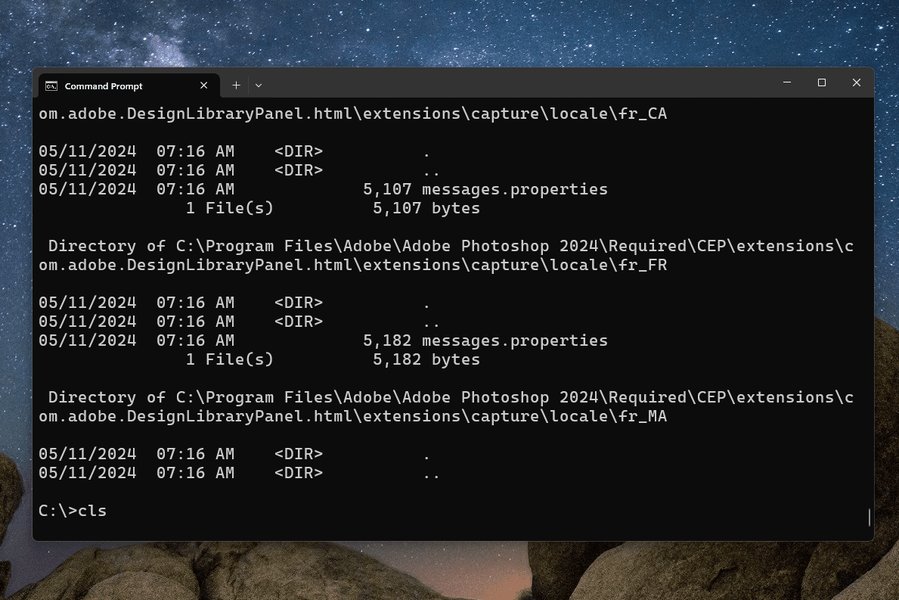
The cls command in action within the Windows Command Prompt.
In Unix-like systems (such as Linux or macOS), the equivalent command is typically clear. While the name differs, the basic function of refreshing the terminal display remains the same.
In PowerShell
PowerShell, Microsoft's modern and more powerful command-line shell and scripting language, also offers a way to clear the console. The primary cmdlet (PowerShell's term for a command) for this is Clear-Host. For ease of transition and familiarity for users coming from CMD or Unix-like systems, PowerShell includes built-in aliases: typing cls or clear in PowerShell will typically execute Clear-Host. While the visual outcome is similar – a cleared screen – what happens under the hood in PowerShell is part of a more sophisticated, object-oriented environment.
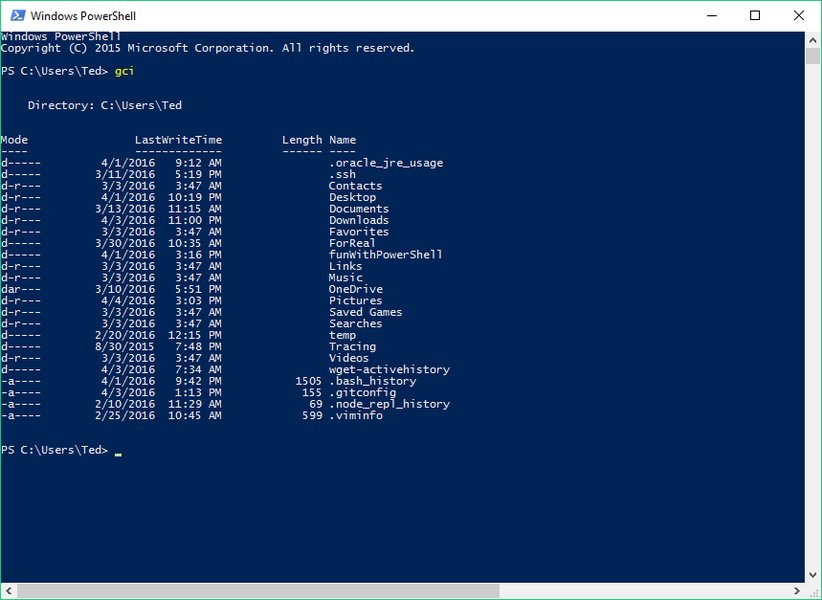
The PowerShell console environment, where Clear-Host or its aliases are used.
CLI vs. PowerShell: A Fundamental Comparison
Beyond just clearing the screen, traditional CLIs (specifically focusing on Windows CMD for this comparison) and PowerShell differ significantly in their architecture, capabilities, and intended use cases.
Traditional CLI (Windows Command Prompt - CMD)
The Command Prompt is a legacy command-line interpreter for Windows. Its origins trace back to MS-DOS, making it a long-standing tool for interacting with the operating system.
- Text-Based Operations: CMD primarily deals with text strings. Commands take text input and produce text output. This simplicity makes it straightforward for basic tasks.
- Simplicity and Speed for Basic Tasks: It's often quicker for simple commands like navigating directories (
cd), listing files (dir), or running basic network utilities (ping,ipconfig). - Legacy Support: It excels at running older batch files (.bat) and command-line tools designed for this environment.
- Limited Scripting: While batch scripting is possible, it's far less powerful and flexible compared to PowerShell scripting.
PowerShell
PowerShell represents a paradigm shift. Developed by Microsoft and built on the .NET Framework (and now .NET Core for cross-platform compatibility), it's both an interactive command-line shell and a powerful scripting language.
- Object-Oriented: This is the cornerstone of PowerShell's power. Cmdlets don't just return text; they return .NET objects. These objects have properties and methods that can be manipulated, filtered, and passed to other cmdlets.
- Cmdlets and Naming Convention: Commands in PowerShell are called cmdlets and follow a consistent Verb-Noun naming convention (e.g.,
Get-Process,Set-Item,Clear-Host). This makes them more discoverable and understandable. - The Pipeline: PowerShell's pipeline (
|) is exceptionally powerful. It allows you to pass the object output of one cmdlet directly as input to another, enabling complex operations in a single line. - Advanced Scripting: PowerShell offers a full-fledged scripting language with variables, loops, conditional logic, error handling, and the ability to create functions and modules.
- System Administration and Automation: It's the preferred tool for Windows system administration, configuration management (like Desired State Configuration - DSC), and managing Microsoft services like Azure and Exchange.
- Cross-Platform: With PowerShell Core, it's available on Windows, macOS, and various Linux distributions.
The Dragon Training Analogy: CLI vs. PowerShell
To better illustrate the differences in capability and approach, let's use an analogy: imagine you're a dragon trainer.
Training with a Traditional CLI (like CMD)
Using a traditional CLI like CMD is akin to training a common, friendly dragon with simple, direct commands.
- You tell the dragon "clear the training ground!" (
cls), and it dutifully sweeps the area clean with a gust of wind. The result is immediate and visually obvious. - You might command "show me what's in this cave!" (
dir), and the dragon will roar out a list of items it sees (text output). - The commands are easy to learn, and the dragon responds predictably to these basic instructions. However, its repertoire is limited. Complex tasks require stringing together many simple commands, and the dragon doesn't understand nuanced instructions or the properties of the objects it interacts with. It just follows orders and reports back in simple terms.
Training with PowerShell
Using PowerShell is like training a highly intelligent, versatile, and powerful elder dragon, capable of understanding complex strategies and nuanced instructions.
- When you command this dragon to "clear and prepare the celestial arena!" (
Clear-Host), it not only clears the visible space but might also log the atmospheric conditions, check for astral interferences, and report back with a detailed status object (PowerShell objects). - If you ask it to "retrieve all enchanted artifacts from the northern mountains, sort them by magical potency, and list only those forged before the first sundering!" (e.g.,
Get-ChildItem -Path 'NorthernMountains' | Where-Object {$_.Type -eq 'EnchantedArtifact' -and $_.ForgeDate -lt 'FirstSundering'} | Sort-Object -Property MagicalPotency), the dragon understands each part of this complex request. It retrieves not just names, but the artifacts themselves (objects), examines their properties (potency, forge date), filters them, sorts them, and presents you with a structured list. - This elder dragon has access to a vast library of ancient knowledge (the .NET Framework), allowing it to perform tasks far beyond simple tricks. Training this dragon requires a deeper understanding of its capabilities (cmdlets and object manipulation), but it unlocks incredibly powerful and automated routines.
Command Examples in Action
Let's look at a few practical examples to highlight the differences.
Example 1: Clearing the Screen
Windows Command Prompt (CMD)
REM First, list directory contents
dir

REM Then, clear the screen
cls
In this CMD example, dir lists files, and cls then clears all that text from the screen.
PowerShell
# First, get a list of running processes
Get-Process

# Then, clear the screen
Clear-Host
Or, using the alias in PowerShell:
# Get a list of running services
Get-Service

# Clear the screen using the 'cls' alias
cls
In PowerShell, Get-Process or Get-Service outputs objects representing processes/services. Clear-Host (or its aliases) then clears the display.
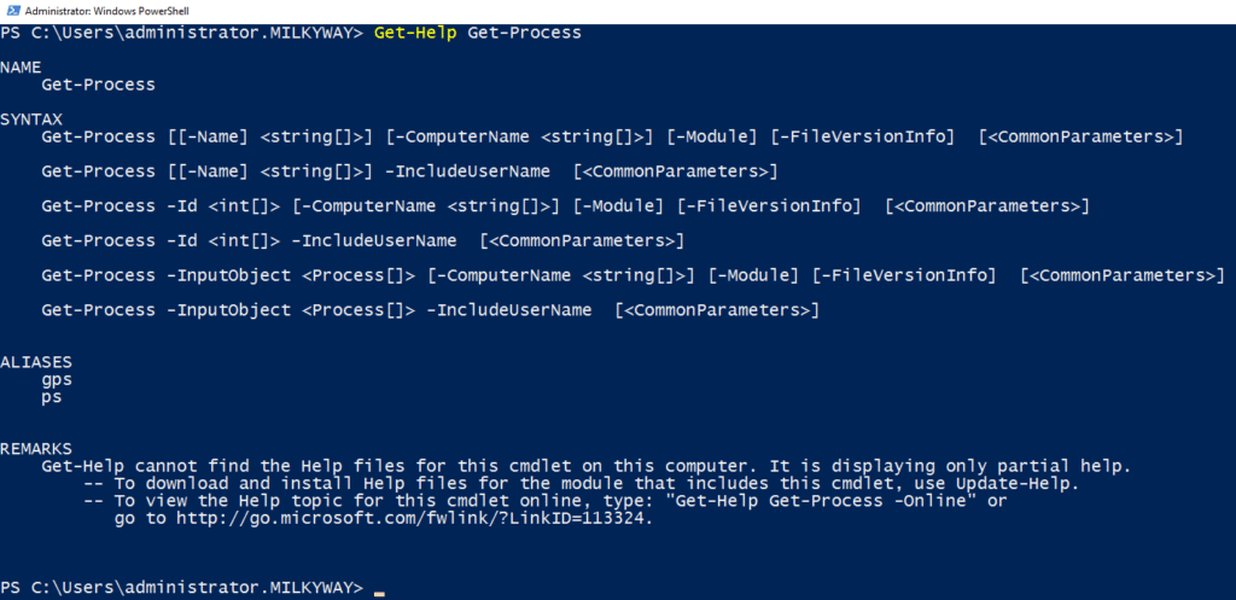
An example of Get-Process output in PowerShell before clearing the screen.
Example 2: Listing Files and More
Windows Command Prompt (CMD): List text files
dir *.txtThis CMD command lists all files with the .txt extension in the current directory, displaying basic file information as text.
PowerShell: List text files, sort by last write time, and select specific properties
Get-ChildItem -Filter *.txt | Sort-Object -Property LastWriteTime | Select-Object -Property Name, LastWriteTime, LengthThis PowerShell example demonstrates its power:
Get-ChildItem -Filter *.txt: Retrieves objects representing text files.Sort-Object -Property LastWriteTime: Sorts these file objects by theirLastWriteTimeproperty.Select-Object -Property Name, LastWriteTime, Length: Selects and displays only the Name, LastWriteTime, and Length (size in bytes) properties of these sorted file objects.
Visualizing the Differences: Capabilities Radar
This radar chart offers a visual comparison of traditional CLIs (represented by CMD) and PowerShell across several key capabilities. The further a point is from the center, the stronger the interface is in that particular aspect. Note that "Learning Curve (Advanced)" refers to the effort to master advanced features; basic use of CMD might be seen as having a gentler initial curve.
As illustrated, PowerShell generally offers more advanced capabilities, especially in scripting, object handling, and system administration, while traditional CLIs like CMD might be perceived as simpler for very basic initial interactions.
Side-by-Side Feature Breakdown
The following table provides a more granular comparison of features between a traditional CLI (like Windows CMD) and PowerShell:
| Feature | CLI (e.g., Windows CMD) | PowerShell |
|---|---|---|
| Primary Interaction | Text-based input/output | Object-based pipeline, cmdlets |
| "Clear Screen" Command | cls |
Clear-Host (aliases: cls, clear) |
| Data Handling | Processes plain text strings | Manipulates .NET objects |
| Scripting Language | Basic batch scripting (.bat, .cmd) | Advanced scripting language (.ps1) |
| Complexity | Simpler, easier for basic tasks | More complex, powerful for automation |
| Primary Use Cases | Simple file operations, legacy scripts, quick diagnostic tasks | System administration, complex automation, configuration management, cloud resource management |
| Underlying Framework | Native OS commands, limited external interaction | .NET Framework / .NET Core |
| Command Structure | Simple command names (e.g., dir, copy) |
Verb-Noun cmdlet naming convention (e.g., Get-ChildItem, Copy-Item) |
| Pipeline Capability | Limited text redirection (e.g., >, | for text streams) |
Powerful object pipeline for chaining cmdlets (| passes full objects) |
| Cross-Platform | Typically OS-specific (CMD is Windows-specific) | Yes (PowerShell Core runs on Windows, macOS, Linux) |
| Extensibility | Limited | Highly extensible with modules and snap-ins |
| Error Handling | Basic (e.g., errorlevel) | Robust try-catch-finally blocks, detailed error objects |
| Output Formatting | Plain text | Rich, customizable formatting (lists, tables, custom views, export to CSV/XML/HTML) |
Conceptual Map: CLI vs. PowerShell
This mind map visually outlines the key distinctions and features of traditional CLIs (like CMD) and PowerShell, helping to quickly grasp their core attributes and relationship.
(e.g., cls, dir, copy)"] id1_3["Suited for:
- Legacy Systems
- Batch Scripts (.bat)
- Quick, Simple Tasks"] id1_4["String Processing Focus"] id1_5["Lower Complexity for Basic Use"] id1_6["Limited Scripting Capabilities"] id2["PowerShell"] id2_1["Object-Oriented Approach"] id2_2["Cmdlets (Verb-Noun)
(e.g., Clear-Host, Get-Process, Copy-Item)"] id2_3["Suited for:
- Advanced Scripting (.ps1)
- System Automation
- Configuration Management (DSC)
- Cloud Management (Azure)"] id2_4[".NET Framework / .NET Core Integration"] id2_5["Powerful Pipeline Functionality
(Passes Objects)"] id2_6["Cross-Platform Compatibility
(Windows, Linux, macOS)"] id2_7["Rich Output Formatting & Extensibility"]
Video Deep Dive: PowerShell vs. Command Prompt
For a visual and auditory explanation of the differences between Windows Command Prompt and PowerShell, the following video offers valuable insights. It discusses their respective strengths, use cases, and why PowerShell is often considered more than just a "blue command prompt." Understanding these differences can help you choose the right tool for your tasks.
This video helps contextualize why PowerShell was developed and how its architecture based on the .NET framework allows it to handle complex administrative tasks that are cumbersome or impossible with the traditional Command Prompt. It highlights PowerShell's ability to work with objects, its rich set of cmdlets, and its scripting capabilities which are essential for modern IT automation.
Frequently Asked Questions (FAQ)
What is the main difference between `cls` in CMD and `Clear-Host` in PowerShell?
Is PowerShell replacing CMD?
Can I use CMD commands in PowerShell?
Which is better for beginners, CLI (CMD) or PowerShell?
What does "object-oriented" mean in the context of PowerShell?
Recommended Further Exploration
- Explore advanced PowerShell scripting techniques for IT automation.
- Learn how to manage Azure cloud resources using Azure PowerShell cmdlets.
- Discover the evolution and history of command-line interfaces from early systems to modern shells.
- Compare PowerShell with other popular shell environments like Bash and Zsh for scripting and system management.
References
Last updated May 7, 2025