
Securing Your Origin: A Comprehensive Guide to Using Cloudflare Origin Certificates with Traefik
Enhance your server security by encrypting traffic between Cloudflare and Traefik with dedicated Origin Certificates.
Implementing Cloudflare Origin Certificates with Traefik is a robust strategy to secure the connection between Cloudflare's edge network and your origin server, where Traefik acts as a reverse proxy. This setup ensures that traffic is encrypted end-to-end, leveraging Cloudflare's infrastructure for public-facing SSL and its private CA for the origin connection. This guide, current as of May 21, 2025, will walk you through the process step by step.
Key Highlights of This Approach
- End-to-End Encryption: Achieve strong security with Cloudflare's "Full (Strict)" SSL/TLS mode. This ensures traffic is encrypted from the user to Cloudflare's servers, and critically, from Cloudflare directly to your Traefik instance using a trusted Origin Certificate.
- Simplified Origin Certificate Management: Utilize long-lived certificates (up to 15 years) issued by Cloudflare specifically for your origin server. This significantly reduces the complexity and frequency of certificate renewals for the Cloudflare-to-Traefik link compared to managing short-lived public certificates on the origin for this purpose.
- Enhanced Origin Protection: By combining Cloudflare Origin Certificates with Authenticated Origin Pulls (mTLS), you can configure Traefik to only accept connections that present a valid client certificate from Cloudflare, effectively locking down your origin to Cloudflare's network.
Understanding Cloudflare Origin Certificates and Traefik
Cloudflare Origin Certificates are SSL/TLS certificates issued by Cloudflare's own private Certificate Authority (CA). They are designed exclusively to secure the connection between Cloudflare's reverse proxies and your origin server. It's crucial to understand that these certificates are not trusted by public web browsers directly. Instead, Cloudflare presents a publicly trusted certificate (like Universal SSL or one you upload) to your website visitors, and then uses the Origin Certificate for the connection to your Traefik instance.
Using these certificates with Traefik allows you to:
- Encrypt the "last mile" of traffic to your server.
- Ensure Cloudflare is connecting to your authentic server.
- Integrate seamlessly with Cloudflare's "Full (Strict)" SSL/TLS mode, which requires a valid certificate on the origin.
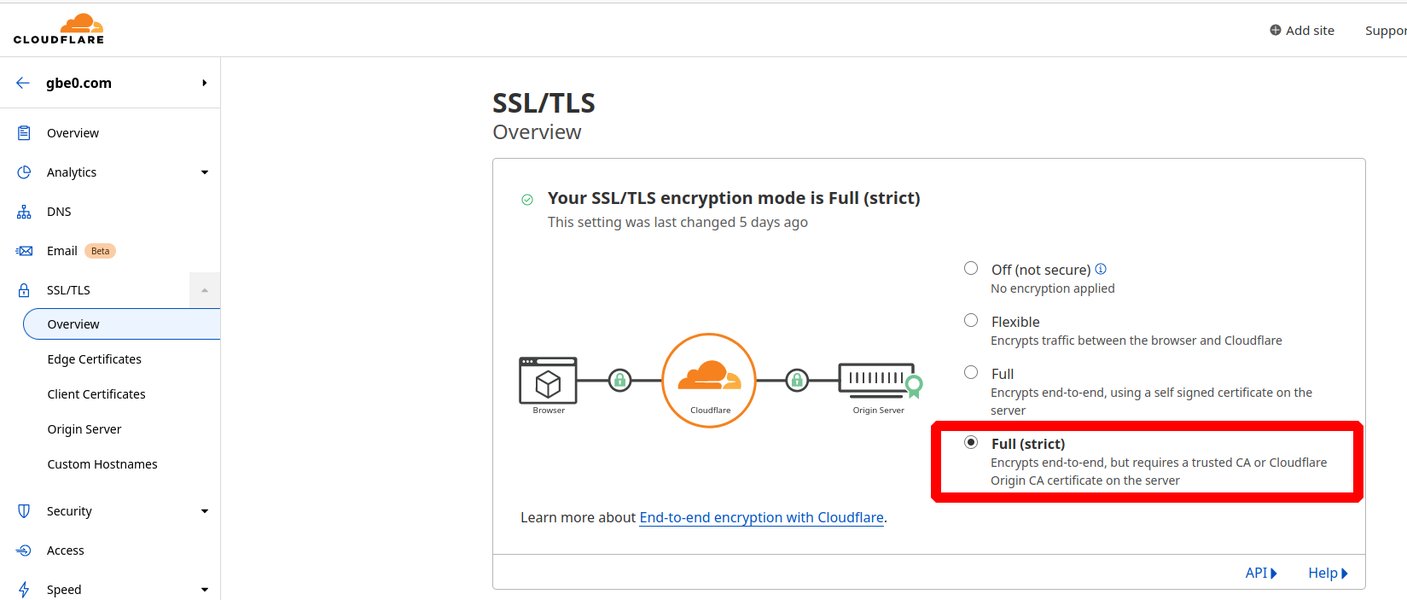
Conceptual overview of Cloudflare SSL/TLS encryption, highlighting the origin server connection.
Step 1: Generating Your Cloudflare Origin Certificate
The first step is to create an Origin Certificate within your Cloudflare dashboard.
- Log in to Cloudflare: Access your Cloudflare account and select the domain you wish to configure.
- Navigate to Origin Server Settings: Go to the SSL/TLS tab, then select the Origin Server sub-tab.
- Create Certificate: Click the "Create Certificate" button.
- Choose "Generate private key and CSR with Cloudflare" (recommended for ease).
- Hostnames: Specify the hostnames this certificate will cover (e.g.,
yourdomain.com,*.yourdomain.comfor wildcard coverage). - Certificate Validity: Select the validity period. Cloudflare Origin Certificates can be valid for up to 15 years.
- Private Key Type: Choose RSA or ECC. ECC is generally more modern and can offer better performance with smaller key sizes.
- Download Certificate Files: Once generated, Cloudflare will provide the Origin Certificate (usually a
.pemfile) and the Private Key (usually a.keyfile). Securely save both files. You will need these for your Traefik configuration. The certificate file is the public certificate, and the key file is the corresponding private key.
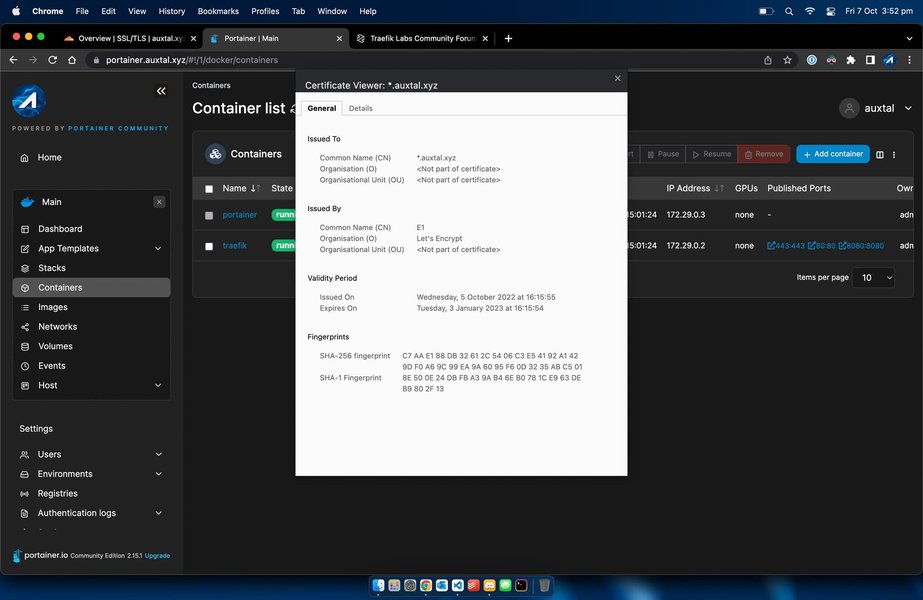
Interface for managing Origin Certificates in the Cloudflare dashboard.
Step 2: Configuring Cloudflare SSL/TLS Settings
With the Origin Certificate generated, you need to adjust your Cloudflare zone's SSL/TLS settings to utilize it correctly.
- Set SSL/TLS Encryption Mode: In your Cloudflare dashboard, under SSL/TLS > Overview, set the encryption mode to Full (Strict).
- Flexible: Encrypts traffic between browser and Cloudflare. Traffic to origin is unencrypted (Not Recommended).
- Full: Encrypts traffic end-to-end, but Cloudflare doesn't validate the origin certificate (Less Secure).
- Full (Strict): Encrypts traffic end-to-end, AND Cloudflare validates the certificate on your origin server (e.g., your Cloudflare Origin Certificate). This is the required mode.
- Enable Always Use HTTPS (Recommended): Under SSL/TLS > Edge Certificates, toggle "Always Use HTTPS" to on. This redirects all HTTP requests to HTTPS at Cloudflare's edge.
- Ensure DNS Records are Proxied: Verify that your DNS records (A, AAAA, or CNAME) pointing to your Traefik instance are set to "Proxied" (orange cloud icon) in the Cloudflare DNS settings. This ensures traffic routes through Cloudflare.

Cloudflare's "Always Use HTTPS" toggle.
Step 3: Configuring Traefik to Use the Origin Certificate
Traefik needs access to the downloaded certificate and key files and must be configured to use them for TLS connections on its secure entrypoint (typically port 443).
Making Certificate Files Accessible to Traefik
For Docker / Docker Compose:
Mount the directory containing your your_origin_ca.pem and your_origin_ca.key files into the Traefik container using a volume mount.
# In your docker-compose.yml
services:
  traefik:
    image: "traefik:v3.1" # Or your preferred Traefik version
    # ... other configurations ...
    volumes:
      - /path/on/host/to/certs:/etc/traefik/certs:ro # Mount certs read-only
      # ... other volumes ...
    # ...
Replace /path/on/host/to/certs with the actual path on your host machine where you stored the certificate and key files. Inside the container, they will be available at /etc/traefik/certs/.
For Kubernetes:
Create a Kubernetes TLS secret from your certificate and key files.
kubectl create secret tls cloudflare-origin-tls \
  --cert=/path/to/your_origin_ca.pem \
  --key=/path/to/your_origin_ca.key \
  --namespace=your-traefik-namespace
You would then reference this secret in Traefik's deployment configuration, typically by mounting the secret as files into the Traefik pod.
Traefik Static Configuration
You can configure Traefik to use the certificate via its static configuration (traefik.yml file or command-line arguments).
Example: traefik.yml (Static Configuration File)
This method defines the certificate directly for an entrypoint.
# In traefik.yml
entryPoints:
  websecure:
    address: ":443"
    http:
      tls:
        certificates:
          - certFile: "/etc/traefik/certs/your_origin_ca.pem"
            keyFile: "/etc/traefik/certs/your_origin_ca.key"
# You might also need to specify other providers, api, logging etc.
# providers:
#   docker:
#     exposedByDefault: false
# api:
#  dashboard: true
Example: Docker Compose with Command-Line Arguments
Alternatively, specify these settings as command-line arguments in your docker-compose.yml:
# In your docker-compose.yml
services:
  traefik:
    image: "traefik:v3.1"
    # ...
    command:
      - "--log.level=INFO"
      - "--api.dashboard=true"
      - "--providers.docker=true"
      - "--providers.docker.exposedbydefault=false"
      - "--entrypoints.web.address=:80"
      # Redirect HTTP to HTTPS (optional, can also be done at Cloudflare)
      - "--entrypoints.web.http.redirections.entrypoint.to=websecure"
      - "--entrypoints.web.http.redirections.entrypoint.scheme=https"
      - "--entrypoints.websecure.address=:443"
      # Specify the origin certificate for the websecure entrypoint
      - "--entrypoints.websecure.http.tls=true" # Ensure TLS is enabled
      - "--entrypoints.websecure.http.tls.certificates[0].certFile=/etc/traefik/certs/your_origin_ca.pem"
      - "--entrypoints.websecure.http.tls.certificates[0].keyFile=/etc/traefik/certs/your_origin_ca.key"
    ports:
      - "80:80"
      - "443:443"
    volumes:
      - /path/on/host/to/certs:/etc/traefik/certs:ro
      - /var/run/docker.sock:/var/run/docker.sock:ro
    # ...
Traefik Dynamic Configuration (Recommended for Flexibility)
For more complex setups or easier management, use Traefik's dynamic configuration. Create a YAML file (e.g., dynamic_conf.yml) and tell Traefik to load it.
First, ensure your static configuration (traefik.yml or command arguments) points to your dynamic configuration file or directory:
# In traefik.yml (static config)
providers:
  file:
    filename: "/etc/traefik/dynamic_conf/certificates.yml"
    watch: true # Traefik will watch for changes
Or via command-line arguments:
# Part of Traefik command in docker-compose.yml
# ...
command:
  # ... other commands
  - "--providers.file.filename=/etc/traefik/dynamic_conf/certificates.yml"
# ...
Then, create the certificates.yml file (or any name you chose) in the location accessible by Traefik (e.g., mounted via volume at /etc/traefik/dynamic_conf/certificates.yml):
# In /etc/traefik/dynamic_conf/certificates.yml (dynamic config)
tls:
  certificates:
    - certFile: "/etc/traefik/certs/your_origin_ca.pem"
      keyFile: "/etc/traefik/certs/your_origin_ca.key"
      # Optional: specify which TLS stores this certificate belongs to
      # stores:
      #  - default

  # To make this the default certificate for all TLS connections if no other is specified by a router:
  stores:
    default:
      defaultCertificate:
        certFile: "/etc/traefik/certs/your_origin_ca.pem"
        keyFile: "/etc/traefik/certs/your_origin_ca.key"
After any configuration changes, restart your Traefik instance for them to take effect (unless using dynamic configuration with file watching enabled, which might pick up changes automatically).
Visualizing the Setup and Strategy
Workflow Mindmap
This mindmap outlines the core steps involved in integrating Cloudflare Origin Certificates with Traefik:
Comparing Certificate Strategies for Origin Security
The following radar chart provides an opinionated comparison of different strategies for securing your origin server when proxied by Cloudflare. "Cloudflare Origin Cert" refers to the method described in this guide. "Let's Encrypt on Origin" assumes Traefik obtains its own LE certificate using a DNS challenge. "Flexible SSL" means no encryption between Cloudflare and your origin (highly discouraged).
Interpretation: Higher scores are generally better for Security, Trust, and lower for Complexity and Cost. This chart visualizes the trade-offs.
Enhancing Security: Authenticated Origin Pulls (mTLS)
For an additional layer of security, Cloudflare offers Authenticated Origin Pulls (AOP). This feature uses mutual TLS (mTLS), where Cloudflare presents a client certificate to your origin server (Traefik), which then verifies that the certificate is trusted. This ensures that requests to your origin genuinely originate from Cloudflare's network.
- Enable AOP in Cloudflare: In the Cloudflare dashboard, navigate to SSL/TLS > Origin Server. Enable "Authenticated Origin Pulls". Cloudflare provides a CA certificate (
cloudflare_origin_ecc.pemorcloudflare_origin_rsa.pem) that you'll need to download. This CA is what signed Cloudflare's client certificates. - Configure Traefik for Client Authentication: Update Traefik's static configuration for the
websecureentrypoint to require and verify client certificates signed by the Cloudflare CA.Place the downloaded Cloudflare CA certificate (e.g.,
cloudflare_origin_ca.pem) in a directory accessible to Traefik, similar to your origin certificate.# In traefik.yml (static config for the entrypoint) entryPoints: websecure: address: ":443" http: tls: # ... your existing origin certificate configuration ... certificates: - certFile: "/etc/traefik/certs/your_origin_ca.pem" keyFile: "/etc/traefik/certs/your_origin_ca.key" # Add client authentication clientAuth: caFiles: - /etc/traefik/certs/cloudflare_origin_ca.pem # Path to Cloudflare's CA cert clientAuthType: "RequireAndVerifyClientCert"Or, if using command-line arguments for Docker Compose:
Make sure to mount the Cloudflare CA certificate file into your Traefik container as well.# Part of Traefik command in docker-compose.yml # ... command: # ... other entrypoint and certificate commands ... - "--entrypoints.websecure.http.tls.clientauth.cafiles=/etc/traefik/certs/cloudflare_origin_ca.pem" - "--entrypoints.websecure.http.tls.clientauth.clientauthtype=RequireAndVerifyClientCert" # ...
With AOP configured, Traefik will only allow connections that present a valid client certificate signed by Cloudflare's CA, significantly reducing the risk of direct attacks on your origin IP.
Key Configuration Summary Table
This table summarizes the essential settings for integrating Cloudflare Origin Certificates with Traefik:
| Feature/Setting | Cloudflare Configuration | Traefik Configuration Snippet (Illustrative) | Purpose |
|---|---|---|---|
| Core Encryption | SSL/TLS Mode: Full (Strict) | entrypoints.websecure.http.tls=true |
Ensures encrypted & verified connection from Cloudflare to Traefik. |
| Origin Certificate Files | Generate & Download: your_origin_ca.pem, your_origin_ca.key |
tls.certificates[0].certFile="/path/to/cert.pem"tls.certificates[0].keyFile="/path/to/key.key" |
The actual certificate and private key used by Traefik. |
| Certificate Storage | N/A | Docker: Volume mount (e.g., /certs:/etc/traefik/certs:ro)Kubernetes: TLS Secret mount |
Makes certificate files accessible to Traefik. |
| Hostname Coverage | Specify hostnames in Origin Cert (e.g., example.com, *.example.com) |
Router rules match hostnames (e.g., Host() |
Certificate must cover the domains Traefik serves via Cloudflare. |
| (Optional) mTLS Security | Enable Authenticated Origin Pulls, Download Cloudflare CA cert | entrypoints.websecure.http.tls.clientAuth.caFiles=/path/to/cf_ca.pemclientAuthType="RequireAndVerifyClientCert" |
Traefik verifies client cert from Cloudflare, blocking non-Cloudflare traffic to origin. |
| (Recommended) HTTPS Redirection | Enable "Always Use HTTPS" | (Optional) HTTP to HTTPS redirection middleware in Traefik if not fully handled by Cloudflare | Enforces HTTPS for all user traffic. |
Visual Guide: Setting up Full End-to-End Encryption
The following video provides a helpful overview of setting up SSL with Cloudflare, including concepts relevant to origin certificates and ensuring full encryption. While it may cover broader topics, the principles of "Full (Strict)" mode and origin server security are key takeaways applicable here.
Video discussing free SSL with Cloudflare and end-to-end encryption concepts.
Common Pitfalls and Troubleshooting
- Incorrect File Paths: Double-check that the paths to your
.pemand.keyfiles in Traefik's configuration match their location within the container. - Permissions Issues: Ensure the Traefik process has read access to the certificate files. Mounting read-only (
:ro) is good practice. - Cloudflare SSL/TLS Mode: If not set to "Full (Strict)", Cloudflare might not validate your Origin Certificate, or worse, connect via HTTP. This can lead to errors like 525 (SSL Handshake Failed) or 526 (Invalid SSL Certificate).
- DNS Not Proxied: If your DNS records are "DNS Only" (grey cloud), traffic bypasses Cloudflare, and the Origin Certificate will not be used for client connections (browsers will show errors).
- Conflicting Let's Encrypt Config: If Traefik is also configured with a Let's Encrypt resolver for the same domain, ensure it doesn't interfere. The Origin Certificate is for the Cloudflare-to-Traefik link.
- Browser Warnings on Direct Origin Access: If you try to access your origin server's IP address directly via HTTPS, your browser will show a certificate warning. This is expected, as Cloudflare Origin Certificates are not publicly trusted.
- Check Traefik Logs: Traefik's logs are invaluable for diagnosing issues. Look for errors related to TLS, certificate loading, or entrypoint configuration. Increase log verbosity if needed (e.g.,
--log.level=DEBUG).
Frequently Asked Questions (FAQ)
Can I use Cloudflare Origin Certificates for direct browser access to my server?
How long are Cloudflare Origin Certificates valid?
Do I still need Let's Encrypt with Traefik if I use Cloudflare Origin Certificates?
What is the difference between "Full" and "Full (Strict)" SSL/TLS mode in Cloudflare?
What if Traefik is not picking up the certificate?
Conclusion
Using Cloudflare Origin Certificates with Traefik provides a powerful and secure method for encrypting traffic between Cloudflare's edge and your origin server. By following the steps outlined—generating the certificate, configuring Cloudflare to "Full (Strict)", and correctly setting up Traefik—you can significantly enhance your application's security posture. Adding Authenticated Origin Pulls further hardens your origin against direct unauthorized access. This setup offers a balance of robust security and simplified certificate management for the critical link to your infrastructure.
Recommended Further Exploration
- How to configure advanced Traefik middleware for custom routing and security headers?
- Explore Traefik's dynamic configuration options for multi-service environments.
- Implementing advanced rate limiting and web application firewall rules with Cloudflare and Traefik.
- Best practices for automating Cloudflare Origin Certificate renewal and secure deployment.
References
Last updated May 21, 2025