
Comprehensive Guide to Using and Tags with Highlight.js
Tags with Highlight.js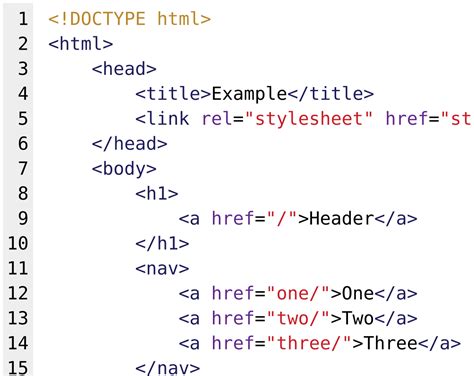
In the realm of web development, presenting code snippets in a clear and visually appealing manner is paramount. Highlight.js has emerged as a leading JavaScript library that facilitates syntax highlighting, enhancing the readability of code on webpages. Central to effectively utilizing Highlight.js are the proper structuring and formatting of HTML elements, specifically the
and tags. This guide delves into the intricacies of why both and tags are essential, and how to format them together to achieve optimal results.
Understanding the Roles of and Tags
Tags1. The Tag: Preserving Code Structure
The
tag, short for "preformatted text," plays a crucial role in maintaining the integrity of code snippets. Its primary functions include:
- Whitespace Preservation: Unlike standard HTML elements that collapse multiple spaces and ignore line breaks, the
tag retains all whitespace, including spaces, tabs, and line breaks. This ensures that the code's indentation and formatting remain intact, which is especially vital for languages where indentation is syntactically significant.
- Monospaced Font Rendering: By default, the
tag renders text in a monospaced font (e.g., Courier, Monaco), which is standard for displaying code, enhancing readability and aesthetic appeal.
- Structural Integrity: The
tag maintains the original structure of the code, ensuring that multi-line code blocks are displayed correctly.
Example:
function example() {
    console.log("Hello World!");
}
2. The Tag: Semantic Identification of Code
The tag serves to semantically identify text as a fragment of computer code. Its primary purposes include:
- Semantic Meaning: By wrapping code snippets within the
tag, developers indicate that the enclosed text is code. This semantic clarity aids search engines and assistive technologies in understanding the content, enhancing SEO and accessibility. - Styling Target: The
tag provides a specific target for CSS and JavaScript libraries like Highlight.js to apply syntax-specific styling, ensuring that different elements of the code are appropriately highlighted. - Inline Code Representation: While the
tag is ideal for block-level code snippets, the
tag is perfect for inline code snippets within paragraphs or sentences.
Example:
To log a message in JavaScript, use the console.log("Hello, World!"); statement.
Why Use Both and Tags Together?
Tags Together?1. Combining Preserved Formatting with Semantic Clarity
Using
and tags in tandem marries the strengths of both elements:
- Preserved Formatting: The
tag ensures that the code's formatting—such as indentation, line breaks, and spacing—remains unchanged, providing a clear and organized display.
- Semantic Identification: The
tag clearly marks the content as code, facilitating better understanding by browsers, search engines, and assistive technologies.
2. Enhancing Syntax Highlighting with Highlight.js
Highlight.js is designed to target the tag within a
block to apply syntax highlighting effectively. This structure allows Highlight.js to parse the code correctly and apply language-specific styles, ensuring that keywords, variables, and other syntax elements are distinctly highlighted.3. Accessibility and SEO Benefits
By semantically marking code with the tag inside a
block, developers enhance the accessibility of their webpages. Screen readers and other assistive technologies can better interpret and navigate the content, providing a more inclusive experience. Additionally, search engines can index code snippets more effectively, potentially improving SEO.How to Properly Format and Tags Together
Tags Together1. Basic Structure
The foundational structure for integrating Highlight.js with
and tags is straightforward. Here's the standard format:
<pre>
  <code class="language-xxx">
    // Your code here
  </code>
</pre>
Replace language-xxx with the appropriate language identifier (e.g., language-js for JavaScript, language-python for Python).
2. Including Highlight.js Library and CSS
To enable syntax highlighting, include the Highlight.js library and a preferred theme in your HTML document. This can be done using CDN links:
<!-- Highlight.js CSS -->
<link rel="stylesheet" href="https://cdnjs.cloudflare.com/ajax/libs/highlight.js/11.9.0/styles/default.min.css">

<!-- Highlight.js Library -->
<script src="https://cdnjs.cloudflare.com/ajax/libs/highlight.js/11.9.0/highlight.min.js"></script>

<!-- Initialize Highlight.js -->
<script>
  hljs.highlightAll();
</script>
This setup ensures that Highlight.js is correctly loaded and initialized to process all <pre><code> blocks on the page.
3. Structuring Your Code Blocks
When adding code snippets to your HTML, follow this structure:
<pre><code class="language-python">
def greet(name):
    print(f"Hello, {name}!")
</code></pre>
Here's a breakdown of the components:
<pre>Tag: Encapsulates the entire code block, preserving its formatting.<code>Tag: Nested within<pre>, it semantically identifies the content as code.- Language Class: The class attribute (e.g.,
language-python) specifies the programming language, enabling Highlight.js to apply appropriate syntax highlighting rules.
4. Advanced Initialization Techniques
While the basic initialization with hljs.highlightAll(); suffices for most use cases, advanced developers might seek more granular control over the highlighting process. For instance, manually invoking the highlight function on specific code blocks can be achieved as follows:
document.addEventListener('DOMContentLoaded', (event) => {
  document.querySelectorAll('pre code').forEach((block) => {
    hljs.highlightBlock(block);
  });
});
This method ensures that each code block is individually processed, allowing for conditional or dynamic highlighting based on specific criteria.
5. Customizing CSS for Enhanced Appearance
While Highlight.js provides default styling, developers often customize CSS to better integrate code snippets with their website's design aesthetic. Here's an example CSS setup:
pre, code {
  font-family: monospace;
  line-height: 1.6;
  font-size: 16px;
}

pre {
  padding: 15px;
  margin: 20px 0;
  background-color: #f5f5f5;
  border-radius: 5px;
  overflow: auto;
}
Key Points:
-
Monospaced Font: Ensures that characters align correctly, maintaining code readability.
-
Line Height and Font Size: Adjusts the spacing and size for optimal readability.
-
Pre Tag Styling: Adds padding, margin, background color, and border-radius to distinguish code blocks from regular content.
-
Overflow Handling: Ensures that long lines of code don't break the layout by enabling horizontal scrolling.
Best Practices and Common Pitfalls
1. Ensuring Proper Nesting of Tags
One common mistake is improper nesting of
and tags. Always ensure that the tag is nested within the tag, not the other way around. Incorrect nesting can lead to unexpected formatting issues and hinder the effectiveness of syntax highlighting.
2. Specifying the Correct Language Class
The language class (e.g., language-js, language-python) is critical for accurate syntax highlighting. Ensure that the class corresponds to the actual programming language of the code snippet. Mismatched classes can result in incorrect or incomplete highlighting.
3. Avoiding Empty Code Blocks
Empty
or tags can cause unexpected rendering issues. Always populate these tags with the appropriate code content or remove them if not needed.
4. Handling Long Lines and Overflow
Long lines of code can break the layout if not handled correctly. Utilize CSS properties like overflow: auto; on the
tag to enable horizontal scrolling, preventing code from spilling out of its container.
5. Consistent Indentation
Consistent indentation within code snippets enhances readability. Use either spaces or tabs uniformly across your code blocks to avoid mixed indentation levels.
Advanced Customizations and Enhancements
1. Line Numbers and Highlighting Specific Lines
For enhanced readability, especially in tutorials or documentation, displaying line numbers and highlighting specific lines can be beneficial. This can be achieved by integrating additional plugins or custom scripts alongside Highlight.js.
Example: Adding Line Numbers
While Highlight.js doesn't natively support line numbers, developers can use CSS or external libraries to overlay numbers on code blocks. Here's a simplified CSS approach:
pre {
  counter-reset: line;
}

pre code {
  position: relative;
  padding-left: 3em;
}

pre code::before {
  counter-increment: line;
  content: counter(line);
  position: absolute;
  left: 0;
  width: 2.5em;
  text-align: right;
  padding-right: 0.5em;
  border-right: 1px solid #ddd;
  color: #999;
}
This CSS snippet numbers each line of the code block by incrementing a counter and positioning the numbers accordingly.
2. Custom Themes and Styles
Highlight.js offers a variety of themes to change the appearance of code snippets. Developers can choose from pre-built themes or create custom ones by modifying existing CSS styles. This ensures that code snippets seamlessly integrate with the overall design of the website.
To switch themes, simply change the CDN link to the desired Highlight.js theme:
<!-- Example of a different Highlight.js theme -->
<link rel="stylesheet" href="https://cdnjs.cloudflare.com/ajax/libs/highlight.js/11.9.0/styles/dark.min.css">
3. Responsive Design Considerations
Ensuring that code snippets are responsive and render well across various devices is essential. Utilizing CSS media queries and flexible layouts can help maintain the readability and accessibility of code blocks on different screen sizes.
Example:
@media (max-width: 600px) {
  pre {
    font-size: 14px;
    padding: 10px;
  }
}
Conclusion
Integrating
and tags effectively is foundational to leveraging the full capabilities of Highlight.js for syntax highlighting. The tag ensures that the structural integrity and formatting of code snippets are preserved, while the tag provides semantic meaning and targets for styling and highlighting. By adhering to best practices in structuring, initializing, and customizing these tags, developers can present code in a manner that is both aesthetically pleasing and functionally robust. This not only enhances the user experience but also contributes to better accessibility and SEO performance for web projects.
For further reading and advanced techniques, refer to the official Highlight.js documentation and community discussions:
Last updated January 9, 2025