
Creating a Comprehensive 30-Minute Video Tutorial on CSS Grid Layout
From Beginner Basics to Expert Techniques
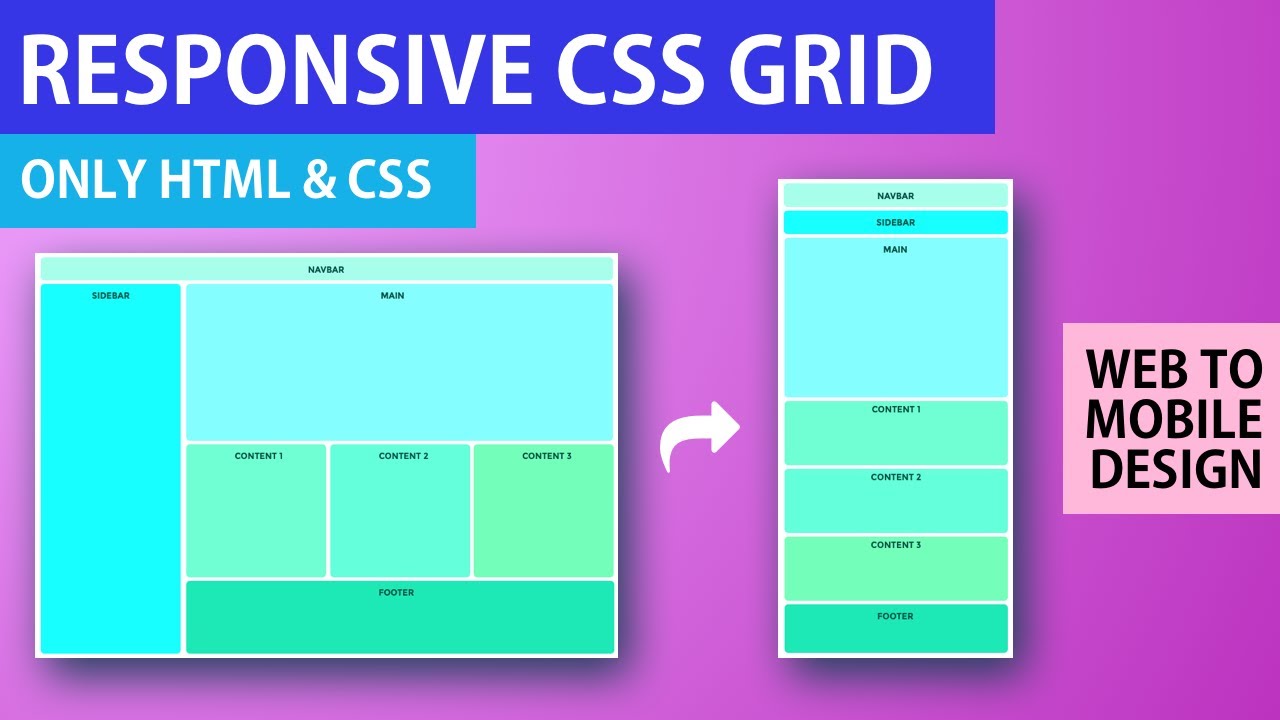
Key Takeaways
- Structured Learning Path: A clear progression from CSS Grid fundamentals to advanced layout techniques ensures learners build a solid foundation before tackling complex concepts.
- Engaging Visuals and Practical Examples: Incorporating live coding demonstrations, animations, and real-world applications enhances understanding and retention.
- Comprehensive Resource Integration: Providing additional resources and best practices equips learners with the tools needed for continuous improvement beyond the tutorial.
Introduction
Setting the Stage for Mastery
Welcome to this comprehensive guide on creating a 30-minute video tutorial for CSS Grid Layout, designed to take viewers from beginner to expert level. CSS Grid is a powerful two-dimensional layout system that allows developers to create complex, responsive web layouts with ease. This tutorial will equip you with all the necessary planning, scripting, visual elements, and code examples to deliver an engaging and informative learning experience.
Whether you're a content creator aiming to enhance your web development tutorials or an educator seeking to provide an in-depth understanding of modern CSS techniques, this guide will help you structure your content effectively. Let's delve into the detailed planning required to create a successful CSS Grid tutorial.
Pre-Production Planning
Laying the Foundation
1. Define Your Objectives and Audience
Understanding your target audience is crucial. This tutorial is aimed at individuals with basic HTML and CSS knowledge who wish to advance their skills in CSS Grid Layout. Clearly define the learning objectives:
- Introduce the fundamentals of CSS Grid.
- Demonstrate how to create basic and complex grid layouts.
- Explore advanced CSS Grid features and best practices.
- Provide practical examples and real-world applications.
2. Equipment and Software
Ensure you have the necessary tools to produce high-quality content:
- Screen Recording Software: OBS Studio or Camtasia for capturing live coding sessions.
- Code Editor: Visual Studio Code with a dark theme for better visibility.
- Microphone: A high-quality microphone to ensure clear audio narration.
- Video Editing Software: Adobe Premiere Pro or Final Cut Pro for post-production editing.
3. Structuring the Tutorial
Organize your content into a logical flow that facilitates progressive learning:
- Introduction: Overview of CSS Grid and its significance in modern web design.
- Basics: Core concepts, terminology, and simple grid examples.
- Intermediate: Responsive design techniques, alignment, and nesting grids.
- Advanced: Complex layouts, grid areas, and real-world use cases.
- Conclusion: Recap of key points and additional resources for continued learning.
Scenes and Scripts
Crafting Engaging Content
1. Introduction (2 minutes)
Scene: Animated Intro with CSS Grid Elements
Script:
"Welcome to this comprehensive tutorial on CSS Grid Layout! In the next 30 minutes, we'll embark on a journey from the basics of CSS Grid to advanced layout techniques. CSS Grid is a game-changer in web design, allowing you to create responsive and flexible layouts with ease. Whether you're new to CSS or looking to enhance your skill set, this tutorial has something for you. Let's get started!"
Visual Elements:
- Opening animation featuring a grid transforming into different layouts.
- Title card: "Mastering CSS Grid Layout - From Beginner to Expert."
2. What is CSS Grid? (3 minutes)
Scene: Explaining CSS Grid Fundamentals
Script:
"CSS Grid is a two-dimensional layout system, meaning it can handle both rows and columns, unlike Flexbox which is primarily one-dimensional. This makes CSS Grid incredibly powerful for creating complex and responsive layouts. Let's break down the key components: grid containers, grid items, rows, columns, and gaps."
Visual Elements:
- Diagrams illustrating the difference between Flexbox and CSS Grid.
- Animated demonstrations showing how CSS Grid controls both dimensions.
3. Getting Started with CSS Grid (5 minutes)
Scene: Creating a Basic Grid Layout
Script:
"Let's start by setting up a basic grid layout. We'll define a grid container and specify the number of columns and rows. Here's a simple example."
Code Example:
.container {
  display: grid;
  grid-template-columns: 1fr 1fr 1fr;
  grid-template-rows: 100px 200px;
  gap: 10px;
}
Explanation:
display: grid;activates the grid layout.grid-template-columnsdefines three equal columns.grid-template-rowssets two rows with heights of 100px and 200px.gapadds spacing between grid items.
Visual Elements:
- Live coding in a code editor with real-time browser preview.
- Diagram overlay highlighting rows, columns, and gaps.
4. Positioning Grid Items (6 minutes)
Scene: Spanning and Placing Grid Items
Script:
"Once you've set up your grid container, the next step is positioning your grid items. You can make items span across multiple rows or columns using grid-column and grid-row properties."
Code Example:
.item {
  grid-column: 1 / 3;
  grid-row: 2 / 4;
}
Explanation:
grid-column: 1 / 3;makes the item span from the first to the third column.grid-row: 2 / 4;extends the item from the second to the fourth row.
Visual Elements:
- Animations showing items moving and spanning across the grid.
- Highlighted grid lines indicating the start and end points.
5. Responsive Design with CSS Grid (5 minutes)
Scene: Creating Flexible and Adaptive Layouts
Script:
"One of the strengths of CSS Grid is its ability to create responsive designs effortlessly. Using functions like auto-fit, auto-fill, and minmax(), you can build layouts that adapt seamlessly to different screen sizes."
Code Example:
.responsive-grid {
  display: grid;
  grid-template-columns: repeat(auto-fit, minmax(200px, 1fr));
  gap: 20px;
}
Explanation:
repeat(auto-fit, minmax(200px, 1fr))automatically adjusts the number of columns based on the available space.minmax(200px, 1fr)ensures each column is at least 200px wide but can grow to fill the available space.
Visual Elements:
- Live resizing of the browser window to demonstrate responsiveness.
- Side-by-side comparisons of fixed vs. responsive grids.
6. Advanced Grid Techniques (8 minutes)
Scene: Building Complex Layouts and Best Practices
Script:
"Now, let's move on to more advanced techniques. CSS Grid offers powerful features like grid areas, named lines, and implicit grids that allow for highly complex and maintainable layouts."
Code Example:
.advanced-container {
  display: grid;
  grid-template-areas:
    "header header"
    "sidebar main"
    "footer footer";
  grid-template-columns: 1fr 3fr;
  gap: 20px;
}

.header {
  grid-area: header;
}

.sidebar {
  grid-area: sidebar;
}

.main {
  grid-area: main;
}

.footer {
  grid-area: footer;
}
Explanation:
grid-template-areasdefines named grid areas for semantic layout.- Each grid item is assigned to a specific area using the
grid-areaproperty.
Best Practices:
- Use meaningful names for grid areas to enhance readability.
- Combine CSS Grid with Flexbox for more granular control within grid items.
- Leverage browser developer tools for debugging and visualizing grid layouts.
Real-World Use Cases:
- Creating dashboard interfaces with multiple sections.
- Designing magazine-style layouts with dynamic content areas.
- Building responsive navigation menus and footers.
Visual Elements:
- Live demonstrations of building a dashboard layout.
- Before-and-after comparisons showcasing the impact of advanced grid techniques.
7. Conclusion (2 minutes)
Scene: Recap and Next Steps
Script:
"Congratulations! You've now mastered the essentials of CSS Grid Layout, from basic grid structures to advanced layout techniques. With these skills, you can create flexible, responsive, and visually appealing web layouts with ease. For further learning, check out the resources linked below and start experimenting with your projects. Thank you for watching, and happy coding!"
Visual Elements:
- Recap slide listing key takeaways.
- Links to additional resources such as MDN Web Docs, CSS-Tricks, and interactive CSS Grid tutorials.
- Encouraging call-to-action: "Subscribe for more tutorials and hit the like button if you found this helpful!"
Visual and Production Elements
Enhancing Engagement and Clarity
1. Visual Elements
High-quality visuals are essential for maintaining viewer engagement and facilitating understanding. Incorporate the following elements into your tutorial:
- Animations and Diagrams: Use tools like Adobe After Effects or Canva to create animations that illustrate grid concepts and transitions.
- Live Coding Sessions: Display your code editor alongside the browser to show real-time changes and results.
- Grid Overlays: Utilize browser developer tools or custom overlays to highlight grid lines, areas, and gaps.
- Consistent Color Scheme: Maintain a cohesive color palette to ensure visual harmony and reduce cognitive load.
- Zoom and Pan Effects: Enhance focus on specific code snippets or grid areas by zooming in and panning across the screen.
2. Audio and Narration
Clear and articulate narration is crucial for effective communication. Follow these guidelines to optimize audio quality:
- High-Quality Microphone: Use a condenser microphone to capture crisp and clear audio.
- Quiet Recording Environment: Minimize background noise and echo by recording in a soundproofed space.
- Consistent Pacing: Maintain a steady speaking rate, allowing viewers time to absorb information without feeling rushed.
- Pronunciation and Clarity: Clearly articulate technical terms and avoid mumbling to ensure comprehensibility.
3. Editing and Post-Production
Effective editing enhances the tutorial's professionalism and ensures a smooth learning experience. Implement the following post-production techniques:
- Cutting and Trimming: Remove unnecessary pauses, mistakes, or redundant content to keep the tutorial concise and focused.
- Transitions: Use seamless transitions between sections and scenes to maintain viewer engagement.
- Lower-Third Graphics: Display key concepts, tips, and definitions using lower-third overlays for easy reference.
- Captions and Subtitles: Provide captions to cater to different learning preferences and improve accessibility.
- Highlighting Code: Use syntax highlighting and cursor indicators to emphasize important code segments.
4. Interactive Elements
Engage your audience by incorporating interactive elements that encourage active participation:
- Quizzes and Challenges: Include brief quizzes or coding challenges to reinforce learning and assess comprehension.
- Downloadable Resources: Provide downloadable code snippets, project files, or cheat sheets for learners to practice offline.
- Call-to-Action: Encourage viewers to subscribe, like, and comment to foster a community and receive feedback.
Comprehensive Code Examples
Practical Applications to Cement Understanding
1. Basic Grid Layout
Code Example:
<div class="container">
  <div class="item">1</div>
  <div class="item">2</div>
  <div class="item">3</div>
</div>

<style>
.container {
  display: grid;
  grid-template-columns: 1fr 1fr 1fr;
  grid-template-rows: 100px 200px;
  gap: 10px;
}
.item {
  background-color: #388278;
  color: white;
  display: flex;
  align-items: center;
  justify-content: center;
  font-size: 1.5em;
}
</style>
Explanation:
- The container is defined as a grid with three equal columns and two rows of specified heights.
- A gap of 10px is set between grid items to provide spacing.
- Each grid item is styled for visibility and alignment.
2. Responsive Grid with Auto-Fit and Minmax
Code Example:
.responsive-grid {
  display: grid;
  grid-template-columns: repeat(auto-fit, minmax(250px, 1fr));
  gap: 20px;
}
Explanation:
auto-fitadjusts the number of columns based on the container's width, ensuring responsiveness.minmax(250px, 1fr)sets a minimum column width of 250px and allows it to grow to fill available space.
3. Advanced Grid Areas
Code Example:
.advanced-container {
  display: grid;
  grid-template-areas:
    "header header"
    "sidebar main"
    "footer footer";
  grid-template-columns: 1fr 3fr;
  gap: 20px;
}

.header {
  grid-area: header;
}

.sidebar {
  grid-area: sidebar;
}

.main {
  grid-area: main;
}

.footer {
  grid-area: footer;
}
HTML Structure:
<div class="advanced-container">
  <div class="header">Header</div>
  <div class="sidebar">Sidebar</div>
  <div class="main">Main Content</div>
  <div class="footer">Footer</div>
</div>
Explanation:
- Named grid areas allow for semantic and easily manageable layouts.
- The grid is divided into a header, sidebar, main content, and footer with specified column ratios.
Recap and Conclusion
Summarizing the Journey
In this tutorial, we've meticulously planned and structured a comprehensive 30-minute video on CSS Grid Layout, covering everything from the basics to advanced techniques. Here's a quick recap of what we've covered:
-
Introduction: Set the stage by explaining the importance of CSS Grid in modern web design.
-
Fundamentals: Covered core concepts, terminology, and created basic grid layouts.
-
Intermediate Topics: Explored responsive design, alignment, and nesting grids.
-
Advanced Techniques: Delved into grid areas, complex layouts, and best practices.
-
Conclusion: Summarized key points and provided resources for further learning.
By following this structured approach, you can create an engaging and informative tutorial that effectively imparts valuable CSS Grid skills to your audience. Remember to incorporate high-quality visuals, clear narration, and practical examples to enhance the learning experience. Happy teaching!
References
Last updated January 24, 2025