
Unlock Seamless Collaboration: Your Comprehensive Guide to Mastering Git
From foundational concepts to practical workflows, understand the version control system that powers modern development.
Essential Insights
- Distributed Power: Git's core strength lies in its distributed nature, where every developer has a full repository copy, enabling offline work and robust backups.
- Branching Flexibility: Effortlessly create isolated environments (branches) for new features or fixes without impacting the main project, streamlining parallel development.
- Snapshot Efficiency: Instead of tracking file differences, Git records snapshots of the entire project state at each commit, making history traversal and merging incredibly fast.
Understanding Git's Architecture: The 'Why' Behind the Workflow
Git isn't just a tool; it's a philosophy built on specific design choices that prioritize speed, data integrity, and support for non-linear, distributed workflows. Originally developed by Linus Torvalds in 2005 to manage the Linux kernel development, Git has become the industry standard for version control.
Why Git? A Distributed Approach
Unlike older Centralized Version Control Systems (CVCS) where a single server holds the project history, Git employs a Distributed Version Control System (DVCS) model. This means every developer's machine contains a full clone of the entire repository, including its complete history.
Key Advantages of the Distributed Model:
- Offline Capability: You can commit, branch, merge, and view history entirely offline. Network access is only needed when syncing with remote repositories.
- Speed: Most operations (like committing, branching, merging) are performed locally, making them significantly faster than operations requiring server communication.
- Redundancy & Resilience: If a central server fails, any collaborator's local repository can restore the project. There's no single point of failure.
- Collaboration Flexibility: Different workflows are possible because developers can share changes directly or through intermediary repositories.
The Power of Snapshots and Content-Addressable Storage
Instead of storing changes as file differences (deltas) like some older systems, Git primarily thinks in terms of snapshots. When you commit, Git essentially takes a picture of what all your project files look like at that moment and stores a reference to that snapshot.
Internally, Git stores its data in a content-addressable filesystem. This means data (like file contents or directory structures) is stored as objects, and each object is identified by a unique cryptographic hash (typically SHA-1) of its content. If a file hasn't changed between versions, Git doesn't store it again; it just includes a link to the previous identical file already stored. This approach ensures:
- Data Integrity: The SHA-1 hash acts as a checksum. If a file or commit object is corrupted, its hash will change, and Git will detect it.
- Efficiency: Unchanged files are not duplicated, saving space. Retrieving versions is fast because Git can directly access the required snapshot objects via their hashes.
The Backbone: Directed Acyclic Graph (DAG)
Git's history is not a simple linear progression. It's represented as a Directed Acyclic Graph (DAG). Each commit object contains:
- A pointer (hash) to the snapshot of the project content (a 'tree' object).
- Metadata (author, committer, date, commit message).
- Pointers (hashes) to one or more parent commits. The initial commit has no parents, a regular commit has one parent, and a merge commit has two or more parents.
This graph structure is fundamental to how Git manages history, branching, and merging. It allows Git to efficiently track the evolution of the project across different lines of development.
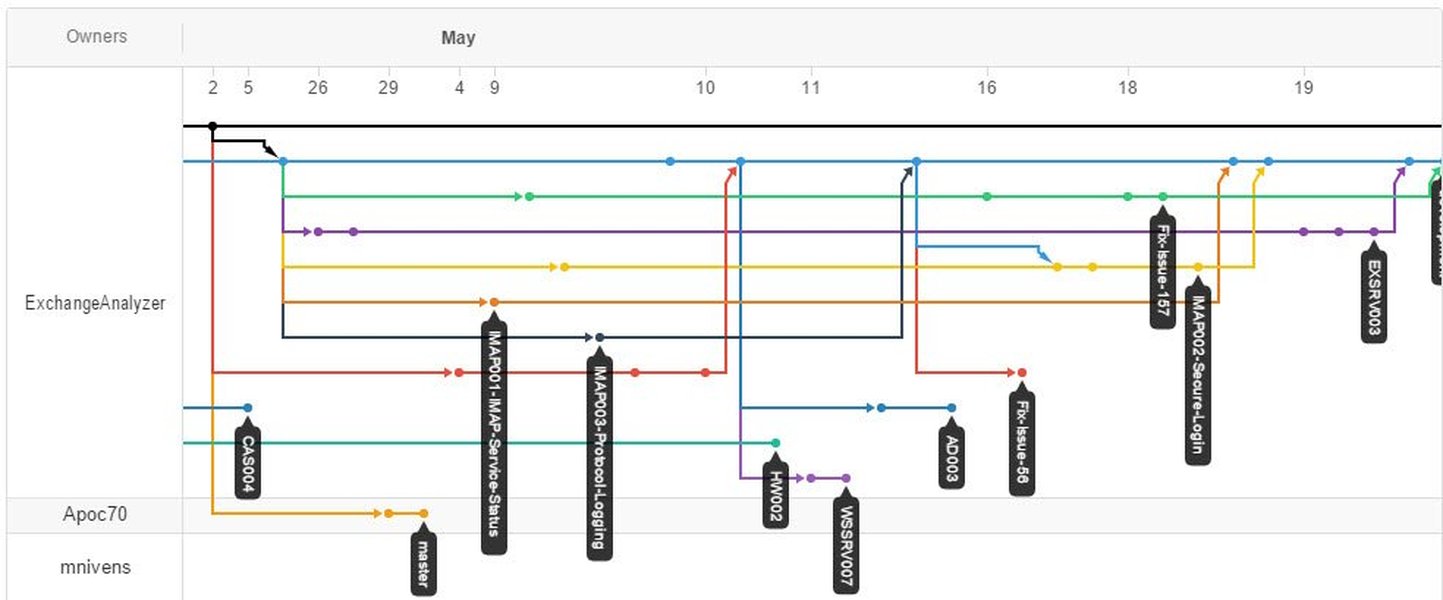
A visual representation of a Git workflow involving branching and merging.
Efficient Branching and Merging
Branching in Git is incredibly lightweight. A branch is simply a movable pointer to a specific commit. Creating a new branch doesn't involve copying the entire project directory; it just creates a new pointer. This makes creating, switching between, and deleting branches extremely fast and encourages their frequent use for:
- Developing new features in isolation.
- Fixing bugs without disrupting the main development line.
- Experimenting with new ideas.
Merging involves combining the changes from different branches. Git uses the underlying DAG structure to determine the common ancestor of the branches being merged and integrates the changes. While Git often handles merges automatically, it provides tools to help users resolve conflicts when changes overlap.
Core Concepts Every Git User Needs
To use Git effectively, you need to understand its fundamental building blocks and terminology.
The Repository (Repo)
The repository is the heart of your project in Git. It's a directory containing all your project files and, crucially, a hidden subdirectory named .git. This .git folder stores all the history, metadata, and object database for your project. Repositories can be:
- Local: Resides on your own computer. Created using
git initorgit clone. - Remote: Hosted on a server (e.g., on platforms like GitHub, GitLab, Bitbucket). Used for collaboration and backup.
The Commit: A Project Snapshot
A commit represents a specific point in your project's history – a saved state or snapshot. Each commit has a unique SHA-1 hash identifier, stores metadata (author, timestamp, message), and points to its parent commit(s), forming the project history chain. Making meaningful commits with clear messages (using git commit -m "Your message") is crucial for understanding the project's evolution.
The Staging Area (Index)
This is a unique feature of Git. The staging area (also called the "index") acts as an intermediate buffer between your working directory (the files you actively modify) and your commit history. Before you commit changes, you first add them to the staging area using the git add command. This allows you to:
- Group related changes into a single commit, even if made at different times.
- Commit only a subset of the modifications in your working directory.
- Review changes carefully before permanently recording them in the history.
git status is your best friend for seeing what's in your working directory, what's staged, and what's not tracked by Git.
Branches: Parallel Universes
A branch is essentially an independent line of development. Think of it as a movable pointer to a commit. When you create a branch, you create a new pointer, allowing you to diverge from the main line of work (often called main or historically, master) to develop a feature or fix a bug without affecting the stable codebase. The special pointer HEAD usually points to the branch you are currently working on (i.e., the currently checked-out commit).
Merging: Bringing Worlds Together
Merging is the action of integrating changes from one branch into another. For example, after completing work on a feature branch, you typically merge it back into the main branch. Git attempts to automatically combine the histories. If Git detects that conflicting changes were made to the same part of the same file on the different branches being merged, it flags a merge conflict, which you must resolve manually before completing the merge.
Remotes: Connecting Repositories
A remote refers to a version of your repository hosted somewhere else, typically on a server. Remotes enable collaboration with others and provide offsite backups. Common commands for interacting with remotes include:
git clone [url]: Creates a local copy of a remote repository.git remote add [name] [url]: Links your local repository to a remote one (common name isorigin).git fetch [remote-name]: Downloads history and objects from the remote repository but doesn't integrate them into your local working branch.git pull [remote-name] [branch-name]: Fetches changes from the remote and immediately tries to merge them into your current local branch (effectivelygit fetch+git merge).git push [remote-name] [branch-name]: Uploads your local commits to the specified remote branch.
Visualizing Git Concepts
This mind map illustrates the relationships between key Git concepts:
A Realistic Git Workflow: Step-by-Step
Let's walk through a common scenario involving creating a project, developing a feature on a branch, and integrating it back.
Scenario Setup
Imagine you're starting a new web project called my-website.
Step 1: Initialization and First Commit
First, create the project directory and initialize Git inside it:
mkdir my-website
cd my-website
git init
Now, create an initial file, add it to the staging area, and commit it:
echo "# My Awesome Website" > README.md
git add README.md
git commit -m "Initial commit: Add README file"
You now have a local repository with one commit on the default branch (likely named main).
Step 2: Feature Development on a Branch
You need to add a navigation bar. It's best practice to do this on a separate branch:
git checkout -b feature/add-navbarThis command creates a new branch named feature/add-navbar and switches to it. Now, create the navigation files and make some changes:
touch index.html styles.css
# (Edit index.html and styles.css to add navbar code)
Stage and commit the changes for the new feature:
git add index.html styles.css
git commit -m "Add basic navigation bar structure and styles"
You can continue making more commits on this branch as you refine the feature.
Step 3: Collaborating with Remotes (Optional, but Common)
If working with a team or wanting a backup, you'd typically link your local repo to a remote one (e.g., on GitHub). Assume you've created an empty repository on GitHub.
# Add the remote repository (replace URL with your actual repo URL)
git remote add origin https://github.com/yourusername/my-website.git

# Push your main branch to the remote
git push -u origin main

# Push your feature branch to share it or back it up
git push origin feature/add-navbar
The -u flag sets the upstream tracking reference for the main branch on the first push.
Step 4: Integrating the Feature
Once the navigation bar feature is complete and tested on its branch, you need to merge it into the main codebase.
First, switch back to the main branch:
git checkout mainIt's a good idea to ensure your local main branch is up-to-date with the remote, especially if collaborating:
git pull origin mainNow, merge the feature branch into main:
git merge feature/add-navbarIf there are no conflicts, Git will create a merge commit. If conflicts occur, Git will pause the merge and mark the conflicting files. You'll need to edit these files to resolve the conflicts, then stage the resolved files (git add [conflicted-file]), and finally commit the merge:
# (After resolving conflicts in editor)
git add [conflicted-file-1] [conflicted-file-2]
git commit -m "Merge feature/add-navbar into main, resolving conflicts"
Step 5: Pushing Final Changes
After successfully merging the feature locally, push the updated main branch to the remote repository:
git push origin mainNow the main project includes the new navigation bar.
Step 6: Tidying Up
Once the feature branch has been merged and is no longer needed, you can delete it locally and remotely:
# Delete the local branch
git branch -d feature/add-navbar

# Delete the remote branch (if pushed earlier)
git push origin --delete feature/add-navbar
This keeps your repository clean.
Evaluating Git's Workflow Aspects
Git excels in several areas crucial for development workflows, though some aspects have a steeper learning curve. This chart provides a relative comparison of common workflow characteristics:
This chart highlights Git's strengths in branching, collaboration, history tracking, offline work, and local performance. Merging is generally straightforward, but resolving conflicts can be challenging for beginners.
Common Git Commands Reference
Here's a table summarizing some of the most frequently used Git commands:
| Command | Purpose |
|---|---|
git init |
Initialize a new, empty Git repository in the current directory. |
git clone <url> |
Create a local copy of a remote repository. |
git status |
Show the status of the working directory and staging area. |
git add <file> or git add . |
Add file changes to the staging area for the next commit. |
git commit -m "message" |
Record staged changes to the repository history with a descriptive message. |
git log |
Display the commit history. (Use --oneline for a compact view). |
git branch |
List, create, or delete branches. |
git checkout <branch> or git switch <branch> |
Switch to a different branch. |
git checkout -b <new-branch> or git switch -c <new-branch> |
Create a new branch and switch to it immediately. |
git merge <branch> |
Combine changes from the specified branch into the current branch. |
git diff |
Show changes between commits, commit and working tree, etc. |
git remote add <name> <url> |
Connect the local repository to a remote repository. |
git fetch <remote> |
Download history and objects from a remote repository. |
git pull <remote> <branch> |
Fetch from and integrate with another repository or a local branch (fetch + merge). |
git push <remote> <branch> |
Upload local repository content to a remote repository. |
Visual Learning: Git Explained
For visual learners, this video provides a great introduction to Git and GitHub fundamentals, covering many of the concepts discussed here in a practical, step-by-step format suitable for beginners.
The video walks through setting up Git, basic commands, working with GitHub, branching, and merging, offering a dynamic complement to this text-based tutorial.
Frequently Asked Questions (FAQ)
What's the difference between git pull and git fetch?
git fetch downloads the latest changes (commits, files, refs) from the remote repository but does not integrate them into your local working branch. It updates your remote-tracking branches (e.g., origin/main). This allows you to review the changes before merging them.
git pull does two things: it first performs a git fetch to download the changes, and then it immediately tries to merge the downloaded changes from the tracked remote branch into your current local branch. It's essentially a shortcut for git fetch followed by git merge.
Using fetch first is often considered safer in complex scenarios as it lets you inspect changes before merging.
How do I undo my last commit?
There are several ways, depending on what you mean by "undo":
- Amend the commit: If you just want to change the commit message or add forgotten files to the *most recent* commit that *hasn't been pushed* yet, use
git commit --amend. - Revert the commit: If you want to undo the changes introduced by a specific commit (even an older one that has been pushed) by creating a *new* commit that reverses its effects, use
git revert <commit-hash>. This is safe for shared history as it doesn't rewrite the past. - Reset the branch pointer: If you want to completely remove the last commit(s) from the history *on your local branch* (use with extreme caution if the commits have been pushed!), you can use
git reset. For example,git reset --hard HEAD~1moves the current branch pointer back one commit and discards the changes in the working directory.--softkeeps the changes staged, and the default (--mixed) keeps the changes in the working directory but unstaged. Rewriting shared history with `reset` can cause major problems for collaborators.
What is `HEAD` in Git?
HEAD is a special pointer in Git that typically points to the tip of the currently checked-out branch. It represents your current location in the project history – the commit snapshot that your working directory is based on.
When you switch branches (e.g., git checkout feature-branch), HEAD moves to point to the tip of that branch. Most Git commands operate relative to HEAD. In rare cases (detached HEAD state), HEAD can point directly to a specific commit hash instead of a branch name.
What is the purpose of the `.gitignore` file?
The .gitignore file is a text file where you list files or directories that Git should intentionally ignore. Git will not track changes to these files, and they won't show up in commands like git status as untracked files, nor will they be added with commands like git add ..
This is commonly used for:
- Compiled code or build artifacts (e.g.,
.o,.exe,build/folders). - Dependency directories managed by package managers (e.g.,
node_modules/). - Log files, temporary files, or cache files.
- Files containing sensitive information like API keys or credentials (though better methods exist for managing secrets).
- IDE or editor configuration files (e.g.,
.idea/,.vscode/).
You create a file named .gitignore in your repository's root directory and list patterns (one per line) of files/folders to ignore.
Recommended Further Exploration
- Compare different Git branching strategies like Gitflow and GitHub Flow.
- How to resolve complex merge conflicts in Git?
- Explain advanced Git commands like rebase, cherry-pick, and stash.
- How can I integrate Git with CI/CD pipelines for automated testing and deployment?
References
Last updated April 29, 2025