
The Ultimate Guide to Protecting Yourself in Today's Digital World
Essential strategies and actionable tips to safeguard your online presence and personal information
Key Strategies for Online Protection
- Implement multiple layers of security - From strong passwords to two-factor authentication, layered security provides comprehensive protection
- Stay vigilant against social engineering - Be cautious with emails, messages, and calls asking for personal information or urgent action
- Regularly update your digital hygiene practices - Keep software updated, monitor accounts, and backup your important data
Understanding the Online Threat Landscape
In today's interconnected world, digital threats evolve rapidly. According to security experts, 12 adults become victims of cybercrime every second. Protecting yourself online requires understanding both technical and human-centric vulnerabilities that cybercriminals exploit.
Common Online Threats in 2025
The threat landscape continues to evolve, with sophisticated attacks targeting individuals through multiple vectors. Phishing remains the most common entry point for cybercriminals, followed by malware distribution, credential theft, and social engineering tactics that exploit human psychology rather than technical vulnerabilities.
The Psychology Behind Cyber Attacks
Most successful cyber attacks rely on human error. Criminals exploit our natural tendencies toward trust, urgency, and curiosity. Understanding these psychological triggers is crucial for maintaining vigilance and recognizing potential threats before they compromise your security.
Essential Security Measures
Password Management
Your password practices form your first line of defense against unauthorized access. Create strong, unique passwords for each account that are at least 12 characters long, combining uppercase and lowercase letters, numbers, and special characters. Avoid using easily guessable information such as birthdays or names.
Password Manager Benefits
Password managers help create, store, and auto-fill complex, unique passwords for all your accounts. They encrypt your password database with a master password that only you know, reducing the risk of credential theft while making your digital life more convenient.
Multi-Factor Authentication (MFA)
Enable MFA wherever possible to add an extra security layer beyond just passwords. This typically requires something you know (password) plus something you have (like a mobile device for verification codes) or something you are (biometric data).
Hardware Security Keys
For maximum security, consider using hardware-based security keys for two-factor authentication. These physical devices connect to your computer or mobile device and provide stronger protection than app-based authentication methods.
Software and Device Security
Keep all your software, applications, and operating systems updated with the latest security patches. Enable automatic updates where possible to ensure you're protected against known vulnerabilities.
Security Software Solutions
Install reputable antivirus and anti-malware software on all your devices. Many comprehensive security suites now include additional protections like:
- Real-time threat monitoring
- Phishing protection
- Secure browsing tools
- Firewall protection
- VPN services
Safe Browsing Practices
Recognizing Secure Websites
Before sharing any personal information online, verify you're on a legitimate website. Look for "https://" in the URL (not just "http://") and a padlock icon in the address bar, indicating the connection is encrypted.
Link and Email Safety
Be wary of clicking links in emails, messages, or social media posts, especially when they create a sense of urgency or seem too good to be true. Hover over links to preview their actual destination before clicking.
Email Verification Techniques
When receiving emails requesting action or information:
- Check the sender's email address carefully (not just the display name)
- Be suspicious of poor grammar or unusual requests
- Never click on unexpected attachments
- Verify requests through official channels before taking action
Network Security
Securing Your Home Network
Your home network is the gateway to all your connected devices. Secure it by:
- Changing default router usernames and passwords
- Using WPA3 encryption when available
- Creating a guest network for visitors and IoT devices
- Keeping router firmware updated
- Disabling remote management
Public Wi-Fi Precautions
Public Wi-Fi networks present significant security risks. When using public Wi-Fi:
- Avoid accessing sensitive accounts (banking, email)
- Use a VPN to encrypt your connection
- Disable automatic connections to unknown networks
- Turn off file sharing
- Use your mobile data connection for sensitive transactions
The radar chart above illustrates the differences in security practices between average users, security-conscious users, and recommended security levels across various aspects of online protection. Strengthening your weakest areas can significantly improve your overall security posture.
Personal Information Protection
Social Media Privacy
Social media platforms contain vast amounts of personal information that can be exploited by cybercriminals:
- Review and restrict privacy settings on all platforms
- Limit the personal information you share (address, phone number, vacation plans)
- Be selective about friend/connection requests
- Disable location sharing when not needed
- Regularly review apps and third parties with access to your accounts
Data Minimization
The less personal data you share online, the lower your risk. Before providing information to any website or service:
- Question whether the request is necessary
- Only fill out required fields (often marked with asterisks)
- Use alternative information when appropriate (separate email for subscriptions)
- Regularly delete cookies and clear browsing history
Visual Guide to Online Protection Strategies
The mindmap below organizes key online protection strategies into categories for easier understanding and implementation:
Comprehensive Protection Comparison
The table below compares different approaches to online security, from basic to advanced measures:
| Security Aspect | Basic Protection | Intermediate Protection | Advanced Protection |
|---|---|---|---|
| Password Management | Unique passwords for critical accounts | Password manager for all accounts | Password manager + hardware security key |
| Authentication | SMS-based two-factor authentication | App-based authentication (TOTP) | Hardware security keys (FIDO2/U2F) |
| Device Security | Built-in OS security & updates | Additional antivirus software | Complete security suite + device encryption |
| Network Protection | WPA2/WPA3 encryption on home Wi-Fi | VPN for public Wi-Fi access | Always-on VPN + network monitoring |
| Backup Strategy | Occasional manual backups | Automated cloud backups | 3-2-1 backup strategy (3 copies, 2 formats, 1 offsite) |
| Email Security | Caution with suspicious emails | Email filtering and scanning | Encrypted email services + advanced filtering |
| Browsing Protection | Built-in browser security | Security extensions, ad blockers | Hardened browser config + privacy tools |
Visual Resources for Online Safety
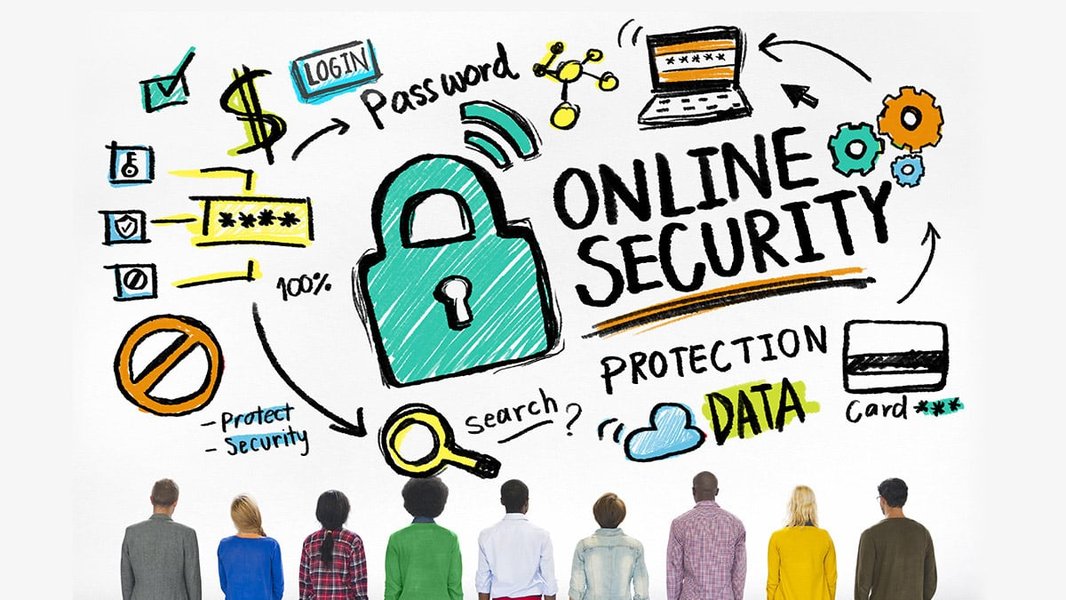
Key internet safety rules for everyday protection

Multi-layered approach to digital security
Visual reminders of security practices can help reinforce good habits. Consider creating visual cues in your workspace about key security practices like checking email sender addresses or verifying website security before entering personal information.
Expert Video Guidance on Online Safety
This video provides practical demonstrations of how to implement many of the security measures discussed in this guide. Following expert-recommended practices can significantly reduce your risk exposure online.
Monitoring and Recovery Planning
Account Monitoring
Regularly check your accounts for suspicious activity:
- Review bank and credit card statements monthly
- Set up account alerts for logins and transactions
- Check for unfamiliar devices accessing your accounts
- Consider credit monitoring services
Data Backup Strategies
To protect against data loss from ransomware or device failure:
- Implement the 3-2-1 backup rule: 3 copies of your data, on 2 different media types, with 1 copy stored offsite
- Automate backups whenever possible
- Regularly test your backups to ensure data can be recovered
- Keep critical backup copies disconnected from networks
Frequently Asked Questions
References
- Security Tips - Google Safety Center
- 12 Simple Things You Can Do to Be More Secure Online - PCMag
-
Secure Yourself & Your Family - CISA
- Online Security Tips - Federal Trade Commission
- Cyber Security Tips - Security.org
- 50 Internet Safety Tips - Banzai
- 7 Tips for Protecting Yourself Online - WestStar Bank
Recommended Searches
Last updated April 4, 2025