
Configuring a Node.js TypeScript Project for Backend Development
A Comprehensive Guide to Setting Up a Robust TypeScript Backend with Node.js
Key Takeaways
- Robust tsconfig.json Configuration: Setting up a well-structured
tsconfig.jsonis critical for type safety and seamless compilation. - Efficient Dependency Management: Proper installation and configuration of third-party dependencies ensure smooth project scalability and maintenance.
- Optimized Project Structure: Organizing your project files and directories enhances code readability and development workflow.
Introduction
Setting up a Node.js project with TypeScript for backend development provides strong typing and enhanced developer experience. This guide delves into the meticulous steps required to configure such a project, emphasizing the creation of a robust tsconfig.json file and the management of third-party dependencies. By following these best practices, developers can ensure their backend applications are maintainable, scalable, and efficient.
Step 1: Initialize the Project
1.1 Create Project Directory
Begin by creating a dedicated directory for your project and navigate into it:
mkdir my-node-ts-backend
cd my-node-ts-backend
1.2 Initialize package.json
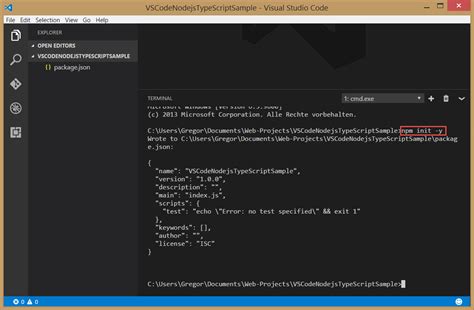
Initialize a package.json file to manage project dependencies:
npm init -y
Step 2: Install Essential Dependencies
2.1 Install TypeScript and Node.js Types
Install TypeScript and the necessary type definitions for Node.js as development dependencies:
npm install --save-dev typescript @types/node
2.2 Install Additional Development Tools (Optional)
Depending on your project's requirements, you might want to install tools like ESLint for linting:
npm install --save-dev eslint
2.3 Install Runtime Dependencies
For backend functionality, install frameworks like Express:
npm install express
Additionally, install type definitions for Express:
npm install --save-dev @types/express
Step 3: Configure tsconfig.json
3.1 Generate Default Configuration
Create a default tsconfig.json by running:
npx tsc --init
3.2 Customize tsconfig.json for Backend Development
Modify the generated tsconfig.json to suit backend development needs. Below is a recommended configuration:
{
  "compilerOptions": {
    "target": "ES2022",                           // Use the latest ECMAScript version
    "module": "CommonJS",                         // Use CommonJS modules for Node.js
    "moduleResolution": "node",                   // Resolve modules using Node.js resolution
    "rootDir": "./src",                           // Root directory of TypeScript sources
    "outDir": "./dist",                           // Output directory for compiled JavaScript
    "strict": true,                               // Enable strict type-checking options
    "esModuleInterop": true,                      // Enables emit interoperability between CommonJS and ES Modules
    "skipLibCheck": true,                         // Skip type checking of declaration files
    "forceConsistentCasingInFileNames": true,     // Ensure consistent casing in file names
    "resolveJsonModule": true,                    // Allow importing JSON files
    "noImplicitAny": true,                        // Raise error on expressions with an implied 'any' type
    "sourceMap": true                             // Generate source maps for debugging
  },
  "include": ["src/**/*"],                        // Include all TypeScript files in src
  "exclude": ["node_modules", "dist"]             // Exclude node_modules and dist directories
}
3.3 Explanation of Key Compiler Options
| Option | Description |
|---|---|
target |
Specifies the ECMAScript target version. ES2022 leverages the latest JavaScript features supported by Node.js. |
module |
Defines the module system. CommonJS is standard for Node.js applications. |
moduleResolution |
Sets the strategy for resolving modules. node aligns with Node.js's module resolution mechanism. |
rootDir |
Designates the root folder for TypeScript source files. |
outDir |
Specifies the output directory for compiled JavaScript files. |
strict |
Enables all strict type-checking options, enhancing type safety. |
esModuleInterop |
Allows interoperability between CommonJS and ES Modules, simplifying imports. |
skipLibCheck |
Skips type checking of all declaration files (*.d.ts), reducing compilation time. |
forceConsistentCasingInFileNames |
Ensures consistent casing in file names across different operating systems. |
resolveJsonModule |
Allows importing JSON files directly into TypeScript modules. |
noImplicitAny |
Raises an error on expressions and declarations with an implied any type. |
sourceMap |
Generates source maps to facilitate debugging of TypeScript code. |
Step 4: Set Up the Project Structure
4.1 Create Directory Layout
Organize your project files to enhance maintainability and scalability:
my-node-ts-backend/
  ├── src/
  │   └── index.ts
  ├── dist/
  ├── node_modules/
  ├── package.json
  └── tsconfig.json
4.2 Initialize Main Entry File
Create a basic index.ts file within the src directory:
import express from 'express';

const app = express();
const port = 3000;

app.get('/', (req, res) => {
  res.send('Hello, TypeScript with Node.js!');
});

app.listen(port, () => {
  console.log(`Server is running on http://localhost:${port}`);
});
Step 5: Install Third-Party Dependencies
5.1 Install Express
Express is a minimal and flexible Node.js web application framework that provides a robust set of features for web and mobile applications.
npm install express
5.2 Install Type Definitions for Express
To leverage TypeScript's type-checking capabilities with Express, install its type definitions:
npm install --save-dev @types/express
Step 6: Configure Scripts in package.json
6.1 Add Build and Run Scripts
Enhance your development workflow by adding the following scripts to your package.json:
"scripts": {
  "build": "tsc",                         // Compile TypeScript to JavaScript
  "start": "node dist/index.js",          // Run the compiled JavaScript
  "dev": "ts-node src/index.ts"           // Run TypeScript directly for development
}
6.2 Install ts-node for Development
ts-node allows you to run TypeScript files directly without precompiling them:
npm install --save-dev ts-node
Step 7: Run the Project
7.1 Compile and Start the Server
To compile the TypeScript code and start the server:
npm run build
npm start
7.2 Run in Development Mode
For rapid development without manual recompilation, use the dev script:
npm run dev
Step 8: Managing Third-Party Dependencies
8.1 Installing Packages
When adding new packages, ensure you install both the package and its corresponding type definitions if available:
npm install <package-name>
npm install --save-dev @types/<package-name>
8.2 Example: Installing and Using a Utility Library
For instance, to use lodash:
npm install lodash
npm install --save-dev @types/lodash
Then, you can import and use it in your TypeScript files:
import _ from 'lodash';

const numbers = [1, 2, 3, 4, 5];
const shuffled = _.shuffle(numbers);
console.log(shuffled);
Best Practices for tsconfig.json
9.1 Enable Strict Mode
Enabling strict mode in TypeScript ensures enhanced type safety and catches potential errors during compilation.
9.2 Use Path Aliases
Path aliases simplify imports by allowing you to define custom paths. Add the following to your tsconfig.json:
"compilerOptions": {
  "baseUrl": "./src",
  "paths": {
    "@models/*": ["models/*"],
    "@controllers/*": ["controllers/*"]
  }
}
9.3 Exclude Unnecessary Files
Ensure that node_modules, dist, and test files are excluded from compilation to improve performance:
"exclude": ["node_modules", "dist", "**/*.test.ts"]
9.4 Generate Source Maps
Source maps facilitate debugging by mapping the transpiled JavaScript back to the original TypeScript code.
9.5 Consistent Casing
Consistent file naming prevents issues across different operating systems, especially when collaborating in teams.
Advanced Configuration and Optimization
10.1 Modular Configuration
For larger projects, consider splitting the tsconfig.json into multiple files using the extends property to promote reusability and maintainability.
10.2 Integrate ESLint with TypeScript
Enhance code quality by integrating ESLint for linting TypeScript code:
npm install --save-dev eslint @typescript-eslint/parser @typescript-eslint/eslint-plugin
Create an .eslintrc.json with the following configuration:
{
  "parser": "@typescript-eslint/parser",
  "parserOptions": {
    "project": "./tsconfig.json"
  },
  "plugins": ["@typescript-eslint"],
  "extends": [
    "eslint:recommended",
    "plugin:@typescript-eslint/recommended"
  ],
  "rules": {
    // Customize your ESLint rules here
  }
}
Conclusion
Configuring a Node.js project with TypeScript for backend development involves several meticulous steps, from initializing the project and installing dependencies to setting up a comprehensive tsconfig.json and organizing your project structure. By adhering to the best practices outlined in this guide, developers can create robust, maintainable, and scalable backend applications. Proper configuration not only enhances type safety and developer experience but also lays a solid foundation for future project growth.
References
Last updated January 19, 2025