
Connecting an A&D Weighing Scale to a PC and Excel
A detailed guide to interfacing your A&D scale for automated weight logging
Key Highlights
- Connection Methods: The scale can be connected via RS-232 or USB, depending on your scale model.
- Software Solutions: Use A&D’s free WinCT suite or other software wedges to directly input weight data into Excel.
- Configuration Essentials: Proper installation of drivers, cable setup, and communication parameter configuration ensures smooth integration.
Overview
Connecting an A&D weighing scale to a PC such that the weight data is automatically entered into Excel involves a combination of hardware setup and software configuration. This guide will walk you through the process step-by-step, covering both the physical connection and necessary software tools. Whether your scale uses a legacy RS-232 interface or a modern USB connection, you can integrate it with Excel using specialized software solutions, virtual COM port configuration, or even simple software wedges.
Step 1: Determine the Connection Method
Hardware Interfaces
The connection between your A&D weighing scale and your PC generally relies on one of two hardware interfaces:
RS-232 (Serial) Connection
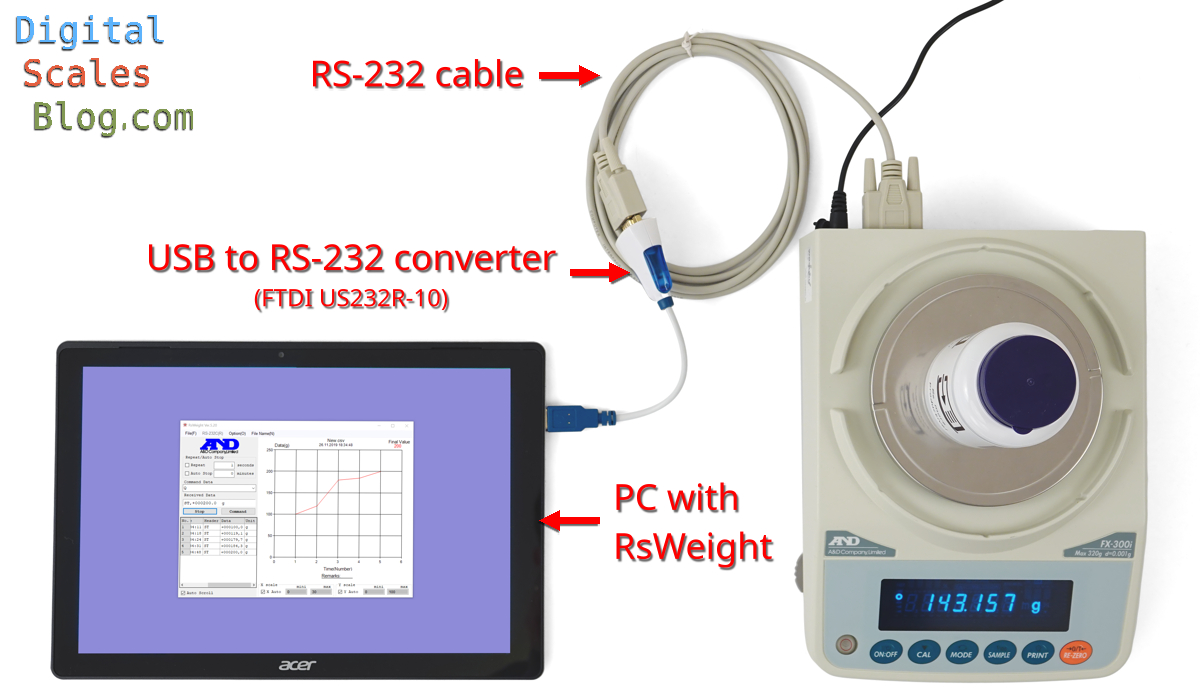
For many traditional A&D scales, the RS-232 serial port remains a standard interface. If your PC does not have a built-in RS-232 port, you will need a USB-to-RS-232 adapter to establish the connection.
USB Connection
Some modern A&D scales offer a USB interface that connects directly to a PC. In many cases, these USB connections either emulate a virtual COM port or work in “Quick USB” mode to allow seamless data transfer without additional software drivers.
Step 2: Set Up the Physical Connection
Required Cables and Adapters
The next step is to physically link your weighing scale to your PC. Here’s what you need:
RS-232 Cable
If your weighing scale is equipped with an RS-232 port, use a standard RS-232 cable. For PCs lacking an RS-232 port, purchase a reputable USB-to-RS-232 converter. Ensure that you follow the converter’s instructions to install any necessary drivers, especially if you are using an older version of Windows.
USB Cable
For scales that support USB connectivity, a direct USB cable connection will suffice. This method often does not require additional drivers if the device is recognized automatically by your operating system.
| Connection Type | Cable/Adapter Needed | Driver Requirements |
|---|---|---|
| RS-232 | RS-232 Serial Cable (or USB-to-RS-232 adapter if needed) | Yes (if using a USB-to-RS-232 adapter) |
| USB | Direct USB Cable | Usually auto-installed on modern operating systems |
Step 3: Install and Configure the Software
Choosing the Right Software
After establishing the physical connection, the next step is selecting and configuring your software. A&D offers several tools to facilitate communication between the scale and your PC:
A&D's WinCT and RsWeight
WinCT (Windows Communication Tools) is a versatile software provided by A&D that can control the scale, record data, and interface with other applications like Microsoft Excel. RsWeight, which is included in the WinCT suite, is particularly useful for sending weight data via RS-232 connections.
Software Wedges
Software wedges such as BC-Wedge or WinWedge act as intermediaries that "wedge" the data from your scale into Excel by simulating keyboard input. This approach is especially useful when you require a direct and automated data entry solution.
Quick USB Interfaces and Ethernet Options
Some scales support Quick USB adapters that facilitate direct data transfer without special software. Additionally, for setups requiring multiple scales or robust data acquisition over a network, Ethernet connections with interfaces like the AD-8526 or software solutions supporting multi-data acquisition can be used.
Software Installation and Configuration
Follow these steps to configure your selected software:
Install Drivers
For USB converters especially, ensure all necessary drivers are installed. Check your device manager on Windows or use similar tools on other operating systems to confirm that the new COM port is correctly established.
Configure Communication Parameters
Open your chosen software and configure the connection settings to match your scale’s output. Important parameters to set include:
- Baud Rate: Ensure this matches the scale’s specification.
- Data Bits: Typically set as 8.
- Parity: Often set to “None.”
- Stop Bits: Commonly set to 1.
Select the Correct COM Port
Identify and select the COM port to which your scale is connected. This is crucial for ensuring that the scale data is properly received by the interface software.
Step 4: Enable Data Transfer to Excel
Integration with Microsoft Excel
With both the hardware and software set up, it is time to route data directly to Excel. This can be achieved through the following methods:
Direct Input Using RsWeight
For users employing RsWeight, simply launch the software, press the designated print or read button on your scale, and the weight data should be displayed on-screen. This data can then be transferred into Excel manually or, depending on the program’s settings, automatically.
Using a Software Wedge
Software wedges work by intercepting the outgoing weight data and simulating keyboard input such that Excel receives the data as if it were typed. After installing and configuring the wedge, position your Excel cursor in the target cell and the software will pipe the weight data directly when triggered by the scale’s print button.
Quick USB Mode
If using a scale with a Quick USB interface, the setup may require no software installation. The connection is generally plug-and-play, allowing data to be relayed to Excel if the scale and PC are correctly configured in the system’s settings.
Troubleshooting and Verification
Testing the System
Once everything is set up, thoroughly test the connection to ensure smooth data transfer:
Physical Connection Check
Verify that all cables and adapters are secure and correctly connected. Re-check that the USB-to-RS-232 adapter (if used) is fully recognized by your PC.
Software Communication
Run your selected software and confirm that it is communicating with the scale over the correct COM port. Pay attention to any error messages or status alerts provided by the application.
Excel Integration
Open Microsoft Excel to the worksheet or cell where data should appear. Trigger the scale’s print function and confirm that the weight data appears in the designated cell. If the data does not appear, review the software settings and ensure that the correct data transmission method (keyboard wedge or direct input) has been employed.
Additional Tips and Considerations
Customization and Advanced Options
Depending on your operational needs, consider the following advanced options:
Multi-Scale Connectivity
For laboratories or production environments where multiple scales are used, consider using Ethernet interfaces or RS-232 multi-data acquisition software. These solutions allow simultaneous data capture from several devices.
Data Logging and Analysis
Integrate data logging systems that store weight records automatically. Tools such as data loggers or specialized A&D software packages can archive weight data, which can later be exported to Excel for further analysis.
Regular Software Updates
Check regularly for firmware and software updates from A&D. Updated software might include improved user interfaces, enhanced compatibility with modern operating systems, or added features like multi-data channel support.
Monitoring and Maintenance
Long-term reliability of the system depends on consistent maintenance:
- Periodic Testing: Regularly test the connectivity and data transfer to avoid unexpected disruptions.
- Driver Updates: Keep your USB-to-RS-232 converter drivers and any related software up-to-date.
- Cable Management: Ensure that cables are free from damage and properly routed to avoid accidental disconnections.
Practical Table: Software and Connection Options
| Method | Hardware Required | Software/Interface | Typical Use |
|---|---|---|---|
| RS-232 Connection | RS-232 Cable or USB-to-RS-232 Adapter | WinCT, RsWeight or Software Wedge | Direct serial data transfer |
| USB Connection | USB Cable | Quick USB Mode or Direct Excel Input | Plug-and-play data transfer |
| Ethernet/Network | Ethernet Interface or Serial-to-Ethernet Converter | Multi-data Acquisition Software | Multiple scale integration |
References
- A&D Support FAQ - A&D Company
- WinCT Software - A&D Company
- Free Software for Scales and Balances - Digital Scales Blog
- Connect Balance to PC - Instructables
- WinCT-Plus Downloads - A&D Online
Recommended Related Queries
Last updated March 15, 2025