
Transforming Videos into Dynamic Presentations: Tools and Techniques
Explore various methods and AI-powered tools to convert video content into engaging slide decks.
Converting video content into presentations can be a highly effective way to repurpose existing media, summarize lengthy videos, or create engaging educational materials. This process allows you to extract key information, visuals, and transcripts from videos and organize them into a structured, easy-to-digest format like a PowerPoint or Google Slides presentation. Several tools and techniques, including increasingly sophisticated AI-powered solutions, can assist in this transformation.
Key Insights for Video-to-Presentation Conversion
- AI-powered tools are rapidly emerging as a popular and efficient method for automatically generating presentations from videos, often by analyzing transcripts and visual elements.
- Traditional methods involve manually extracting information from videos, such as taking screenshots and transcribing audio, which can be time-consuming but offers greater control over the final output.
- Inserting video clips or embedding online videos directly into presentation slides is a straightforward way to incorporate multimedia without full conversion.
Leveraging AI for Automated Conversion
Artificial intelligence is revolutionizing the process of converting videos into presentations. AI tools can analyze video content, identify key points, generate text summaries, and even select relevant images to create initial slide drafts. This significantly reduces the manual effort required for conversion.
How AI Tools Work
AI video-to-presentation converters typically utilize speech recognition to transcribe the audio, natural language processing to identify important themes and keywords, and image analysis to select representative visuals. Some tools can even structure the content into a logical flow for a presentation.
Popular AI-Powered Conversion Tools
Several AI tools are available that specialize in transforming videos, particularly YouTube videos, into presentation formats. These tools often require you to simply provide a video URL, and they generate an editable presentation file.
| Tool Name | Key Features | Supports |
|---|---|---|
| Magic Slides | Transforms video content using advanced AI, uploads or URLs supported. | Video files, YouTube URLs |
| Plus AI (formerly PlusDocs) | Free YouTube to PPT conversion, creates professionally designed decks. | YouTube URLs |
| Vizle | Extracts key snapshot images and text into PDF or PPT. | Video URLs, Local files |
| SlidesPilot | AI-powered summarization of YouTube videos into presentations. | YouTube URLs |
| Govizle | Converts various video types to PPT, supports URL and local files. | Video URLs, Local files |
| Online-Convert | General media file conversion, including YouTube to presentation with AI. | YouTube URLs, various file types |
These AI tools offer varying levels of automation and customization. While they can provide a strong starting point, reviewing and refining the generated slides is often necessary to ensure accuracy and coherence.
Benefits and Limitations of AI Conversion
The primary benefit of using AI for video-to-presentation conversion is the significant time saving. It automates a task that would otherwise require extensive manual effort. However, limitations can include the AI misinterpreting context, generating inaccurate summaries, or selecting irrelevant visuals. Human review and editing remain crucial for a polished presentation.
Manual Methods for Detailed Control
For situations requiring precise control over the content and structure of the presentation, manual conversion methods are a reliable approach. This involves actively watching the video and extracting information step-by-step.
Key Manual Techniques
Transcribing Video Content
Creating a written transcript of the video's audio is a fundamental step in manual conversion. This allows you to easily identify key discussion points, quotes, and data that you want to include in your slides. Transcription can be done manually or with the help of transcription software.
Capturing Screenshots for Visuals
Taking screenshots at relevant moments in the video provides visual elements for your presentation. These screenshots can represent diagrams, important text displayed on screen, or key scenes that illustrate a point. Ensure the screenshots are of sufficient resolution for clear display.
Many operating systems and video playback software offer built-in screenshot functionality. Alternatively, dedicated screenshot tools can provide more advanced options.
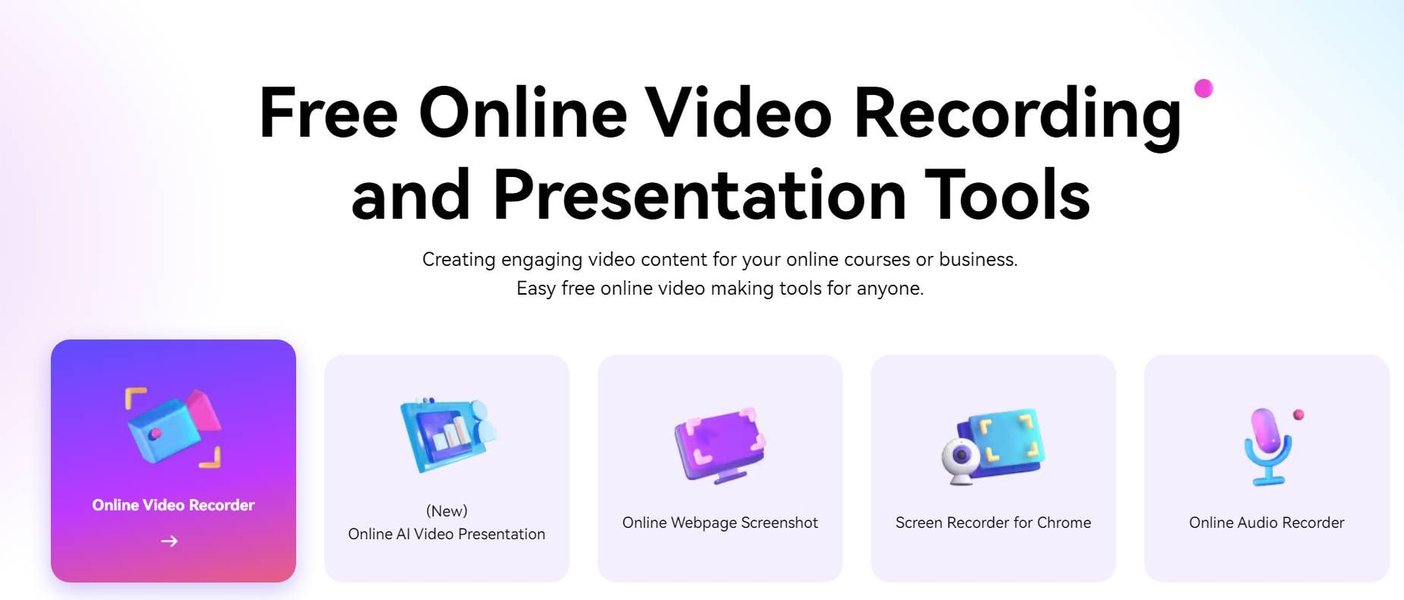
Capturing a still image from a video.
Structuring the Presentation Content
Once you have the transcript and visual elements, the next step is to organize them into a logical presentation flow. This involves identifying the main topics covered in the video and allocating content to individual slides. Consider using an outline to structure your presentation before adding content to the slides.
Integrating Videos Directly into Presentations
Instead of fully converting a video, you can often enhance your presentation by embedding video clips or linking to online videos directly within your slides. This allows you to show dynamic content without breaking the flow of your presentation.
Embedding Online Videos (e.g., YouTube)
Most presentation software, including Microsoft PowerPoint and Google Slides, provides options to insert online videos using their URL. This is a convenient way to include content hosted on platforms like YouTube or Vimeo.
Steps to Embed a YouTube Video in PowerPoint:
Open your presentation and navigate to the slide where you want to insert the video. Go to the "Insert" tab, select "Video," and then choose "Online Video." Paste the YouTube video URL into the provided box and click "Insert."
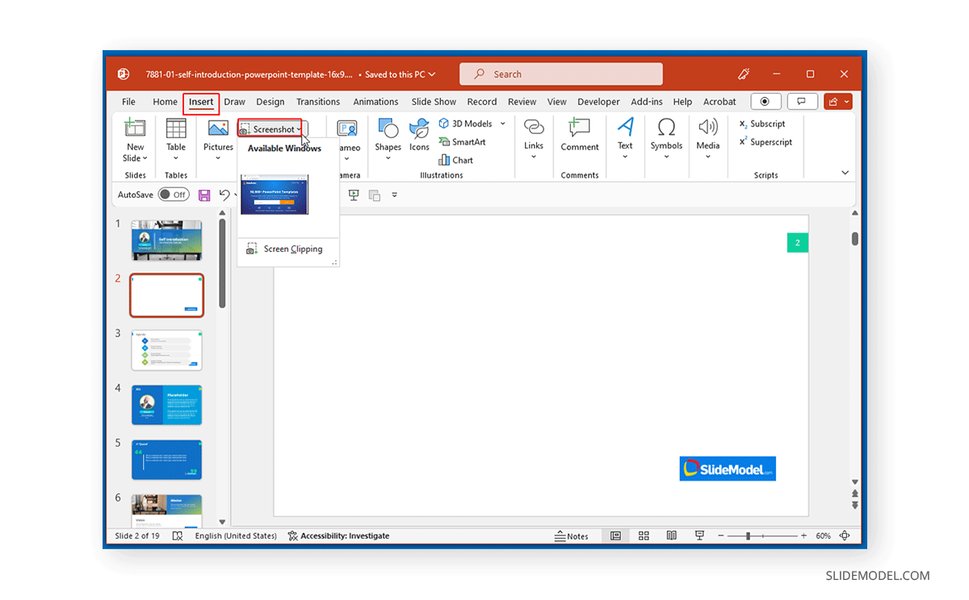
Locating the Insert > Video option in PowerPoint.
Once embedded, you can often resize the video player and set playback options within the presentation software.
Inserting Video Files from Your Device
If you have a video file saved on your computer, you can insert it directly into a slide. This is useful for including custom video content or clips that are not available online.
Steps to Insert a Video File in PowerPoint:
On the desired slide, go to the "Insert" tab, select "Video," and choose "This Device" or "Video on My PC." Browse your computer to locate the video file and click "Insert."
Ensure the video file format is compatible with your presentation software and the device you will be using for the presentation. Common compatible formats include MP4, WMV, and AVI.
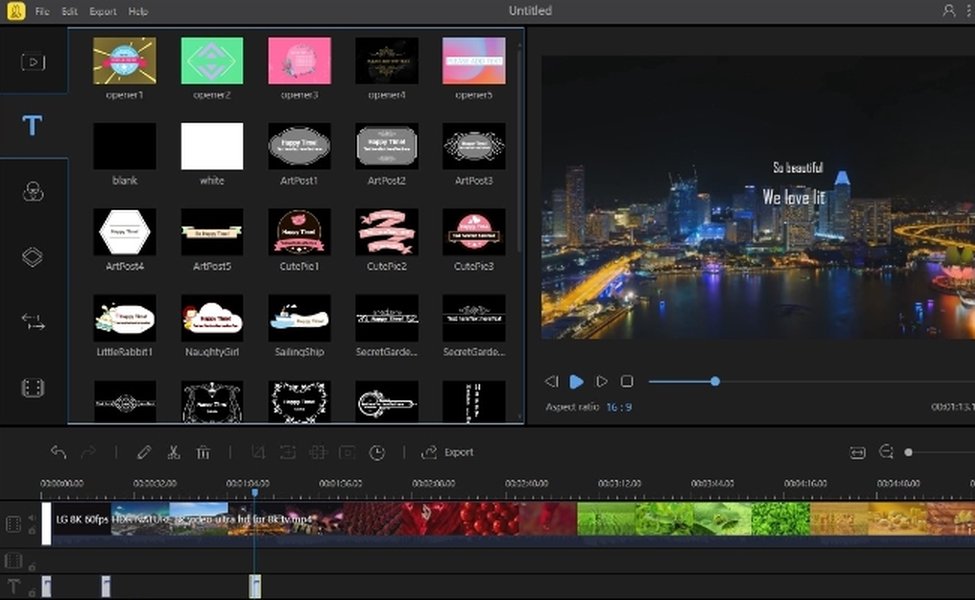
Example of a tool interface that might be used in video processing.
Creating Video Presentations from Existing Slides
While the user's query is about converting video *into* a presentation, it's also relevant to note the reverse process: creating video presentations *from* slides. This is a common practice for sharing presentations online or as a standalone video.
Tools for Converting Presentations to Video
Several software and online tools can convert PowerPoint or other presentation files into video formats like MP4. These tools often allow you to add narration, background music, and control slide timing.
Examples of Presentation to Video Converters:
- iSpring Converter Pro
- Xilisoft PowerPoint to MP4 Converter
- Moyea PowerPoint to Video Converter
- Flixier (online tool)
These tools are useful for distributing your presentation content as a video, which can be more universally accessible and easier to share on platforms like YouTube or social media.
A tutorial video on converting YouTube videos to PowerPoint slides using an AI tool. This video demonstrates one of the methods discussed for automated conversion.
Choosing the Right Approach
The best method for converting a video into a presentation depends on your specific needs, the video content, and the desired level of detail and customization in the final presentation.
Considerations for Selection:
-
Video Length and Complexity: For short, straightforward videos, manual methods might be sufficient. For long or complex videos, AI tools can provide a faster initial draft.
-
Desired Output Format: Are you aiming for a fully editable slide deck, or is embedding video clips acceptable?
-
Accuracy Requirements: If high accuracy is critical, a manual approach with careful transcription and summarization is recommended, even if using AI for an initial pass.
-
Available Resources: Consider the time and tools you have available for the conversion process.
Frequently Asked Questions
Can I convert any video format to a presentation?
While many tools support common video formats like MP4, AVI, and WMV, compatibility can vary. AI tools often work best with online video links (like YouTube). For local files, you might need to use a video converter first if the format is not widely supported.
How accurate are AI video-to-presentation tools?
The accuracy of AI tools can vary depending on the quality of the video's audio, the complexity of the content, and the sophistication of the AI. They are generally good at generating text transcripts and identifying key themes but may require human editing for complete accuracy and flow.
Can I add my own commentary or visuals to the converted presentation?
Yes, regardless of the conversion method, the resulting presentation file is typically editable. You can add your own text, images, graphics, and narration to customize the presentation.
Are there free tools available for video-to-presentation conversion?
Yes, some tools offer free versions or trials, although they may have limitations on features, video length, or the number of conversions. Free online slideshow makers like Canva and Adobe Express can also be used to create presentations incorporating video elements.
References
 ai.tenorshare.com
Last updated May 4, 2025