
Unlock Your Own Private AI: Build an Interactive Chatbot on Your PC
A step-by-step guide to creating a powerful, offline AI assistant using local Large Language Models (LLMs) for ultimate privacy and control.
Imagine having a powerful AI chatbot, similar to well-known online services, but running entirely on your own computer. This setup guarantees complete privacy, as your conversations and data never leave your machine. It also works entirely offline once set up. Building a local PC interactive chatbot with a local Large Language Model (LLM) is becoming increasingly accessible thanks to open-source tools and optimized models. This guide will walk you through the process, combining insights from various expert sources.
Key Highlights
- Total Privacy & Offline Access: Your data stays on your PC, ensuring confidentiality. The chatbot functions without an internet connection after initial setup.
- Leverage Powerful Open-Source Tools: Utilize frameworks like Ollama, LangChain, and Streamlit to simplify the development process.
- Customizable & Controllable: Choose the LLM that fits your needs and hardware, and even enhance its capabilities with your own documents using RAG.
Understanding the Components
Creating a local chatbot involves several key pieces working together:
- Hardware: Your PC's processing power (CPU, GPU) and memory (RAM) directly impact performance.
- Local LLM: A pre-trained language model downloaded and run on your machine.
- LLM Runner/Framework: Software (like Ollama) that simplifies downloading, managing, and running the LLM.
- Chatbot Logic/Framework: Tools (like LangChain) that structure the conversation, manage context, and integrate the LLM.
- User Interface (UI): A way to interact with the chatbot (command line, web interface via Streamlit/Gradio, or a dedicated app).
Step 1: Assessing Your Hardware
Can Your PC Handle a Local LLM?
Running LLMs locally can be demanding, but optimizations have made it feasible on consumer hardware. Here’s a breakdown:
Hardware considerations are crucial for running local LLMs efficiently.
Processor (CPU) & Memory (RAM)
A modern multi-core CPU is generally sufficient for smaller or quantized models. Aim for at least 16GB of RAM, though more is better. Performance will be slower compared to GPU acceleration.
Graphics Card (GPU)
A dedicated GPU, especially an NVIDIA RTX series card with ample VRAM (Video RAM, 8GB+ recommended), significantly speeds up LLM inference. While not strictly necessary for all models, it provides a much smoother interactive experience.
Storage
LLM models can range from a few hundred megabytes to tens of gigabytes. Ensure you have sufficient free space, preferably on an SSD for faster loading times.
Operating System
Most tools support Windows, macOS, and Linux. Some setups on Windows might require Docker running via the Windows Subsystem for Linux (WSL).
Step 2: Setting Up Your Software Environment
Preparing the Foundation
Install Python
Python is the cornerstone for most AI development. Download and install Python 3.8 or newer from the official Python website.
Create a Virtual Environment
Isolate your project dependencies to avoid conflicts. Open your terminal or command prompt and run:
python -m venv chatbot_envActivate the environment:
- Windows:
chatbot_env\Scripts\activate - macOS/Linux:
source chatbot_env/bin/activate
Install Core Libraries
Install the necessary Python packages using pip within your activated virtual environment. Common choices include:
pip install ollama langchain streamlit- Ollama: Simplifies running various LLMs locally.
- LangChain: A framework for building applications powered by LLMs, managing prompts, memory, and integrations.
- Streamlit: Easily creates interactive web-based user interfaces for Python applications.
Alternatively, tools like GPT4All bundle the model and interface, offering a simpler starting point for beginners.
Install Docker (If Needed)
Some tools, particularly web interfaces like OpenWebUI, require Docker. If you plan to use these, download and install Docker Desktop.
Step 3: Choosing and Downloading a Local LLM
Selecting Your AI Brain
Numerous open-source LLMs can run locally. Your choice depends on your hardware and desired capabilities.
Using Ollama
Ollama makes this step easy. After installing Ollama, open your terminal and pull a model. For example, to get Meta's Llama 3 (an 8-billion parameter instruction-tuned model):
ollama pull llama3Other popular choices available via Ollama include:
mistral: A strong model known for its performance/size ratio.phi3: Microsoft's smaller, capable model.gemma: Google's open models.
You can find more models on the Ollama Library. The download happens once, and then the model runs entirely offline.
Using GPT4All
GPT4All offers a user-friendly application that includes various downloadable models optimized for CPU inference, making it a great starting point if you don't have a powerful GPU.
Step 4: Building the Chatbot Logic
Connecting the Pieces with Python and LangChain
LangChain provides building blocks to create your chatbot application. Here's a conceptual example using Ollama and LangChain:
# Import necessary libraries
import streamlit as st
from langchain_community.llms import Ollama
from langchain.chains import ConversationChain
from langchain.memory import ConversationBufferMemory

# Function to initialize the LLM and conversation chain
def initialize_chatbot(model_name="llama3"):
    """Initializes the Ollama LLM and sets up the conversation chain."""
    try:
        llm = Ollama(model=model_name)
        # Test connection (optional, provides feedback)
        llm.invoke("Hi")
        memory = ConversationBufferMemory()
        conversation = ConversationChain(
            llm=llm,
            memory=memory,
            verbose=False # Set to True to see LangChain logs
        )
        return conversation
    except Exception as e:
        st.error(f"Error initializing chatbot with model '{model_name}': {e}")
        st.warning("Ensure Ollama is running and the model is downloaded (<code>ollama pull {model_name})")
        return None

# Streamlit App Interface
st.title("️ My Local AI Chatbot")

# Sidebar for model selection (optional)
# model_choice = st.sidebar.selectbox("Choose LLM Model", ["llama3", "mistral", "phi3"], index=0)

# Initialize session state for conversation and chat history if they don't exist
if 'conversation' not in st.session_state:
    st.session_state.conversation = None # Initialize as None
if 'chat_history' not in st.session_state:
    st.session_state.chat_history = []

# Button to initialize/re-initialize the chatbot
# This ensures initialization happens only once or when the model changes
if st.session_state.conversation is None:
     # Attempt to initialize with the default model (e.g., llama3)
     st.session_state.conversation = initialize_chatbot(model_name="llama3") # Or use model_choice if using sidebar

# Display chat history
for user_msg, ai_msg in st.session_state.chat_history:
    st.chat_message("user").write(user_msg)
    st.chat_message("assistant").write(ai_msg)

# Input field for user query
user_input = st.chat_input("Ask me anything...")

# Process user input if the chatbot is initialized
if user_input and st.session_state.conversation:
    st.chat_message("user").write(user_input)

    # Get response from the chatbot
    with st.spinner("Thinking..."):
        response = st.session_state.conversation.predict(input=user_input)

    st.chat_message("assistant").write(response)

    # Add interaction to chat history
    st.session_state.chat_history.append((user_input, response))
elif user_input:
    st.warning("Chatbot is not initialized. Please ensure Ollama is running and the model is available.")
This script sets up a basic conversational loop. It uses LangChain's ConversationChain to manage the interaction flow and ConversationBufferMemory to remember the chat history within a session. Streamlit handles the user interface elements.
Step 5: Creating the Interactive User Interface (UI)
Making Your Chatbot User-Friendly
You need an interface to talk to your chatbot. Here are common options:
Streamlit Web UI (As shown above)
Streamlit allows you to quickly build a clean, web-based interface using Python. Save the code above as a Python file (e.g., app.py) and run it from your terminal (within the activated virtual environment):
streamlit run app.pyThis launches a local web server, and you can interact with your chatbot through your browser.
Command-Line Interface (CLI)
For a simpler, text-only interface, you can modify the Python script to use input() for user queries and print() for responses, running it directly in the terminal.
Dedicated Chat UI Applications
Tools like OpenWebUI (requires Docker) or interfaces bundled with projects like TinyLLM provide polished, feature-rich chat interfaces that can connect to local LLMs (often via Ollama's API).
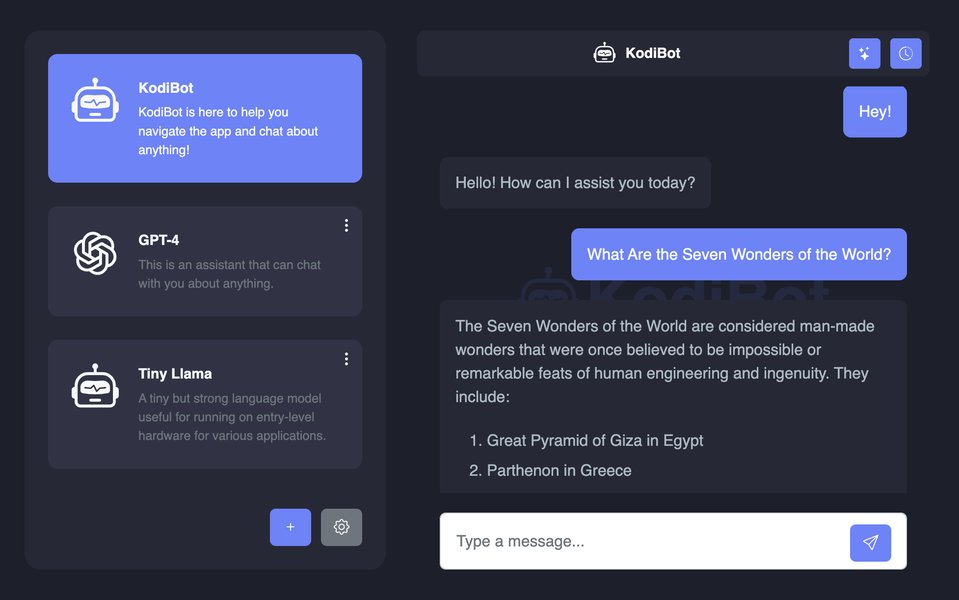
Dedicated UIs often provide a familiar chat experience.
Step 6: Enhancing Functionality (Optional)
Going Beyond Basic Chat: Retrieval-Augmented Generation (RAG)
Want your chatbot to answer questions based on your own documents (PDFs, text files, etc.) without sending them to the cloud? This is possible with Retrieval-Augmented Generation (RAG).
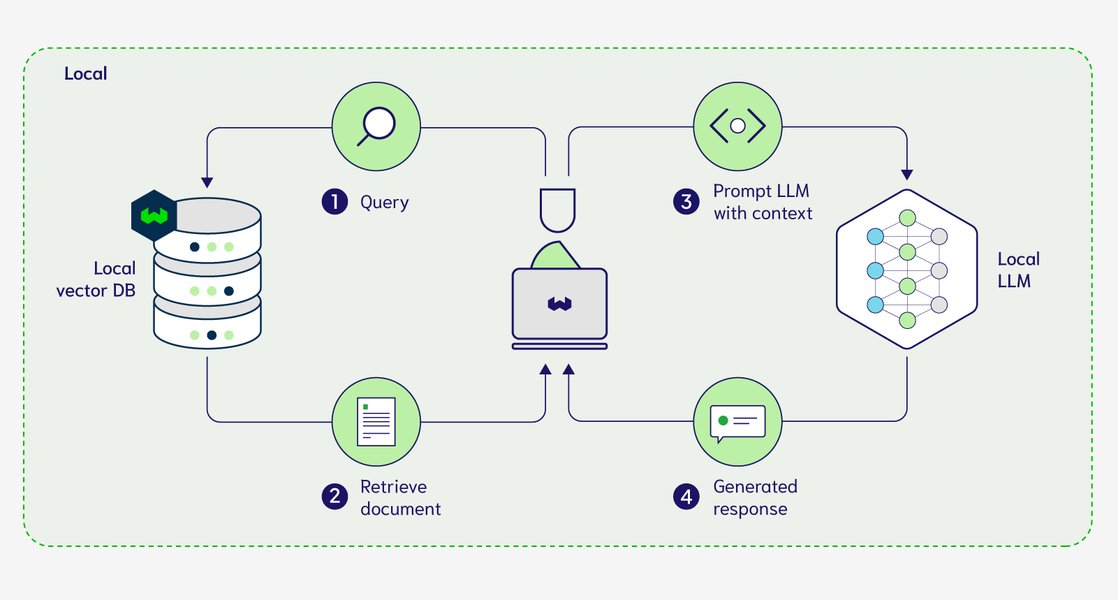
RAG allows the LLM to access information from your local documents.
RAG involves:
- Loading Documents: Using LangChain to load your local files.
- Creating Embeddings: Converting text chunks into numerical representations (vectors) using an embedding model (Ollama can provide this too).
- Storing Vectors: Saving these vectors in a local vector database (like ChromaDB or FAISS).
- Retrieving Relevant Chunks: When you ask a question, the system finds the most relevant text chunks from your documents based on your query.
- Generating Response: The LLM uses both your question and the retrieved text chunks to generate an informed answer.
Setting up RAG requires additional libraries (langchain-community, langchain-chroma, pypdf, etc.) and more complex LangChain configurations but offers powerful, private knowledge access. Tutorials on sites like Real Python or Dev.to provide detailed guides.
Visualizing the Process: Key Components Mindmap
Mapping Out Your Local Chatbot System
This mindmap illustrates the core elements involved in building and running your local interactive chatbot:
Understanding how these parts connect helps in troubleshooting and planning your setup.
Comparing Local Chatbot Approaches
Evaluating Different Tools and Frameworks
Various tools can help you build a local chatbot. This radar chart compares some popular options based on key factors. Ratings are subjective evaluations based on typical user experiences (Higher score = Better):
This comparison highlights that simpler tools like GPT4All offer ease of setup, while frameworks like LangChain provide maximum customization and extensibility, especially for features like RAG.
Feature Comparison: Local Chatbot Tools
Quick Overview of Popular Options
This table summarizes key features of the tools commonly used for building local chatbots:
| Tool/Framework | Primary Function | Ease of Use | Key Features | Typical Use Case | Dependencies |
|---|---|---|---|---|---|
| Ollama | Run & Manage Local LLMs | High | Easy model download/switching, API server, GPU support | Backend for serving LLMs to other applications (LangChain, UIs) | None (Self-contained executable) |
| LangChain | Build LLM Applications | Medium | Chains, Agents, Memory, Document Loaders, Vector Stores, RAG support | Developing custom chatbot logic, integrating tools, RAG | Python |
| Streamlit | Create Web UIs | High | Rapid UI development in Python, interactive widgets | Building a simple, custom web interface for the chatbot | Python |
| GPT4All | All-in-One Chat App | Very High | Bundled UI, easy model downloads, CPU optimization focus | Beginner-friendly, non-technical users, quick setup on modest hardware | None (Self-contained application) |
| OpenWebUI | Web UI for LLMs | Medium | ChatGPT-like interface, multi-user support, connects to Ollama | Providing a polished chat interface for local Ollama models | Docker, Ollama |
| TinyLLM | Lightweight Chat Server | Medium | Web UI, optimized for smaller models, runs well on consumer hardware | Running chatbots on less powerful hardware, simple local deployment | Python, specific model dependencies |
Choosing the right combination depends on your technical skill, desired features, and hardware.
Visual Tutorial: Building a Local Python Chatbot
See it in Action
This video provides a practical demonstration of creating a local AI chatbot using Python and Ollama, illustrating many of the concepts discussed above. It shows how quickly you can get a basic version running locally.
Video tutorial demonstrating local chatbot setup with Python and Ollama.
Frequently Asked Questions (FAQ)
Common Questions About Local LLM Chatbots
What hardware do I absolutely need?
At a minimum, a modern multi-core CPU and 16GB of RAM are recommended for running smaller or medium-sized quantized models acceptably (e.g., using GPT4All or Ollama with models like Phi-3 or Mistral 7B q4). Performance will be slower than with a GPU. An SSD is also highly recommended for faster model loading.
Is building and running a local chatbot completely free?
Yes, using open-source models (like Llama 3, Mistral, Phi-3) and open-source tools (like Ollama, LangChain, Streamlit, Python, GPT4All) is completely free. You only need your own computer hardware. There are no subscription fees or usage costs associated with running these models locally.
How private is this setup really?
It's completely private. The LLM model runs directly on your PC's hardware. Your prompts, conversations, and any data processed (if using RAG with local files) never leave your computer and are not sent to any external servers. This is the primary advantage over cloud-based AI services.
Can the local chatbot access the internet or my personal files?
By default, the LLM itself cannot access the internet or browse your file system spontaneously. It only processes the input you provide. However, if you build advanced features using frameworks like LangChain (e.g., Agents or RAG), you explicitly grant it permission to access specific local files (for RAG) or potentially use tools that *can* access the internet (if you build an Agent with web search capabilities). Basic setups using Ollama and a simple interface do not have this access.
How difficult is the setup process?
The difficulty varies. Using an all-in-one application like GPT4All is very straightforward (install and run). Using Ollama + a UI like OpenWebUI is relatively easy, requiring installing Ollama and running a Docker command. Building a custom chatbot with Python, LangChain, and Streamlit requires basic familiarity with Python, terminal commands, and installing packages, but many step-by-step tutorials make it accessible even for determined beginners. Some guides suggest a basic setup can be done in 15-30 minutes (excluding model download time).
Recommended Next Steps
Explore Further
- Compare performance of different local LLMs on consumer hardware.
- How to implement Retrieval-Augmented Generation (RAG) with Ollama and LangChain for local documents.
- What are the best lightweight LLMs for running on CPU only?
- Advanced LangChain techniques for building custom local chatbots.
References
Sources Used
Last updated May 5, 2025