
Unlock Your Productivity: Crafting a Personal Workflow That Truly Clicks
A step-by-step guide to designing a system that streamlines your tasks, manages your priorities, and helps you achieve your goals effectively.
Essential Insights: Your Workflow Blueprint
- Understand & Define: The cornerstone of an effective workflow is a clear understanding of your specific goals, current challenges, and the tasks you need to manage.
- Design with Flexibility: Your workflow should be a dynamic system, adaptable to unexpected events and evolving priorities, not a rigid set of rules.
- Iterate & Optimize: Treat your workflow as an ongoing project. Start simple, test regularly, and refine your processes and tools based on real-world experience for sustained productivity.
Phase 1: Understanding Your Unique Needs and Goals
Creating a workflow that genuinely works for you begins with introspection and a clear assessment of what you want to achieve and where your current processes fall short. This foundational phase ensures that the system you build is tailored to your specific requirements.
Defining Your Workflow's Purpose and Scope
Clarify Your Objectives
Before diving into tools or techniques, ask yourself fundamental questions: What do you want this workflow to accomplish? Are you aiming to manage daily tasks more efficiently, steer complex projects to completion, reduce feelings of overwhelm, or achieve a better work-life balance? Clearly defining the purpose will set the direction for your workflow design. For instance, a workflow for managing freelance projects will differ significantly from one designed for personal habit tracking.
Determine the Scope
What specific areas of your life or work will this workflow cover? Trying to overhaul everything at once can be counterproductive. Start by identifying 1-2 key areas where a structured approach would yield the most significant benefits. This helps in setting realistic boundaries and prevents your system from becoming overly complicated.
Auditing Your Current Processes and Tools
Analyze Existing Habits
Take an honest look at how you currently manage your tasks and time. What methods, routines, or ad-hoc systems are you already using? Identify what aspects are working well – perhaps you're good at capturing ideas but struggle with execution. This audit helps you leverage existing strengths.
Evaluate Current Tools
List the apps, software, or physical tools (like planners or notebooks) you currently rely on. For each, consider its pros and cons in your context. Are there tools you pay for but barely use? Are some tools causing more friction than they alleviate? Understanding your current toolset's effectiveness is crucial before adding or replacing components.
Identify Pain Points and Inefficiencies
Pinpoint specific frustrations or bottlenecks in your current way of working. Are you frequently missing deadlines? Do you struggle with task prioritization? Are repetitive tasks consuming too much time? Documenting these pain points will highlight the areas your new workflow needs to address most urgently.
Phase 2: Designing Your Personalized Workflow Architecture
With a clear understanding of your needs, the next step is to design the structure of your workflow. This involves mapping out processes, selecting appropriate tools, and building in mechanisms for flexibility and personal alignment.
Mapping Out the Process: From Task Inception to Completion
Break Down Your Work
Categorize the types of activities you need to manage. This might include:
- Daily recurring tasks (e.g., checking emails, daily chores)
- One-off project tasks (e.g., research for a report, planning an event)
- Long-term goals (e.g., learning a new skill, completing a major personal project)
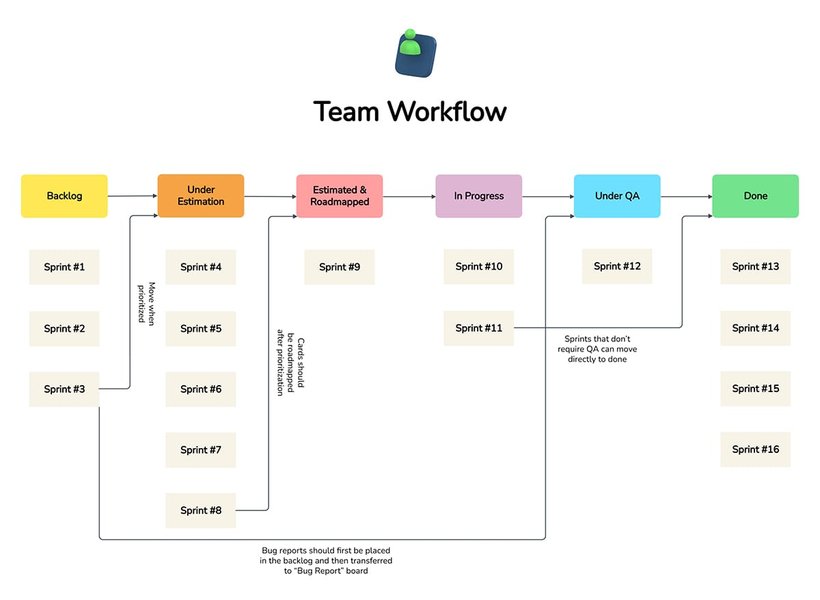
Visualizing your workflow, like with this whiteboard template, can help clarify steps and dependencies.
Visualize Your Workflow
Creating a visual representation, even a simple flowchart or list, can be incredibly helpful. This map should illustrate how tasks enter your system, how they are processed and prioritized, and what signifies their completion. Tools like digital whiteboards, mind mapping software, or even pen and paper can be used. Some individuals find Kanban-style boards (To Do, In Progress, Done) effective for visualizing task movement.
Choosing Your "Productivity Stack": Tools and Techniques
Your productivity stack is the combination of tools, applications, and methods you use to execute your workflow. The key is to select components that integrate well and suit your personal preferences.
Selecting the Right Tools
Consider tools for various functions:
- Task Management: To capture, organize, and track to-do items (e.g., Todoist, Asana, Trello, Microsoft To Do).
- Calendar/Scheduling: For time-blocking, appointments, and deadlines (e.g., Google Calendar, Outlook Calendar).
- Note-Taking/Knowledge Management: To capture ideas, research, and important information (e.g., Notion, Evernote, Obsidian, Apple Notes).
- Automation: For streamlining repetitive tasks (e.g., IFTTT, Zapier, built-in features of other apps).
- Communication (if collaborative): For teams (e.g., Slack, Microsoft Teams).
Many modern platforms like Notion, Coda, or Airtable offer highly customizable environments where you can build bespoke workflow management systems. Don't feel pressured to use the trendiest tools; the best tool is the one you'll use consistently.
Key Productivity Tool Categories
Understanding the different types of tools available can help you build a cohesive productivity stack tailored to your personal workflow. Below is a table outlining common categories, their purpose, and examples:
| Tool Category | Description | Examples | Key Benefits for Workflow |
|---|---|---|---|
| Task Managers | Apps for creating, organizing, prioritizing, and tracking tasks and to-do lists. | Todoist, Asana, Trello, TickTick, Microsoft To Do | Centralizes action items, improves organization, ensures accountability, often allows collaboration. |
| Calendar Applications | Digital schedulers for managing appointments, deadlines, and time-blocking. | Google Calendar, Outlook Calendar, Apple Calendar | Visualizes time commitments, helps in planning and resource allocation, provides reminders. |
| Note-Taking & Knowledge Management | Platforms for capturing, storing, and organizing information, ideas, and research. | Evernote, Notion, Obsidian, OneNote, Bear | Creates a central repository for information, facilitates idea development, supports learning and research. |
| Automation Platforms | Services or features that connect different apps and automate repetitive actions. | Zapier, IFTTT, Make (Integromat), Power Automate | Saves time, reduces manual effort, ensures consistency in routine processes. |
| Focus & Time Management Apps | Tools designed to minimize distractions, track time spent on tasks, or implement techniques like Pomodoro. | Forest, Freedom, RescueTime, Toggl Track | Enhances concentration, provides insights into time usage, promotes work-life balance. |
| Cloud Storage & File Syncing | Services for storing files online and syncing them across devices. | Google Drive, Dropbox, OneDrive, iCloud | Ensures access to files from anywhere, facilitates collaboration, provides data backup. |
Building in Flexibility and Personalization
Accommodate the Unexpected
Life is unpredictable. A rigid workflow will break under pressure. Design your system with buffer times in your schedule, methods for triaging unexpected tasks, and the ability to easily reprioritize. This might mean having an "unscheduled" block of time each day or a clear process for deciding what to do when urgent, unplanned items arise.
Align with Your Natural Rhythms
Pay attention to your personal energy cycles. Are you a morning person or a night owl? When do you typically feel most focused and creative? Schedule demanding tasks that require deep work for your peak energy periods. Reserve low-energy times for more routine or administrative tasks. Techniques like "time theming" (dedicating specific days or blocks of time to certain types of work) or "task batching" (grouping similar tasks together, like answering all emails at once) can also enhance efficiency by aligning with how you work best.
Visualizing Workflow Effectiveness: A Comparative Look
The radar chart below offers a conceptual look at how different aspects of a personal workflow might evolve or compare across various approaches. "Goal Clarity" refers to how well objectives are defined. "Task Breakdown" is the ability to segment work into manageable pieces. "Tool Selection" reflects the appropriateness of chosen tools. "Process Mapping" indicates the clarity of task flow. "Flexibility" shows adaptability. "Regular Review" is the commitment to iterative improvement. "Automation" represents leveraging technology for efficiency, and "Well-being Integration" signifies the inclusion of breaks and balance.
This chart illustrates that an "Optimized Personal Workflow" generally scores high across all dimensions, emphasizing a balanced approach. In contrast, an "Initial Attempt" might be weaker in areas like flexibility and review. A "Tech-Driven Workflow" might excel in automation and tool selection but could potentially sacrifice some flexibility or well-being if not carefully managed.
Phase 3: Implementation, Testing, and Continuous Improvement
Designing a workflow is just the beginning. The true test of its effectiveness comes with implementation and a commitment to ongoing refinement.
Starting Small and Iterating
Begin with a Pilot
Don't try to implement your entire new workflow system perfectly from day one. Choose one specific process or a limited set of tasks to test your new approach. For example, apply your new workflow to managing your email for a week, or to completing a single small project. This allows you to work out kinks on a smaller scale.
Document Your Workflow (Even for Yourself)
Briefly document your new process. This doesn't need to be an exhaustive manual; a simple checklist, a diagram, or a few notes can suffice. Documentation clarifies the steps for yourself, helps maintain consistency, and makes it easier to identify areas for improvement or to explain it to others if your workflow involves collaboration.
Test, Observe, and Gather Feedback
Actively Use Your Workflow
Commit to using your new workflow for a set period (e.g., one to two weeks). Pay attention to how it feels. Is it intuitive? Is it saving you time? Are there any steps that feel cumbersome or unnecessary?
Monitor and Measure (If Applicable)
If your goals are quantifiable (e.g., reducing time spent on a task, increasing output), try to track relevant metrics. This data can provide objective insights into your workflow's effectiveness. Even qualitative observations, like reduced stress levels or a greater sense of control, are valuable feedback.
Regular Review and Adjustment: The Key to Long-Term Success
A personal workflow is not a static entity; it's a living system that should evolve with you. Regular reviews are crucial for maintaining its effectiveness.
Schedule Review Sessions
Set aside time periodically (e.g., weekly for quick adjustments, monthly or quarterly for a more thorough review) to evaluate your workflow. Ask yourself:
- What's working well?
- What's causing friction or frustration?
- Have my priorities or goals changed?
- Are there new tools or techniques I should consider?
- Are there any steps I can streamline, automate, or eliminate?
Be Willing to Adapt
Don't be afraid to make changes. The goal is to create a workflow that serves *you*, not the other way around. As your circumstances, responsibilities, or even personal preferences change, your workflow should adapt accordingly. This iterative process of using, reviewing, and refining is what ultimately leads to a highly effective and personalized system.
Mindmap: Core Components of Personal Workflow Creation
This mindmap provides a visual overview of the key stages and considerations involved in building an effective personal workflow, from initial definition through to ongoing optimization.
(Tools & Techniques)"] id2c["Build in Flexibility"] id2d["Align with Personal Rhythms"] id2e["Visualize the Flow"] id3["Phase 3: Implement & Refine"] id3a["Start Small (Pilot)"] id3b["Test & Observe"] id3c["Document Key Steps"] id3d["Regularly Review & Adjust"] id3e["Embrace Iteration"] id4["Key Principles"] id4a["Personalization is Crucial"] id4b["Aim for Simplicity"] id4c["Integrate Well-being"] id4d["Stay Updated (Optional)"]
Enhancing Your Workflow: Video Insights
For further practical advice on creating and refining your workflow, the following video offers valuable tips. It covers common considerations and strategies that can help you build a more organized and productive system tailored to your needs.
This video, "How to Create a Workflow| 5 Tips to Follow When you Create...", discusses fundamental tips applicable whether you're organizing personal tasks or professional projects. Key takeaways often include the importance of clarity in defining your process, choosing appropriate tools, standardizing steps where possible, testing your workflow, and making iterative improvements – all principles that align with building an effective personal system.
Frequently Asked Questions (FAQ)
What if I get overwhelmed trying to create the "perfect" workflow?
The goal isn't perfection, but continuous improvement. Start very small, focusing on just one frustrating process or a single type of task. Implement a simple change and see how it feels. It's much better to have a "good enough" workflow that you actually use, rather than an elaborate "perfect" system that's too complex to maintain. Iterate and build complexity only as needed.
How do I choose the right tools for my workflow?
Focus on functionality first, then features. What do you need the tool to *do*? Start with tools you're already familiar with or that have low barriers to entry. Many excellent tools offer free tiers. Prioritize tools that integrate well with each other if you plan to use multiple. Avoid "shiny object syndrome"—choosing a tool because it's popular rather than because it fits your specific needs. Test a tool for a short period before fully committing.
How often should I review and adjust my personal workflow?
It varies, but a good practice is a light review weekly (e.g., during a weekly planning session) and a more in-depth review monthly or quarterly. Also, review your workflow whenever you experience a significant life change (new job, new project, change in personal circumstances) or if you consistently feel like your system isn't supporting you effectively.
Can a workflow be too rigid?
Absolutely. One of the primary goals of a personal workflow is to reduce stress and increase efficiency, not add to it. If your workflow doesn't allow for unexpected events, changes in priority, or simply days when you're not at your peak, it's likely too rigid. Build in buffer time, flexible slots, and a clear process for handling deviations from the plan.
What's the difference between a workflow and a to-do list?
A to-do list is typically a simple list of tasks to be completed. A workflow is a more comprehensive system that defines *how* tasks move from inception to completion. It includes the processes, tools, rules, and sequences involved. A to-do list can be one component *within* a larger workflow. For example, your workflow might define how tasks get added to your to-do list, how they are prioritized, and what happens after they are checked off.
Recommended Further Exploration
- How can I use time blocking to improve my personal workflow?
- What are the best customizable productivity tools for building a personal dashboard?
- Techniques for regularly reviewing and optimizing a productivity system.
- How do I build flexibility into a structured daily routine?
References
Last updated May 10, 2025