
The Ultimate Guide to Creating Python Files: A Step-by-Step Approach
Learn multiple ways to create Python files and start coding in minutes, regardless of your operating system or experience level.
Key Takeaways
- Python files (.py) are simple text files containing Python code that can be created using text editors, IDEs, or the command line.
- The most beginner-friendly approach is using a code editor like VS Code or PyCharm, which offers code highlighting and debugging tools.
- After creating your Python file, run it using the command 'python filename.py' in your terminal or command prompt.
What is a Python File?
A Python file is simply a text file with a .py extension containing Python code. These files are used to store Python programs that can be executed by the Python interpreter. Creating a Python file is the first step in writing Python programs and scripts.
Methods to Create Python Files
There are several ways to create Python files, and the method you choose depends on your preference, operating system, and the tools you have available. Let's explore the most common methods:
Using Text Editors
This is the most basic approach. You can use any text editor to create a Python file:
- Windows (Notepad): Open Notepad, write your code, and save the file with a
.pyextension (e.g.,script.py). - macOS (TextEdit): Open TextEdit, switch to plain text mode (Format → Make Plain Text), write your code, and save with a
.pyextension. - Linux: Use editors like gedit, nano, or vim to create and save files with the
.pyextension.
Using the Command Line
You can create Python files directly from the command line or terminal:
- Windows Command Prompt:
orecho print("Hello, World!") > hello.pytype nul > hello.py - macOS/Linux Terminal:
ortouch hello.py nano hello.py # Opens the file in the nano editorecho 'print("Hello, World!")' > hello.py
Using Integrated Development Environments (IDEs)
IDEs provide a comprehensive environment for Python development with features like syntax highlighting, code completion, and debugging tools:
- PyCharm:
- Open PyCharm
- Create a new project or open an existing one
- Right-click on the project directory
- Select New → Python File
- Name your file and press Enter
- Visual Studio Code (VS Code):
- Open VS Code
- Go to File → New File (or press Ctrl+N)
- Save the file with a
.pyextension (File → Save or Ctrl+S)
Example: Your First Python File
Here's a simple example of a Python file that prints "Hello, World!" to the console:
# This is a comment
print("Hello, World!")

# Let's add a loop
for i in range(5):
    print(f"Count: {i}")
Save this code in a file with a .py extension, for example, hello.py.
Running Your Python File
After creating your Python file, you can run it using the following methods:
Using the Command Line
- Windows:
python hello.py - macOS/Linux:
python3 hello.py
Using an IDE
Most IDEs have a "Run" button that allows you to execute your Python file directly from the editor. In PyCharm, you can right-click on your file and select "Run". In VS Code, you can use the play button in the top-right corner.
Creating Python Files for Different Operating Systems
The process of creating Python files varies slightly depending on your operating system. Here's a comparison:
| Operating System | Text Editor Options | Command Line Method | Popular IDEs |
|---|---|---|---|
| Windows | Notepad, Notepad++ | echo print("Hello") > script.py or type nul > script.py |
PyCharm, VS Code, IDLE |
| macOS | TextEdit, BBEdit | touch script.py, then nano script.py |
PyCharm, VS Code, Spyder |
| Linux | gedit, nano, vim, emacs | touch script.py, then nano script.py |
PyCharm, VS Code, Spyder |
Comparing Methods for Creating Python Files
Each method for creating Python files has its pros and cons. Let's examine them using a radar chart:
The radar chart compares different methods for creating Python files based on factors like ease of use, features, and development speed. IDEs offer the most features and faster development, while text editors are simpler but lack advanced features. Command line methods are great for experienced users, while online editors are the easiest for beginners.
Python File Creation Ecosystem
The following mindmap illustrates the Python file creation ecosystem, showing the relationships between different tools and methods:
This mindmap shows the various methods for creating Python files, from simple text editors to advanced IDEs, as well as different ways to execute Python code.
Video Tutorial: Creating Your First Python File
Watch this helpful tutorial that demonstrates how to create and run your first Python file:
This video provides a clear, step-by-step demonstration of creating a Python file and running it, perfect for beginners who prefer visual learning.
Visual Examples of Creating Python Files
Here are some visual examples of creating Python files in different environments:
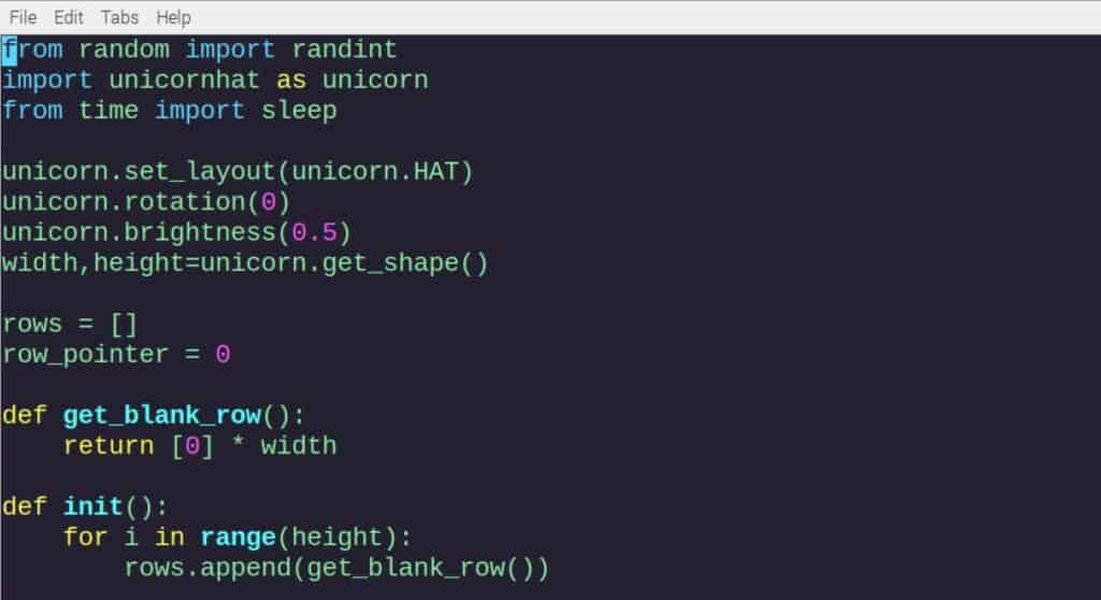
Creating a Python file using the VIM editor on a terminal
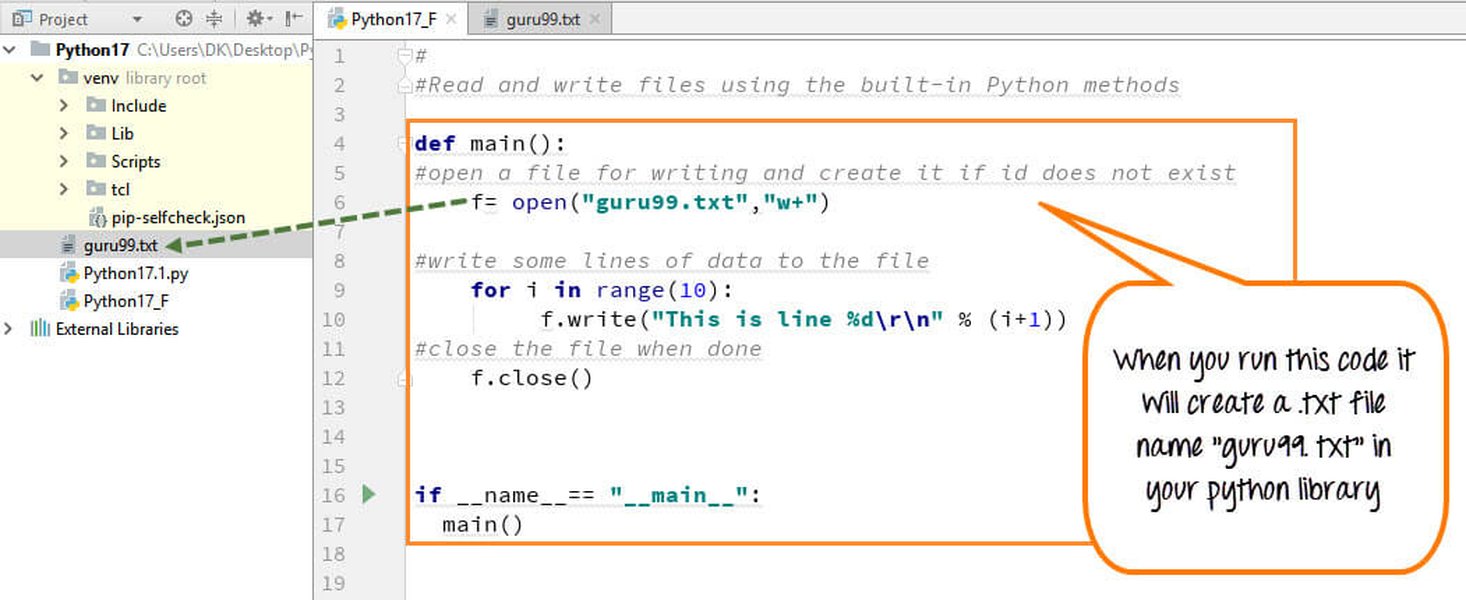
Writing to a text file using Python code
FAQ: Python File Creation
References
- How to Run Your Python Scripts – Real Python
- Create Python Script From Terminal - JC Chouinard
- How to Run Python Scripts - The Knowledge Academy
-
Python Tutorial in Visual Studio Code - VS Code Docs
- Creating and Running Your First Python Project - PyCharm
- The Python Tutorial - Python.org
- Python File Write - W3Schools
Recommended Searches
Last updated April 9, 2025