
Unlocking Precision Automation: Crafting the Perfect Conditions for Your CRM Workflows
A Product Manager's guide to defining robust logical rules that power efficient and intelligent CRM processes.
As your Product Manager for this CRM Workflow feature, I'm excited to help you define the critical "Conditions" component. Conditions are the brain of your automated workflows, ensuring that actions are taken only when specific criteria are met. This precision is key to building effective, efficient, and intelligent flows that truly serve your users' needs. Let's dive into the requirements that will empower your users to define these all-important logical rules.
Essential Insights: Key Takeaways for Workflow Conditions
- Flexibility in Data Evaluation: Conditions must be able to assess various data types from CRM records, including text, numbers, dates, booleans, and lookups, using a comprehensive set of operators.
- Robust Logical Structuring: Users need the ability to combine multiple conditions using AND/OR logic and group them to create complex, nested decision trees that accurately reflect business rules.
- User-Friendly Configuration: The interface for defining conditions should be intuitive, providing real-time validation and clear feedback to enable users of all technical levels to build powerful workflows.
Understanding the Core: Triggers, Conditions, and Actions
To ensure we're on the same page, let's briefly revisit the definitions you provided:
- Trigger(s): Defines when the workflow starts. This is the event or set of events that initiate an automated process.
- Condition(s): Defines logical rules that must be satisfied. These are the checkpoints that determine if the workflow should proceed to execute its actions.
- Action(s): Defines what the system should do when conditions are met. These are the tasks performed by the workflow after successful evaluation of triggers and conditions.
Our focus here is squarely on defining the requirements for robust and versatile Conditions.
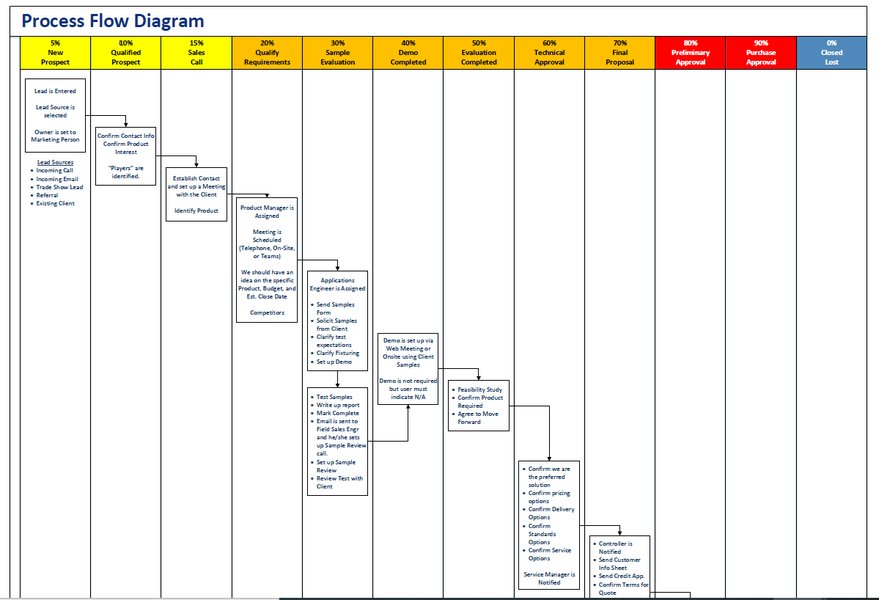
A visual representation of a process flow, akin to how CRM workflows guide automated tasks based on triggers and conditions.
Deep Dive into Workflow Conditions: The Engine of Automation
Conditions are what make your CRM workflows smart. They prevent unnecessary actions, ensure relevance, and allow for tailored responses based on specific data points within your CRM. A well-defined set of condition capabilities is paramount for user adoption and satisfaction.
Why Conditions Are Crucial
Without effective conditions, workflows would be blunt instruments, firing indiscriminately. Conditions provide the necessary finesse by:
- Enhancing Precision: Ensuring actions are only taken when specific criteria align with business objectives.
- Improving Efficiency: Reducing the number of unnecessary workflow executions, saving system resources and user attention.
- Enabling Personalization: Allowing workflows to react differently based on diverse customer or deal attributes.
- Supporting Complex Business Logic: Facilitating the automation of intricate processes that require multiple checks and balances.
Fundamental Requirements for Condition Definition
To empower users to build proper flows, the condition definition capabilities must be comprehensive and user-friendly. Here are the key functional requirements:
Intuitive User Interface (UI) for Condition Building
- The system must provide a user-friendly interface (e.g., a visual condition builder, an expression editor with auto-complete) for defining conditions.
- Real-time validation of condition syntax and logic should be provided, with clear error messages to guide users.
- Consider offering pre-built templates for common conditions to speed up workflow creation.
- Allow users to easily add, edit, reorder, and delete conditions.
Operating on Diverse CRM Data Types
Conditions must be able to evaluate data from various field types within the CRM records that trigger the workflow or are related to them. This is crucial for creating relevant and context-aware automation. The following table outlines the necessary support:
| Field Type | Supported Operators | Example Use Case (Conceptual) |
|---|---|---|
| Text Fields (e.g., Name, City, Description) | Equals, Does not equal, Contains, Does not contain, Starts with, Ends with, Is empty, Is not empty | Lead.Status_Reason Contains "Follow-up required" |
| Number Fields (Integer, Decimal, Currency; e.g., Deal Amount, Age, Score) | Equals, Does not equal, Greater than, Less than, Greater than or equal to, Less than or equal to, Is empty, Is not empty | Opportunity.Value >= 50000 |
| Date and Time Fields (e.g., Created Date, Last Activity, Follow-up Date) | Equals (specific date/time), Does not equal, Is before (specific or relative date/time like 'today', 'yesterday', 'next 7 days'), Is after, Is on or before, Is on or after, Is within the last X days/weeks/months, Is within the next X days/weeks/months, Is empty, Is not empty | Task.DueDate Is on or before "next Friday" |
| Picklist/Dropdown Fields (e.g., Lead Source, Industry, Case Priority) | Equals (specific option), Does not equal, Is one of (multiple options), Is not one of, Is empty, Is not empty | Account.Industry Is one of ("Technology", "Healthcare", "Finance") |
| Boolean (Yes/No) Fields (e.g., Email Opt-Out, Active Customer) | Equals (Yes/True), Equals (No/False), Is empty, Is not empty (though typically booleans are rarely 'empty') | Contact.EmailOptOut Equals True |
| Lookup/Relationship Fields (e.g., Primary Contact for Account, Related Case) | Is linked to (specific record), Is not linked to, Related record field value meets criteria (allowing drilling down into fields of related records, e.g., Account.Owner.Team Equals "Enterprise Sales"), Is empty (no related record linked), Is not empty (a related record is linked) |
Opportunity.Account.AnnualRevenue > 1000000 (checking a field on the related Account) |
Note: The "Is empty" / "Is not empty" operators are generally applicable and crucial for handling missing data scenarios.
Powerful Logical Operators for Combining Conditions
- AND: All individual conditions within an AND group must evaluate to true for the overall group to be true.
- OR: At least one individual condition within an OR group must evaluate to true for the overall group to be true.
- NOT: (Less common as a top-level joiner, but useful for negating a specific condition or group) Reverses the logical state of a condition.
Grouping and Nesting for Complex Business Logic
- Users must be able to group conditions (e.g., using parentheses or a visual grouping mechanism) to control the order of evaluation. For example:
(Condition A AND Condition B) OR Condition C. - Support for nested groups should be provided to enable the creation of sophisticated decision trees.
Referencing CRM Data Dynamically
- Conditions should be able to evaluate both standard and custom fields on the CRM record that triggered the workflow.
- Ability to check fields on records related to the triggering record (e.g., checking the Account's industry when an Opportunity is updated).
- Access to system variables or context (e.g., current date/time, current user's role – though user context might be more for permissions).
Temporal and Contextual Conditions
- Support for time-based conditions beyond simple date field comparisons, such as:
- Is current time within business hours?
- Is today a holiday? (Requires integration with a holiday calendar system).
- Has it been X days/hours since a specific event or field change?
Visualizing the Anatomy of Workflow Conditions
To better understand the multifaceted nature of a robust condition engine, the following mindmap illustrates the key components and considerations involved in defining workflow conditions. It highlights data sources, operator types, logical structuring, user experience elements, and essential design considerations that contribute to a powerful and flexible system.
(Equals, Not Equals, Greater Than, Less Than,
Contains, Starts With, Is Empty, etc.)"] id1_3_2["Logical Operators
(AND, OR, NOT)"] id1_4["Logic Structure & Grouping"] id1_4_1["Single Condition Checks"] id1_4_2["Compound Conditions (AND/OR Grouping)"] id1_4_3["Nested Logic (Parentheses for Order of Operations)"] id2["User Experience & Design (Condition Builder)"] id2_1["Intuitive Visual Interface"] id2_2["Real-time Validation & Syntax Highlighting"] id2_3["Clear and Actionable Error Messaging"] id2_4["Condition Templates or Presets (Optional)"] id2_5["Easy Reordering and Modification of Conditions"] id3["Key Functional & Non-Functional Considerations"] id3_1["Performance & Scalability of Evaluation Engine"] id3_2["Testability of Conditions within Workflow Design"] id3_3["Clarity, Readability, and Maintainability of Logic"] id3_4["Consistent Handling of Empty/Null Values"] id3_5["Security: Respecting Field-Level Permissions"]
Assessing Condition Engine Capabilities
The effectiveness of a CRM workflow system heavily relies on the sophistication and user-friendliness of its condition engine. The radar chart below provides an opinionated comparison across different aspects for a basic system, an advanced system, and our ideal target system. This helps visualize the desired capabilities for defining conditions, aiming for high versatility, richness in operators, logical depth, intuitive UI, broad data access, and efficient performance. Our goal is to build a system that leans towards the 'Ideal Target'.
Best Practices for Crafting Effective Conditions
While the system provides the tools, users should be encouraged (perhaps via help text or tutorials) to follow best practices:
- Keep it Simple (KISS Principle): Encourage users to build the simplest conditions that meet their needs. Overly complex conditions can be hard to debug and maintain.
- Document Logic: Provide a way for users to add notes or descriptions to complex conditions or groups of conditions.
- Test Thoroughly: Users should be able to test their workflows, specifically how conditions evaluate with sample data, before activation.
- Consider Performance: While the system should be optimized, very complex conditions on large datasets can have performance implications. Advise users to be mindful, especially with lookups to many related records.
- Handle Null/Empty Values Explicitly: Encourage users to explicitly check for empty or null values if that state affects the logic, rather than relying on implicit behavior which might vary.
Automating with Intelligence: CRM Workflow Video Insights
To further illustrate the power and practical application of CRM workflows, the following video provides an introduction and guide to setting up CRM automations. While it may cover broader aspects of workflows, pay attention to how conditions (often referred to as rules or filters) are integral to directing the automated processes. Understanding these general principles can help in appreciating the significance of the detailed condition requirements we are defining.
This video discusses general CRM automation and workflow setup. The concepts of defining when a workflow should run and what criteria must be met are universal, highlighting why a robust condition engine, as detailed in this document, is essential for creating effective automations that can handle diverse business scenarios, from lead nurturing to customer service escalations.
Non-Functional Requirements for the Condition Engine
Beyond what the condition engine *does*, we must also consider *how* it does it:
- Performance: Condition evaluation must be highly performant and not introduce significant delays in workflow execution, even with multiple complex conditions.
- Scalability: The engine must scale to handle a large volume of workflow instances and condition evaluations concurrently.
- Reliability: Condition evaluation should be deterministic and reliable, consistently producing the correct outcome based on the defined logic and data.
- Security: When conditions involve accessing CRM data, the evaluation must respect user permissions and field-level security settings. Users should not be able to build conditions on fields they cannot otherwise view.
- Usability (Error Handling): If a condition is malformed or refers to a non-existent field (e.g., after a customization change), the system should provide clear error messages and potentially fail the workflow gracefully or alert an administrator.
Example Use Cases Showcasing Conditions in Action
Let's illustrate how these condition requirements translate into practical user scenarios:
Use Case 1: Lead Qualification and Assignment
- Trigger: When a new Lead is created.
- Conditions:
(Lead.LeadScore >= 80 AND Lead.Source EQUALS "Webinar")OR(Lead.Industry EQUALS "Manufacturing" AND Lead.AnnualRevenue > 1000000)
- Actions:
- Assign Lead to "Senior Sales Rep Team".
- Send a notification email to the team manager.
- Create a follow-up task for the assigned team due in 2 days.
This example uses numerical comparison, text equality, logical AND/OR, and grouping to define criteria for qualifying a high-value lead.
Use Case 2: Customer Support Ticket Escalation
- Trigger: When a Support Ticket is updated.
- Conditions:
Ticket.Priority EQUALS "High"ANDTicket.Status DOES NOT EQUAL "Closed"ANDTicket.LastResponseByCustomerDateTime IS BEFORE "4 hours ago"(meaning no customer response in last 4 hours)
- Actions:
- Change Ticket.Status to "Escalated".
- Notify the Support Manager via internal message.
- Add an internal note: "Ticket escalated due to high priority and no recent customer response."
This scenario combines picklist evaluation, date/time relative comparison, and logical AND to identify tickets needing urgent attention.
Frequently Asked Questions (FAQ) about Workflow Conditions
Recommended Next Steps & Further Exploration
To continue developing a comprehensive understanding and refining our workflow feature, I recommend exploring these related queries:
- What are the best practices for designing complex CRM workflow logic involving multiple nested conditions?
- How can robust error handling and notifications be implemented for CRM workflow conditions that fail or encounter unexpected data?
- Could you provide examples of advanced CRM workflow conditions used in sales automation for dynamic lead scoring and prioritization?
- What are the key user interface design considerations for a CRM workflow condition builder to ensure it's intuitive for non-technical users?
References
This document synthesizes concepts and requirements based on established practices in CRM workflow automation. The following resources provide further context:
Last updated May 6, 2025