
Mastering Custom IR Codes for Xiaomi Devices
Explore techniques and tools to learn and implement custom infrared codes
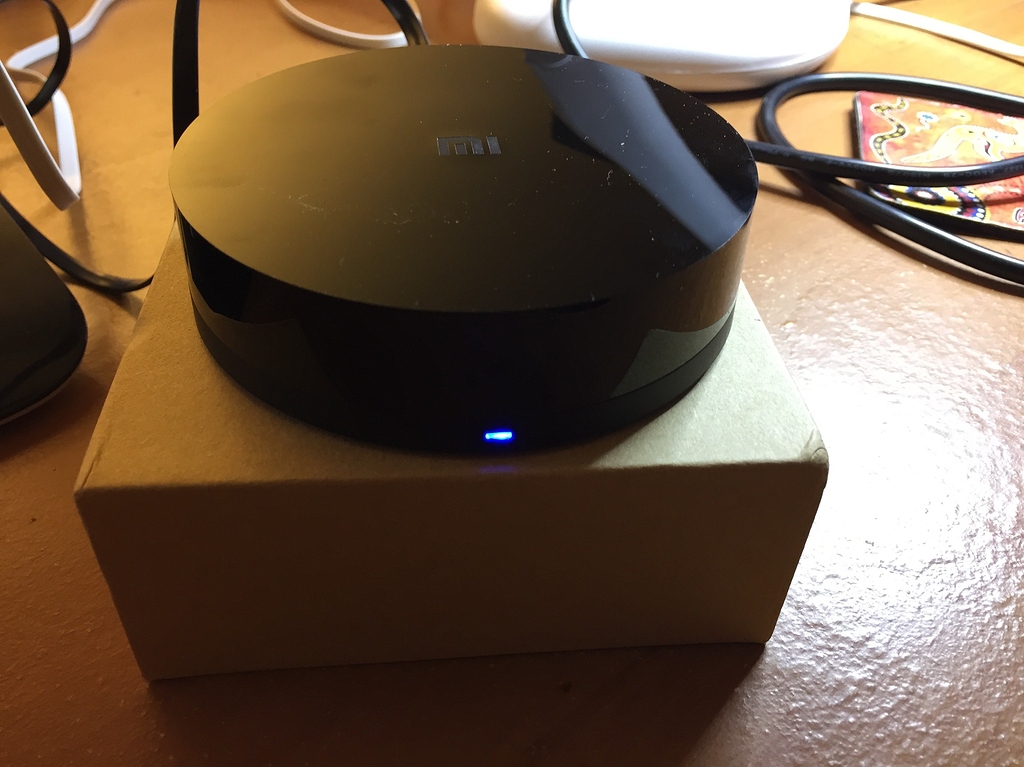
Highlights
- Integration with Home Automation: Utilize Home Assistant and related services to capture and send custom IR codes.
- Tools and Devices: Employ devices like Broadlink RM series and apps like Sure for effective IR code learning and testing.
- Step-by-Step Process: Understand the importance of capturing, decoding, integrating, and testing the IR signals to ensure proper command transmission.
Introduction
Xiaomi devices have garnered a prominent reputation for their innovation and compatibility with smart homes. One of the more advanced techniques available for smart home aficionados involves learning custom infrared (IR) codes. By doing so, users can control non-native devices, integrate unexpected appliances into automated routines, or simply gain a deeper understanding of how their hardware communicates. This guide offers you a comprehensive breakdown of how to capture, decode, integrate, and test custom IR codes for Xiaomi devices.
Getting Started With Custom IR Code Learning
Understanding Xiaomi IR Devices
Xiaomi devices often come with built-in IR capabilities that allow them to read codes from other remote controls. Custom IR codes expand the range of control and offer flexibility in managing your appliances. However, before you dive into the process, it is essential to have a clear understanding of what IR codes are and how they function.
What Are IR Codes?
IR codes are sequences of pulses that encode specific commands. These pulses, often transmitted at a particular frequency (frequently around 36 kHz), are detected by an IR receiver, which then acts upon the device accordingly. Learning, decoding, and reusing these pulse sequences can enable you to replicate commands from an existing remote.
Methodologies and Tools
Using Home Assistant for IR Code Learning
Home Assistant is a popular platform among DIY home automation enthusiasts and provides robust capabilities for learning custom IR codes from Xiaomi devices. One of the central services used in this process is “xiaomi_miio.remote_learn_command”. When executed, this command listens for the incoming IR signal from your remote control.
Setup Process With Home Assistant
Follow these steps to initiate the learning process using Home Assistant:
- Device Setup: Ensure your Xiaomi IR remote is correctly set up in the Xiaomi Home app before integrating it with Home Assistant.
-
Activate Learning Mode: Call the
xiaomi_miio.remote_learn_commandservice through Home Assistant’s service tab. - Command Capture: Point your original remote control toward the Xiaomi IR device and press the button corresponding to the command you want to learn. The IR code is captured and displayed in the notification pane.
-
Code Retrieval: Extract the captured code and integrate it into your configuration file, such as
configuration.yaml, enabling you to create automations or scripts that send the same signal.
This integration not only streamlines the IR code-learning process but also ties your Xiaomi IR remote into a broader ecosystem of smart home devices and automation routines.
Utilizing Third-Party Tools and Apps
In addition to Home Assistant, several third-party tools and apps can aid in the IR code learning process:
Broadlink RM Devices
Devices from the Broadlink RM series (RM2 or RM3) are widely used for capturing and transmitting IR codes. These devices possess a “learning” capability whereby they capture the IR signal from your remote, allowing the raw code to be saved and later transmitted to control a device.
SmartIR and Sure Apps
The SmartIR custom integration for Home Assistant provides enhanced support for managing IR controllers. Similarly, the "Sure" Android app is noted for allowing users to download and control various IR codes. These apps are especially helpful if you prefer not to configure Home Assistant or seek an alternative method to capture IR signals.
Step-by-Step Guide to Learning Custom IR Codes
Step 1: Capture the IR Code
The initial step in the process is obtaining the raw IR code from your remote control. Depending on the device and method selected, the steps can either be hardware-driven or software-driven.
Using an IR Receiver Hardware
If you are using tools like the Broadlink RM series, follow these guidelines:
- Set up the Device: Plug in your Broadlink device and connect it to your network.
- Enter Learning Mode: Through its accompanying app or Home Assistant integration, switch the device to learning mode.
- Capture the Signal: Point your original remote toward the Broadlink device and press the button to send the IR command. The device records this command in a raw format.
Using Dedicated Software
For those using Home Assistant or a PC-based tool such as WinLIRC, the following procedure is recommended:
- Launch the Software: Ensure that your device is properly recognized by the application.
- Start the Capture Process: Initiate the command capture which listens for a precise waveform from the remote.
- Recording and Display: Once the signal is captured, the raw IR code is displayed which you can then record for further processing.
Step 2: Decode and Format the IR Code
After capturing the IR signal, decoding it involves interpreting the raw data into a usable format. This might involve converting the raw waveform into a format that can be stored in a configuration file or directly sent via an IR transmitter.
Understanding Code Structure
IR codes can sometimes be recorded in varying formats. Common formats include Pronto and Broadlink formats. Knowing the expected format for your Xiaomi device is vital.
Conversion Tools and Techniques
Tools such as IRgen available on GitHub can help convert raw IR signals into readable or replicable formats. In certain cases, you might need to reverse the bit sequence if the device expects an inverted code. Make sure the frequency matches (often around 36 kHz), as discrepancies may lead to ineffective transmission. Using online communities and forums specific to IR devices, you might find converters or manual guides that walk you through this detailed process.
Step 3: Integrate the IR Code with Xiaomi Devices
Once you have a properly formatted IR code, integration with your Xiaomi device is key. This involves mapping the learned code to a function or a command on your custom Xiaomi IR remote.
Incorporating Codes via Home Assistant
In Home Assistant, you can seamlessly integrate the codes by modifying your configuration.yaml file. Insert the IR code data under the appropriate device entry and assign a label or function name to it. This allows you to call the command in your automation scripts.
Using Xiaomi-Specific Tools
Some apps and tools have been specifically designed for the Xiaomi ecosystem. For instance, apps like Xiaomi Mi Infrared Remote Control enable you to assign new codes to the remote's buttons directly. Once the code is entered in the app, the command is transmitted to the device when you press the corresponding button.
Step 4: Test and Validate the Learned Code
Testing is a critical phase in the process of learning custom IR codes. It ensures that the integration is successful and that the command will work reliably under everyday conditions.
Testing Through Simulated Commands
After integration, use Home Assistant’s service call or the dedicated app’s testing feature to send the newly learned IR code to the device. Observe if the device responds as expected. This is especially important if you have converted the code format or made any adjustments.
Troubleshooting Common Issues
Sometimes, small discrepancies in frequency or code structure can lead to ineffective communication. If the device does not respond correctly:
- Double-check the Frequency: Ensure you are using the correct frequency (typically around 36 kHz).
- Verify the Code Integrity: Ensure the bit sequence and format are correctly maintained without unintended modifications.
- Review the Configuration: Revisit your Home Assistant configuration or the settings within the Xiaomi app to confirm that the learned code is being referenced correctly.
Advanced Techniques
Token Extraction and Direct Serial Access
For advanced users, accessing raw IR codes directly from the device can offer greater control and precision. Some Xiaomi devices provide the ability to access raw IR code data by connecting via serial or using command-line tools. For instance, by accessing the device’s serial0 with a baud rate of 115200, you can extract both the access token and the raw IR codes.
Using the Mi Home App for Direct Commands
Certain commands sent through the Xiaomi Mi Home app can be reverse engineered to understand the code structure. This process typically involves a combination of the following steps:
- Sending a Specific Command: Use the Mi Home app to issue a command and monitor network communications.
- Analyze the Data Packet: Capture the raw command and parse it to isolate the IR code.
- Translate and Save: After successfully translating the raw data, store it for later integration.
Integration with Other Home Automation Systems
While Xiaomi devices and Home Assistant offer integrated experiences, many users also combine these setups with other home automation platforms like OpenHAB or Homebridge. The core process remains the same—capture, decode, integrate, and test—but with the added benefit of cross-platform compatibility.
SmartIR Integration
SmartIR is an example of a dedicated integration that manages IR controllers within Home Assistant. Through SmartIR, you can configure a wide range of devices by referencing shared community codes or by inputting your own learned IR codes. This facilitates broader compatibility and easier management of various appliances beyond Xiaomi devices.
Practical Example: Integrating an IR Code Into Home Assistant
Example Table: IR Code Integration Workflow
| Step | Description | Tools/Methods |
|---|---|---|
| 1. Set Up Device | Configure Xiaomi IR remote within Xiaomi Home app and link with Home Assistant. | Mi Home app, Home Assistant |
| 2. Enter Learning Mode | Use Home Assistant service xiaomi_miio.remote_learn_command or Broadlink device learning mode. |
Home Assistant, Broadlink RM device |
| 3. Capture and Decode | Record the raw IR code and convert it into a usable format (e.g., Pronto or Broadlink format). | IRgen tools, manual conversion |
| 4. Integrate Code | Insert the decoded IR code into your configuration file and map it to a certain command. | Editing configuration.yaml, Xiaomi Mi Infrared Remote app |
| 5. Test Command | Send the IR command through Home Assistant or the dedicated app and ensure the device responds. | Home Assistant service calls, testing via app |
Community and Resource Engagement
Leveraging Community Forums
Many experts and enthusiasts share their experiences and coding techniques on community forums such as the Home Assistant Community, XDA Developers, and OpenHAB forums. Engaging with these communities can provide real-world examples, troubleshooting tips, and even pre-learned IR codes that can be directly imported into your system.
Online Resource Advantages
These online platforms not only offer code snippets and tutorials but also enable you to ask questions, share success stories, and discover innovative integrations that might suit your particular needs. Moreover, with continuous updates in the community, you'll always have access to the latest on device compatibility and software updates.
Summary
Mastering custom IR codes for Xiaomi devices involves a structured approach: capturing raw IR signals, decoding them into usable formats, integrating the codes with your home automation setup, and thoroughly testing the results. Whether you choose to leverage the simplicity of Home Assistant or experiment with more advanced methods like direct token extraction, the key is to follow each step methodically. Additionally, by engaging with vibrant online communities and utilizing dedicated tools and apps, you can further streamline the process and tailor integrations to meet your specific home automation goals.
References
- Xiaomi IR Remote Commands - Home Assistant Community
- SmartIR - GitHub Repository
- Custom IR Remote - XDA Forums
- Learning IR Code - OpenHAB Community
- Extracting IR Codes - Home Assistant Community
Recommended Queries
Last updated March 15, 2025