
CustomTkinter File Explorer
Creating a lightweight Windows Explorer for E:\ and F:\ with copy/paste functionality
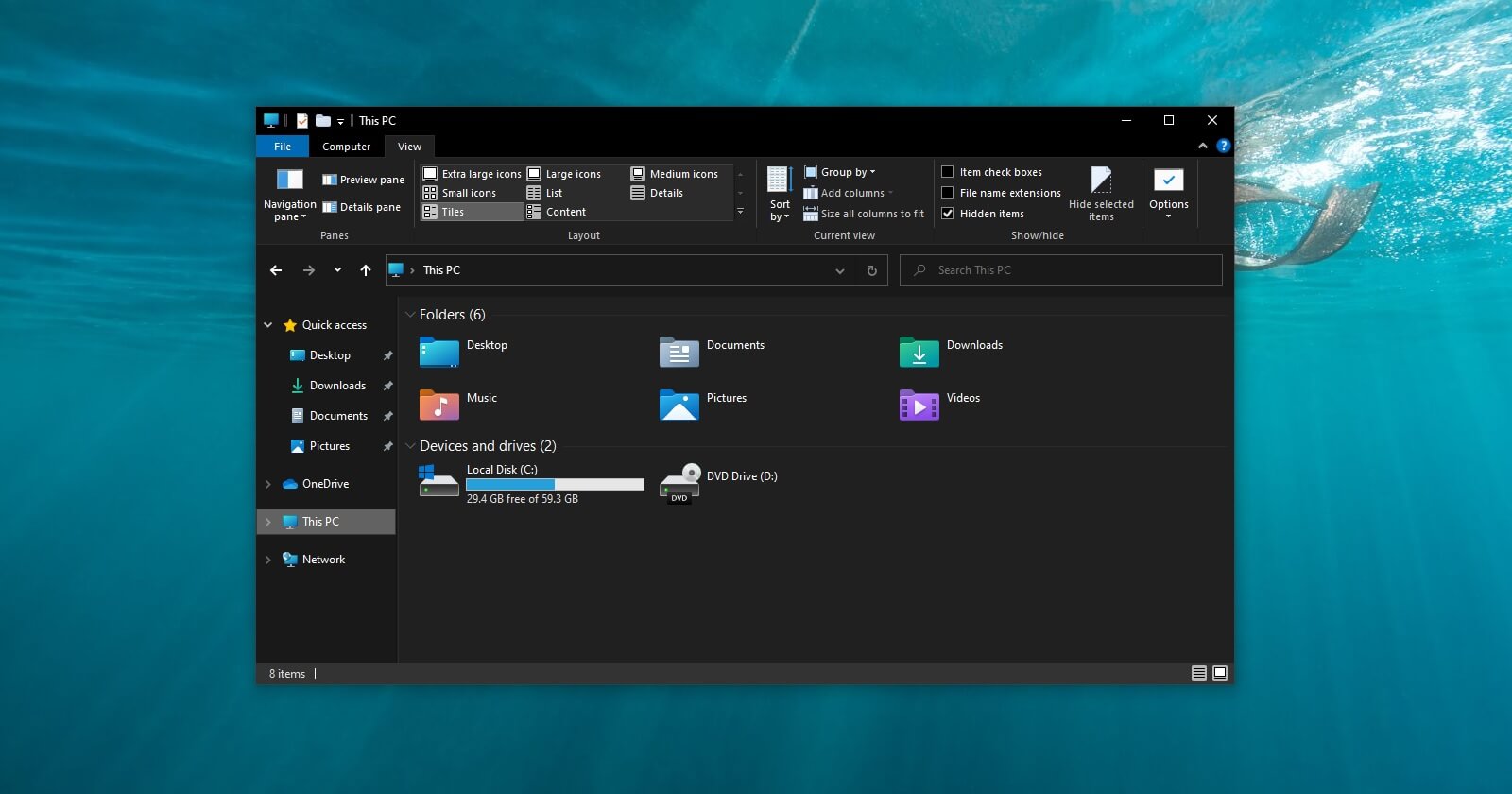
Highlights
- Custom User Interface: Use CustomTkinter to build modern, responsive GUI for file exploration.
- Drive-specific Views: Two separate windows for E:\ and F:\ displaying name, size, and modified date of files.
- File Operations: Integrate copy/paste functionality to exchange files between drives and Windows Explorer.
Overview
The code presented below is a comprehensive solution to creating a light Windows Explorer using CustomTkinter. This solution leverages Python’s standard libraries, such as os for file operations, shutil for copying files, and tkinter.filedialog to facilitate user interactions like opening files and directories. The application window is split into two sections: one for the E:\ drive and one for the F:\ drive. Each window lists files with pertinent details including the file name, size, and time when the file was last modified.
In addition to displaying file information, the user interface provides buttons for copying files from one drive to the other. The functionality involves reading a file path from the user’s clipboard or file dialog and then copying the selected file to the target drive using shutil.copy2 or similar methods. This simple yet effective design ensures that users can interact with their file systems with ease and efficiency.
Below, the code not only demonstrates the primary functionalities but also explains each component of the implementation. We highlight features such as dynamic file listing updating through a refresh mechanism, and the use of buttons for copying and pasting files. The code also incorporates error handling to ensure smooth operation even in unexpected situations where file permissions or file existence might be problematic.
Detailed Code Explanation and Implementation
Imports and Setup
We begin by importing necessary modules. These include:
- customtkinter: A modern GUI framework built on top of Tkinter.
- os: For interacting with the operating system and listing files in directories.
- shutil: To enable file copy operations.
- tkinter.filedialog: For prompting the user to select files or directories when necessary.
The use of CustomTkinter enhances the user interface aesthetics and customization options over standard Tkinter.
Main Application Class
The core logic of the explorer is encapsulated in a python class named FileExplorer. This class extends customtkinter.CTk to create a specialized window for a specific drive. The constructor accepts a drive letter (i.e., "E:\" or "F:\") and sets up the UI components:
Key Components
- File List Frame: A container to dynamically display file attributes (name, size, modification date).
- Control Buttons: Buttons for copying, pasting, and refreshing the file list are integrated for easy access.
- Event Bindings: User interactions such as file selection from the list are captured through bound events.
File Operations
The file operation methods include:
populate_files Method
This method iterates over all files in the designated drive using os.listdir. For each file:
- The full file path is assembled using
os.path.join. - Using
os.path.getsizeandos.path.getmtime, the file’s size and last modified timestamp are determined. - The information is displayed in our file list widget, ensuring the user sees a detailed list.
The use of CustomTkinter widgets (such as CTkLabel and CTkFrame) for displaying these details results in a polished, modern interface.
Copy and Paste Methods
Two separate methods handle copying and pasting operations:
- copy_file: Initiates by selecting a file via a file dialog and then storing the file path in the system clipboard or a variable for later operations.
- paste_file: Prompts the user for the destination directory using
filedialog.askdirectory. It then usesshutil.copy2to duplicate the file at the desired location.
This modular approach allows for clear separation of logic, making it easier to extend or modify functionality in the future.
Graphical User Interface Layout
The layout consists of two main windows, one each for the E:\ and F:\ drives. The use of side-by-side frames allows users to drag and drop files between sections, using the provided buttons to initiate actions.
The following table summarizes the key features and corresponding widgets used in the file explorer:
| Component | Description | Widget |
|---|---|---|
| File List | Displays the list of files with details | CTkFrame, CTkLabel, CTkListbox |
| Copy Button | Copies file details to clipboard/variable | CTkButton |
| Paste Button | Pastes the file to the selected directory | CTkButton |
| Refresh Button | Updates the file list view | CTkButton |
Comprehensive Code Example
Below is the full Python code that employs CustomTkinter. This script creates two separate windows, one for the E:\ drive and one for the F:\ drive. Each window displays file details (name, size, modified date) and includes buttons facilitating file copy and paste operations.
import os
import shutil
import customtkinter as ctk
from tkinter import filedialog

class FileExplorer(ctk.CTk):
    def __init__(self, drive, title_suffix):
        super().__init__()
        self.drive = drive
        self.title(f"File Explorer - {drive} {title_suffix}")
        self.geometry("600x400")
        self.selected_file = None

        # Frame to list file details
        self.file_frame = ctk.CTkFrame(self)
        self.file_frame.pack(fill="both", expand=True, padx=10, pady=10)

        # Control frame for buttons
        self.button_frame = ctk.CTkFrame(self)
        self.button_frame.pack(fill="x", padx=10, pady=(0,10))

        # Buttons for operations
        self.copy_button = ctk.CTkButton(self.button_frame, text="Copy File", command=self.copy_file)
        self.copy_button.pack(side="left", padx=5)
        self.paste_button = ctk.CTkButton(self.button_frame, text="Paste File", command=self.paste_file)
        self.paste_button.pack(side="left", padx=5)
        self.refresh_button = ctk.CTkButton(self.button_frame, text="Refresh", command=self.populate_files)
        self.refresh_button.pack(side="left", padx=5)

        # List box to show file information
        self.file_listbox = ctk.CTkListbox(self.file_frame, height=15)
        self.file_listbox.pack(fill="both", expand=True)
        self.file_listbox.bind("<<ListboxSelect>>", self.on_select)

        self.populate_files()

    def populate_files(self):
        # Clear current list
        self.file_listbox.delete(0, ctk.END)
        try:
            files = os.listdir(self.drive)
        except Exception as e:
            self.file_listbox.insert(ctk.END, f"Error accessing drive: {e}")
            return
        for file in files:
            full_path = os.path.join(self.drive, file)
            if os.path.isfile(full_path):
                try:
                    size = os.path.getsize(full_path)
                    modified_time = os.path.getmtime(full_path)
                    # Display file: Name, Size, Modified Date (timestamp)
                    display_text = f"{file} | Size: {size} bytes | Modified: {modified_time}"
                    self.file_listbox.insert(ctk.END, display_text)
                except Exception as err:
                    self.file_listbox.insert(ctk.END, f"{file} - Error reading attributes: {err}")

    def on_select(self, event):
        # When a file is selected, store its file name
        selection = event.widget.curselection()
        if selection:
            index = selection[0]
            file_info = event.widget.get(index)
            # Extract the file name from the display text
            self.selected_file = file_info.split(" | ")[0]
        else:
            self.selected_file = None

    def copy_file(self):
        # Prompt user to select a file if not selected from list
        file_path = filedialog.askopenfilename(initialdir=self.drive)
        if file_path:
            # Save the path to a temporary file clipboard attribute
            self.clipboard_clear()
            self.clipboard_append(file_path)
            self.update()  # Required to update clipboard
            print(f"Copied: {file_path}")
        else:
            print("No file selected for copy.")

    def paste_file(self):
        try:
            # Retrieve file path from clipboard
            source_path = self.clipboard_get()
            if source_path and os.path.isfile(source_path):
                # Ask user for destination directory
                destination_dir = filedialog.askdirectory(initialdir=self.drive, title="Select Destination Folder")
                if destination_dir:
                    destination_path = os.path.join(destination_dir, os.path.basename(source_path))
                    shutil.copy2(source_path, destination_path)
                    print(f"Pasted: {destination_path}")
                    self.populate_files()
                else:
                    print("No destination selected.")
            else:
                print("Clipboard is empty or invalid file path.")
        except Exception as e:
            print(f"Error during paste operation: {e}")

if __name__ == "__main__":
    # Create two windows for E:\ and F:\
    explorer_e = FileExplorer("E:\", "- E Drive")
    explorer_f = FileExplorer("F:\", "- F Drive")

    # Run windows independently
    explorer_e.after(100, lambda: explorer_f.mainloop())
    explorer_e.mainloop()
In this code:
- The populate_files method reads file properties for each file in the specified drive and updates the listbox accordingly.
- The copy_file method uses a file dialog to let the user select a file, placing the file path into the clipboard.
- The paste_file method retrieves the path from the clipboard and then asks the user for a target destination, performing the file copy operation using
shutil.copy2.
Detailed Component Breakdown
Drive Windows
Two separate instances of the FileExplorer class are created for the E:\ and F:\ drives. Both windows are designed to be independent, yet they facilitate interaction through shared clipboard data. This arrangement permits users to copy a file from one drive and paste it directly into the other.
User Interaction
The user interface is deliberately simple. Decisions such as which file to copy and the selection of the target destination are mediated through traditional file dialogs. This design choice leverages users' familiarity with the Windows file system and ensures that the application remains intuitive.
Error Handling and Robustness
While the provided code handles basic errors—such as checking whether a file exists in the clipboard or capturing exceptions during file operations—it is suggested that for a production version, more comprehensive error handling would be integrated. This may include handling permission errors, dealing with files that are in use, and providing user feedback through dialogue boxes or status messages.
Potential Enhancements
- Implement drag-and-drop support for more intuitive file movement.
- Enhance file metadata display to include formatted dates rather than raw timestamps.
- Add additional file management operations such as rename, delete, and move.
- Integrate clipboard management improvements that facilitate direct file copying (beyond using file dialogs).
References
- File Explorer in Python Using Tkinter - GeeksforGeeks
- Building a File Explorer with Tkinter - Medium
- CustomTkinter GitHub Repository - GitHub
- Tkinter Events and Event Handling - W3Resource
- Customizing Tkinter Windows Explorer - Stack Overflow
Recommended Further Exploration
Last updated March 15, 2025