
Navigating AI Integration: A Comprehensive Guide to Disabling AI Features in Microsoft Office
Unveiling the Layers of AI in Your Productivity Suite and How to Reclaim Control
Key Insights into Managing AI in Microsoft Office
- Direct Copilot Toggle: For many Microsoft 365 applications like Word, Excel, and PowerPoint, the most straightforward way to disable AI features like Copilot is through a dedicated "Enable Copilot" checkbox found in the application's options or preferences. This method often turns off Copilot for that specific app on that particular device.
- Connected Experiences: A broader approach to minimize AI functionality and data scraping involves disabling "Connected Experiences" within the Trust Center settings. This setting, while effective, can also turn off other beneficial features such as dictation, text suggestions, transcription, and translation, as they rely on AI services.
- System-Level and Advanced Methods: For a more comprehensive or persistent disablement, especially for the "Artificial Intelligence (AI) Host" process (ai.exe), users might explore options like modifying registry settings, using batch files, or even leveraging the Group Policy Editor in Windows Pro/Enterprise versions. These methods often require a deeper technical understanding.
Microsoft Office applications, including Word, Excel, and PowerPoint, have increasingly integrated artificial intelligence (AI) features, most notably through Microsoft Copilot. While these features aim to enhance productivity with functionalities like content generation, intelligent suggestions, and automated tasks, many users may prefer to disable them due to privacy concerns, resource consumption, or simply a preference for traditional workflows. This comprehensive guide details various methods to disable AI capabilities within your Microsoft Office suite, ranging from simple in-app toggles to more advanced system-level adjustments.
Understanding Microsoft's AI Integration in Office
The Rise of Copilot and Connected Experiences
Microsoft's push for AI integration has seen Copilot become a prominent feature in Microsoft 365 Family and Personal subscriptions. Copilot is designed to assist users with various tasks, from drafting content in Word to analyzing data in Excel and creating presentations in PowerPoint. Beyond Copilot, other AI-driven features exist under the umbrella of "Connected Experiences," which can include text predictions, suggested replies, and automatic alt text for images. These features often rely on cloud-based services and may process user content to function, raising concerns about data privacy and the potential for document scraping to train internal AI systems. Understanding these interconnected AI components is crucial for effective disablement.
One particular background process that users have identified is "ai.exe," often referred to as the "Artificial Intelligence (AI) Host for the Microsoft® Windows® Operating System and Platform x64." This executable is part of the AI infrastructure within Microsoft Office and can run as a separate background process for applications like Outlook, Word, and PowerPoint, consuming system resources.
The radar chart above illustrates a comparative analysis of different AI disablement methods in Microsoft Office based on several key characteristics. The "Ease of Disablement" axis indicates how simple it is to apply the method, with higher values meaning easier. "Impact on Other Features" shows how likely the method is to disable other desired functionalities, where lower values mean less impact. "Persistence After Restart" measures if the setting holds after closing and reopening applications or rebooting the system. "Technical Skill Required" assesses the level of technical knowledge needed, with higher values indicating more complexity. Finally, "Scope of AI Disabled" indicates how comprehensively the AI features are turned off by that method, with higher values meaning a broader disablement.
Step-by-Step Methods to Disable AI in Microsoft Office
Method 1: Disabling Copilot within Individual Applications
This is the most direct and often sufficient method for users who primarily want to remove Copilot's interactive features from their workflow. This setting typically needs to be adjusted in each Microsoft 365 application (Word, Excel, PowerPoint, OneNote) where you wish to disable Copilot.
For Windows Users:
- Open the desired Microsoft Office application (e.g., Word).
- Click on File in the top-left corner.
- Select Options at the bottom of the left-hand menu.
- In the Word Options window, locate and click on Copilot (it's often the fourth option).
- Clear the Enable Copilot checkbox.
- Click OK to save your changes, then close and restart the application for the changes to take effect.
This process must be repeated for each application (Excel, PowerPoint, etc.) where you want to disable Copilot.
Disabling Copilot through the application options in Microsoft Word.
For Mac Users:
- Open the desired Microsoft Office application (e.g., Word).
- From the Word menu (or Excel, PowerPoint), select Preferences.
- In the "Authoring and Proofing Tools" section, choose Copilot.
- Clear the Enable Copilot checkbox.
- Close the preferences window and restart the application.
Disabling Copilot via this method removes the icon from the ribbon and prevents its interactive features from appearing. However, it's important to note that removing the icon from the ribbon doesn't necessarily turn off all underlying AI services; it primarily hides the direct user interface for Copilot.
Method 2: Turning Off "Connected Experiences" for Broader Control
This method provides a more comprehensive approach to limiting Microsoft's AI features, as "Connected Experiences" encompass a range of services that use AI, including those that might scrape document content for training purposes. Be aware that this will also disable other features you might find useful, such as dictation, text suggestions, transcription, and translation.
For Windows Users:
- Open any Microsoft Office application (e.g., Word).
- Click on File > Options.
- On the left menu, click Trust Center.
- Click the Trust Center Settings... button.
- In the Trust Center dialog box, select Privacy Options on the left.
- Click on Privacy Settings....
- Locate Optional Connected Experiences and uncheck the box labeled "Turn on optional connected experiences".
- Click OK on all open dialog boxes and restart your Office applications.
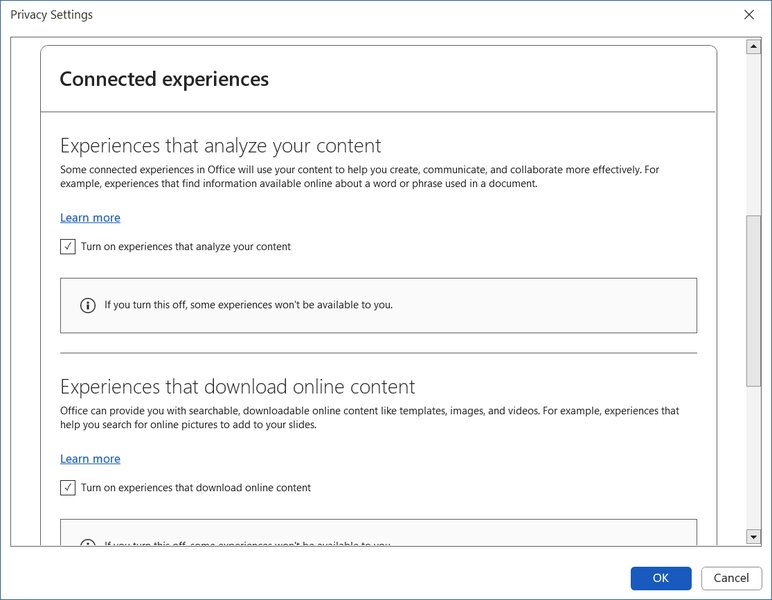
Adjusting privacy settings to disable connected experiences in Microsoft 365.
For Mac Users:
- Open any Microsoft Office application (e.g., Word).
- Go to Word (or Excel, PowerPoint) > Preferences.
- Select Privacy.
- Click Manage Connected Experiences.
- Uncheck ALL of the boxes related to connected experiences.
Method 3: Advanced System-Level Disablement (for ai.exe and Windows Copilot)
For users seeking a more robust and permanent solution, especially concerning the "Artificial Intelligence (AI) Host" process (ai.exe) or Windows Copilot, advanced methods can be employed. These typically involve modifying system files, registry entries, or using Group Policy. These methods require caution and a good understanding of your system, as incorrect changes can lead to instability.
Disabling AI.exe via Batch File (Windows):
This method involves creating and running a batch file to terminate the ai.exe process and delete associated files. However, Office updates can reinstate these files, so disabling updates might be necessary alongside this method.
- Open Notepad.
- Paste the following lines into the Notepad document:
taskkill /IM ai.exe /F
CD "C:\Program Files\Microsoft Office\root\vfs\ProgramFilesCommonX64\Microsoft Shared\OFFICE16"
Del ai.exe
Del ai.dll
Del aimgr.exe
Note: If you are using a different Office version than Office 2016 (Office16), you need to change the folder number (e.g., Office15 for Office 2013, Office14 for Office 2010).
- Save the file as a batch file (e.g.,
disable_ai.bat) and select "All Files" as the file type. - Right-click the saved batch file and select Run as administrator.
To prevent these files from returning with updates, you might also consider disabling Office updates temporarily. Go to File > Account > Update Options and select Disable Updates.
Using Image File Execution Options (Windows):
This method involves manipulating the Windows Registry to redirect the execution of ai.exe to another program, effectively preventing it from running.
REG ADD "HKEY_LOCAL_MACHINE\SOFTWARE\Microsoft\Windows NT\CurrentVersion\Image File Execution Options\ai.exe"
REG ADD "HKEY_LOCAL_MACHINE\SOFTWARE\Microsoft\Windows NT\CurrentVersion\Image File Execution Options\ai.exe" /v "UseFilter" /t REG_DWORD /d "1" /f
REG ADD "HKEY_LOCAL_MACHINE\SOFTWARE\Microsoft\Windows NT\CurrentVersion\Image File Execution Options\ai.exe\ai.exe.path"
This method changes ai.exe to calcold.exe, removing the AI feature from Office 365. This is a more persistent solution compared to just deleting files, as it intercepts the execution at a system level.
Disabling Windows Copilot (System-Wide for Windows 11):
If your concern extends to the system-wide Windows Copilot feature, you can disable it through Windows Settings or Group Policy Editor (for Pro and Enterprise versions).
- Go to Settings > System > Copilot.
- Toggle the switch to Off.
For more control, especially in managed environments, the Group Policy Editor offers a dedicated setting:
- Press Win + R, type gpedit.msc, and press Enter.
- Navigate to User Configuration > Administrative Templates > Windows Components > Windows Copilot.
- Double-click "Turn off Windows Copilot" and set it to Enabled.
This video provides a helpful visual guide on how to remove or disable the Windows Copilot AI Assistant. It walks through the steps, demonstrating how to navigate system settings to control this integrated AI feature, which can be useful for those who prefer to limit AI functionality within their operating system.
Considerations and Potential Impacts
When choosing to disable AI features, it's important to be aware of the potential trade-offs:
- Loss of Convenience Features: As mentioned, disabling "Connected Experiences" can affect features like dictation, text suggestions, and translation, which many users find helpful.
- Resource Consumption vs. Functionality: While disabling AI components like ai.exe might reduce resource usage and improve system performance for some users, it also means losing access to any AI-powered enhancements.
- Microsoft's Integration Strategy: Microsoft is increasingly integrating AI into its core products. Opting out might mean missing out on future innovations or facing compatibility challenges if you wish to re-enable features later. Some users have noted that Microsoft's default is often "opt-out," meaning these features are enabled by default, requiring manual intervention to disable them.
- Subscription Changes: Some users have reported that their Microsoft 365 subscription plans have been automatically updated to include Copilot, sometimes with a price increase. Microsoft has offered "Classic" plans without Copilot, but these might be available for a limited time.
Summary of AI Disablement Options
The following table summarizes the different methods, their scope, and important considerations:
| Method | Scope of Disablement | Ease of Use | Impact on Other Features | Persistence |
|---|---|---|---|---|
| In-App Copilot Toggle | Specific app on specific device (e.g., Word only) | Easy | Minimal (only Copilot features) | Generally persistent until manually re-enabled |
| Disable "Connected Experiences" | Broader AI features across Office apps | Medium | Significant (dictation, suggestions, translation) | Persistent until manually re-enabled |
| Batch File for ai.exe | Direct termination/deletion of AI Host process | Advanced | Full AI features dependent on ai.exe | May require repeated execution or disabling updates |
| Image File Execution Options (Registry) | System-level prevention of ai.exe execution | Advanced | Full AI features dependent on ai.exe | Highly persistent, system-wide for ai.exe |
| Windows Copilot Toggle (Windows 11) | System-wide Windows Copilot feature | Easy (Settings) / Medium (Group Policy) | Only Windows Copilot UI and core functionality | Persistent |
Frequently Asked Questions
Conclusion
Managing AI features in Microsoft Office offers a spectrum of choices, from straightforward in-app toggles for Copilot to more intricate system-level interventions targeting processes like ai.exe and comprehensive privacy settings. While AI tools are designed to enhance productivity, users concerned about data privacy, system resource usage, or simply preferring a non-AI-assisted experience have viable options to customize their Microsoft Office environment. Understanding the implications of each method—whether it's the impact on other features or the technical skill required—is key to making an informed decision that aligns with individual preferences and operational needs. By following the detailed steps provided, users can effectively disable unwanted AI functionalities and regain full control over their digital workspace.
Recommended Further Exploration
- How to manage Microsoft Office privacy settings for data control?
- What is the full impact of disabling connected experiences in Office 365?
- Are there advanced methods to remove integrated AI features from Windows 11?
- How do Microsoft 365 plans with and without Copilot compare in features and pricing?
References
Last updated May 21, 2025