
Unlocking Virtual Inputs: Can Docker Containers Tap into /dev/uinput?
Exploring the possibilities and pitfalls of using the Linux uinput stream for emulated input devices within isolated Docker environments.
The ability to simulate keyboard presses, mouse movements, or other input events programmatically is a powerful tool for automation, testing, and specialized applications like remote desktop solutions or game streaming. In Linux, the /dev/uinput kernel module provides the interface for user-space programs to create such virtual input devices. But can this functionality be harnessed within the confines of a Docker container? The answer is yes, but it's a journey through layers of security, permissions, and containerization principles.
Essential Insights: Key Takeaways
- Feasibility with Configuration: Using
/dev/uinputin Docker is possible but requires explicit host device access and often elevated privileges for the container. - Core Challenge is Isolation: Docker's inherent isolation mechanisms prevent direct access to host devices like
/dev/uinputby default, necessitating specificdocker runflags. - Security is Paramount: Granting containers access to host-level input mechanisms, especially with
--privilegedmode, carries significant security implications that must be carefully considered.
Understanding /dev/uinput and Docker's Isolation
/dev/uinput (user input) is a Linux kernel device that allows programs running in userspace to create and control virtual input devices. These emulated devices appear to the system just like physical keyboards, mice, or joysticks. This is incredibly useful for a variety of applications, from automated UI testing to creating custom input peripherals.
Docker containers provide isolated environments, which necessitates explicit configurations for host device access like /dev/uinput.
Docker, by design, isolates containers from the host system and from each other. This sandboxing is crucial for security and portability, but it means that containers don't automatically have access to host devices. Accessing /dev/uinput from within a container, therefore, requires breaking through this isolation in a controlled manner.
The Primary Obstacles
Attempting to use /dev/uinput from a standard Docker container without special configuration typically results in failure. Common issues include:
- Device Invisibility: The
/dev/uinputnode may not exist within the container's filesystem. - Permission Denied: Even if the device node is present (e.g., through incorrect assumptions or partial setups), the containerized process usually lacks the necessary permissions to open or write to it.
- Non-Functional Virtual Devices: In some cases, even if a container manages to create a virtual device via
uinput(perhaps with `--privileged` mode), this device might not be recognized or usable by the host system or even within the same container without further specific configurations related to device management and udev event propagation.
Enabling /dev/uinput Access: Configuration Strategies
To successfully use /dev/uinput within a Docker container, you must explicitly grant the necessary access and privileges. Here are the primary methods:
1. Mapping the Host Device with `--device`
The most direct way to provide access to /dev/uinput is by using the --device flag when running the container. This maps the host's device file into the container.
docker run --device=/dev/uinput:/dev/uinput your_image_nameThis makes /dev/uinput available inside the container. However, just having the device node might not be enough; the process inside the container still needs permissions to use it, which often requires root privileges within the container and potentially elevated capabilities from the host.
Additionally, for applications that interact with generic input events, you might also need to map directories like /dev/input:
docker run --device=/dev/uinput:/dev/uinput --device=/dev/input:/dev/input your_image_name2. Running in Privileged Mode with `--privileged`
The --privileged flag gives the container almost all the capabilities that the root user on the host machine has. This typically resolves most access issues related to /dev/uinput.
docker run --privileged --device=/dev/uinput:/dev/uinput your_image_nameWhile effective, this approach significantly reduces the isolation between the container and the host, posing considerable security risks. It should be used with extreme caution, especially in production environments.
3. Using Specific Kernel Capabilities with `--cap-add`
A more granular approach than full privileged mode is to grant only the necessary kernel capabilities. For uinput, SYS_ADMIN is often cited, though this capability itself is very broad. Other capabilities related to device management might also be relevant depending on the exact operations.
docker run --cap-add=SYS_ADMIN --device=/dev/uinput:/dev/uinput your_image_nameThis is generally preferred over --privileged from a security standpoint, but SYS_ADMIN still grants extensive powers.
4. Host System Prerequisites: The `uinput` Kernel Module
Regardless of Docker configuration, the uinput kernel module must be loaded on the host system. You can check and load it if necessary:
# Check if loaded
lsmod | grep uinput

# Load if not present
sudo modprobe uinput
Ensure this is done on the Linux host running the Docker daemon.
5. Handling udev and Dynamic Devices
For applications that need to react to dynamically created virtual devices or interact with the udev system, you might need to mount udev-related directories into the container. This can sometimes help with the visibility of devices created via uinput.
docker run --device=/dev/uinput:/dev/uinput -v /run/udev:/run/udev:ro your_image_nameThe :ro flag makes the mount read-only, which is a good practice if the container doesn't need to write to udev control files.
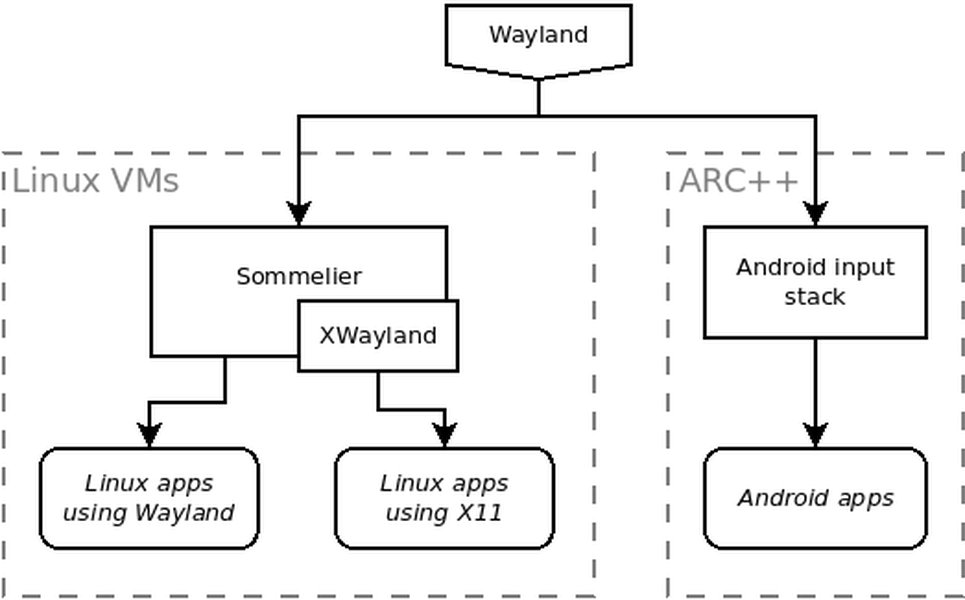
Conceptual diagram illustrating input stack interactions with containers and VMs, relevant to how virtual inputs like those from uinput might be managed.
Visualizing Configuration Trade-offs
Choosing the right configuration for /dev/uinput access in Docker involves balancing functionality, ease of setup, and security. The following radar chart provides an opinionated comparison of different approaches based on these factors. The scores range from 1 (low/poor) to 10 (high/good), with "Host System Impact" being better at lower scores (less impact) and "Security" being better at higher scores (more secure).
This chart illustrates that while --privileged mode offers the highest functionality and ease of setup, it scores poorly on security and host system impact. A more balanced approach, using --device with specific capabilities and necessary mounts, offers reasonable functionality with better security, albeit with increased setup complexity.
Navigating the Landscape: A Mindmap Overview
The interaction between Docker, /dev/uinput, and the host system involves several interconnected concepts. This mindmap provides a visual summary of the key elements involved in using /dev/uinput within a Dockerized environment.
virtual input devices"] id1b["Emulates keyboard, mouse, joystick, etc."] id2["Core Challenge: Docker's Isolation"] id2a["Sandboxed container environment"] id2b["Restricted access to host devices by default"] id2c["Namespace limitations affecting device visibility"] id3["Enabling Access: Configuration Methods"] id3a["--device=/dev/uinput"] id3aa["Directly maps host's /dev/uinput"] id3b["--privileged flag"] id3ba["Grants broad host access & capabilities"] id3bb["High security risk"] id3c["Capability Management (--cap-add)"] id3ca["e.g., SYS_ADMIN (still broad)"] id3cb["More granular than full privileged mode"] id3d["Bind Mounts"] id3da["/run/udev (for dynamic device events)"] id3db["/dev/input (for general input event access)"] id3e["Host Kernel Module Requirement"] id3ea["'uinput' module must be loaded on host"] id3eb["Verify with 'lsmod', load with 'modprobe uinput'"] id4["Common Issues & Considerations"] id4a["Device Invisibility/Inoperability"] id4aa["Virtual devices created inside may not be seen/used"] id4b["Permission Errors"] id4ba["Container user lacks rights to /dev/uinput"] id4c["Security Implications"] id4ca["Privileged mode and device access expose host"] id4d["Host OS Dependency"] id4da["Primarily works on Linux hosts"] id4db["Significant limitations on Docker Desktop (macOS/Windows)"] id5["Typical Use Cases"] id5a["Automated UI Testing"] id5b["Remote Desktop / Game Streaming Input"] id5c["Custom Input Device Emulation"]
This mindmap highlights that successfully using /dev/uinput requires understanding its purpose, Docker's isolation, the various methods to bridge this gap, and the associated considerations, particularly around security and host system configuration.
Challenges and Solutions Summary
The path to using /dev/uinput in Docker is paved with specific technical hurdles. Here's a table summarizing common challenges and their typical solutions:
| Challenge | Description | Common Solution(s) |
|---|---|---|
| Device Inaccessibility | /dev/uinput or virtual devices created via it are not visible/usable inside or outside the container. |
Use --device=/dev/uinput:/dev/uinput. Run with --privileged or specific capabilities like SYS_ADMIN. Ensure container runs as root if needed by the application. |
| Permission Denied | Application inside the container lacks rights to open or write to /dev/uinput. |
Ensure container process runs as root (often default). Use --privileged or appropriate --cap-add flags. Verify file permissions on the host's /dev/uinput. |
| Dynamic Device Detection Issues | Container doesn't recognize newly connected or dynamically created virtual input devices handled by the host's udev system. | Bind mount /run/udev:/run/udev:ro (read-only if sufficient) to allow container to see udev events. |
uinput Kernel Module Not Loaded |
The host system doesn't have the uinput kernel module active, preventing any uinput functionality. |
Load the module on the host system: sudo modprobe uinput. |
| Security Risks | Granting extensive permissions (e.g., --privileged or broad capabilities) exposes the host system to potential threats from the container. |
Favor --device with the most minimal set of necessary capabilities (--cap-add) over --privileged whenever feasible. Regularly review container security. |
| Platform-Specific Limitations | Direct device passthrough for uinput can be problematic or unsupported on non-Linux hosts, such as when using Docker Desktop on macOS or Windows. |
This functionality is most reliable on Linux hosts. Workarounds on other operating systems may be limited or require different approaches (e.g., involving VMs). |
For testing and verification, tools like evtest can be installed within the container to monitor input events and confirm if virtual devices are functioning as expected after applying these configurations.
Docker and Device Access: Further Insights
Understanding how Docker interacts with host devices is crucial for many advanced use cases, not just /dev/uinput. The following video provides a broader perspective on the challenges and methods for working with devices in Docker environments, particularly relevant for robotics but with principles applicable to other fields.
"Devices in Docker - Not so simple!" - A helpful overview of device management in Docker.
This video discusses common pain points and various strategies for device access, reinforcing that while Docker offers powerful isolation, integrating with host hardware requires careful and informed configuration.
Frequently Asked Questions (FAQ)
What exactly is /dev/uinput and what is it used for?
/dev/uinput is a character device file in Linux that acts as an interface to the kernel's uinput (user input) module. It allows userspace programs to create and manage virtual (emulated) input devices such as keyboards, mice, joysticks, or touchpads. These virtual devices appear to the rest of the system as if they were real hardware, enabling applications to inject input events programmatically. Common uses include automation tools, remote control applications, accessibility software, and game controllers emulation.
Why is using /dev/uinput in a standard Docker container problematic by default?
Docker containers are designed for isolation. By default, they run in a sandboxed environment with limited access to the host system's resources and devices. This security feature prevents containers from directly accessing hardware like /dev/uinput. Without explicit permissions or device mapping, the container won't find the /dev/uinput device node or will lack the necessary privileges to interact with it, leading to errors when an application inside the container attempts to use it.
What is the most common way to grant a Docker container access to /dev/uinput?
The most common and straightforward methods are using the --device=/dev/uinput:/dev/uinput flag to map the host device into the container, often combined with the --privileged flag to grant the container sufficient permissions. For example: docker run --privileged --device=/dev/uinput:/dev/uinput your_image. While --privileged is effective, it's a significant security consideration, so alternatives like specific --cap-add flags (e.g., SYS_ADMIN) are sometimes used for a slightly more controlled approach, though SYS_ADMIN itself is very powerful.
Are there significant security risks associated with enabling /dev/uinput access for containers?
Yes, there are significant security risks, especially if using the --privileged flag. Granting a container privileged access or direct access to /dev/uinput means a compromised container could potentially inject arbitrary input into the host system, simulate keystrokes, control the mouse, or interfere with host operations. This could lead to unauthorized actions or system compromise. It's crucial to only grant such access to trusted images and to weigh the necessity against the potential security implications. Using more granular permissions (like specific capabilities) is preferred over full privileged mode if possible.
Does the uinput module need to be active on the host machine for this to work?
Absolutely. The /dev/uinput device file is merely an interface to the underlying uinput kernel module. If this module is not loaded and active on the host Linux system, the /dev/uinput device will not exist or will not be functional, regardless of any Docker configurations. You can typically load it using sudo modprobe uinput on the host if it's not already active.
Recommended Further Exploration
To delve deeper into related topics, consider exploring these queries:
- What are the security best practices for running Docker containers with device access?
- How do Docker capabilities differ from privileged mode for hardware interaction?
- Can I use /dev/uinput with Docker Desktop on Windows or macOS?
- Are there alternatives to /dev/uinput for input emulation within containers without host access?
References
Last updated May 9, 2025