
Connecting Your Porkbun Domain to Shopify
A complete guide to transferring your domain and replicating your design
Key Highlights
- Domain Transition: Update your DNS settings to point your Porkbun domain to Shopify using the correct A and CNAME records.
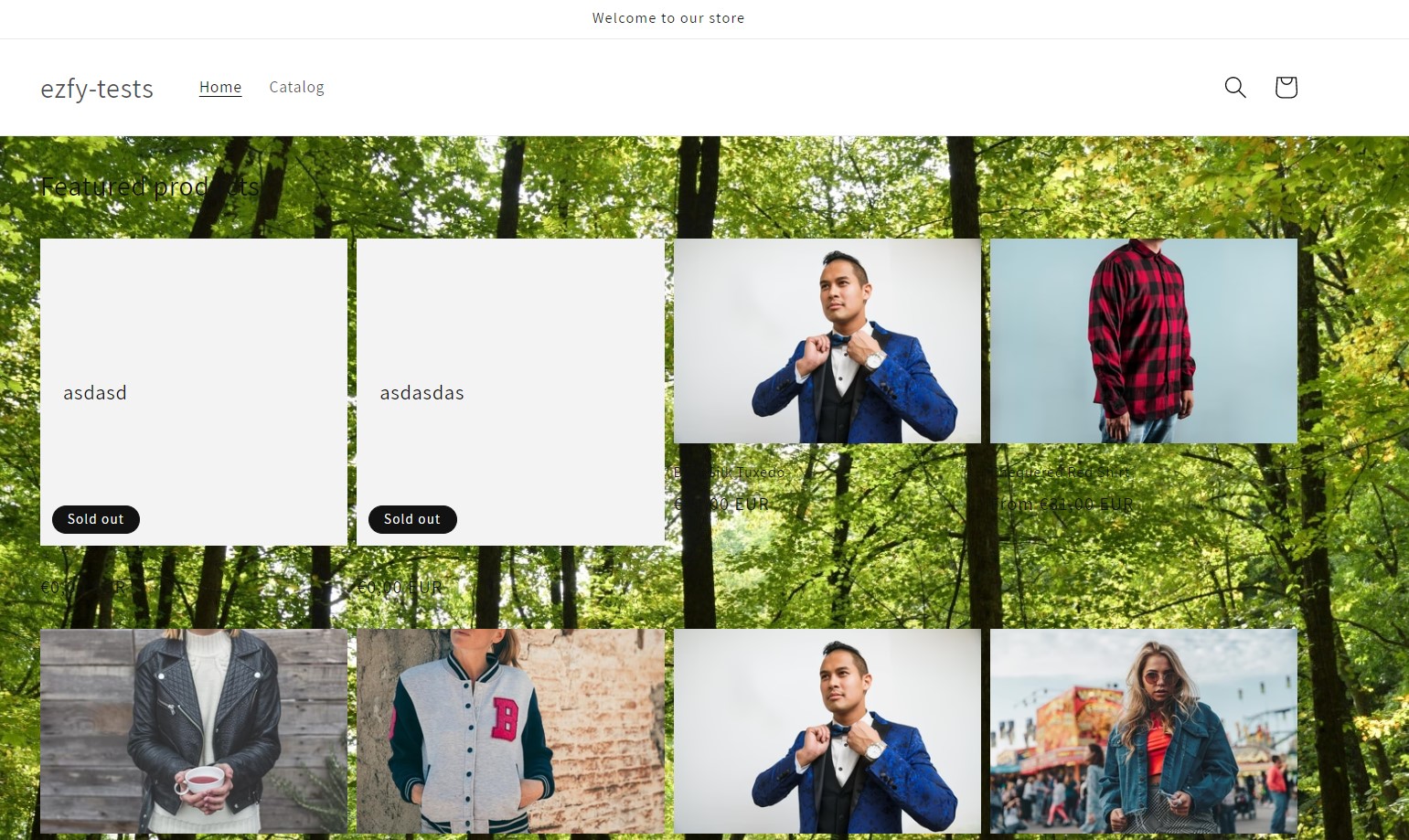
- Design Replication: Migrate your Adobe Portfolio background image by uploading it to Shopify and adding custom CSS to recreate your tiled design.
- Verification and Propagation: Confirm your domain connection in Shopify and allow up to 48 hours for DNS changes to take full effect.
Step-by-Step Domain Connection Process
Access Your Porkbun Account
Login and Navigate
Start by logging into your Porkbun account where your domain is registered. Once logged in, head over to the Domain Management section to view and manage your domain details. This is where you will begin the process of updating your domain settings so that your domain properly points to your Shopify store.
Update the DNS Settings
Modify the DNS Records
The next step is to update your DNS settings. You need to change both the A record and CNAME record to direct your domain to Shopify.
A Record: Edit your A record (for your root domain; e.g., example.com) and set it to Shopify's static IP address:
- The typical Shopify IP address is \(23.227.38.65\).
CNAME Record: For the “www” subdomain, ensure that your CNAME record points to shops.myshopify.com. This will guarantee that visitors who use the “www” version of your domain are correctly redirected.
Example DNS Settings Table
| Record Type | Host/Name | Value/Points To | TTL |
|---|---|---|---|
| A Record | @ (root domain) | \(23.227.38.65\) | 3600 (or default) |
| CNAME Record | www | shops.myshopify.com | 3600 (or default) |
Connect Your Domain in Shopify
Integrate with Shopify Store
Now that you have updated the DNS records on Porkbun, you need to connect your domain to your Shopify store. Follow these steps:
- Log into your Shopify admin panel and navigate to Online Store and then select Domains.
- Click on Connect existing domain and enter the domain name that you purchased from Porkbun.
- Follow the on-screen prompts. Shopify will usually check and verify the DNS settings that you have configured. If any additional verification is required, Shopify may instruct you to add further records or simply confirm the connection.
Verification and Wait Time
After you finish these steps, click Verify Connection within your Shopify admin. Note that DNS propagation can take up to 48 hours, so it may not work immediately. Once verified, your domain will be successfully connected to your Shopify store.
Replicating Your Adobe Portfolio Design on Shopify
Migrating Your Tiled Background Image
Upload the Background Image
To maintain the design continuity from your Adobe Portfolio website, start by uploading your tiled background image into your Shopify store. You can do this by:
- Access your Shopify admin panel.
- Navigate to Online Store > Themes.
- Choose the theme you are using and click on Actions, then select Edit code.
- Locate the Assets folder and upload your tiled background image (e.g., background.jpg).
Customizing Theme Code with CSS
Once your image is uploaded, incorporate it into your site’s design by adjusting your theme's CSS file. Locate the CSS (or SCSS) file (often named theme.scss.liquid or a similar variant) and append the following CSS code:
/* Set tiled background image for the entire site */
body {
  background-image: url('{{ 'background.jpg' | asset_url }}');
  background-repeat: repeat; /* Tiled design by repeating the image */
  background-position: center center; /* Ensures the image is centered */
  background-attachment: fixed; /* Keeps the background fixed during scrolling */
  -webkit-background-size: cover;
  -moz-background-size: cover;
  -o-background-size: cover;
  background-size: cover;
}
Notes:
- If you prefer the image to only repeat in a single direction (e.g., horizontally), change background-repeat: repeat; to background-repeat: repeat-x; or repeat-y; accordingly.
- Ensure the image is optimized for web performance to avoid slow page load times.
Theme Customization to Match Adobe Portfolio
Choosing a Shopify Theme
While you might not be able to directly transfer an Adobe Portfolio theme to Shopify, you can select a Shopify theme with a similar look and feel. Search the Shopify Theme Store for templates that evoke the aesthetic you had on Adobe Portfolio.
Fine-Tuning with the Shopify Theme Editor
Customize the theme using Shopify’s built-in editor. Adjust colors, fonts, and page layouts to closely resemble your previous design. Utilize the online preview to see changes in real-time and ensure a smooth transition for your site's visitors.
Additional Customization Considerations
Consistency and Branding
Retaining Visual Identity
Beyond the background image, consider exporting other design elements from your Adobe Portfolio site, such as logos, color schemes, and typography details. This way, you create a seamless brand experience for your visitors.
Responsive Design
Adapting to Multiple Devices
Make sure that the custom tweaks you apply to replicate your background design are responsive. Test your Shopify store on different devices (desktop, tablet, mobile) to verify that the background image scales appropriately and does not interfere with other page elements.
SEO and Site Performance
Optimizing for the Web
After uploading and applying your background image along with other design customizations, it is crucial to optimize the assets for fast loading. Use image compressors to reduce file size and leverage Shopify's built-in performance features to ensure that your site loads quickly and efficiently. Optimizing these aspects not only enhances the user experience but also positively impacts SEO metrics.
Troubleshooting and Final Verification
Domain Connection Issues
Common Pitfalls
If your domain does not seem to work with Shopify immediately, consider the following:
- Double-check that the A record and CNAME record are correctly set to Shopify's settings.
- Remember that DNS changes may propagate slowly, generally up to 48 hours.
- If issues persist, contact Porkbun support for DNS troubleshooting or Shopify support for connection verification.
Design Inconsistencies
Verifying CSS and Asset Loading
After implementing the CSS for your background image, verify in multiple browsers that the design appears as expected. Clear your browser cache to see the latest changes and use developer tools to ensure your assets are loading properly.
References
- How to connect your domain to Shopify - Porkbun Knowledge Base
- Connecting a third-party domain to Shopify - Shopify Help Center
- Pointing Your Domain to Hosting With A Records
- Connecting Your Newly Purchased Domain to Shopify Discussion
- Successfully Personalize Your Shopify Store - HulkApps
- Domain Connection Guide - Porkbun
- Shopify Domains Documentation
- Shopify Theme Customization - ThemeForest
- Embed Shopify Store in Adobe Portfolio - SociableKit
- Porkbun Knowledge Base
Recommended Related Queries
 community.shopify.com
 ecommerce.shopify.com
community.shopify.com
community.shopify.com
ecommerce.shopify.com
community.shopify.com
community.shopify.com
 help.shopify.com
community.shopify.com
help.shopify.com
community.shopify.com
 community.shopify.com
ecommerce.shopify.com
community.shopify.com
community.shopify.com
ecommerce.shopify.com
 community.shopify.com:443
help.shopify.com
ecommerce.shopify.com
ecommerce.shopify.com
community.shopify.com:443
help.shopify.com
ecommerce.shopify.com
ecommerce.shopify.com
Last updated March 1, 2025