
Creating a Styled Textbox and Color-Changing Form in VB.NET
A Comprehensive Guide to Implementing Dynamic Text Formatting and Form Color Customization
Key Highlights
- Dynamic Text Formatting: Learn how to implement bold, italic, and underline text formatting in a textbox using checkboxes.
- Form Color Customization: Discover how to change the background color of a form using buttons with specific colors.
- VB.NET Code Implementation: Get practical VB.NET code examples to achieve dynamic text formatting and form color customization.
Designing a Form with Dynamic Text Formatting
To create a form in VB.NET with a textbox and checkboxes that control text formatting (bold, italic, underline), you'll need to handle the CheckedChanged event of each checkbox. This involves modifying the font style of the text in the textbox based on the state of the checkboxes.
Setting Up the Form
First, create a new Windows Forms Application in Visual Studio. Add a textbox and three checkboxes to your form. Name the textbox TextBox1 and the checkboxes CheckBoxBold, CheckBoxItalic, and CheckBoxUnderline, respectively. This setup will allow users to interact with the form to format text dynamically.
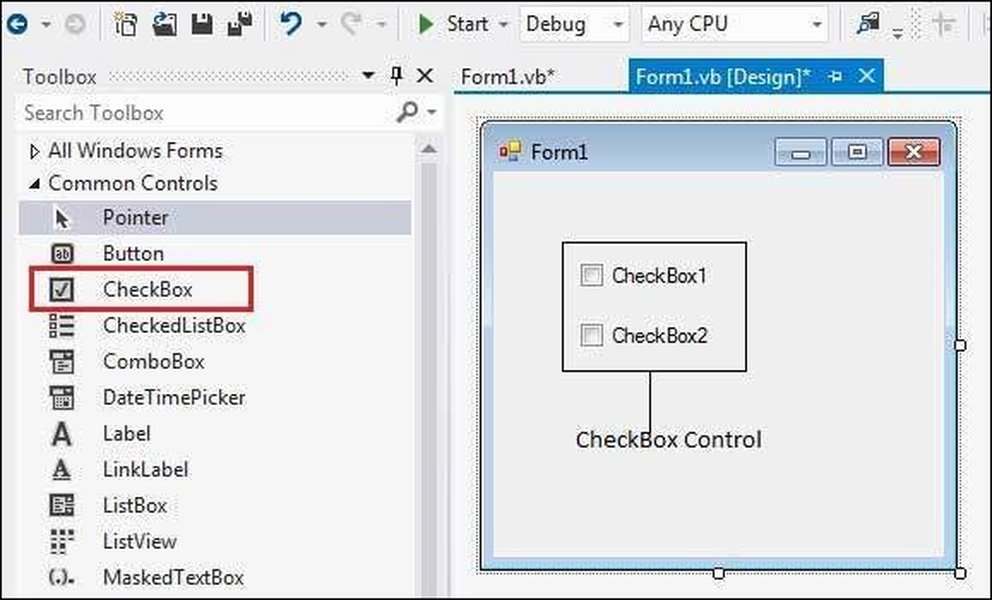
Checkboxes in VB.NET
This image displays a checkbox, which will allow the user to turn the format setting on and off.
Implementing Dynamic Text Formatting
The core logic involves checking the state of each checkbox and applying the corresponding font style to the textbox. Here’s how you can implement it:
- Handle the CheckedChanged event: For each checkbox, create an event handler that is triggered when the checkbox's state changes.
- Determine the font style: Inside each event handler, determine the combined font style based on which checkboxes are checked.
- Apply the font style to the textbox: Set the font of the textbox to the newly determined font style.
  'VB.NET code example
  Private Sub CheckBoxBold_CheckedChanged(sender As Object, e As EventArgs) Handles CheckBoxBold.CheckedChanged
      UpdateFontStyle()
  End Sub

  Private Sub CheckBoxItalic_CheckedChanged(sender As Object, e As EventArgs) Handles CheckBoxItalic.CheckedChanged
      UpdateFontStyle()
  End Sub

  Private Sub CheckBoxUnderline_CheckedChanged(sender As Object, e As EventArgs) Handles CheckBoxUnderline.CheckedChanged
      UpdateFontStyle()
  End Sub

  Private Sub UpdateFontStyle()
      Dim fontstyle As FontStyle = FontStyle.Regular

      If CheckBoxBold.Checked Then
          fontstyle = fontstyle Or FontStyle.Bold
      End If

      If CheckBoxItalic.Checked Then
          fontstyle = fontstyle Or FontStyle.Italic
      End If

      If CheckBoxUnderline.Checked Then
          fontstyle = fontstyle Or FontStyle.Underline
      End If

      TextBox1.Font = New Font(TextBox1.Font.FontFamily, TextBox1.Font.Size, fontstyle)
  End Sub
The above code ensures that the textbox updates its font style whenever a checkbox is toggled. The UpdateFontStyle() function combines the styles and applies it to the TextBox1.
Adding Buttons to Change Form Color
To add buttons that change the background color of the form, you need to add three buttons to the form and handle their Click events. Each button will change the BackColor property of the form.
Implementing Form Color Changes
Here’s how you can implement the color change functionality:
- Add buttons to the form: Add three buttons to your form and name them ButtonRed, ButtonGreen, and ButtonBlue.
- Handle the Click event for each button: Create an event handler for each button that will be triggered when the button is clicked.
- Change the form's background color: In each event handler, set the BackColor property of the form to the corresponding color.
  'VB.NET code example
  Private Sub ButtonRed_Click(sender As Object, e As EventArgs) Handles ButtonRed.Click
      Me.BackColor = Color.Red
  End Sub

  Private Sub ButtonGreen_Click(sender As Object, e As EventArgs) Handles ButtonGreen.Click
      Me.BackColor = Color.Green
  End Sub

  Private Sub ButtonBlue_Click(sender As Object, e As EventArgs) Handles ButtonBlue.Click
      Me.BackColor = Color.Blue
  End Sub
This code allows the user to change the form's background color by clicking the respective color buttons. The Me.BackColor property is used to change the background color of the current form.
Changing Form Color with Buttons
This image depicts the general concept of changing a VB form's background color through button clicks, demonstrating a key aspect of user interface customization.
Complete VB.NET Code
Below is the complete VB.NET code that combines both the dynamic text formatting and form color change functionalities:
  Public Class Form1
      Private Sub CheckBoxBold_CheckedChanged(sender As Object, e As EventArgs) Handles CheckBoxBold.CheckedChanged
          UpdateFontStyle()
      End Sub

      Private Sub CheckBoxItalic_CheckedChanged(sender As Object, e As EventArgs) Handles CheckBoxItalic.CheckedChanged
          UpdateFontStyle()
      End Sub

      Private Sub CheckBoxUnderline_CheckedChanged(sender As Object, e As EventArgs) Handles CheckBoxUnderline.CheckedChanged
          UpdateFontStyle()
      End Sub

      Private Sub UpdateFontStyle()
          Dim fontstyle As FontStyle = FontStyle.Regular

          If CheckBoxBold.Checked Then
              fontstyle = fontstyle Or FontStyle.Bold
          End If

          If CheckBoxItalic.Checked Then
              fontstyle = fontstyle Or FontStyle.Italic
          End If

          If CheckBoxUnderline.Checked Then
              fontstyle = fontstyle Or FontStyle.Underline
          End If

          TextBox1.Font = New Font(TextBox1.Font.FontFamily, TextBox1.Font.Size, fontstyle)
      End Sub

      Private Sub ButtonRed_Click(sender As Object, e As EventArgs) Handles ButtonRed.Click
          Me.BackColor = Color.Red
      End Sub

      Private Sub ButtonGreen_Click(sender As Object, e As EventArgs) Handles ButtonGreen.Click
          Me.BackColor = Color.Green
      End Sub

      Private Sub ButtonBlue_Click(sender As Object, e As EventArgs) Handles ButtonBlue.Click
          Me.BackColor = Color.Blue
      End Sub
  End Class
This complete code provides a functional form with dynamic text formatting and color-changing capabilities. It includes the necessary event handlers and logic to achieve the desired effects.
Additional Enhancements
To further enhance the form, consider adding the following features:
-
Font Size Adjustment: Allow users to change the font size of the text in the textbox.
-
Font Color Selection: Provide a color picker for users to change the text color.
-
Error Handling: Implement error handling to manage unexpected issues, such as invalid font styles.
Summary Table
The following table summarizes the key components and their functionalities:
| Component | Functionality |
|---|---|
| TextBox | Allows users to input and display text. |
| CheckBoxBold | Toggles bold text formatting. |
| CheckBoxItalic | Toggles italic text formatting. |
| CheckBoxUnderline | Toggles underline text formatting. |
| ButtonRed | Changes the form's background color to red. |
| ButtonGreen | Changes the form's background color to green. |
| ButtonBlue | Changes the form's background color to blue. |
This table provides a clear overview of each component's role in the form, making it easier to understand and maintain the code.
FAQ Section
How do I add more font styles like Strikethrough?
To add more font styles like Strikethrough, add another checkbox for Strikethrough and include it in the UpdateFontStyle() function. Modify the function to include an additional condition for the Strikethrough checkbox, similar to the existing Bold, Italic, and Underline checkboxes. You will also need to add FontStyle.Strikeout when combining the styles.
Can I apply these styles to selected text only?
Yes, you can apply these styles to selected text only by using the SelectionFont property of the textbox. Instead of changing the entire font of the textbox, modify the font of the selected text. Make sure that you apply the new font to the SelectionFont property.
How do I save and load the formatted text?
To save and load the formatted text, use the RichTextBox control instead of the TextBox control. The RichTextBox control supports saving and loading text with formatting using the SaveFile and LoadFile methods. These methods will allow you to persist the formatting.
How can I change the button colors dynamically?
To change the button colors dynamically, handle the Click event of each button and change the BackColor property of the button. This allows the button's color to change each time it is clicked, providing visual feedback to the user.
References
Last updated April 15, 2025