
Mastering iPhone Photo Editing with Adobe Lightroom
Unlock the full potential of your iPhone captures through professional-grade editing in Lightroom.
Editing "iPhotos" (a term often used generically for photos taken with an iPhone and managed by Apple Photos) in Adobe Lightroom offers a significant upgrade in creative control and professional results. While Apple Photos provides robust basic editing features, Lightroom, both the mobile and desktop versions, empowers users with advanced tools, precise adjustments, and a non-destructive editing workflow. This guide will walk you through the process, from importing your iPhone photos to applying advanced edits and managing your enhanced images.
Key Highlights for iPhone Photo Editing in Lightroom
- Seamless Integration for Mobile and Desktop: Lightroom’s cloud-based ecosystem allows you to capture, edit, and sync photos across your iPhone, iPad, and desktop, ensuring your work is always accessible and up-to-date.
- Powerful Editing Capabilities: Move beyond basic adjustments with Lightroom’s comprehensive suite of tools, including masking for local adjustments, advanced color grading, noise reduction, and perspective correction, giving your iPhone photos a professional touch.
- Efficient Workflow and Organization: Lightroom excels at managing large photo libraries, offering robust cataloging, keyword tagging, and batch editing features, which are crucial for photographers looking to streamline their post-production process.
Understanding Lightroom Versions: Cloud vs. Classic
Before diving into the editing process, it's important to differentiate between the two main versions of Adobe Lightroom:
Lightroom (Cloud-Based)
This version, often referred to as "Lightroom CC" or simply "Lightroom," is designed for photographers who prioritize cloud storage and seamless synchronization across devices. It's particularly user-friendly for mobile editing on an iPhone or iPad. All your original photos and edits are stored in the cloud, making them accessible from any device with an internet connection. The Lightroom mobile app is free, with subscription plans offering more storage and advanced features.
Lightroom Classic
Lightroom Classic is the desktop-focused version, preferred by many professional photographers for its comprehensive features and robust local file management. While it can sync with the cloud version for some functionalities, its primary storage is on your local hard drive. It offers more control over cataloging and is generally considered to have a more extensive feature set for professional-grade editing.
For iPhone photos, the Lightroom mobile app (cloud-based) is often the most direct and convenient way to start editing. However, many users integrate both versions into their workflow, especially for more intensive editing on a desktop.
Importing Your iPhone Photos into Lightroom
Getting your iPhone photos into Lightroom is the first crucial step. There are several efficient methods:
Direct Capture with Lightroom Mobile App
The Lightroom mobile app features an in-app camera that allows you to capture photos directly into your Lightroom library. This is highly recommended as it enables you to shoot in DNG (Digital Negative) or Apple ProRAW format, which preserves more image data than standard JPEGs, offering greater flexibility during editing.
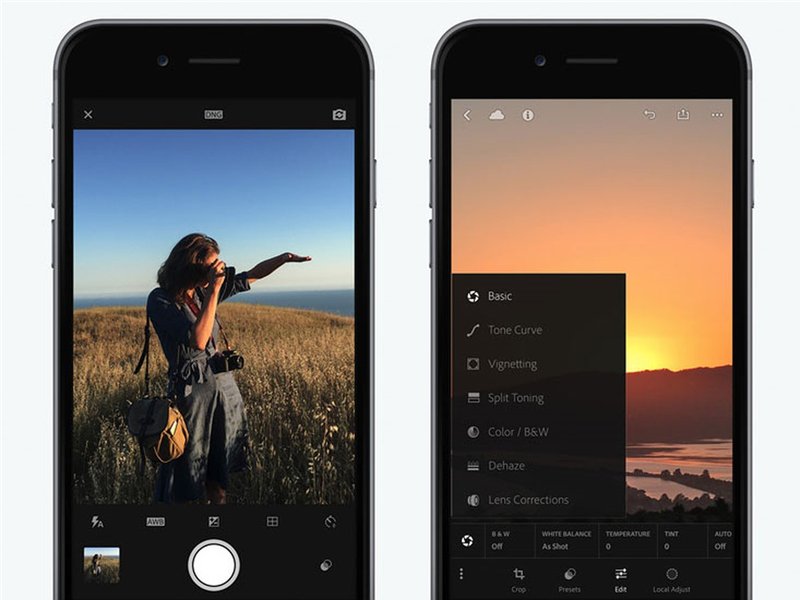
The intuitive interface of the Lightroom mobile app, showing options for direct capture.
Importing from Apple Photos (Camera Roll)
If you've already taken photos with your iPhone's native camera app, you can easily import them into Lightroom:
- Lightroom Mobile: Open the Lightroom app, tap the "Add Photos" icon (often a blue icon with an image and a plus sign), and select photos from your device's camera roll. These will be added to your Lightroom cloud library.
- Lightroom Classic (Desktop): Connect your iPhone to your computer. Open Lightroom Classic, go to "File" > "Import Photos and Video," and select your iPhone as the source. You can then choose which photos to import.
Migrating an Existing Apple Photos Library
For users with extensive Apple Photos libraries, Lightroom Classic offers a migration tool. This feature helps transfer your entire library, including albums and some metadata, into Lightroom. Keep in mind that while images are migrated, existing edits made in Apple Photos are not directly transferable as editable adjustments; they are "baked in" if exported as JPEGs or TIFFs.
A Step-by-Step Guide to Editing in Lightroom
Once your iPhone photos are in Lightroom, the real magic begins. The editing process generally follows a logical flow, moving from global adjustments to more specific refinements.
1. Basic Adjustments: The Foundation of Your Edit
Start with the "Light" panel (or "Basic" panel in Classic) to set the overall tone and exposure.
- Exposure: Adjust the overall brightness of the photo. It's often easier to lighten a slightly dark photo than to recover detail from an overly bright one.
- Contrast: Enhance the difference between light and dark areas.
- Highlights & Shadows: Recover detail in the brightest (highlights) and darkest (shadows) parts of your image.
- Whites & Blacks: Set the true white and black points for optimal dynamic range.
- Presence (Texture, Clarity, Dehaze): These sliders add or reduce perceived detail and contrast. Texture affects fine details, Clarity influences mid-tone contrast, and Dehaze can remove or add atmospheric haze.
2. Color Correction and Enhancement
The "Color" panel is where you fine-tune the mood and vibrancy of your photo.
- White Balance (Temp & Tint): Correct color casts to make whites appear neutral. Adjust Temperature for warm/cool tones and Tint for green/magenta.
- Vibrance & Saturation: Vibrance intelligently boosts muted colors, while Saturation increases the intensity of all colors uniformly.
- Color Mixer (HSL/Color): This powerful tool allows you to adjust the Hue, Saturation, and Luminance of individual colors. For instance, you can make blues more vibrant without affecting reds, or lighten greens.
- Color Grading: Add creative color tints to shadows, midtones, and highlights for a specific look.
3. Detail, Optics, and Geometry
Refine the image quality and correct optical distortions.
- Sharpening & Noise Reduction: Enhance edge definition and reduce digital noise, especially common in low-light iPhone photos.
- Optics (Lens Corrections): Remove chromatic aberration and correct lens distortions automatically or manually.
- Geometry (Transform): Straighten skewed perspectives, correct vertical and horizontal distortions, and rotate/flip images.
4. Local Adjustments with Masking
This is where Lightroom truly shines compared to basic photo editors. Masking allows you to apply adjustments to specific areas of your photo without affecting the rest.
- Subject/Sky Selection: AI-powered tools can automatically select subjects or skies for quick adjustments.
- Radial Gradient & Linear Gradient: Apply edits that gradually fade out from a central point (radial) or across a straight line (linear). Ideal for vignettes or balancing light.
- Brush Tool: Precisely paint in adjustments on specific areas.
- Luminance/Color Range: Select areas based on their brightness or specific color values.
5. Presets and Profiles
Presets are pre-defined sets of adjustments that you can apply with a single click, providing a consistent look across multiple images or a quick starting point for your edits. Profiles offer a different way to alter the look of your photo, often mimicking film stocks or specific camera looks.
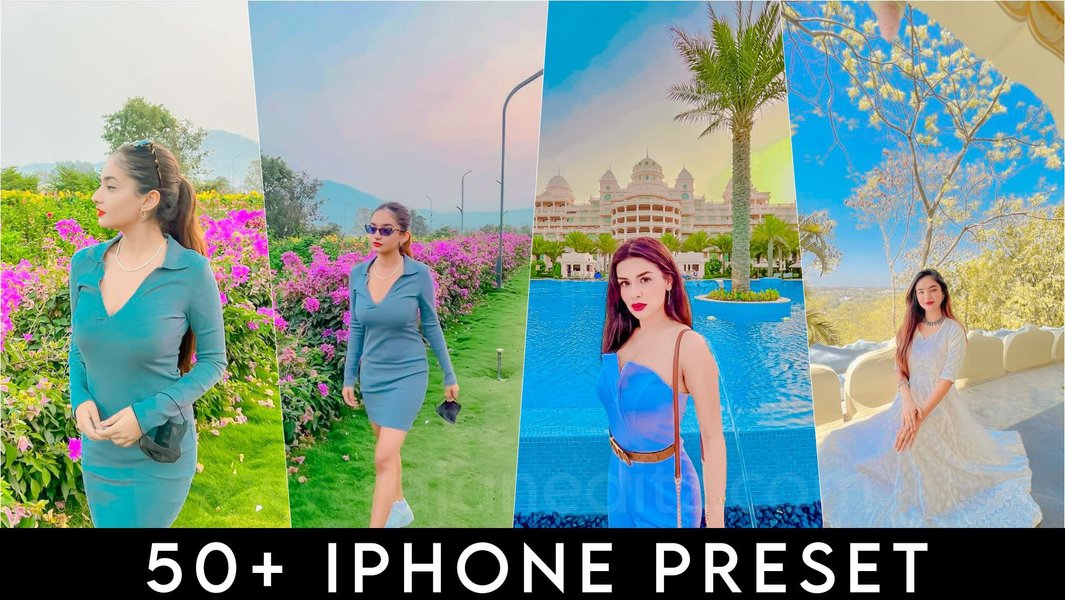
Applying presets in Lightroom Mobile to achieve a specific aesthetic quickly.
Optimizing Your iPhone Photography Workflow with Lightroom
To maximize your efficiency and results, consider these workflow tips:
Shooting in RAW/ProRAW on iPhone
If your iPhone supports it (iPhone 12 Pro and later), shoot in Apple ProRAW or DNG using the Lightroom in-app camera or a third-party app like Halide II. RAW files contain significantly more data than JPEGs, allowing for much greater flexibility in editing, especially when recovering highlights and shadows or adjusting colors. This is a critical step to "de-iPhone" the look of your mobile photos.
Batch Editing for Consistency
Lightroom excels at batch editing. Once you've perfected an edit on one photo, you can copy its settings and paste them onto multiple other images, saving immense time and ensuring a consistent look across a series of photos. This is particularly useful for events or travel photos.
Integration with Apple Photos and Exporting
While Lightroom is a powerful editor, many users still rely on Apple Photos for general organization and sharing.
- Exporting Edits: After editing in Lightroom, you'll need to export the photos (as JPEG, TIFF, or other formats) if you want them to appear with edits in Apple Photos. Lightroom edits are metadata-based and not natively understood by Apple Photos without export.
- Workflow Tip: A common workflow involves importing RAW/ProRAW files into Lightroom for professional editing, then exporting high-quality JPEGs of the best-edited images to Apple Photos for sharing and everyday viewing.
This radar chart illustrates the comparative strengths of Adobe Lightroom (both mobile and desktop versions) versus Apple Photos in key photo editing dimensions. Lightroom consistently offers superior control and advanced capabilities across the board, particularly in areas like precise color grading, local adjustments, and RAW file handling. While Apple Photos provides a decent foundation for basic edits and organization, Lightroom emerges as the clear leader for professional-grade enhancements and a more comprehensive workflow.
Advanced Editing Techniques and Tools
Beyond the basics, Lightroom offers advanced tools that can transform your iPhone photos:
Tone Curve
The Tone Curve provides granular control over the tonal range of your image, allowing you to fine-tune contrast and brightness with precision. You can adjust shadows, midtones, and highlights independently, creating specific looks like matte finishes or dramatic contrast.
Calibration Panel
This panel is crucial for correcting or creatively manipulating how your camera perceives colors. Adjusting the Red, Green, and Blue primary sliders can shift the overall color balance of your image, influencing skin tones and other critical colors.
Healing Brush and Generative Remove
The Healing Brush (or Spot Removal tool) allows you to remove small distractions like dust spots or blemishes. Lightroom's newer "Generative Remove" (powered by Adobe's AI) is even more powerful, intelligently removing larger objects or people from your photos and filling the area convincingly.
Visualizing the Workflow: iPhone to Lightroom
To further illustrate the process, here's a video that demonstrates how to edit iPhone photos like a pro using Lightroom Mobile. It provides practical, step-by-step guidance.
This video tutorial offers a practical guide on editing iPhone photos using Lightroom Mobile, covering essential steps and tips to achieve professional results.
Comparison of Key Editing Tools
To highlight the comprehensive nature of Lightroom's editing capabilities compared to the native Apple Photos app, consider this table:
| Feature | Lightroom (Mobile/Classic) | Apple Photos (Native) |
|---|---|---|
| RAW/ProRAW Support | Full support, with extensive editing capabilities for maximum data retention. | Basic support, but editing capabilities are more limited compared to Lightroom. |
| Exposure & Contrast | Precise sliders for Exposure, Contrast, Highlights, Shadows, Whites, Blacks. | Basic sliders for Exposure, Brilliance, Highlights, Shadows, Black Point. |
| Color Adjustments | Temperature, Tint, Vibrance, Saturation, HSL (Hue, Saturation, Luminance) mixer for individual colors, Color Grading. | Warmth, Tint, Vibrance, Saturation sliders. Limited individual color control. |
| Detail Enhancements | Sharpening, Noise Reduction (Luminance & Color), Texture, Clarity, Dehaze. | Sharpen, Noise Reduction. |
| Local Adjustments | Masking tools (Brush, Radial/Linear Gradient, Subject/Sky selection, Range masks). | Limited local adjustments (e.g., Retouch tool for spot removal, Smart tools). |
| Presets & Profiles | Extensive preset library, ability to create custom presets, camera/creative profiles. | Limited built-in filters. No custom preset creation or advanced profiles. |
| Perspective Correction | Transform tools for vertical, horizontal, and rotational corrections, Guided Upright. | Basic straighten and rotate. |
| Object Removal | Healing Brush, Clone Stamp, Generative Remove (AI-powered). | Retouch tool for basic spot removal. |
| Workflow & Management | Cloud sync, advanced cataloging, keywords, collections, batch editing. | Albums, basic keyword support, limited batch editing. |
Frequently Asked Questions (FAQ)
Can I edit photos taken with my iPhone's default camera app in Lightroom?
Is the Adobe Lightroom mobile app free?
What is the main advantage of editing iPhone photos in Lightroom compared to Apple Photos?
Do my Lightroom edits sync back to Apple Photos?
How can I improve the quality of my iPhone photos before editing in Lightroom?
Conclusion
Editing your iPhone photos in Adobe Lightroom fundamentally transforms your mobile photography. By leveraging Lightroom's powerful tools, non-destructive workflow, and seamless cloud integration, you can elevate your images from simple snapshots to professional-quality photographs. Whether you choose the convenience of Lightroom Mobile or the comprehensive control of Lightroom Classic, the ability to fine-tune every aspect of your image, from global tones to minute local adjustments, empowers you to express your artistic vision fully. Embrace the process, experiment with the tools, and watch your iPhone photos come to life with a newfound depth and vibrancy.
Recommended Further Exploration
- Discover advanced Lightroom editing techniques specifically tailored for mobile photos.
- Learn how to optimize your iPhone ProRAW workflow for maximum quality in Lightroom.
- Explore seamless strategies for integrating Adobe Lightroom and Apple Photos into your photo management workflow.
- Find out how to use and create custom Lightroom presets to enhance your iPhone photography style.
References
Last updated May 21, 2025