
Mastering SRT Edits: Seamlessly Delete Content and Adjust Timings
Unlock the secrets to precisely editing your SRT subtitle files, ensuring perfect synchronization after removing unwanted sections.
Editing SRT (SubRip Text) subtitle files to remove specific content while ensuring all subsequent subtitle timings adjust automatically can seem daunting. However, with the right tools and techniques, this process can be straightforward and accurate. This guide will walk you through the best methods to achieve this, preserving the integrity and synchronization of your subtitles.
Key Insights for Flawless SRT Editing
- Specialized Software is Crucial: For automatic timestamp adjustments after deleting content, using dedicated subtitle editing software is highly recommended over basic text editors.
- Manual Adjustments are Risky: While possible, manually recalculating timestamps in a text editor is time-consuming and prone to errors, leading to desynchronized subtitles.
- Always Backup Your Original: Before making any modifications, create a backup copy of your SRT file to prevent accidental data loss.
Understanding the SRT File Structure
An SRT file is a plain text file containing subtitle information. Each subtitle entry, or "block," follows a specific format:
- A sequential number identifying the subtitle.
- The timecode defining when the subtitle should appear and disappear on screen, formatted as
hours:minutes:seconds,milliseconds --> hours:minutes:seconds,milliseconds. - The subtitle text itself, which can span one or more lines.
- A blank line separating it from the next subtitle block.
Here's an example of an SRT file's structure:
1
00:00:02,123 --> 00:00:05,345
This is the first subtitle.

2
00:00:06,000 --> 00:00:09,500
And this is the second one,
appearing shortly after.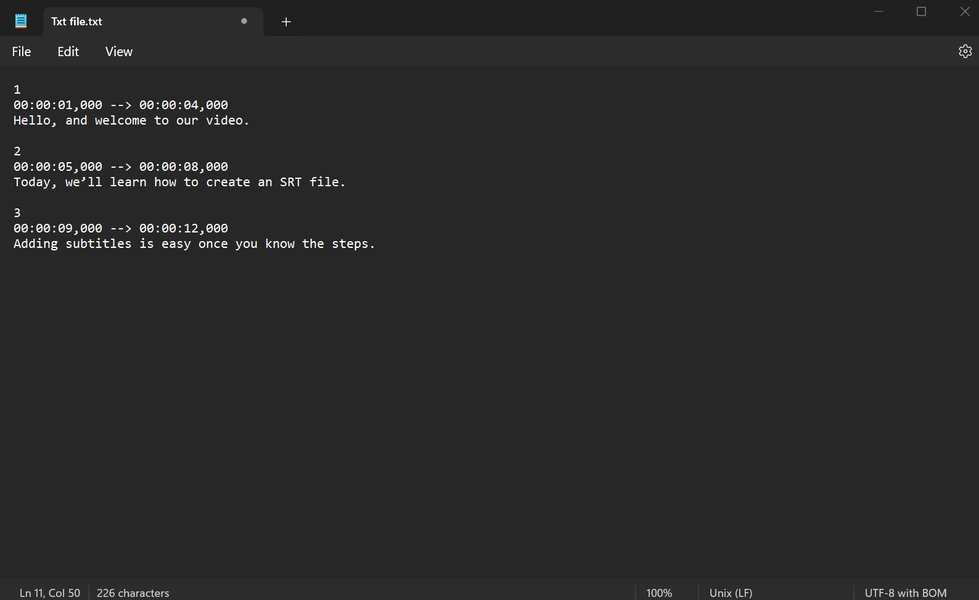
An illustration showing the typical format of an SRT subtitle file.
When you delete a subtitle block, the duration it occupied is removed. To maintain sync with the video, all subsequent subtitles must have their start and end times shifted earlier by that exact duration. This is where specialized software excels.
Method 1: Using Dedicated Subtitle Editing Software (Recommended)
Subtitle editing software is designed to handle the complexities of timing adjustments. These tools provide intuitive interfaces and powerful features for precise editing.
Popular Subtitle Editing Tools
Several excellent subtitle editors are available, many of them free and open-source:
- Subtitle Edit: A highly recommended, free, and open-source editor for Windows (also works on Linux via Mono). It's packed with features for editing, synchronizing, and translating subtitles.
- Aegisub: Another powerful, free, cross-platform (Windows, macOS, Linux) subtitle editor, known for its advanced styling options and precise timing tools, including an audio waveform display.
- Online Editors (e.g., VEED.IO, Kapwing): Web-based tools that offer convenience for quick edits and basic timing adjustments without software installation.
General Steps for Editing with Software
While interfaces vary, the general workflow is similar across most dedicated subtitle editors:
-
Open Your SRT File
Launch the software and open your
.srtfile. Most editors will display the subtitles in a list or grid, showing the number, start time, end time, duration, and text for each entry. -
Locate and Delete Unwanted Content
Navigate through the subtitle list to find the lines or blocks you wish to remove. Select them and use the delete function (often a right-click option or a 'Delete' key press). Some software, like Subtitle Edit, offers advanced find-and-replace features (e.g., "Multiple Replace") to remove specific patterns, such as text in brackets
()or musical notes♪.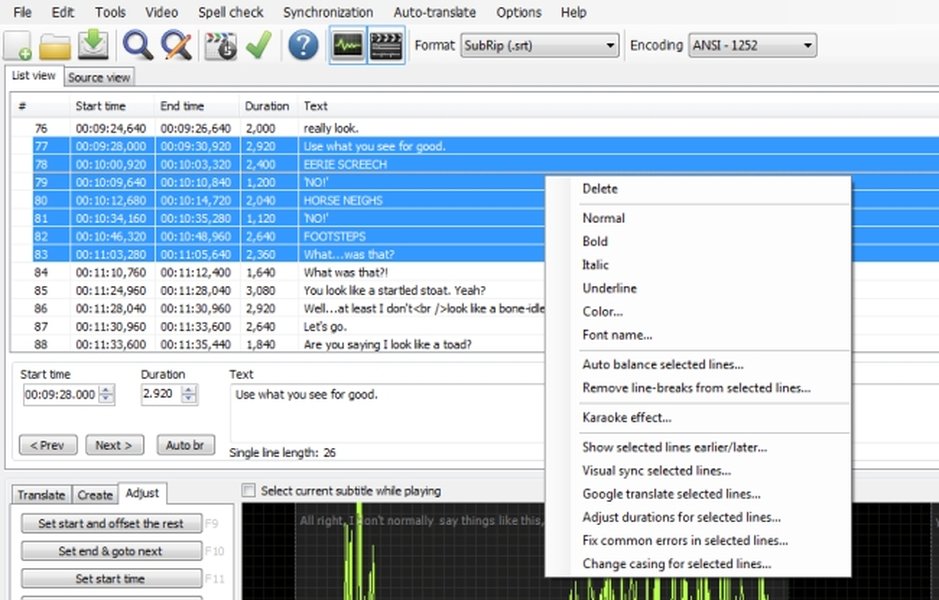
The interface of Subtitle Edit, a popular tool for modifying SRT files.
-
Adjust Subsequent Timestamps
This is the critical step. Good subtitle editors will either automatically "ripple delete" (shifting subsequent subtitles) or provide a specific function to do so. For example, in Subtitle Edit:
- Go to Synchronization > Adjust all times...
- A dialog box will appear. You can specify a time offset to shift subtitles. If you deleted a segment that was, for example, 5 seconds long, you would enter a negative offset (e.g., -5 seconds or -00:00:05,000) for subtitles after the deleted point to shift them earlier.
- Ensure you select the option to adjust only the subtitles *after* the deleted section, or adjust all based on the calculated total duration removed if you're shifting based on the total length change. Many tools intelligently handle the gap created by deletions.
Aegisub and other editors offer similar timing adjustment functionalities, often allowing visual synchronization against an audio waveform.
-
Preview Your Changes
Most editors include a built-in video player. Load your video and preview the edited subtitles to ensure they are correctly synchronized and that the deleted content has not adversely affected the flow.
-
Save the Modified SRT File
Once satisfied, save your changes. It's often best to use "Save As" to create a new version of the file, keeping your original backup intact.
Visualizing Editor Capabilities
The choice of subtitle editor can depend on various factors. The radar chart below provides a comparative overview of key aspects for some popular options. The scores (out of 10) are based on general user experience and feature sets for the task of deleting content and adjusting timings.
This chart highlights that while online editors are very accessible, dedicated software like Subtitle Edit and Aegisub offer more robust features for automatic timing and advanced control, crucial for tasks like the one described.
Method 2: Manual Editing with Text Editors + Timing Shift Tools
If you prefer not to use specialized software or only have access to a basic text editor (like Notepad, TextEdit, or Notepad++), you can still delete content. However, adjusting the timings will require an extra step using an online tool or careful manual calculation.
Steps for Manual Editing and Shifting
- Open in a Text Editor: Load your SRT file into a plain text editor.
- Delete Subtitle Blocks: Carefully delete the entire blocks you want to remove, including the number, timecode, and text lines. Be meticulous to avoid corrupting the file format.
- Calculate Deleted Duration: Determine the total duration of the video segment covered by the deleted subtitles. For example, if you delete subtitles that ran from 00:10:15,000 to 00:10:25,000, the deleted duration is 10 seconds.
- Use a Timing Shift Tool: Upload your partially edited SRT file to an online subtitle time shifting tool (e.g., SubShifter, HappyScribe SRT Time Shift).
- Apply Offset: In the tool, apply a negative time offset equal to the duration you calculated in step 3. For instance, shift all subtitles (or those after the deletion point) earlier by -00:00:10,000.
- Download and Test: Download the newly adjusted SRT file and test it with your video.
Caution: This method is more prone to errors. Manually calculating offsets can be tricky, and if the SRT file has complex timing, simple shifts might not be sufficient. Additionally, you'll need to manually renumber the subtitle entries if the tool doesn't do it automatically.
Visualizing the SRT Editing Workflow
The following mindmap illustrates the general process of deleting content from an SRT file and adjusting the subsequent timings, applicable whether you're using specialized software or a more manual approach.
(Software or Text Editor)"] id1b["Backup Original File"] id2["2. Content Deletion"] id2a["Identify Unwanted
Subtitle Blocks/Lines"] id2b["Delete Selected Content"] id3["3. Timing Adjustment"] id3A["Method A: Subtitle Editor Software"] id3Aa["Use Built-in Synchronization Tools
(e.g., 'Adjust All Times')"] id3Ab["Automatic Ripple Delete (if supported)"] id3Ac["Visual Sync with Waveform/Video"] id3B["Method B: Manual + Shift Tool"] id3Ba["Calculate Duration of Deleted Segment"] id3Bb["Use Online/Offline Time Shift Tool"] id3Bc["Apply Negative Offset to
Subsequent Subtitles"] id4["4. Finalization"] id4a["Review and Preview
with Video"] id4b["Check Subtitle Numbering"] id4c["Save Modified SRT File"]
This mindmap provides a clear overview of the choices and steps involved in effectively editing your SRT files while maintaining synchronization.
Step-by-Step Video Guide: Adjusting Timings in Subtitle Edit
For a practical demonstration, the following video shows how to use the "Adjust All Times" feature in Subtitle Edit, which is essential for retiming subtitles after deletions or other modifications. Understanding this feature will greatly help in achieving accurate synchronization.
This video demonstrates how to use the "Adjust All Times" feature in Subtitle Edit to synchronize subtitles.
The video explains how to select subtitles and apply a time shift, either forward or backward. When deleting content, you'd typically apply a negative shift (making subtitles appear earlier) to the entries that follow the deleted portion, equivalent to the duration of the content you removed.
Comparing SRT Editing Approaches
To help you decide which method suits your needs, here's a table summarizing the pros and cons of using dedicated software versus a manual approach with text editors and shift tools:
| Feature/Aspect | Subtitle Editing Software (e.g., Subtitle Edit, Aegisub) | Manual Editing (Text Editor + Online Shift Tool) |
|---|---|---|
| Accuracy of Timing Adjustment | High; often automatic and precise. | Moderate to Low; depends on accurate manual calculation and tool capability. |
| Ease of Use | Moderate learning curve for advanced features, but generally intuitive for basic tasks. | Simple for text deletion; timing adjustment can be complex. |
| Speed and Efficiency | Fast, especially for large files or multiple edits. | Slow and laborious, especially for timing. |
| Risk of Errors | Low; software handles formatting and re-numbering. | High; manual edits can corrupt format or miss timing nuances. |
| Advanced Features | Rich (waveform sync, spell check, batch processing, format conversion). | Limited to text editing and basic time shifting. |
| Cost | Many excellent free options available. | Text editors are free; online shift tools are usually free for basic use. |
| Automatic Renumbering | Usually automatic. | Requires manual renumbering or reliance on the shift tool. |
For most users, especially those dealing with subtitles regularly or requiring high accuracy, dedicated subtitle editing software is the superior choice.
Frequently Asked Questions (FAQ)
What exactly is an SRT file?
An SRT (SubRip Text) file is one of the most common subtitle formats. It's a plain text file that contains subtitle text along with the start and end timestamps for each subtitle line. This allows media players to display the correct text at the correct time during video playback.
Why can't I just use a normal text editor like Notepad to delete lines and adjust times?
You can use a text editor to delete subtitle text and their corresponding timestamp lines. However, text editors do not understand the SRT timing format. They cannot automatically recalculate and adjust the timestamps for all subsequent subtitles. Doing this manually is extremely tedious and error-prone, especially for longer videos, often resulting in subtitles that are out of sync with the audio/video.
What is the best free software for deleting SRT content and adjusting timings?
Subtitle Edit is widely regarded as one of the best free, open-source subtitle editors. It offers comprehensive features for text editing, deleting lines, and robust timing synchronization tools like "Adjust all times" and waveform visualization. Aegisub is another excellent free, cross-platform option known for its precision.
How do I ensure the subtitles remain perfectly synced with the video after editing?
The key is to accurately calculate the duration of the deleted content and shift all subsequent subtitles by that amount. Subtitle editing software does this much more reliably. Always use the preview function with your video loaded in the editor to check synchronization before saving the final file. Small adjustments might still be needed, often using the software's visual sync tools.
What if I only need to shift all subtitles by a fixed amount, not delete content?
If your subtitles are consistently early or late throughout the video, you can use the "Adjust all times" feature in tools like Subtitle Edit, or dedicated online time shifters (like SubShifter or HappyScribe SRT Time Shift). Simply enter a positive value (e.g., +00:00:02,500) to make them appear later, or a negative value to make them appear earlier.
Recommended Further Exploration
- Learn how to use Subtitle Edit's waveform feature for ultra-precise audio synchronization.
- Discover techniques for batch processing multiple SRT files to remove common unwanted phrases or symbols.
- Explore advanced subtitle styling and positioning options available in Aegisub.
- Find out how to convert your edited SRT files into other popular subtitle formats like VTT or ASS.
References
Last updated May 17, 2025